> For the complete documentation index, see [llms.txt](https://docs.nexthink.com/platform/llms.txt). Markdown versions of documentation pages are available by appending `.md` to page URLs; this page is available as [Markdown](https://docs.nexthink.com/platform/user-guide/ai-tools/setting-up-and-managing-ai-tools/configuring-ai-tools/configuring-microsoft-copilot-using-api-credentials.md).
# Configuring Microsoft Copilot using API credentials
{% hint style="warning" %}
Nexthink AI Tools collects user-license data for Microsoft Copilot by default, even if you do not configure Microsoft Copilot in AI Tools.
Refer to the [#configuring-the-tool-in-the-nexthink-web-interface](#configuring-the-tool-in-the-nexthink-web-interface "mention") section on this page.
{% endhint %}
Nexthink supports **API**-based setup only for Microsoft **Copilot.** The system uses the Entra ID connector—which you must configure—to collect user-license data and tag interaction events based on whether the employee uses a free or licensed version of Microsoft Copilot.
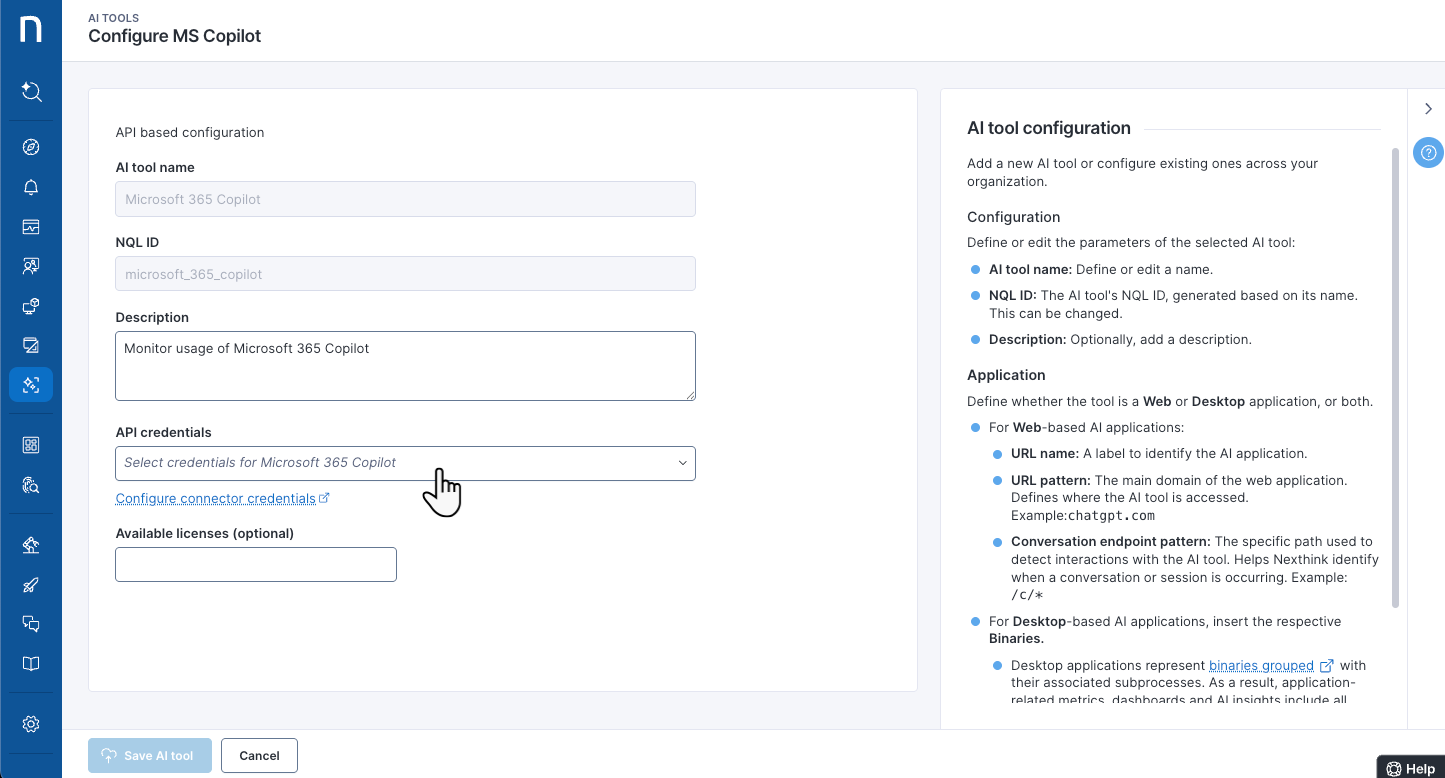
After setting up the [Entra ID connector](/platform/configuring_nexthink/bringing-data-into-your-nexthink-instance/integrating-nexthink-with-third-party-tools/inbound-connectors/connector-for-microsoft-entra-id-azure-ad.md) in Nexthink, follow these steps to configure Microsoft Copilot in **AI Tools**:
1. Navigate to **AI Tools** > **Manage AI tools** from the main navigation.
2. Click on the **Microsoft Copilot** hyperlink listed in the table on the **Manage AI tools** page, or use the item's action menu to **Edit** Copilot settings.
3. From the AI tools configuration page, fill in the **Description** to provide AI tool details for internal use.
* For Microsoft Copilot, the **name** and **NQL ID** fields are predetermined—not editable.
4. From the **API credentials** dropdown, select the corresponding **connector credentials** you should preconfigure in Nexthink for Microsoft Copilot. Refer to [Setting up and managing AI Tools](/platform/user-guide/ai-tools/setting-up-and-managing-ai-tools.md#configure-connector-credentials).
5. Add available **Licenses** for Microsoft Copilot, if available.
6. **Save AI tool** configuration.
Only valid connector credentials enable saving the Microsoft Copilot settings in AI tools. Otherwise, Nexthink displays the existing errors:
{% hint style="danger" %}
*Please correct the following Issues:*
* *Credential error: Invalid client id.*
{% endhint %}
## F.A.Q about Microsoft Copilot data retrieval Why is the Copilot dashboard not showing any data, even after successful credential configuration?
The Microsoft notification system is not sending the `validationTokens` property in the subscription notifications. Without these tokens, Nexthink cannot securily verify and ingest incoming events—resulting in an empty Copilot dashboard in Nexthink AI Tools.
**Root cause**
The `appRoleAssignmentRequired` is likely set to `true` In the Azure registered application used to configure the Copilot connector credential.
When this setting is active—`appAssignmentsRequired=true`—Microsoft omits the `validationTokens` property from subscription notifications, preventing Nexthink from validating the events.
**How to fix it**
**Option 1—recommended: Disable** `appRoleAssignmentRequired`
1. Sign in to the Azure portal.
2. Navigate to **Azure Active Directory > Enterprise Applications**.
3. Select the application used for the Copilot connector.
4. Go to **Manage > Properties**.
5. Set **Assignment required** to **No**.
This ensures Microsoft includes the `validationTokens` in subscription notifications, enabling Nexthink to securely verify and process the data.
***
**Option 2: Assign an App Role**
If disabling `appRoleAssignmentRequired` is not possible due to internal policy:
1. Follow Microsoft guidance to manually assign users or service principals to the Azure application.
2. Ensure all relevant users or systems are assigned roles in the **Enterprise Application**.
Microsoft then includes the `validationTokens` in the push notifications.
{% hint style="info" %}
If you continue to experience issues after applying these changes, please contact Nexthink support.
{% endhint %}
Do I always need the connector for Microsoft Entra ID to retrieve Copilot-employee interaction data?
Yes, the [connector for Microsoft Entra ID](/platform/configuring_nexthink/bringing-data-into-your-nexthink-instance/integrating-nexthink-with-third-party-tools/inbound-connectors/connector-for-microsoft-entra-id-azure-ad.md) is needed to correctly retrieve AI interaction data from Microsoft Copilot.
How can I verify that I have properly configured the subscription?
When saving the [Microsoft Copilot settings ](#exception-configuring-microsoft-365-copilot-using-api-credentials)in Nexthink **AI tools** for monitoring, the system automatically checks the connector credentials.
Only valid credentials enable saving the Microsoft Copilot settings in AI tools. Otherwise, Nexthink displays the existing errors.
How often is the Copilot AI interaction data refreshed? Is it instant?
The current mechanism uses a subscription to receive the data from Graph API. Every time an AI interaction happens, the system pushes the interaction details to the Nexthink platform.
The process is not instant, as the data typically arrives less than 1 minute after the interaction happens, but [Microsoft Graph API](https://learn.microsoft.com/en-us/graph/change-notifications-overview#latency) has a maximum latency of 60 minutes for AI interactions.
What Microsoft Graph API permissions does Nexthink require for monitoring Copilot?
Monitoring Copilot requires `AiEnterpriseInteraction.Read.All` permission to enable the collection of Copilot-interaction data.
Unfortunately, the current Microsoft Graph API endpoint `copilot/interactionHistory/getAllEnterpriseInteractions` only supports the aforementioned permission. This means you cannot have more granular or restrictive permissions.
What information does Nexthink process from the Copilot API response?
Currently, the Copilot API does not allow the selection or filtering of specific payload elements and instead returns additional information that Nexthink does not require for functionality.
Therefore, Nexthink processes only the necessary high-level metrics and neither accesses nor stores the remainder of the payload. As a result, this additional information is discarded.
Nexthink exclusively accesses the following fields.
* `appClass`
* `conversationType`
* `createdDateTime`
* `from`
* `interactionType`
* `requestId`
* `sessionId`
Refer to [Microsoft Copilot API](https://learn.microsoft.com/en-us/microsoft-365-copilot/extensibility/api/ai-services/interaction-export/resources/aiinteraction?pivots=graph-v1) documentation for field descriptions and details.
{% hint style="warning" %}
Nexthink neither accesses nor stores the remainder of the payload.
{% endhint %}
---
# Agent Instructions
This documentation is published with GitBook. GitBook is the documentation platform designed so that both humans and AI agents can read, navigate, and reason over technical content effectively. Learn more at gitbook.com.
## Querying This Documentation
If you need additional information that is not directly available in this page, you can query the documentation dynamically by asking a question.
Perform an HTTP GET request on the current page URL with the `ask` query parameter, and the optional `goal` query parameter:
```
GET https://docs.nexthink.com/platform/user-guide/ai-tools/setting-up-and-managing-ai-tools/configuring-ai-tools/configuring-microsoft-copilot-using-api-credentials.md?ask=&goal=
```
`ask` is the immediate question: it should be specific, self-contained, and written in natural language.
`goal` is optional and describes the broader end goal you are ultimately trying to accomplish on behalf of the user. GitBook uses it to tailor the answer towards what is most useful for that goal.
The response will contain a direct answer to the question and relevant excerpts and sources from the documentation.
Use this mechanism when the answer is not explicitly present in the current page, you need clarification or additional context, or you want to retrieve related documentation sections.