> For the complete documentation index, see [llms.txt](https://docs.nexthink.com/llms.txt). Markdown versions of documentation pages are available by appending `.md` to page URLs; this page is available as [Markdown](https://docs.nexthink.com/user-guide/ai-tools/setting-up-and-managing-ai-tools/configuring-ai-tools.md).
# Configuring AI tools
Define which AI tool requires monitoring for your organization for accurate visibility, labeling, and categorization of AI usage. Involve application and security stakeholders early to help streamline adoption and visibility of your AI portfolio.
## Choosing AI tools to configure in Nexthink
{% hint style="info" %}
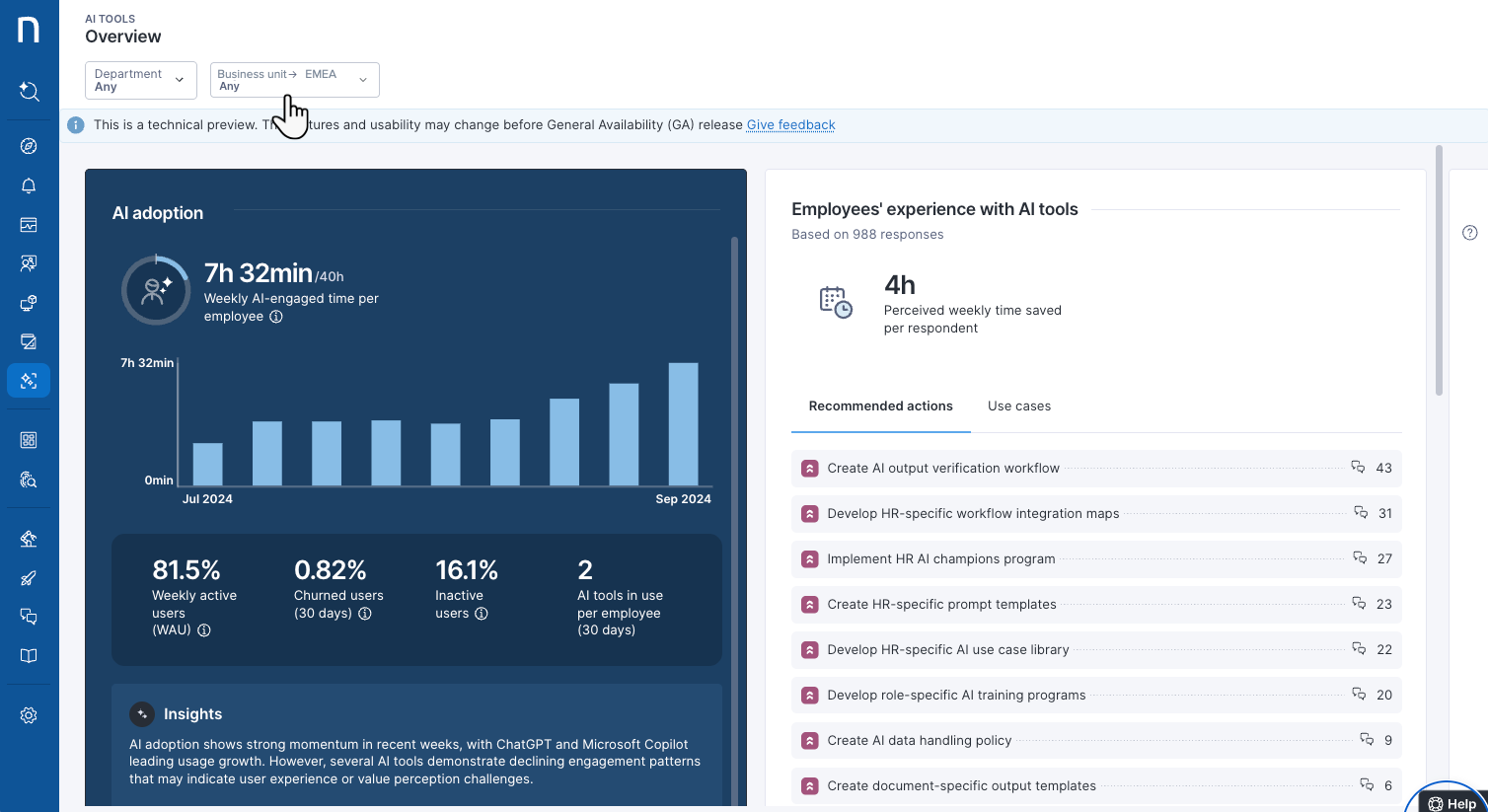
The system automatically monitors preconfigured AI tools out of the box—such as ChatGPT—through traffic pattern recognition, endpoint activity, and employee feedback.
You can manually configure more AI tools for monitoring in Nexthink.
{% endhint %}
{% stepper %}
{% step %}
Identify AI tools available for configuration in Nexthink:
* Review telemetry or traffic data from the Nexthink Collector or your network security stack.
* Consult your SSO provider or identity management platform to list active AI services.
* Interview product owners to understand user segments and associated risks.
{% endstep %}
{% step %}
Prioritize the tools that require configuration by evaluating:
* Widely used GenAI tools like ChatGPT, Microsoft Copilot, Gemini, or Claude.
* Internal or custom AI agents, such as virtual assistants or chatbots developed for specific business functions.
* AI applications embedded in productivity or communication platforms such as Copilot in Outlook or MS Teams.
* Tools with rising adoption but uncertain compliance or business value.
{% endstep %}
{% endstepper %}
{% hint style="warning" %}
Nexthink AI Tools collects user-license data for Microsoft Copilot by default, even if you do not configure Microsoft Copilot in AI tools. Refer to the [Configuring Microsoft Copilot using API credentials](/user-guide/ai-tools/setting-up-and-managing-ai-tools/configuring-ai-tools/configuring-microsoft-copilot-using-api-credentials.md#configuring-the-tool-in-the-nexthink-web-interface) for more information.
{% endhint %}
## Configuring AI tools for Nexthink monitoring
To configure a new AI tool:
1. Navigate to **AI Tools** > **Manage AI tools** from the main navigation.
2. Click the **New AI Tool** button on the top-right corner (or select an existing tool from the table to edit).
{% hint style="info" %}
To access and edit the configuration of existing AI tools, click on the AI tool hyperlink located in the table on the **Manage AI tools** page. Then, continue to follow the steps listed below.
{% endhint %}
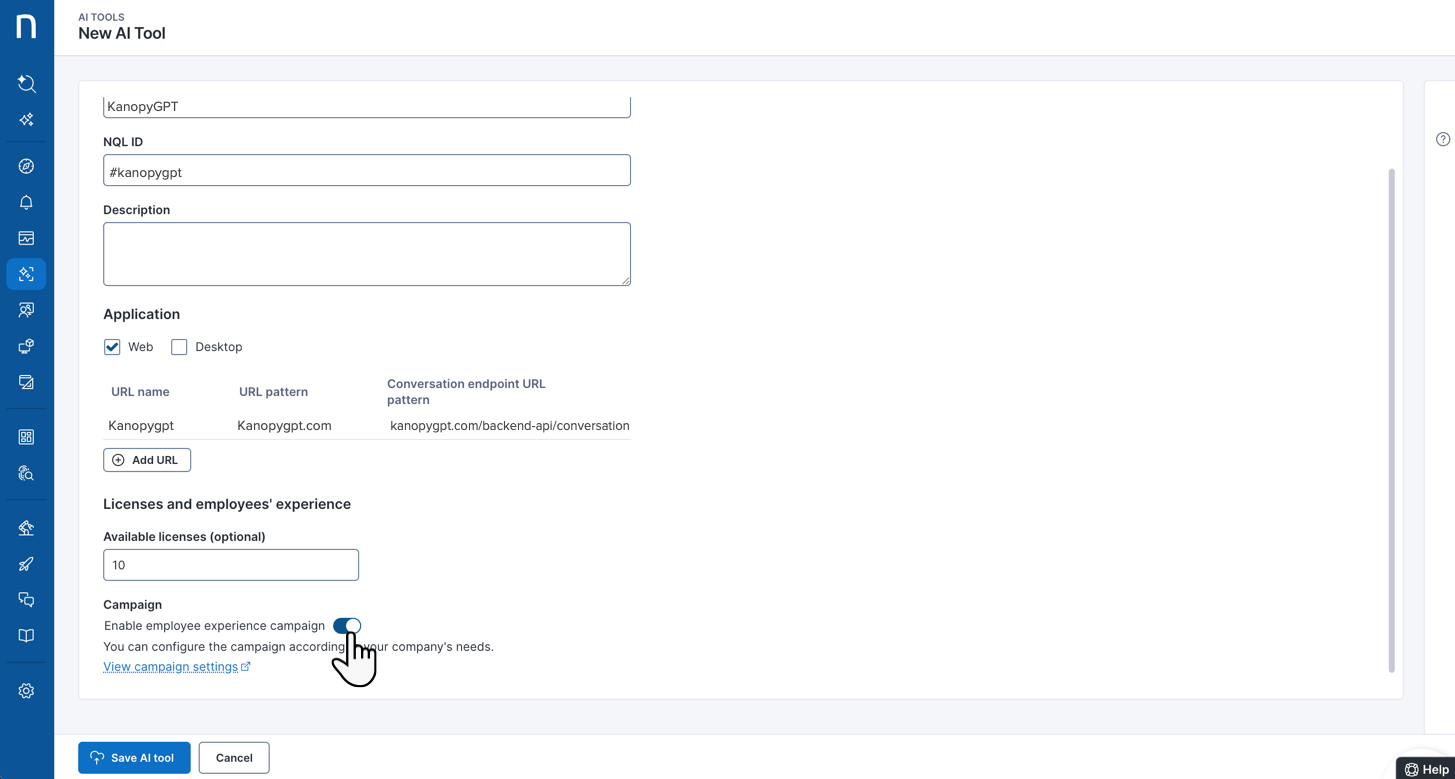
3. From the AI Tools configuration page, fill in the fields:
* An **AI tool name,** such as **KanopyGPT.**
* The system automatically generates **NQL ID** of the AI tool based on the name. In this case: `#kanopygpt`
* **Description** to provide AI tool details for internal use.
4. Choose one or both **Application** types: **Web** or **Desktop.**
* For **Web** AI applications, **Add URL**:
* **URL Name** is a free-text label to identify the configuration. Example: `KanopyGPT`
* **URL pattern** is the main domain of the web application. Defines where the AI tool is accessed. Example: `kanopygpt.com`
* **Conversation endpoint URL pattern** is the specific path used to detect interactions with the AI tool. Nexthink supports these formats:
* A fully qualified URL such as `kanopygpt.com/backend-api/conversation`
* A pattern such as `backend-api/conversation`.
{% hint style="info" %}
You can add up to 5 **conversation endpoints** for the same web AI application.
Refer to the [#determining-the-conversation-endpoint-url-pattern-using-your-browser](#determining-the-conversation-endpoint-url-pattern-using-your-browser "mention") section below.
{% endhint %}
* For **Desktop** AI applications define their respective **Binaries.** You can add up to 5 binaries for the same desktop AI application.
* Desktop applications represent [binaries grouped](https://docs.nexthink.com/platform/references/database-information-and-organization/binary-grouping/) with their associated subprocesses. As a result, application-related metrics, dashboards and AI insights include all subprocesses.
* The system estimates **AI usage** on **Desktop**-type applications using the `focus_time` field from the `execution.events` table in the NQL data model.
* If the `focus_time` opt-in field is not enabled, Nexthink cannot monitor user interactions with AI tools on **Desktop** applications.
5. Optionally, you can assign a **Governance policy** to define how Nexthink handles specific AI-tool usage detected in your environment.
* To select the corresponding policy, refer to [Governing AI tools](/user-guide/ai-tools/governing-ai-tools.md#choose-an-ai-governance-policy-for-the-ai-tool).
* Governance configuration options are visible and available for user roles with [governance permissions](/user-guide/ai-tools/setting-up-and-managing-ai-tools.md#enable-permissions-for-ai-tools-governance).
6. Add **Licenses** for the AI tool, if available.
7. **Enable employee experience campaign** to monitor employee perception of the specific AI tool from the dedicated dashboard.
* If needed, you can [modify campaign settings for AI tools](/user-guide/ai-tools/setting-up-and-managing-ai-tools/managing-ai-tools.md#configuring-campaign-setups-for-ai-tools) to exclude specific users from campaigns or disable the campaign entirely.
* Once activated, allow up to seven days for the campaign data to appear in the AI tool dashboard.
* If you disable a campaign, no new employees are targeted. However, employees who had already been targeted continue to receive the campaign until they respond, cancel, or the campaign expires.
8. **Save AI tool** configuration.
Determining the Conversation endpoint URL pattern using your browser
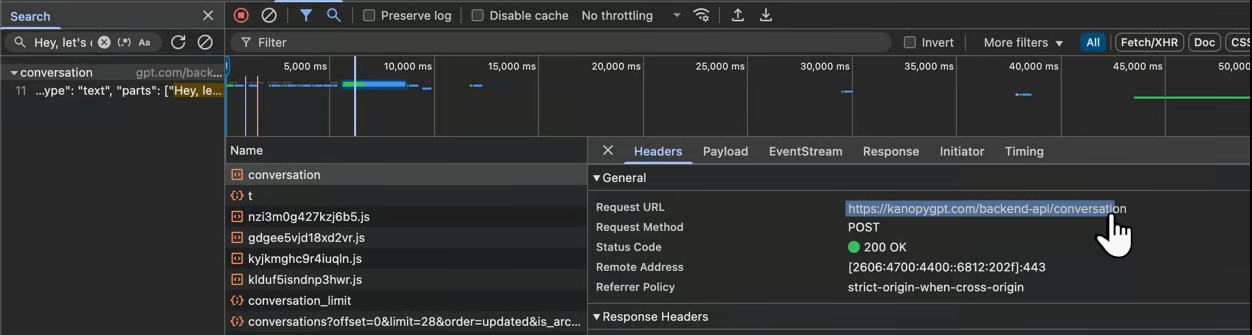
When configuring AI tools, follow these steps to discover and determine the **Conversation Endpoint pattern.**
You can extract either a path (pattern) or a fully qualified URL.
From your browser:
1. Open your AI tool web application.
2. Navigate to the webpage to chat with the AI Tool.
* Nexthink recommends opening a new conversation with no chat history.
3. Open the **developer tools** in your browser by pressing F12 or by right-clicking to **Inspect,** depending on the case.
4. Click and open the **Network** tab.
5. Use the newly opened chat to send an easily identifiable message to the AI tool: *Hey, let’s chat.*
* Copy the sent message to your clipboard.
6. Click again on the **Network** tab to search the sent message—in this case, *Hey, let’s chat.*—by pressing **ctrl+F** or **command+F**, depending on your OS.
7. Click on the found result and open the **Headers** subtab within the **Network** tab.
8. Find the **Request URL** field to copy/extract the **Conversation endpoint** required to configure the AI tool in Nexthink. Nexthink supports these two formats:
* A fully qualified URL such as `kanopygpt.com/backend-api/conversation`
* A pattern such as `backend-api/conversation`
Choose the format that best fits your configuration. See the image below.
{% hint style="info" %}
You can add up to 5 conversation endpoints for the same web AI application in Nexthink.
{% endhint %}
{% hint style="info" %}
To learn about the AI Tools campaign content, deployment conditions and interpretation, refer to [Monitoring AI Tools](/user-guide/ai-tools/working-with-ai-tools.md#built-in-campaign-content-for-sentiment-tracking).
{% endhint %}
## Notifying employees of the campaign
Before activating the campaign, notify employees about the upcoming AI sentiment survey to set expectations, improve participation rates, and reinforce transparency.
Email template to announce the campaign to your employees
**Subject:** Improving your AI Experiences
**Body:**
To improve your AI experience, we're launching a short, three-question feedback prompt to understand how AI tools are helping you do your work. If you used an organization-approved AI tool, you may see a brief on-screen prompt asking for quick feedback.
**What to expect**
* **When:** only after you use the relevant AI tool, and only if you've used it in the past week.
* **How long:** 3 questions—about 30 seconds total.
* **Purpose:** to identify what's working, where to improve, and how we can better support your workflows.
Thank you for helping us improve the AI tools that support your work. If you have questions, contact \[contact information].
Best,
\[Name]
\[Team or role]
\[Contact info]
***
RELATED TASKS
* [Configuring Microsoft Copilot using API credentials](/user-guide/ai-tools/setting-up-and-managing-ai-tools/configuring-ai-tools/configuring-microsoft-copilot-using-api-credentials.md)
* [Modifying campaign setups for AI tools](/user-guide/ai-tools/setting-up-and-managing-ai-tools/modifying-campaign-setups-for-ai-tools.md)
* [Managing AI tools](/user-guide/ai-tools/setting-up-and-managing-ai-tools/managing-ai-tools.md)
---
# Agent Instructions
This documentation is published with GitBook. GitBook is the documentation platform designed so that both humans and AI agents can read, navigate, and reason over technical content effectively. Learn more at gitbook.com.
## Querying This Documentation
If you need additional information that is not directly available in this page, you can query the documentation by asking a question.
Perform an HTTP GET request on the following URL with the `ask` and `goal` query parameters:
```
GET https://docs.nexthink.com/user-guide/ai-tools/setting-up-and-managing-ai-tools/configuring-ai-tools.md?ask=&goal=
```
`ask` is the immediate question: it should be specific, self-contained, and written in natural language.
`goal` is what the user is ultimately trying to achieve, the reason they need the answer. Sharing it helps GitBook give you a better, more relevant answer. A goal is most helpful when it describes the outcome the user wants rather than restating the question. For example, with `ask=how do I create an API token`, a goal like `automate deployments from our CI pipeline` lets GitBook tailor the answer to that use case.
The response will contain a direct answer to the question and relevant excerpts and sources from the documentation.
Use this mechanism when the answer is not explicitly present in the current page, you need clarification or additional context, or you want to retrieve related documentation sections.