> For the complete documentation index, see [llms.txt](https://docs.nexthink.com/platform/llms.txt). Markdown versions of documentation pages are available by appending `.md` to page URLs; this page is available as [Markdown](https://docs.nexthink.com/platform/library-packs/vdi/omnissa/omnissa-horizon-on-premises-essentials/usage-guide-omnissa-horizon-on-premises-essentials.md).
# Usage guide: Omnissa Horizon on-premises essentials
{% hint style="warning" %}
This page outlines various ways to use the pack, including use case examples.
Administrators can refer to the [Configuration guide: Omnissa Horizon essentials](/platform/library-packs/vdi/omnissa/omnissa-horizon-on-premises-essentials/configuration-guide-omnissa-horizon-on-premises-essentials.md) to set up and customize the installed content.
{% endhint %}
The **Omnissa Horizon essentials** library pack enables IT administrators to:
* Monitor the health and status of **Omnissa Horizon virtual machines** in real time.
* Monitor the virtual machines with high uptime, which require a reboot.
* Identify virtual machines with poor performance affecting the end user experience.
This pack equips IT teams to detect and address Omnissa Horizon performance or availability issues before users are impacted.
## Library pack uses
{% hint style="info" %}
Jump to [Use cases](#use-cases) on this page to see relevant scenario applications.
{% endhint %}
### Virtual machine monitoring
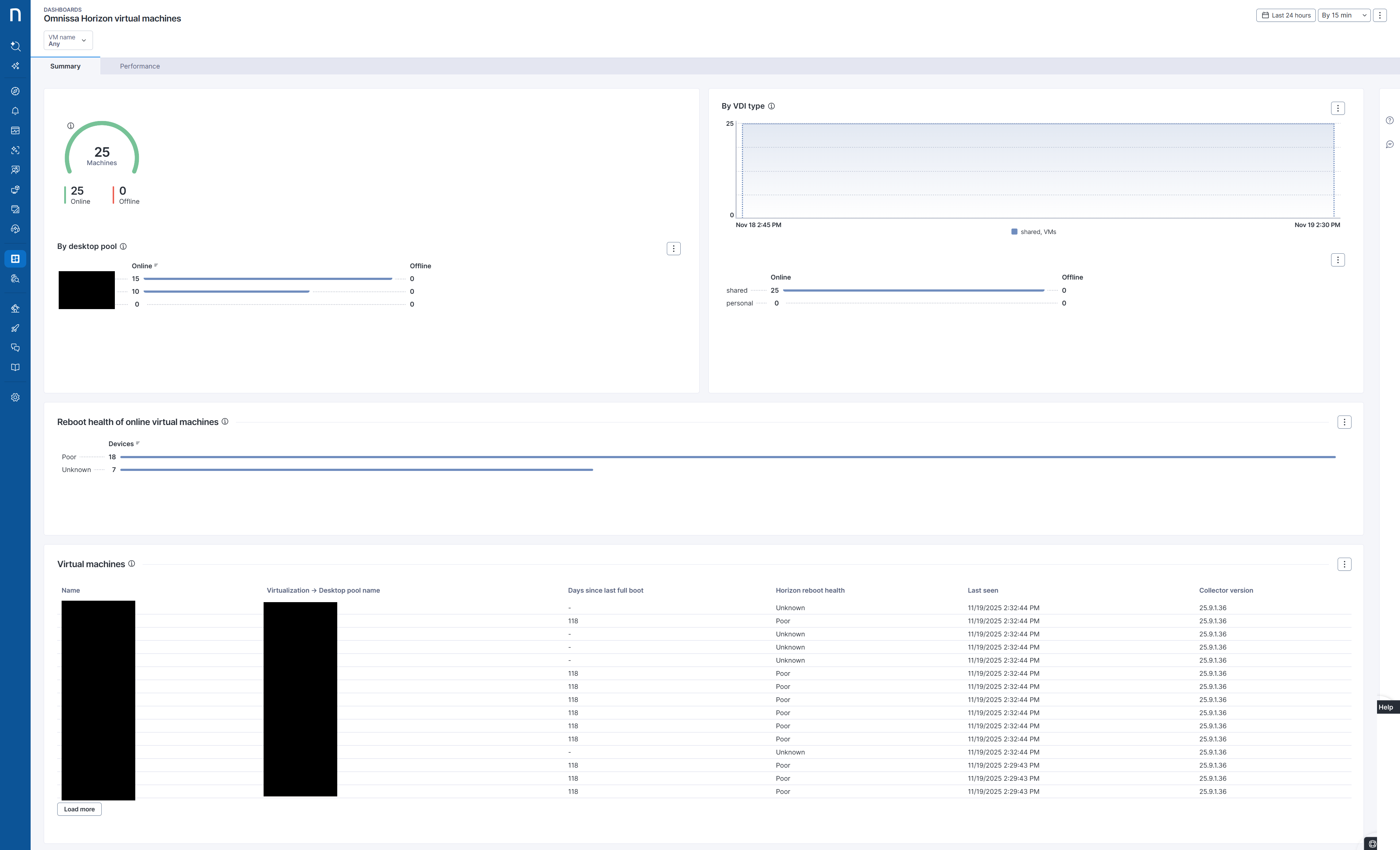
The Omnissa Horizon virtual machine monitoring dashboard acts as the starting point of this library pack. It provides a dedicated environment for managing the online/offline VM distribution, reboot health tracking, and registration insights into Omnissa Horizon machines.
#### Visibility into online/offline VM distribution
With the Summary tab on the provided Omnissa Horizon virtual machine monitoring dashboard, you can quickly determine the online/offline status of your VMs, with breakdowns by desktop pool and VDI type.
#### Virtual machine performance overview
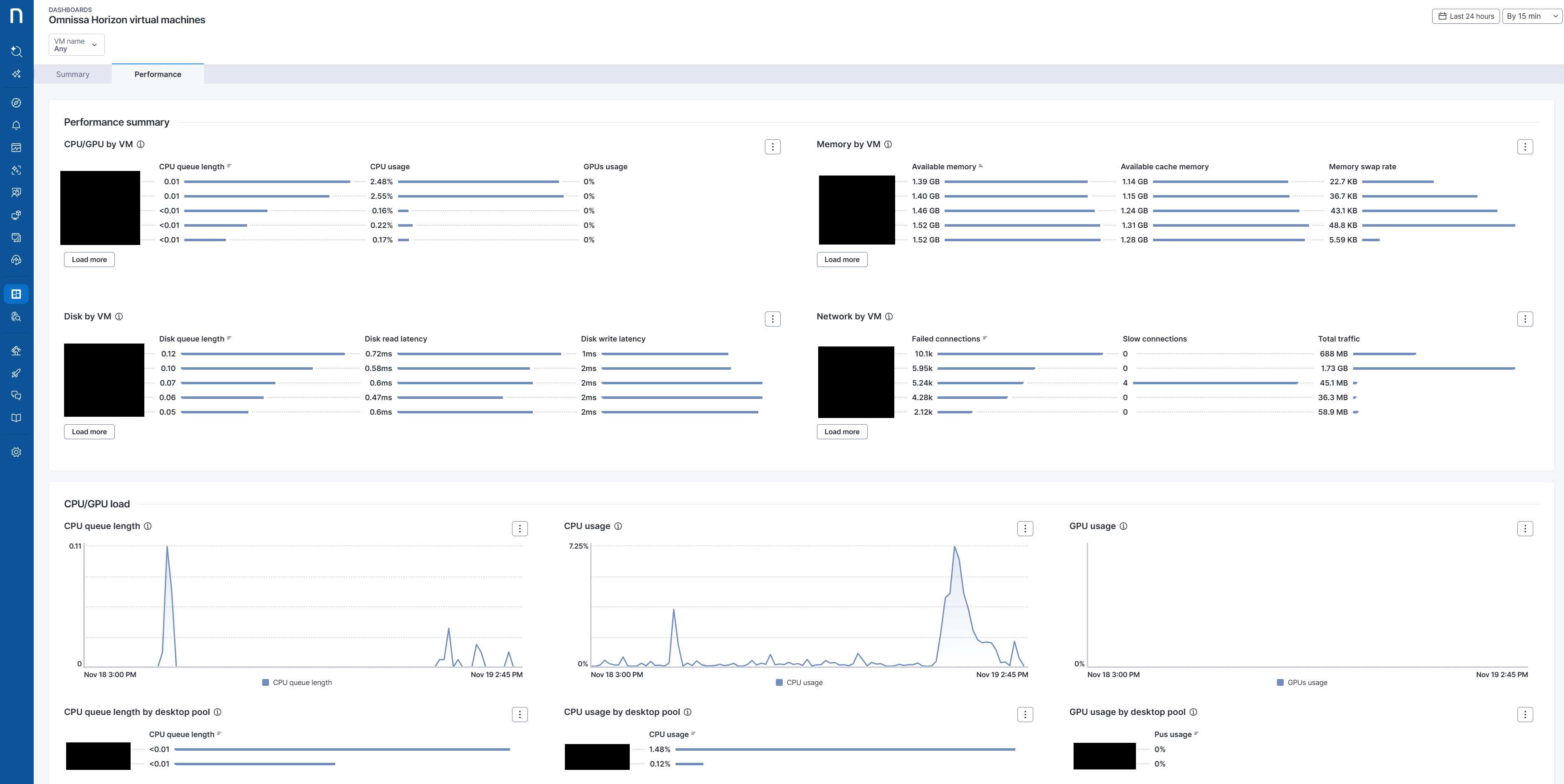
The Performance Overview tab on the Omnissa Horizon virtual machine monitoring dashboard focuses on hardware load and resource utilization across your virtual desktop session hosts. It helps you identify infrastructure bottlenecks before they affect the end-user experience.
The tab's telemetry is organized into four health groups:
* **CPU/GPU:** Normalized CPU queue length, overall CPU usage, and GPU utilization for graphics-intensive pools.
* **Memory:** Available memory, available cache, and swap activity to reveal pressure and paging.
* **Storage:** Disk queue length and read/write latencies to surface storage contention.
* **Network:** Failed connections, slow connection establishment, and total traffic to highlight connectivity and saturation patterns.
## Use cases
In addition to the relevant use cases covered below, you may uncover other troubleshooting scenarios specific to your environment.
### Investigate devices with poor reboot health
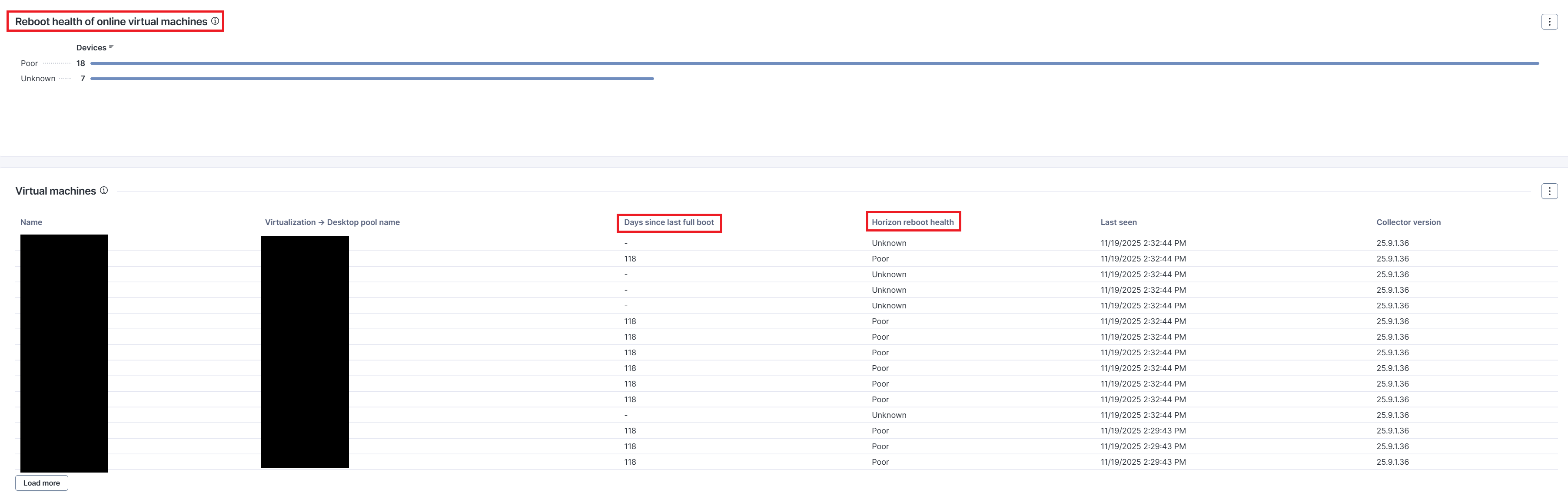
The reboot health of a VM is determined by the custom field "Horizon reboot health" included with this pack. The parameters for 'good, average, and poor' are configurable. This information is summarized in the dashboard with a dedicated bar chart, showing the number of devices in each category. This allows you to drill down to any devices that have not rebooted for a long period, which may require further investigation.
### Identify the virtual machines with the worst performance
The Performance summary section on the Performance tab is designed to facilitate the swift identification of virtual machines having performance issues in the following areas:
* The performance of the CPU/GPU
* Memory
* Disk
* Network
After identifying the relevant VMs, VDI admins can focus on these virtual machines using a combination of a filter by VM name and detailed performance widgets on the same tab. It is possible to correlate performance issues with desktop pools using the same tab for the breakdown. Additionally, the Open device view feature allows you to access a comprehensive, detailed overview of each affected VM.
***
RELATED TOPICS
* [Omnissa Horizon essentials](/platform/library-packs/vdi/omnissa/omnissa-horizon-on-premises-essentials.md)
* [Configuration guide: Omnissa Horizon essentials](/platform/library-packs/vdi/omnissa/omnissa-horizon-on-premises-essentials/configuration-guide-omnissa-horizon-on-premises-essentials.md)
---
# Agent Instructions
This documentation is published with GitBook. GitBook is the documentation platform designed so that both humans and AI agents can read, navigate, and reason over technical content effectively. Learn more at gitbook.com.
## Querying This Documentation
If you need additional information that is not directly available in this page, you can query the documentation dynamically by asking a question.
Perform an HTTP GET request on the current page URL with the `ask` query parameter, and the optional `goal` query parameter:
```
GET https://docs.nexthink.com/platform/library-packs/vdi/omnissa/omnissa-horizon-on-premises-essentials/usage-guide-omnissa-horizon-on-premises-essentials.md?ask=&goal=
```
`ask` is the immediate question: it should be specific, self-contained, and written in natural language.
`goal` is optional and describes the broader end goal you are ultimately trying to accomplish on behalf of the user. GitBook uses it to tailor the answer towards what is most useful for that goal.
The response will contain a direct answer to the question and relevant excerpts and sources from the documentation.
Use this mechanism when the answer is not explicitly present in the current page, you need clarification or additional context, or you want to retrieve related documentation sections.