> For the complete documentation index, see [llms.txt](https://docs.nexthink.com/platform/llms.txt). Markdown versions of documentation pages are available by appending `.md` to page URLs; this page is available as [Markdown](https://docs.nexthink.com/platform/ja/user-guide/remote-actions/setting-up-and-managing-remote-actions/managing-remote-actions.md).
# リモートアクションを管理する
リモートアクション管理ページでは、リモートアクションの表示、作成、編集ができます。
## リモートアクション管理ページへのアクセス
リモートアクション管理ページにアクセスするには:
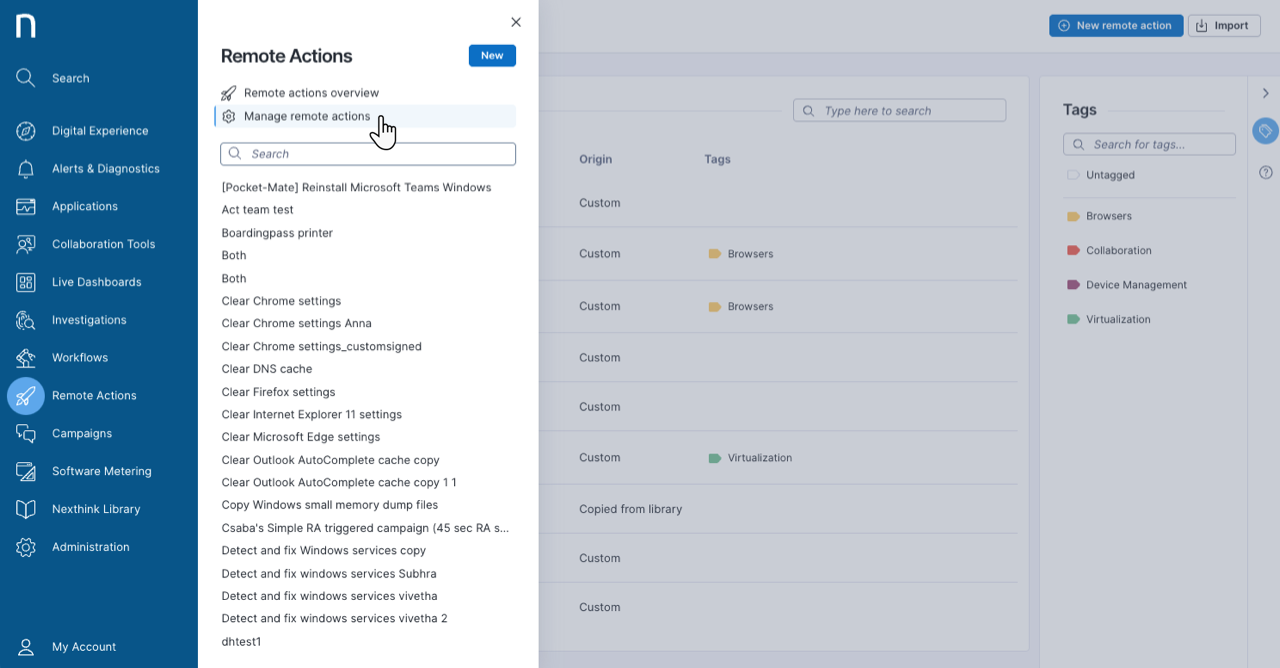
1. メインメニューから **Remote Actions** を選択します。
2. ナビゲーションパネルで **Manage remote actions** をクリックします。
## リモートアクション一覧について
**Remote Actions Administration** ページでは、利用可能なすべてのリモートアクションが次の項目別に整理されて表示されます:
* **Name**: リモートアクションの名前。
* **Origin**: リモートアクションの生成元を示します:
* **Custom**: Remote Actions モジュール内で作成されたリモートアクション。
* **ライブラリからインストール**: Nexthink Library モジュールからインストールされたリモートアクションです。次のフィールドを構成できます:
* 説明
* トリガー
* 入力パラメーターの説明
* 入力パラメーターの値
* 出力パラメーターの説明
* カスタム値
* スケジュールタブ内のすべてのフィールド リモートアクションのインストール方法については、[Nexthink Library](/platform/ja/user-guide/nexthink-library.md) ドキュメントを参照してください。
* **ライブラリからコピー**: Nexthink Library モジュールからコピーされたリモートアクションです。コピーしたリモートアクションは、必要に応じて完全に編集できます。リモートアクションのコピーの作成方法については、[Nexthink Library](/platform/ja/user-guide/nexthink-library.md) ドキュメントを参照してください。
* **タグ**: 各リモートアクションに割り当てられたタグの一覧を表示します。
* **プラットフォーム**: リモートアクションが設計されたプラットフォームです。
* **トリガー**: リモートアクションを構成するために使用されるトリガー方法(以下のオプション)です:
* **手動**: Web インターフェイスから、例として調査やデバイスビューを通じて、リモートアクションを手動でトリガーします。
* **API**: 選択したデバイスで API を介して実行をトリガーします。
* **ワークフロー**: ワークフローから実行をトリガーします。
* **スケジュール**: NQL クエリを使用して、スケジュールされた時刻に定期的に実行をトリガーします。
* **Spark**: Sparkによるリモートアクションの実行を許可します。詳細については、[Sparkアクションの管理](/platform/ja/user-guide/spark/setting-up-and-managing-spark/managing-agent-actions.md)ドキュメントを参照してください。
表の右上にある検索ボックスを使用して、名前で特定のリモートアクションを検索できます。
カスタムリモートアクションの作成およびライブラリのリモートアクションの設定について詳しくは、[リモートアクションの作成と設定](/platform/ja/user-guide/remote-actions/setting-up-and-managing-remote-actions/creating-remote-actions.md)ドキュメントを参照してください。
## リモートアクションリストのフィルタリング
リストの上部にあるフィルターを使用して、作業対象のリモートアクションに絞り込みます。フィルター条件:
* **作成元**: リモートアクションの作成方法。
* **タグ**: リモートアクションに割り当てられたタグ。
* **プラットフォーム**: リモートアクションがサポートするプラットフォーム。
* **トリガー**: リモートアクションの設定に使用されるトリガー方法。
詳細については、[フィルタリング機能](/platform/ja/getting-started/navigating-the-web-interface.md#navigatingthewebinterface-filteringcapabilities)を参照してください。
## リモートアクションのアクションメニューの使用
該当するリモートアクションを選択し、表の右側にあるアクションメニューをクリックすると、次のオプションが表示されます:
* **実行:** リモートアクションを実行します。
* **詳細**: 実行の詳細ページを開きます。
* **設定**: ライブラリのリモートアクションの設定を変更します。
* **編集**: 選択したリモートアクションを編集します。
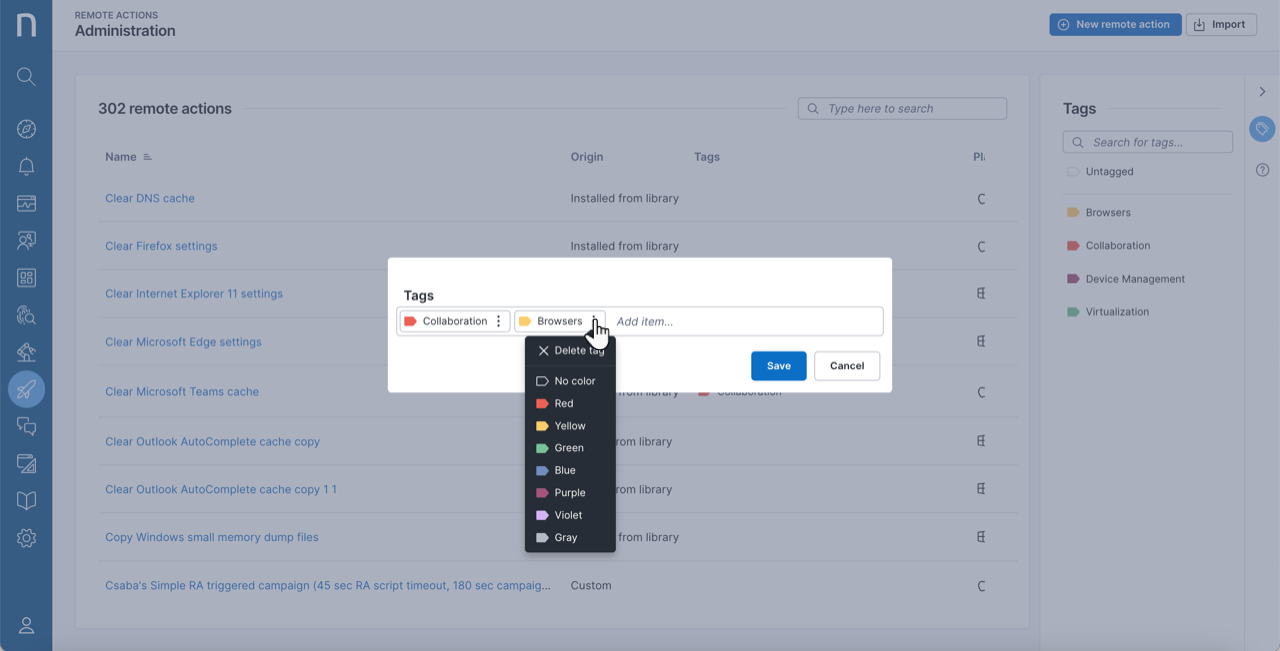
* **タグを管理**: [リモートアクションのタグ](#managingremoteactions-creatingandassigningtags)を作成、割り当て、編集します。
* **共有**: 他のユーザーにリモートアクションの表示または編集の権限を付与します。[リモートアクションの共有](#managingremoteactions-sharingaremoteaction)セクションを参照してください。
* **NQL ID をコピー**: API で使用するリモートアクションの NQL ID をコピーします。
* **エクスポート:** リモートアクションを JSON ファイルにエクスポートします。
* **削除**: システムからリモートアクションを削除します。
### [リモートアクションの管理]ページからリモートアクションを実行する
**リモートアクション**管理ページからリモートアクションを直接実行するには:
1. **リモートアクション** > **リモートアクションの管理**で、実行するリモートアクションにカーソルを合わせてアクションメニューを表示します。
2. **実行**を選択します。**アクションの実行**ウィンドウが開き、次の情報が表示されます:
1. **名前:** リモートアクションの名前。
2. **説明:** リモートアクションの簡単な説明。
3. **プラットフォーム:** リモートアクションがサポートするプラットフォーム(例: Windows、macOS)。
4. **デバイス名:** 対象デバイスを選択するための検索可能なドロップダウンフィールド。
3. **デバイス名**フィールドで、対象デバイスを検索して選択します。
4. **実行**をクリックして、選択したデバイスでリモートアクションを実行します。
{% hint style="info" %}
トリガータイプが**手動**のリモートアクションのみ、**リモートアクションの管理**ページから実行できます。
{% endhint %}
リクエストを送信すると、成功メッセージを含む**実行リクエスト**ウィンドウが表示されます。このウィンドウから、**Investigations**モジュールに直接移動して結果を確認できます。
### リモートアクションのタグ付け
タグ付けにより、リモートアクションを効率的に整理し、データ内をすばやく簡単に移動できます。
右側の**タグ**パネルを開くと、次のことができます:
* パネル上部で特定のタグを検索します。
* 1つ以上のタグを選択して、リモートアクションの表をフィルタリングします。
**リモートアクション > リモートアクションの管理**ページから、モニターに1つ以上のタグを追加するには:
1. リモートアクションにカーソルを合わせてアクションメニューを表示し、**タグを管理**を選択します。
2. **タグを管理**ポップアップから、次のことができます:
* 新しいタグを入力するか、既存のタグを選択してリモートアクションに追加します。
* 特定のタグ項目のアクションメニューを開き、**タグを削除**するか、タグの色を変更します。
* タグを削除しても、関連付けられているリモートアクションからのみ削除されます。
3. または、複数のリモートアクションを選択して、一括で**タグを管理**できます。
{% hint style="info" %}
リモートアクションには、最大**10**個のタグを関連付けることができます。
{% endhint %}
### リモートアクションの共有
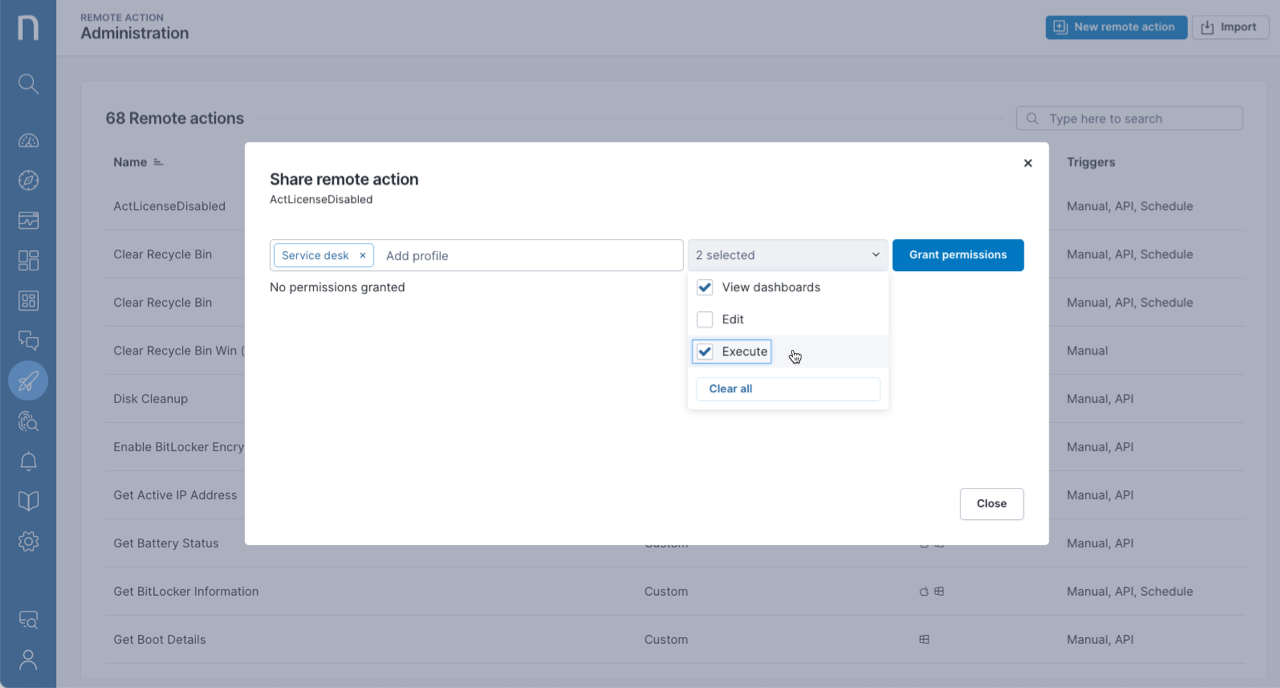
リモートアクションをプロファイルと共有し、ダッシュボードの表示、編集、またはリモートアクションの実行に適切な権限を付与します。たとえば、リモートアクションの実行およびそのダッシュボードの表示権限を持つ\_Service desk\_プロファイルと、\_Get Battery Status\_リモートアクションを共有できます。**すべてのリモートアクションを管理**機能の権限が有効なユーザーのみ、**共有**オプションを表示できます。詳しくは、[リモートアクションの使用開始](/platform/ja/user-guide/remote-actions/setting-up-and-managing-remote-actions.md)ドキュメントを参照してください。
* リモートアクションにカーソルを合わせてアクションメニューを表示し、**共有**を選択します。[リモートアクションの共有]モーダルが開きます。
* **プロファイルを追加**テキストフィールドに、リモートアクションを共有するユーザープロファイルを入力します。
* **権限を選択**ドロップダウンメニューから、プロファイルに適切な権限を選択します。選択肢は次のとおりです:
* **ダッシュボードを表示**: ナビゲーションパネルおよび[概要]ページのリモートアクションの表から、リモートアクションのダッシュボードにアクセスします。
* **編集**: リモートアクションを編集します。
* **実行**: リモートアクションを実行します。
* **すべてクリア**をクリックして、すべての権限を無効にします。
* **権限を付与**ボタンをクリックして、リモートアクションを共有します。
## リモートアクションのインポート
ローカルデバイスからJSON形式のリモートアクションをインポートするには:
1. **リモートアクション > リモートアクションの管理**ページの右上隅にある**インポート**ボタンをクリックします。
2. ハードドライブから複数の JSON ファイルを**選択**または**ドラッグ**して、システムにインポートします。
* ローカルデバイスからインポートされたすべての項目は、カスタムとして一覧表示されます。
[Nexthink Library](/platform/ja/user-guide/nexthink-library.md)からリモートアクションをインポートするには:
* **インポート**ボタンの横にあるアクションメニューをクリックします。
* **Nexthink Library**を選択します。ダウンロード可能なリモートアクションがあるライブラリページにリダイレクトされます。
* ダウンロードしたファイルをインポートします。
## NQL を使用したリモートアクションのクエリ
詳しくは、[リモートアクションの NQL 機能](/platform/ja/user-guide/remote-actions/remote-actions-nql-examples.md)を参照してください。
---
# Agent Instructions
This documentation is published with GitBook. GitBook is the documentation platform designed so that both humans and AI agents can read, navigate, and reason over technical content effectively. Learn more at gitbook.com.
## Querying This Documentation
If you need additional information that is not directly available in this page, you can query the documentation by asking a question.
Perform an HTTP GET request on the following URL with the `ask` and `goal` query parameters:
```
GET https://docs.nexthink.com/platform/ja/user-guide/remote-actions/setting-up-and-managing-remote-actions/managing-remote-actions.md?ask=&goal=
```
`ask` is the immediate question: it should be specific, self-contained, and written in natural language.
`goal` is what the user is ultimately trying to achieve, the reason they need the answer. Sharing it helps GitBook give you a better, more relevant answer. A goal is most helpful when it describes the outcome the user wants rather than restating the question. For example, with `ask=how do I create an API token`, a goal like `automate deployments from our CI pipeline` lets GitBook tailor the answer to that use case.
The response will contain a direct answer to the question and relevant excerpts and sources from the documentation.
Use this mechanism when the answer is not explicitly present in the current page, you need clarification or additional context, or you want to retrieve related documentation sections.
zgiM.png?alt=media)
.png?alt=media)