> For the complete documentation index, see [llms.txt](https://docs.nexthink.com/platform/llms.txt). Markdown versions of documentation pages are available by appending `.md` to page URLs; this page is available as [Markdown](https://docs.nexthink.com/platform/ja/user-guide/experience-optimization-classic/rating-devices-and-users-with-scores-classic/documenting-scores-classic.md).
# スコアのドキュメント化(クラシック)
Experience Optimization の一部の機能は Finder(クラシック)とリンクしています。
{% hint style="info" %}
Nexthink Finder は Windows のみで動作するデスクトップアプリケーションですが、その機能は現在 Nexthink の web インターフェース内で利用可能です。 Nexthink はブラウザから直接使用でき、ほとんどの機能は追加のデスクトップアプリケーションを必要としなくなりました。
{% endhint %}
各コンポジットおよびリーフスコアは、その主な目的がユーザービューまたはデバイスビューのスコアタブに表示されたときにスコアの詳細なドキュメントを提供するための **Document** 要素を定義に含めることができます。
スコアのドキュメントにはオプションで以下を含めることができます:
* 他の HTTP リソースへのリンク。
* リモートアクションへのリンク(手動トリガーを許可する必要があります)。
この記事は、[XML 形式でスコアの定義を書く](/platform/ja/user-guide/experience-optimization-classic/rating-devices-and-users-with-scores-classic/score-xml-reference-classic.md)ことに精通していることを前提としており、特にスコアのドキュメント化に焦点を当てています。
## ドキュメント構造
**Document** 要素は、[コンポジットまたはリーフスコアの定義](/platform/ja/user-guide/experience-optimization-classic/rating-devices-and-users-with-scores-classic/score-xml-reference-classic.md#scorexmlreference-classic-compositeandleafscores)の最後に見つかることができるオプションの XML 要素です。
**Document** 要素の構造は次の通りです:
* A **Header**.
* **Section** のリスト。
```
[]...
...
```
\ ヘッダーとセクションのリストはオプションですが、スコアのドキュメントはこれらの要素に提供される内容の有用性に依存します。
## ドキュメントセクション
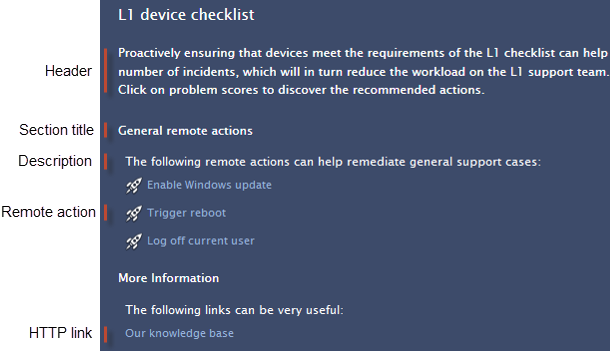
リストの各セクションには順にタイトル、説明文、HTTP リンク、リモートアクションへのリンクが含まれます。通常、各リンクやリンクのグループの前には、それらの目的を説明する文章を記述します。
```
[Title for the section][Text describing the contents]
...
```
\ 必要なだけ多くの説明、リモートアクション、および HTTP リンクをセクションに追加し、最も適した順序にします。
### HTTP リンクの追加
HTTP リンクを追加するには、**href** 属性に宛先 URL を提供し、オプションで URL の代わりに表示するテキストを指定します:
`[Text for the link]`
### リモートアクションへのリンクの追加
手動トリガーを許可するリモートアクションへのリンクを追加するには、リモートアクションのユニークな識別子 (UID) を提供します:
``
リモートアクションの UID を取得するには:
1. リモートアクションを編集する権限を持つユーザーとして Finder にログインします。
2. 左側のパネルの **Remote actions** セクションで希望のリモートアクションを探します。
3. リモートアクション名を右クリックします。
4. **Export > Remote action to clipboard** を選択します。
5. お気に入りの XML またはプレーンテキストエディタを開きます。
6. エディターでクリップボードの内容を貼り付けるには **Ctrl+V** を押します。
7. リモートアクションの XML 内の **Action** 要素の **UID** 属性を見つけます。
Finder はリモートアクションの名前をリンクのテキストとして使い、リンクの前にリモートアクションの特徴的なロケットアイコンを付けます。
リモートアクションをスコアのドキュメントに追加することは、デバイスに適用されるスコアに対してのみ意味があります。
## レンダリングの例
Finder はスコアのドキュメント要素を次のように表示します:
***
関連する参照資料
* [スコア XML 参照](/platform/ja/user-guide/experience-optimization-classic/rating-devices-and-users-with-scores-classic/score-xml-reference-classic.md)
---
# Agent Instructions
This documentation is published with GitBook. GitBook is the documentation platform designed so that both humans and AI agents can read, navigate, and reason over technical content effectively. Learn more at gitbook.com.
## Querying This Documentation
If you need additional information that is not directly available in this page, you can query the documentation dynamically by asking a question.
Perform an HTTP GET request on the current page URL with the `ask` query parameter, and the optional `goal` query parameter:
```
GET https://docs.nexthink.com/platform/ja/user-guide/experience-optimization-classic/rating-devices-and-users-with-scores-classic/documenting-scores-classic.md?ask=&goal=
```
`ask` is the immediate question: it should be specific, self-contained, and written in natural language.
`goal` is optional and describes the broader end goal you are ultimately trying to accomplish on behalf of the user. GitBook uses it to tailor the answer towards what is most useful for that goal.
The response will contain a direct answer to the question and relevant excerpts and sources from the documentation.
Use this mechanism when the answer is not explicitly present in the current page, you need clarification or additional context, or you want to retrieve related documentation sections.