> For the complete documentation index, see [llms.txt](https://docs.nexthink.com/platform/llms.txt). Markdown versions of documentation pages are available by appending `.md` to page URLs; this page is available as [Markdown](https://docs.nexthink.com/platform/ja/user-guide/collaboration-experience/getting-started-with-collaboration-experience/using-device-view-for-call-quality-issues.md).
# Device View でデバイスメトリクスと通話品質を相関させる
Device View で通話品質データにアクセスし、デバイスのアクティビティ、リソース消費、接続状況、他のアプリケーションの使用状況と相関付けます。
Device View のアクセス方法および使用方法の詳細については、[Device View](/platform/ja/user-guide/device-view.md) のドキュメントを参照してください。
## 通話関連の問題をトラブルシューティングするための Timeline タブの使用方法
Microsoft Teams および Zoom の通話を表示するには、Device View の **Timeline** タブ内にある **Collaboration** セクションを探します。通話セッションは青(良好)と赤(不良)で表示されます。
**タイムライン**上の Microsoft Teams および Zoom の通話は、通話セッションを表示し、低品質な通話の数を示します。**デバイスビュー**の **タイムライン** タブから通話品質の問題の根本原因を調査するには:
1. **コラボレーション** セクションを確認し、通話品質データとコラボレーションアプリケーションのアクティビティを比較します。アプリケーションは、**アプリケーション** モジュールでアプリケーション構成時に **コラボレーション** カテゴリが選択されている場合にのみ、このセクションに表示されます。
2. 通話セッションを、**接続性**の問題、**デバイスパフォーマンス**の低下、または **アプリケーション** の問題など、同時に発生している他のイベントと関連付けます。
3. タイムライン上の通話セッションをクリックすると、詳細パネルが開き、通話に関する追加情報を表示できます。詳細パネルから、次のトラブルシューティングビューにアクセスできます:
* **全参加者のこの通話品質をトラブルシュート**:**通話ビュー** ダッシュボードが開き、各参加者が経験した通話品質を分析し、セッション全体の品質に影響する要因を特定できます。詳細については、[Call View を使用した個々のセッション品質の分析](/platform/ja/user-guide/collaboration-experience/getting-started-with-collaboration-experience/using-the-call-view-dashboard.md)ドキュメンテーションを参照してください。
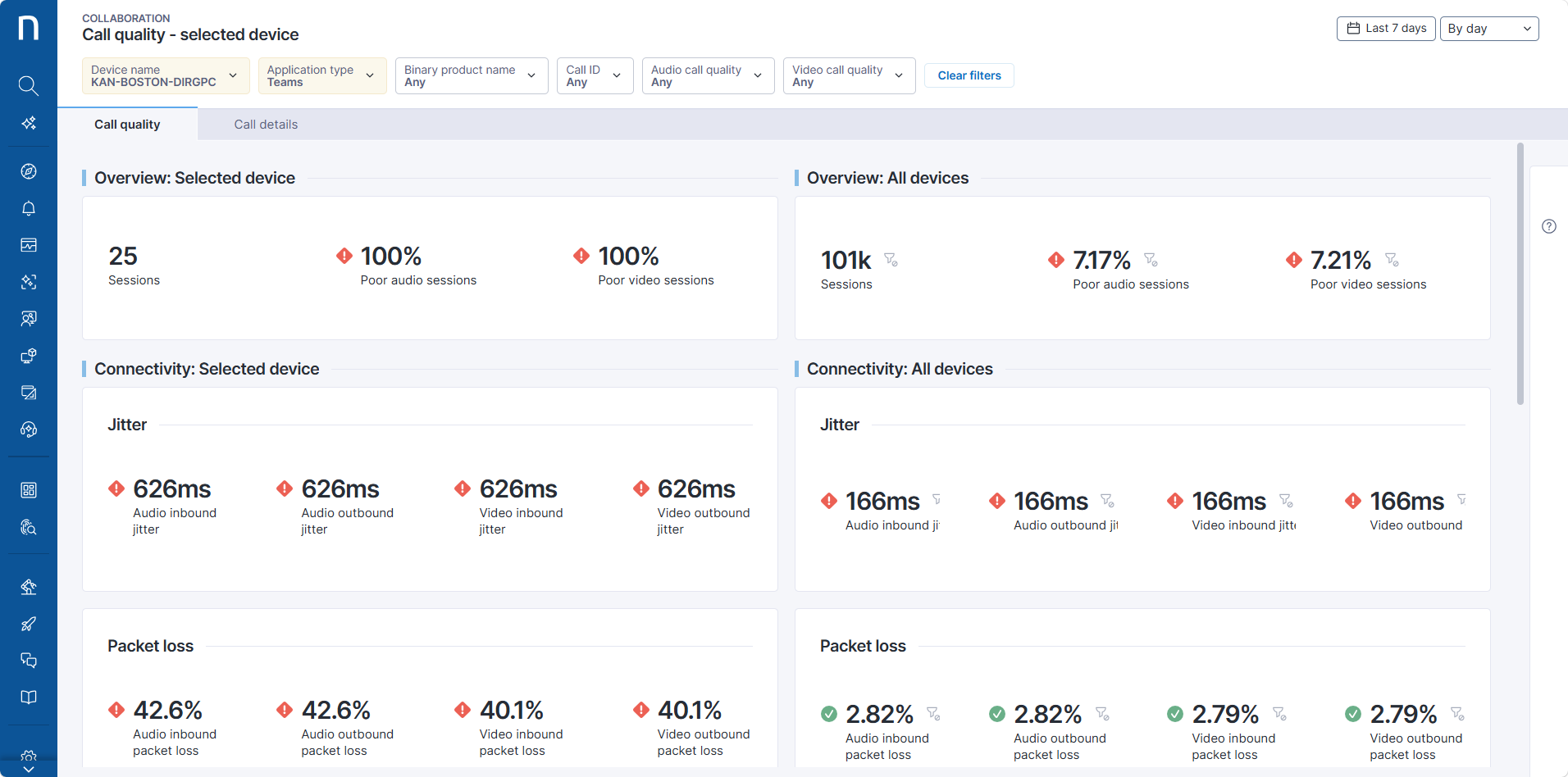
* **このデバイスの通話品質をトラブルシュート**:**通話品質 - 選択したデバイス** ダッシュボードが開き、選択したデバイスの通話品質指標を分析し、組織のベンチマークと比較できます。
4. さらに、デバイスビューの右側パネルにある **リモートアクション** アイコンをクリックして、対象デバイスで関連アクションを実行できます。 Refer to the [Device View](/platform/ja/user-guide/device-view.md) documentation for more information.
## 通話関連の問題をトラブルシュートするための Checklists タブの使用
{% hint style="info" %}
コラボレーション関連のチェックリストをユーザーが利用できるようにするには、Nexthink 管理者が通話品質のカスタムフィールドを含むチェックリストを構成し、必要な権限を割り当てる必要があります。 [コラボレーションツールの構成](/platform/ja/user-guide/collaboration-experience/configuring-collaboration-experience.md) を参照してください。
{% endhint %}
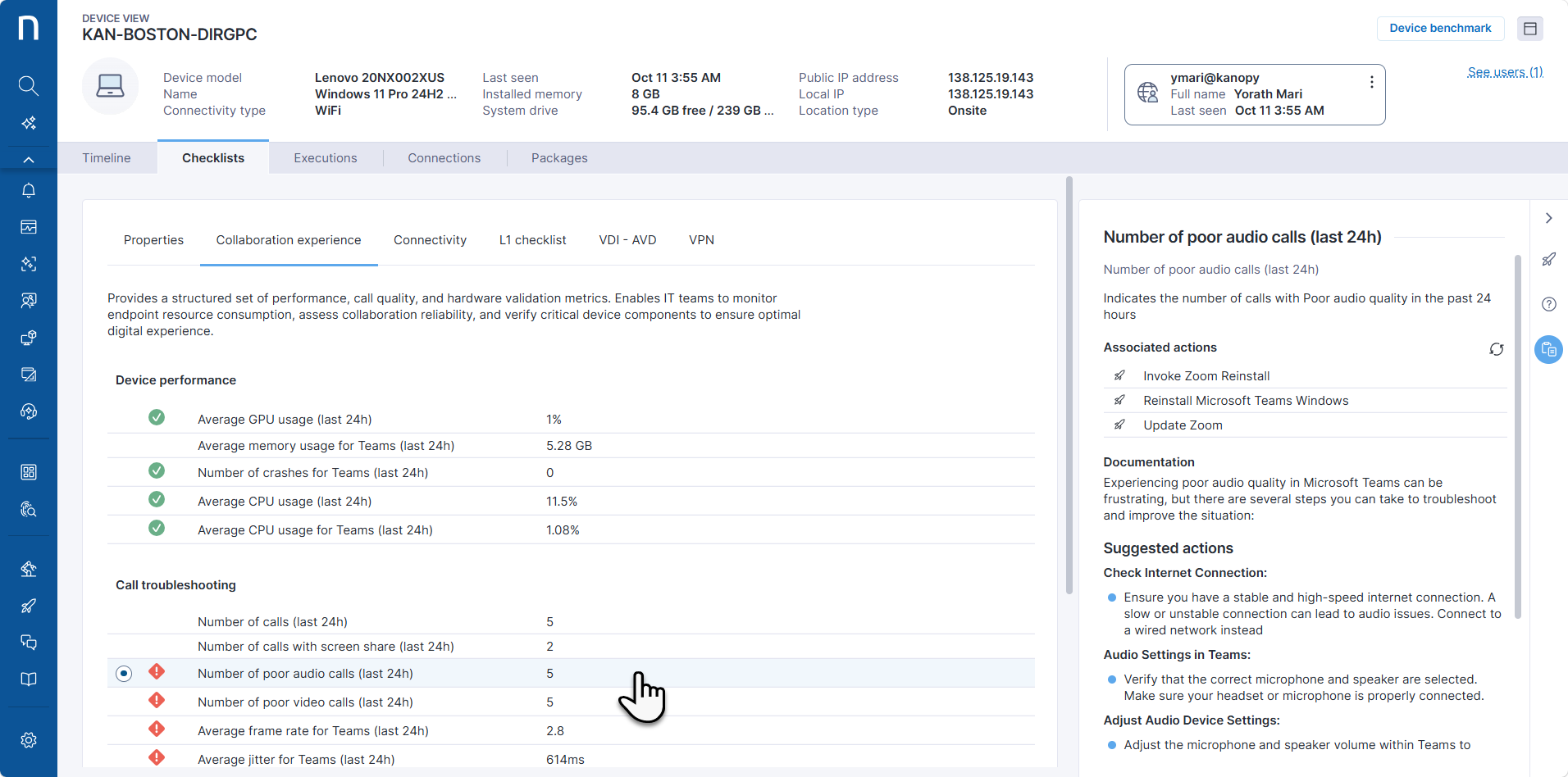
[デバイスビュー](/platform/ja/user-guide/device-view.md#deviceview-usingdeviceview) ページの **Checklists** タブ、または [Amplify](/platform/ja/configuring_nexthink/bringing-data-into-your-nexthink-instance/deploying-nexthink-in-non-vdi-environment/configure-amplify.md) 拡張機能からカスタムチェックリストを使用します。
1. 特定のチェックリストを選択して、コラボレーション関連のメトリクスを表示します。
2. 特定のプロパティまたはメトリクスをクリックして、右側のパネルに関連情報を表示します。
3. プロパティの詳細を確認し、問題を解決するために **関連アクション** を表示または実行します。
***
関連トピック:
* [Device View](/platform/ja/user-guide/device-view.md)
* [Call View を使用した個々のセッション品質の分析](/platform/ja/user-guide/collaboration-experience/getting-started-with-collaboration-experience/using-the-call-view-dashboard.md)
---
# Agent Instructions
This documentation is published with GitBook. GitBook is the documentation platform designed so that both humans and AI agents can read, navigate, and reason over technical content effectively. Learn more at gitbook.com.
## Querying This Documentation
If you need additional information that is not directly available in this page, you can query the documentation by asking a question.
Perform an HTTP GET request on the following URL with the `ask` and `goal` query parameters:
```
GET https://docs.nexthink.com/platform/ja/user-guide/collaboration-experience/getting-started-with-collaboration-experience/using-device-view-for-call-quality-issues.md?ask=&goal=
```
`ask` is the immediate question: it should be specific, self-contained, and written in natural language.
`goal` is what the user is ultimately trying to achieve, the reason they need the answer. Sharing it helps GitBook give you a better, more relevant answer. A goal is most helpful when it describes the outcome the user wants rather than restating the question. For example, with `ask=how do I create an API token`, a goal like `automate deployments from our CI pipeline` lets GitBook tailor the answer to that use case.
The response will contain a direct answer to the question and relevant excerpts and sources from the documentation.
Use this mechanism when the answer is not explicitly present in the current page, you need clarification or additional context, or you want to retrieve related documentation sections.
.png?alt=media)