> For the complete documentation index, see [llms.txt](https://docs.nexthink.com/llms.txt). Markdown versions of documentation pages are available by appending `.md` to page URLs; this page is available as [Markdown](https://docs.nexthink.com/platform/ja/user-guide/campaigns/working-with-campaigns/triggering-campaigns.md).
# キャンペーンの送信
ユースケースに応じて、キャンペーン管理者は異なるキャンペーントリガーを設定する必要があります:
* **手動**
* **スケジュール済み**
* **リモートアクション**
* **API**
* **Workflows**
これらの設定により、従業員にキャンペーンを送信する方法が決まります。
{% hint style="info" %}
公開済みのキャンペーンのみ、対象従業員を指定できます。
{% endhint %}
## キャンペーンの送信方法
### キャンペーンを手動で送信する
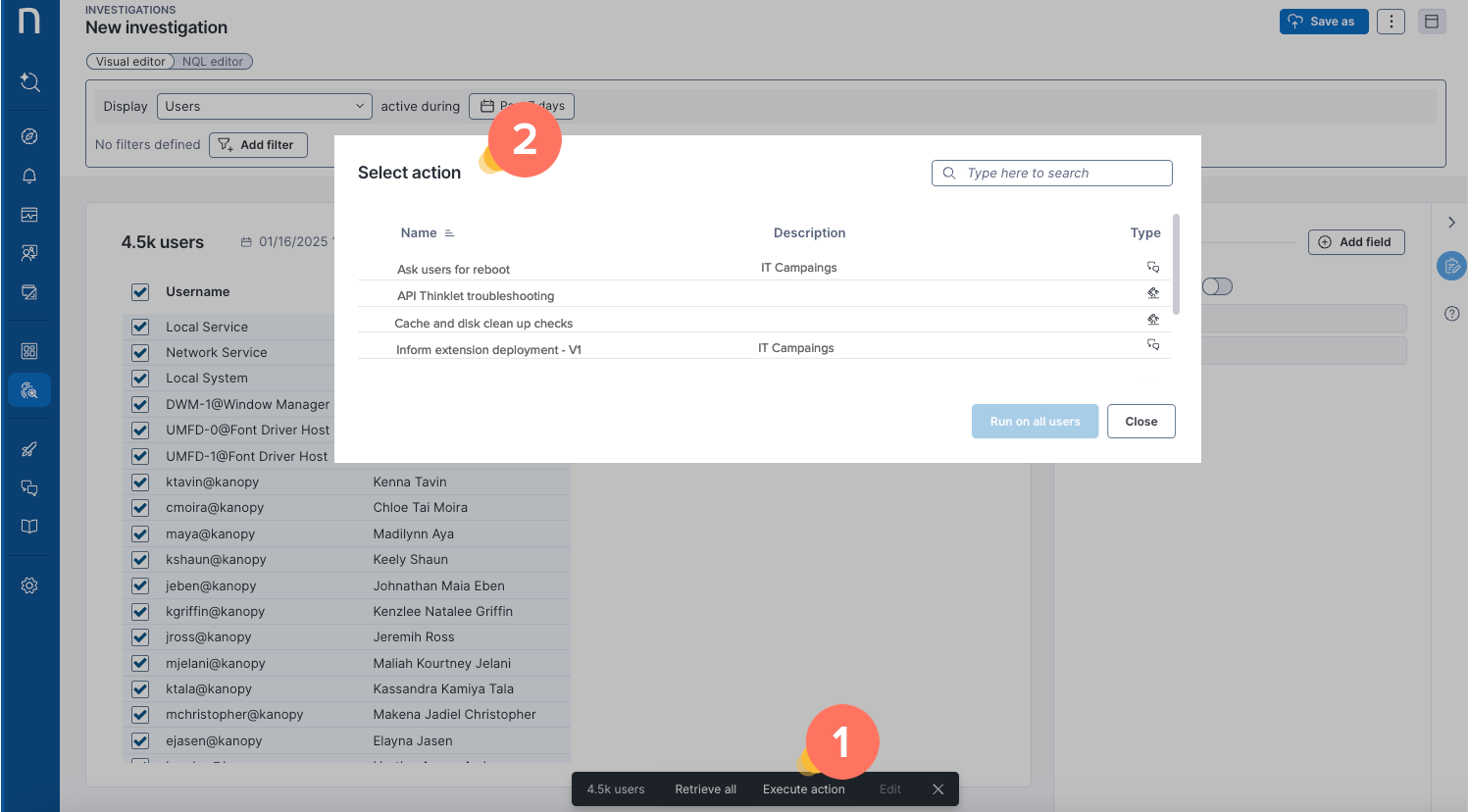
[Investigations](/platform/ja/user-guide/investigations.md)ページで、**Users**を一覧表示する[NQL 調査クエリ](/platform/ja/user-guide/investigations/creating-investigations/nql-editor.md)を実行した後:
1. 調査結果テーブルから、ユーザーまたは複数のユーザーを選択します。
2. ページ下部のアクションバーで**アクションを実行**を選択します。**アクションを選択**ポップアップに、キャンペーンを含む利用可能なアクションの一覧が表示されます。
3. キャンペーンと**ユーザーに対して実行**を選択します。
* **キャンペーンを送信**ポップアップに、対象となる従業員数が表示されます。キャンペーンにパラメーターがある場合は、\*\*はい、ユーザーに送信します。\*\*を確定する前に、各パラメーターの値を指定する必要があります
* すべての従業員に有効なユーザーSIDがある場合、システムがキャンペーンをトリガーしたことを確認する検証メッセージが表示されます。
* 有効なSIDを持つ従業員と無効なSIDを持つ従業員が混在している場合、有効なSIDを持つ従業員に対してのみシステムがキャンペーンをトリガーできることを確認する警告メッセージが表示されます。
* すべての従業員のSIDが無効な場合、システムがキャンペーンをトリガーできないことを確認するエラーメッセージが表示されます。
#### VDIセッションでキャンペーンを手動送信する
VDIを使用している場合は、[NQLエディター](/platform/ja/user-guide/investigations/creating-investigations/nql-editor.md)または[ビジュアルエディター](/platform/ja/user-guide/investigations/creating-investigations/visual-editor.md)を使用して調査を実行します:
1. **VDIセッション**の一覧をクエリします。
2. 調査結果テーブルから1つまたは複数のセッションを選択し、[アクションバー](/platform/ja/user-guide/investigations/analyzing-investigations.md#visualeditor-actionbar)を使用して**アクションを実行**します。
3. チャットアイコンで識別できる対象のキャンペーンを選択し、選択したセッションで実行します。
* セッションで実行できるのは、[VDI用に設定されたキャンペーン](/platform/ja/user-guide/campaigns/managing-campaigns/creating-campaigns.md#targeting-query)のみです。
### スケジュールされたキャンペーンを送信する
スケジュールされたキャンペーンは、手動でトリガーする必要がありません。キャンペーンが公開されると、**スケジューリング**タブで定義された設定に従って自動的に送信されます。
システムは、選択したスケジュールに基づいて定義されたNQLクエリを評価し、結果として得られた従業員にキャンペーンを送信します。
設定されたキャンペーンの再ターゲティングルールに応じて、クエリは初回公開時刻を基準に、**毎日**または**毎時**再評価されます
スケジューリングと再評価の詳細については、[キャンペーンのターゲットモデルの理解](/platform/ja/user-guide/campaigns/managing-campaigns/creating-campaigns/types-of-campaigns.md#campaign-scheduling)ドキュメントを参照してください。
### リモートアクションキャンペーンを送信する
リモートアクションキャンペーンが公開された後、キャンペーンをトリガーするには、そのNQL IDをリモートアクションのスクリプトに追加します。
[キャンペーンのターゲットモデルの理解](/platform/ja/user-guide/campaigns/managing-campaigns/creating-campaigns/types-of-campaigns.md#typesofcampaigns-targetevaluationandre-evaluation)ドキュメントを参照してください。
### APIを使用してキャンペーンを送信する
外部アプリケーションとの統合を可能にするNexthink Campaigns APIを使用して、キャンペーンをトリガーします。
詳細については、[developer.nexthink.com](https://developer.nexthink.com)を参照してください。
### ワークフローを使用してキャンペーンを送信する
Nexthink Workflow APIを使用してキャンペーンをトリガーし、実行中の修復について従業員に通知したり、ワークフローで自動修復を継続するために必要な許可や追加情報を求めたりします。
詳細については、[キャンペーンのターゲットモデルの理解](/platform/ja/user-guide/campaigns/managing-campaigns/creating-campaigns/types-of-campaigns.md#triggeringcampaigns-triggeringacampaignusingtheapi-1)を参照してください。
## パラメーター化されたキャンペーン
手動、API、およびワークフローのキャンペーンは、パラメーター化できます。このような場合、キャンペーンを手動でトリガーするユーザー、またはAPI呼び出しによってキャンペーンを実行するシステムは、必要な入力値を指定する必要があります。
詳細については、[キャンペーンパラメータの設定](/platform/ja/user-guide/campaigns/managing-campaigns/creating-campaigns/configuring-campaign-parameters.md)を参照してください。
***
関連トピック:
* [キャンペーンの作成と設定](/platform/ja/user-guide/campaigns/managing-campaigns/creating-campaigns.md)
* [キャンペーンのターゲットモデルの理解](/platform/ja/user-guide/campaigns/managing-campaigns/creating-campaigns/types-of-campaigns.md)
---
# Agent Instructions
This documentation is published with GitBook. GitBook is the documentation platform designed so that both humans and AI agents can read, navigate, and reason over technical content effectively. Learn more at gitbook.com.
## Querying This Documentation
If you need additional information that is not directly available in this page, you can query the documentation by asking a question.
Perform an HTTP GET request on the following URL with the `ask` and `goal` query parameters:
```
GET https://docs.nexthink.com/platform/ja/user-guide/campaigns/working-with-campaigns/triggering-campaigns.md?ask=&goal=
```
`ask` is the immediate question: it should be specific, self-contained, and written in natural language.
`goal` is what the user is ultimately trying to achieve, the reason they need the answer. Sharing it helps GitBook give you a better, more relevant answer. A goal is most helpful when it describes the outcome the user wants rather than restating the question. For example, with `ask=how do I create an API token`, a goal like `automate deployments from our CI pipeline` lets GitBook tailor the answer to that use case.
The response will contain a direct answer to the question and relevant excerpts and sources from the documentation.
Use this mechanism when the answer is not explicitly present in the current page, you need clarification or additional context, or you want to retrieve related documentation sections.
.png?alt=media)