> For the complete documentation index, see [llms.txt](https://docs.nexthink.com/platform/llms.txt). Markdown versions of documentation pages are available by appending `.md` to page URLs; this page is available as [Markdown](https://docs.nexthink.com/platform/ja/user-guide/applications/setting-up-and-managing-applications/managing-applications.md).

# アプリケーションの管理

Nexthink Leadは、組織で設定が必要なアプリケーションの範囲を特定できます。 Nexthink Leadは、製品アンバサダーとしての役割を担い、アプリケーション所有者をプロセスに適切に関与させるのに最適な立場にあり、Applicationsから得られる価値を最大化できます。

### アプリケーションの管理ページへのアクセス <a href="#managingapplications-accessingmanageapplications" id="managingapplications-accessingmanageapplications"></a>

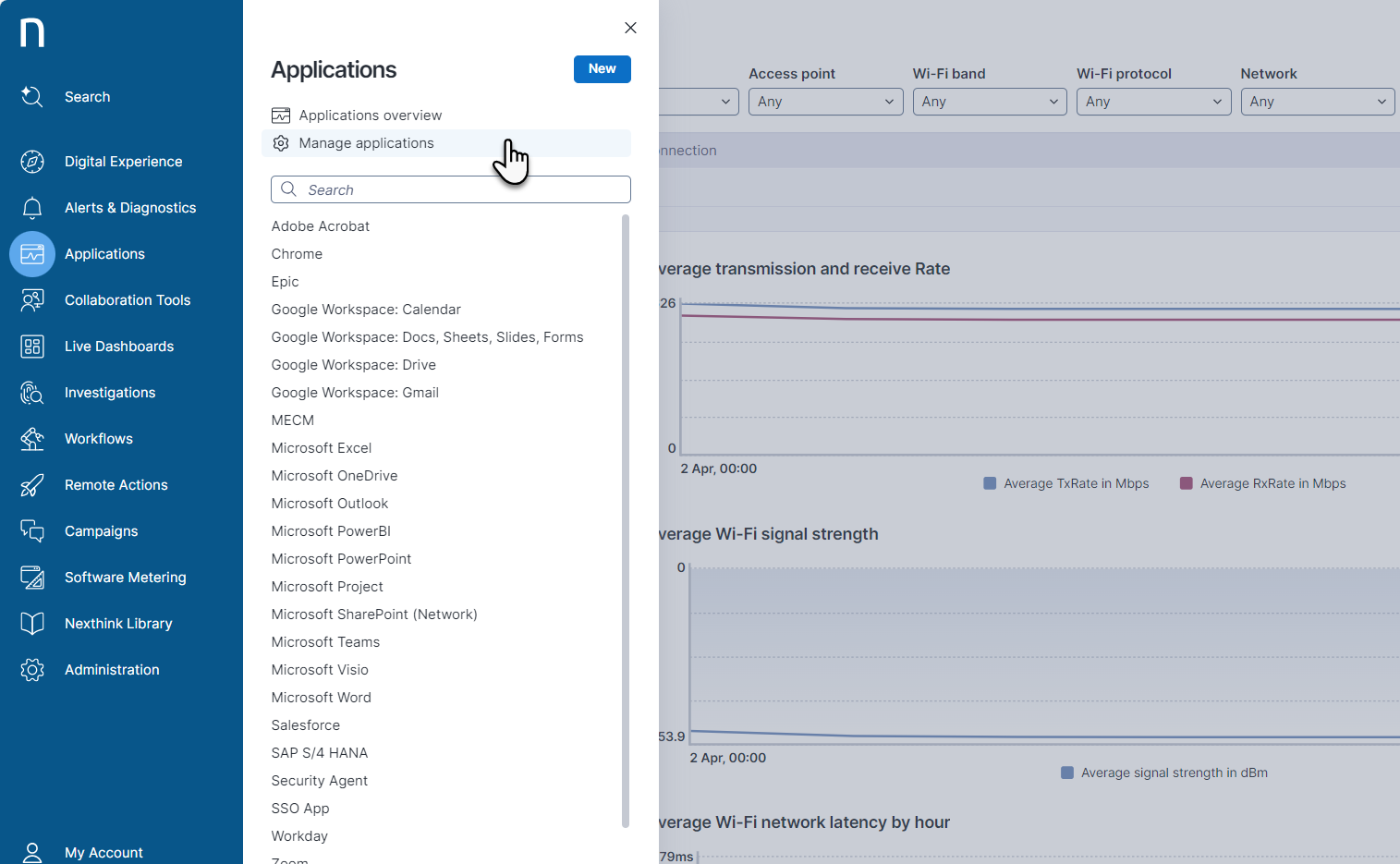
ナビゲーションメニューから **Applications** > **Manage applications** を選択して、既存のすべてのアプリケーションの管理ページを開きます。

<figure><img src="https://268444917-files.gitbook.io/~/files/v0/b/gitbook-x-prod.appspot.com/o/spaces%2FxJSUDk9NTtCHYPG5EWs3%2Fuploads%2Fgit-blob-191ca17467de49cf9ca50a34a8c461f66f7e93f2%2Faccess_manage_applications.png?alt=media" alt="Access_manage_applications.png" width="760"><figcaption></figcaption></figure>

### アプリケーションの管理

**Applications** > **Manage applications** ページには、以下が含まれます：

* 設定済みアプリケーションの一覧表示と管理を行うための[Applicationsタブ](#managingapplications-applicationstab)。
* 監視対象アプリケーションのプライバシー設定とNexthinkブラウザ拡張機能の設定をカスタマイズするための[Settingsタブ](#managingapplications-browserextension)。

#### 設定済みアプリケーションの管理 <a href="#managingapplications-applicationstab" id="managingapplications-applicationstab"></a>

{% hint style="info" %}
新しいアプリケーションの設定または既存のアプリケーション設定の編集については、[アプリケーションの設定](/platform/ja/user-guide/applications/setting-up-and-managing-applications/configuring-applications.md)を参照してください。
{% endhint %}

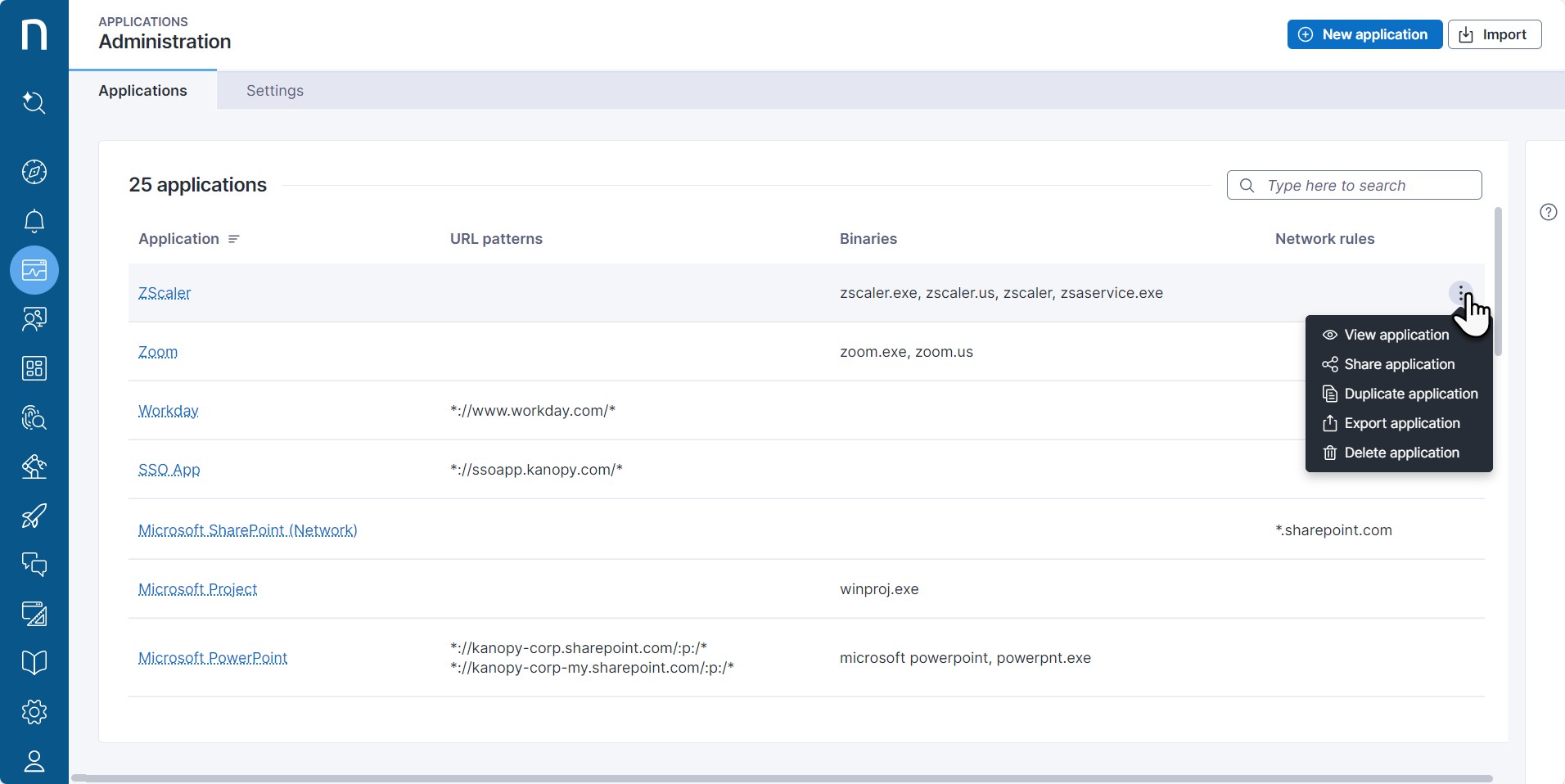
**Manage Applications**ページの**Applications**タブには、Nexthinkによる監視用に設定されたすべてのアプリケーションが、アプリケーション固有のフィールドである**URL patterns**、**Binaries**、**Network rules**とともに表示されます。

**Manage applications** > **Applications** タブでは、次の操作を実行できます：

* 設定済みのすべてのアプリケーションを検索およびフィルタリングする。
* **Applications**テーブル内のアプリケーションのハイパーリンクをクリックして、その[設定](/platform/ja/user-guide/applications/setting-up-and-managing-applications/configuring-applications.md)にアクセスまたは編集する。
* 既存のアプリケーションにカーソルを合わせると、右側にアクションメニューが表示され、次の操作を実行できます：
  * アプリケーションの[ダッシュボード](/platform/ja/user-guide/applications/monitoring-applications.md)を**表示**する
  * アプリケーションを**共有**する
    * アプリケーションを共有すると、選択したユーザーロールがApplicationsメニューでアプリケーションを表示および編集できるようになります。 この設定は、ユーザーがNQLを通じてアクセスできるデータには影響しません。
    * アプリケーションを共有するには、「Edit all applications」権限が必要です。
  * アプリケーションを**複製**する
  * アプリケーションを**エクスポート**する
  * アプリケーションを**削除**する
* ページ右上から、JSONファイル形式の新しいアプリケーション設定を**インポート**する。
* ページ右上から、監視設定をセットアップするための**New application**を作成する。

<figure><img src="https://268444917-files.gitbook.io/~/files/v0/b/gitbook-x-prod.appspot.com/o/spaces%2FxJSUDk9NTtCHYPG5EWs3%2Fuploads%2Fgit-blob-85274607a653c8d2b4f409e8beafc3ba98796be9%2Fmanage_applications.png?alt=media" alt="Manage_applications.png" width="760"><figcaption></figcaption></figure>

**LibraryからインストールされたApplications**

{% hint style="info" %}
LibraryからインストールされたApplicationsも、**Manage applications**ページに表示されます。 これらを運用可能にするには、これらのLibraryアプリケーション設定のURLパターンを更新してください。
{% endhint %}

Nexthinkは、Nexthink Libraryから手動でインストールできる一連のアプリケーションを提供しています。 事前定義されたアプリケーションをインストール、管理、更新するには、Nexthinkインスタンス内のNexthink Libraryモジュールに移動します。

詳細については、[Nexthink Library](https://docs.nexthink.com/platform/ja/user-guide/nexthink-library) ドキュメントを参照してください。

#### 監視対象アプリのプライバシー設定とNexthinkブラウザ拡張機能の設定のカスタマイズ <a href="#managingapplications-settingstab" id="managingapplications-settingstab"></a>

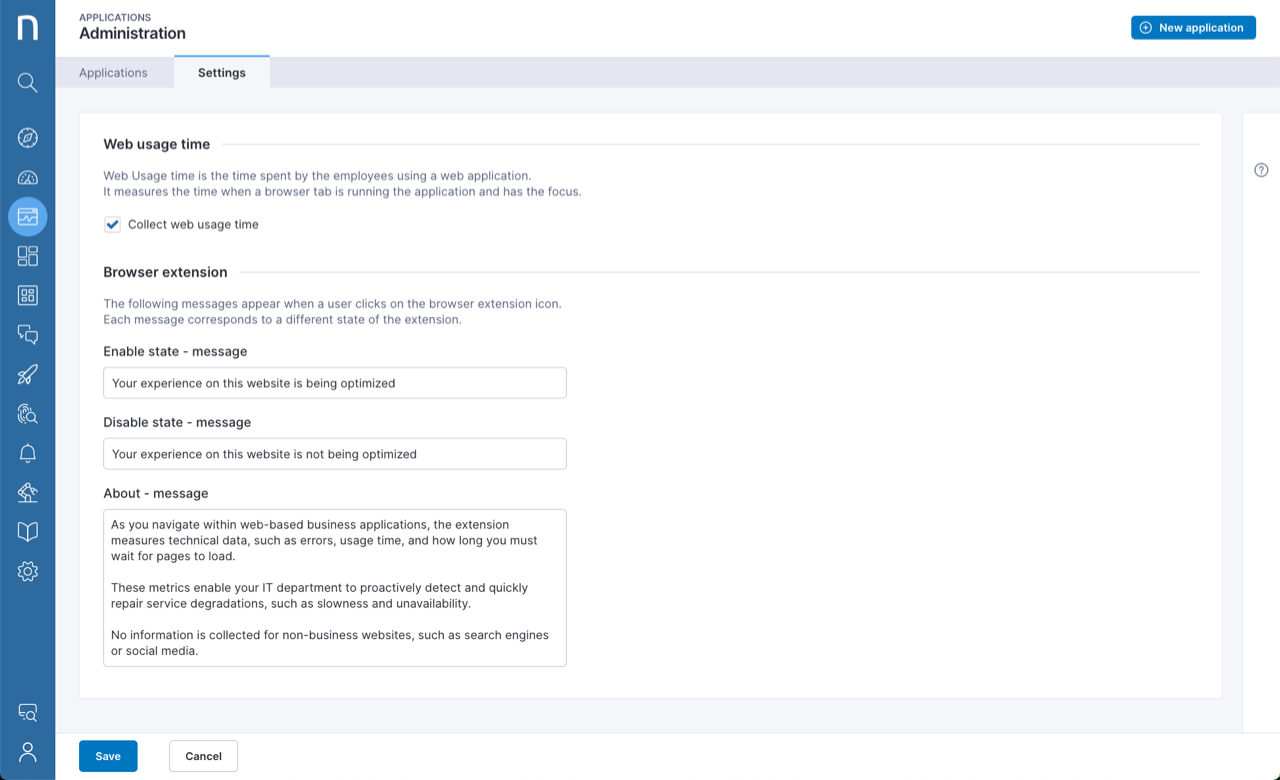
**Manage Applications** ページの **Settings** タブでは、次の操作を実行できます：

* [Webアプリケーションのデータ収集](#managingapplications-collectusagetimeforwebapplications)を有効にする
* 従業員に表示される[Nexthinkブラウザ拡張機能のメッセージ](#managingapplications-browserextension)をカスタマイズする。

**Webアプリケーションの使用時間を収集する**

使用時間とは、従業員がWebアプリケーションの利用に費やす時間を指します。 これは、ブラウザタブでアプリケーションが実行され、フォーカスされている時間を測定します。 これはデフォルトのオプションであり、すべてのアプリケーションに適用されます。

**Manage Applications > Settings** タブで **Web usage time** のデフォルトの監視を無効にすると、次の操作を実行できます：

* エンドポイントでのデータ収集を停止する。
* 監視対象のすべてのアプリケーションから**Adoption**ダッシュボードを削除する。

<figure><img src="https://268444917-files.gitbook.io/~/files/v0/b/gitbook-x-prod.appspot.com/o/spaces%2FxJSUDk9NTtCHYPG5EWs3%2Fuploads%2Fgit-blob-588d049fd36f1c061fa06fef97ff31d7036746d7%2Fappex-1676020985.png?alt=media" alt="Settings tab"><figcaption></figcaption></figure>

**設定済みアプリケーションに表示されるNexthinkブラウザ拡張機能のメッセージをカスタマイズする**

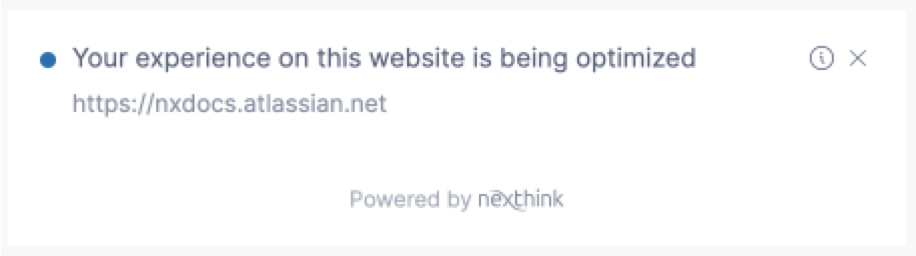
従業員がNexthinkブラウザ拡張機能をクリックしたときに表示されるメッセージをカスタマイズします。

<div align="center"><figure><img src="https://268444917-files.gitbook.io/~/files/v0/b/gitbook-x-prod.appspot.com/o/spaces%2FxJSUDk9NTtCHYPG5EWs3%2Fuploads%2Fgit-blob-67cea75e1cf680b7f4f6674f56d5b898691a7e8c%2Fappex-1676032397.png?alt=media" alt="Browser extension message" width="375"><figcaption></figcaption></figure></div>

**Manage Applications > Settings** タブでは、**Browser extension** のメッセージフィールドをカスタマイズできます：

* **有効状態 - メッセージ**：従業員がブラウザ拡張機能で監視されているサイトを閲覧しているときに表示されるメッセージです。
* **無効状態 - メッセージ**：従業員が拡張機能で監視されていないサイトを閲覧しているときに表示されるメッセージです。
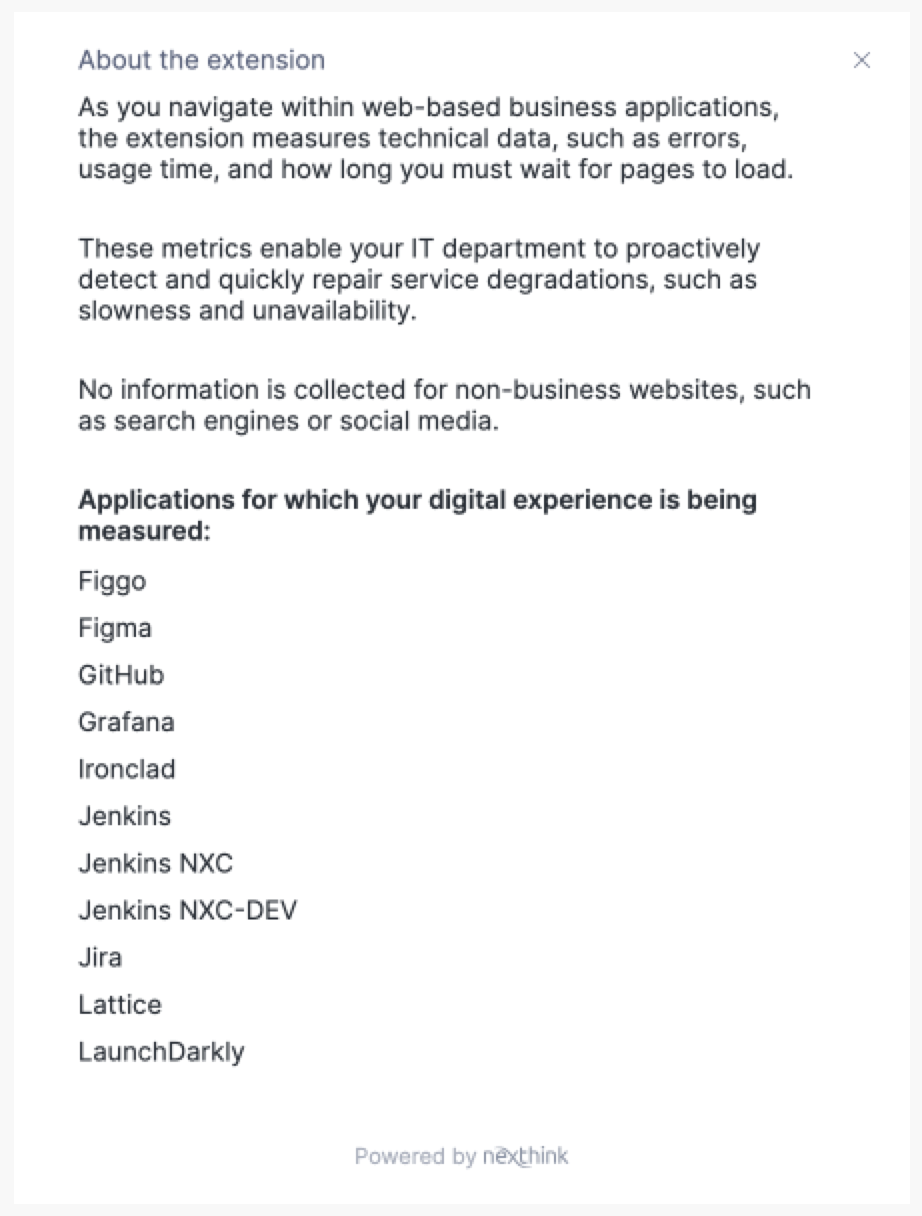
* **情報 - メッセージ**：従業員が情報アイコンをクリックすると、このメッセージが表示されます。 このメッセージにはブラウザ拡張機能に関する情報が含まれ、その後に監視対象の業務Webアプリケーションのリストが表示されます。

<div align="center"><figure><img src="https://268444917-files.gitbook.io/~/files/v0/b/gitbook-x-prod.appspot.com/o/spaces%2FxJSUDk9NTtCHYPG5EWs3%2Fuploads%2Fgit-blob-117ed407ae4c74f835f67ec3f7b93c287f6de2c7%2Fappex-1676276880.png?alt=media" alt="About message" width="375"><figcaption></figcaption></figure></div>

***

関連トピック

* [アプリケーションの監視](/platform/ja/user-guide/applications/monitoring-applications.md)
* [アプリケーションの設定](/platform/ja/user-guide/applications/setting-up-and-managing-applications/configuring-applications.md)


---

# Agent Instructions
This documentation is published with GitBook. GitBook is the documentation platform designed so that both humans and AI agents can read, navigate, and reason over technical content effectively. Learn more at gitbook.com.

## Querying This Documentation
If you need additional information that is not directly available in this page, you can query the documentation dynamically by asking a question.

Perform an HTTP GET request on the current page URL with the `ask` query parameter, and the optional `goal` query parameter:

```
GET https://docs.nexthink.com/platform/ja/user-guide/applications/setting-up-and-managing-applications/managing-applications.md?ask=<question>&goal=<endgoal>
```

`ask` is the immediate question: it should be specific, self-contained, and written in natural language.
`goal` is optional and describes the broader end goal you are ultimately trying to accomplish on behalf of the user. GitBook uses it to tailor the answer towards what is most useful for that goal.

The response will contain a direct answer to the question and relevant excerpts and sources from the documentation.

Use this mechanism when the answer is not explicitly present in the current page, you need clarification or additional context, or you want to retrieve related documentation sections.