> For the complete documentation index, see [llms.txt](https://docs.nexthink.com/platform/llms.txt). Markdown versions of documentation pages are available by appending `.md` to page URLs; this page is available as [Markdown](https://docs.nexthink.com/platform/ja/user-guide/applications/setting-up-and-managing-applications/configuring-applications/configuring-network-applications.md).
# ネットワークアプリケーションの設定
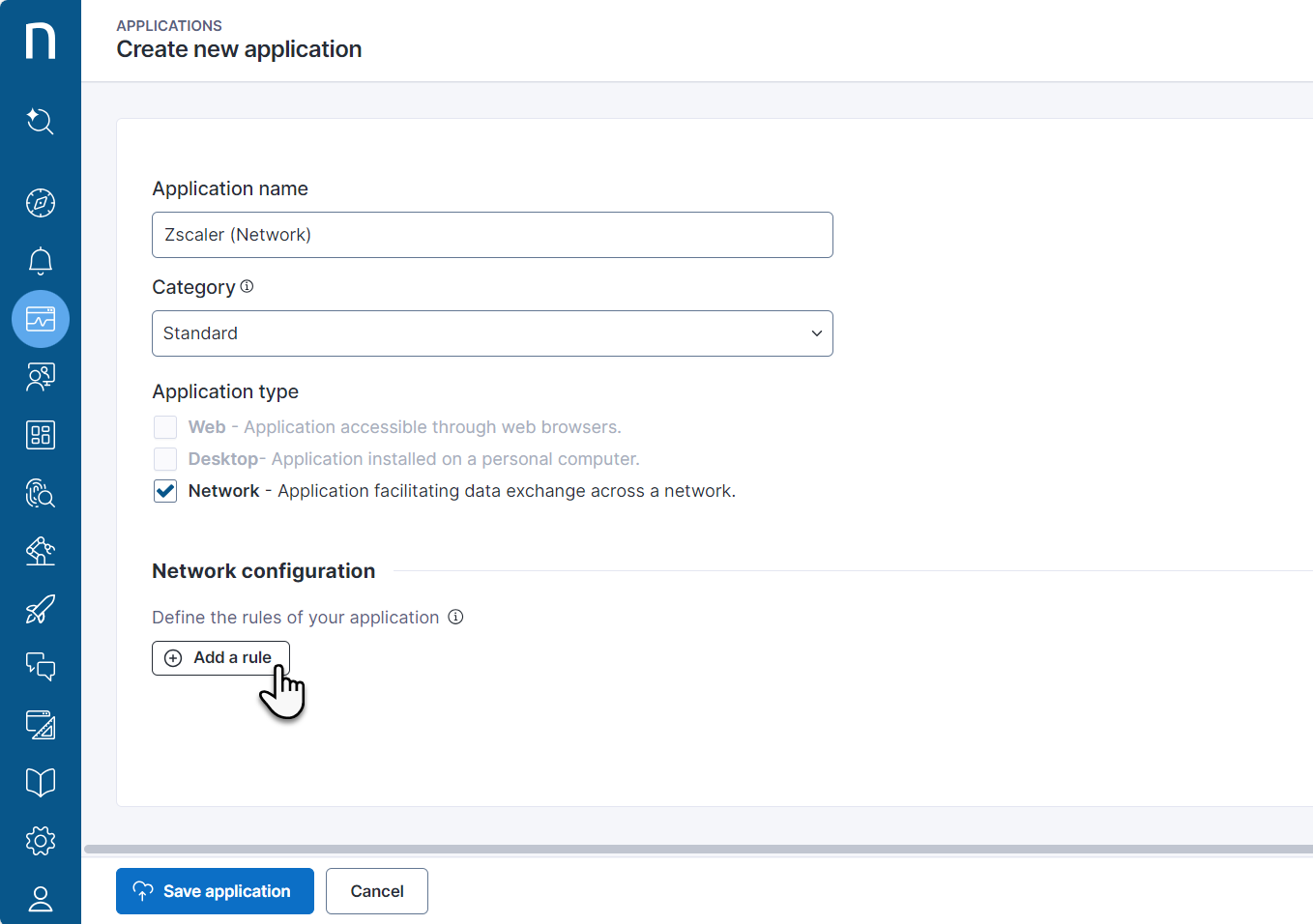
**ネットワーク**アプリケーションタイプを選択すると、**ネットワーク設定**セクションが表示され、アプリケーションごとに最大8つのネットワークルールを追加できます。
ネットワークルールは、**IPアドレス**、**ドメイン名**、または**ポート**で構成できます。各ルールは、どの接続イベントがネットワークアプリケーションに関連付けられるかを指定します。このデータは、**概要**ダッシュボードおよびネットワークアプリケーションの**ネットワークビュー**に表示されます。
接続イベントの詳細については、[Application Connectivityのトラブルシューティング](/platform/ja/solutions/troubleshooting-application-connectivity.md)のドキュメントを参照してください。
**ルールを追加**を選択すると、次の項目を指定するためのオプションを含むポップアップが開きます:
* IPアドレス
* ドメイン名
* ポート
## IPアドレスの追加
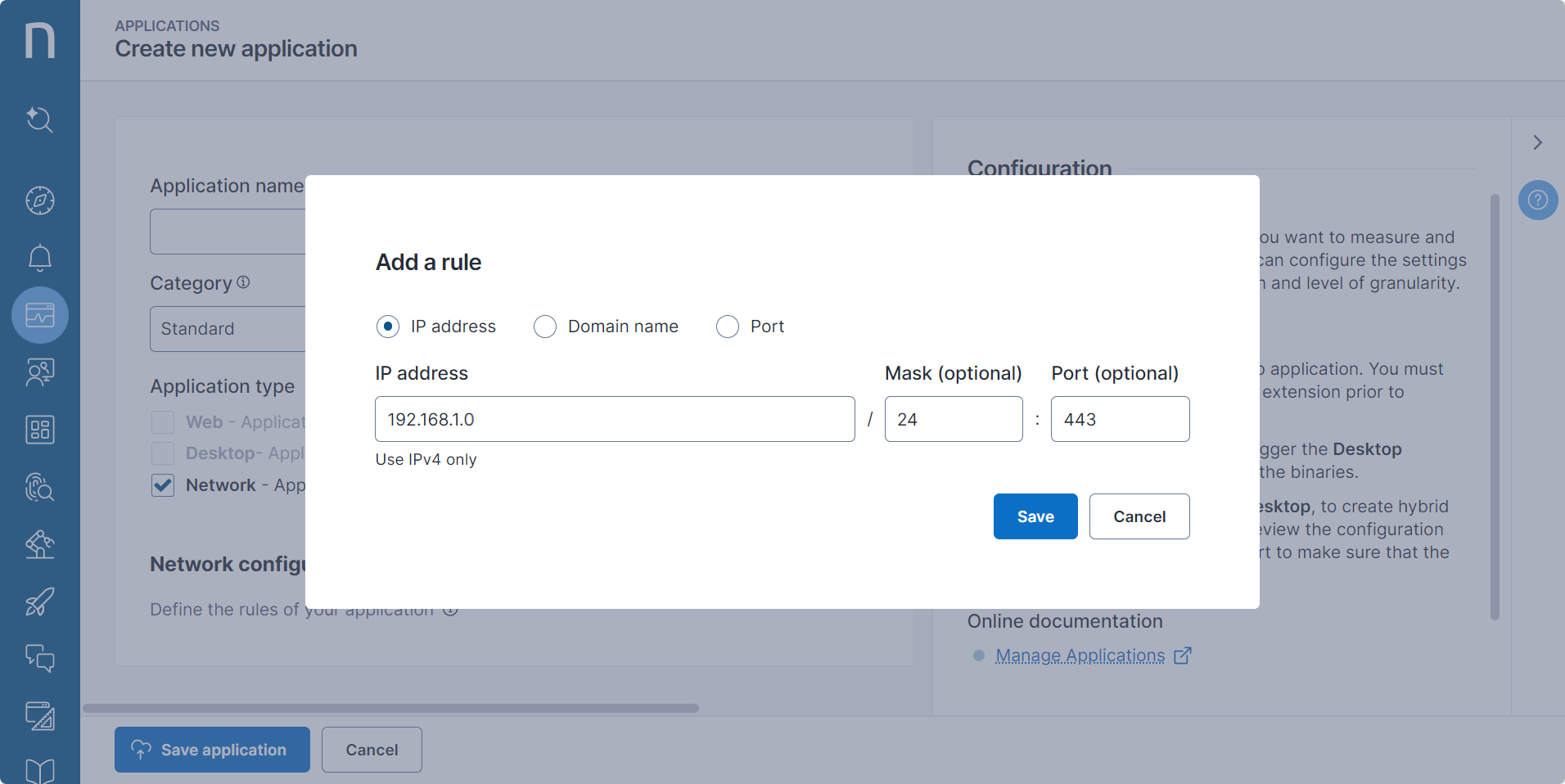
ネットワークアプリケーションに関連付けるIPアドレスを入力します。 Internet Protocolバージョン4(IPv4)のアドレスを使用します。
必要に応じて、ポートまたはネットワークマスク(サブネットマスクとも呼ばれます)を追加し、ネットワーク内のIPアドレスの範囲を定義します。
* ポートを指定した場合(例:*192.168.1.20:443*)、ネットワークアプリケーションは、この特定のIPアドレスのこの特定のポートのみを監視します。
* ネットワークマスクを定義した場合、指定した範囲内の対応するすべてのIPアドレスが監視されます。たとえば、\_
## ドメイン名の追加
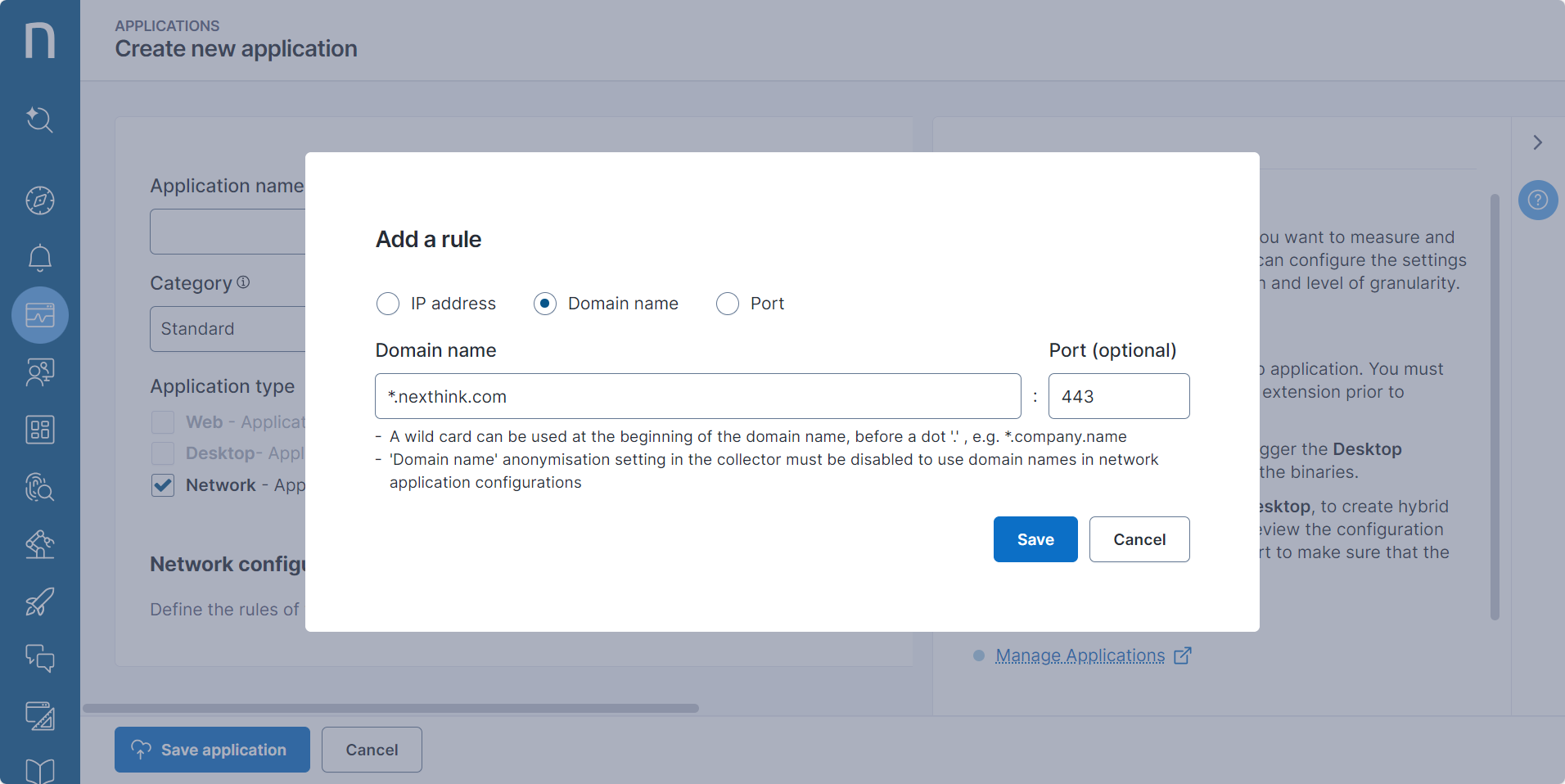
\_nexthink.com\_や\_sharepoint.com\_などのドメイン名を使用してネットワークアプリケーションを設定します
必要に応じて、ポートを追加できます。ポートを指定した場合(例:*\*.nexthink.com:443*)、ネットワークアプリケーションは、その特定のドメイン名のその特定のポートのみを監視します。
サブドメインを含めるには、ドメインベースのルールの先頭に、ピリオドに続けてアスタリスク(\*)ワイルドカードを使用します(例:*\*.nexthink.com*)。 \*ワイルドカードは任意の長さの文字列を表すため、ルール\_\*.nexthink.com\_は次と一致します:
* *abc.confluence.nexthink.com*
* *confluence.nexthink.com*
* **
## ポートの追加
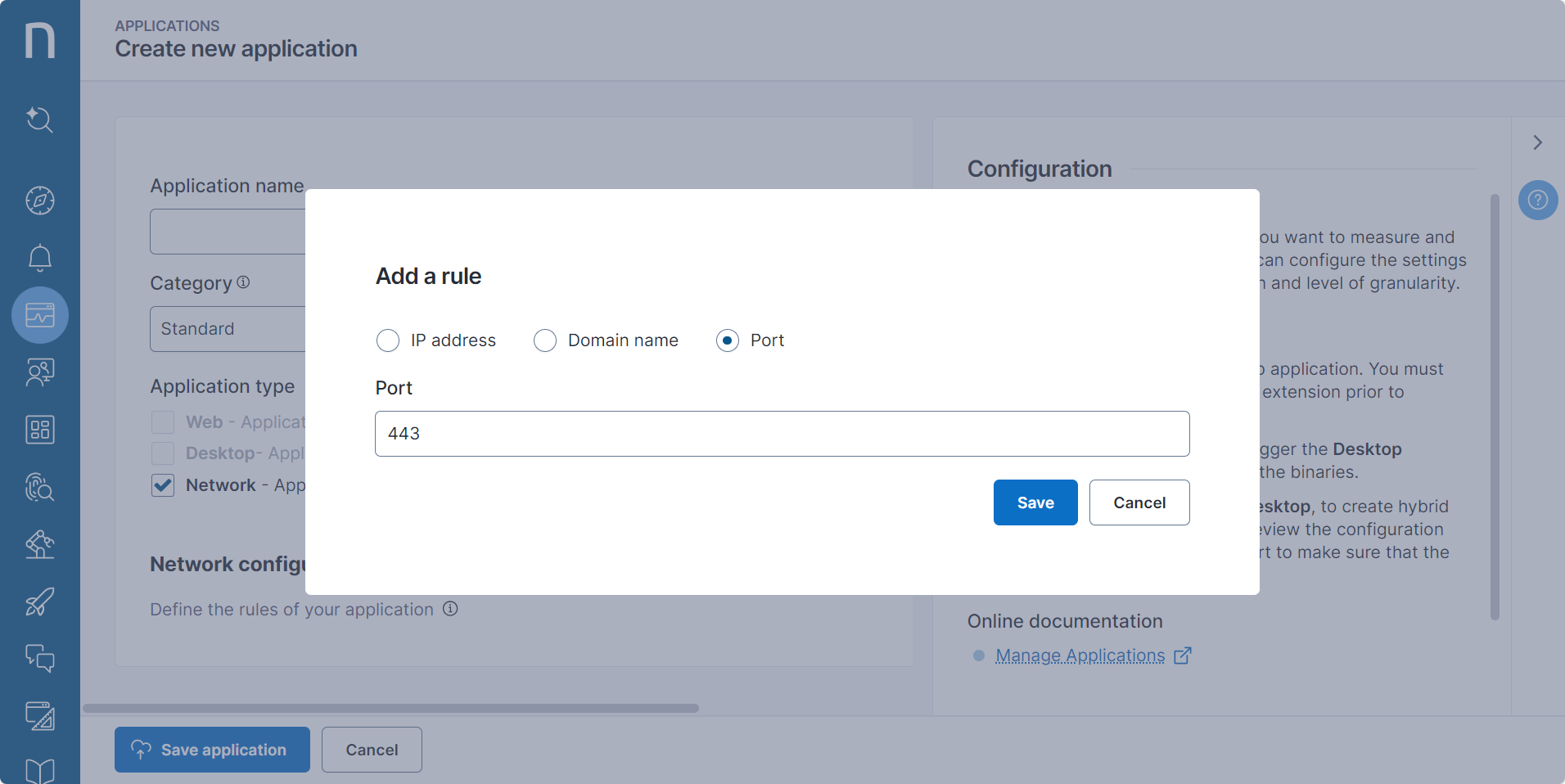
0~65535の数値を使用してポートを設定します。
***
{% hint style="info" %}
単一のアプリケーションでは、各IPアドレス、ネットワークマスク、ポートを一意にする必要があります。たとえば、異なるポートまたはネットワークマスクを使用しない限り、同じIPアドレスで複数のネットワークアプリケーションを設定することはできません。
{% endhint %}
## 異なるアプリケーションの設定ルールは、相互にどのように検証されますか?
別のアプリケーションにすでに設定したIPアドレスを使用してアプリケーションを設定しようとすると、システムはエラーメッセージを表示します。ただし、あるアプリケーションをドメイン名で設定し、別のアプリケーションをその同じドメイン名に対応するIPアドレスで設定する場合があります。接続イベントの性質上、システムは設定時にこのような競合を検証できません。同じ接続イベントが複数のアプリケーションに関連付けられることを避けるため、Nexthinkは情報に優先順位を付け、各接続イベントが単一のネットワークアプリケーションにのみ関連付けられるようにします。上記のケースでは、システムは関連する接続イベントに、IPアドレスを使用して設定されたネットワークアプリケーションのタグを付けます。結果は次のとおりです:
* IPアドレスを設定したアプリケーションは、このIPアドレスを使用するすべての接続データを監視します。
* ドメイン名を設定したアプリケーションは、このドメイン名を使用する接続データを監視しますが、他方のアプリケーションの設定に使用されたIPアドレスとの接続は除外します。
原則として、システムは利用可能な最も具体的な設定で接続イベントにタグを付けます。次の表は、異なる設定ルールの優先順位を示しています。たとえば、「IPアドレス + ポート」のルールは、ドメイン名のみのルールより優先されます。
| 優先度 | ルールタイプ | ルールの例 |
| --- | -------------------- | --------------------------------- |
| 最高 | IPアドレス + ポート | 192.168.1.20:443 |
| | IPアドレス | 192.168.1.20 |
| | ドメイン名 + ポート | confluence.intra.nexthink.com:443 |
| | ドメイン名 | confluence.intra.nexthink.com |
| | ワイルドカード付きドメイン名 + ポート | \*.nexthink.com:443/ja |
| | ワイルドカード付きドメイン名 | \*.nexthink.com/ja |
| | ネットワークマスク + ポート | 192.168.1/24:135 |
| | ネットワークマスク | 192.168.1.0/24 |
| 最低 | ポート | 135 |
---
# Agent Instructions
This documentation is published with GitBook. GitBook is the documentation platform designed so that both humans and AI agents can read, navigate, and reason over technical content effectively. Learn more at gitbook.com.
## Querying This Documentation
If you need additional information that is not directly available in this page, you can query the documentation by asking a question.
Perform an HTTP GET request on the following URL with the `ask` and `goal` query parameters:
```
GET https://docs.nexthink.com/platform/ja/user-guide/applications/setting-up-and-managing-applications/configuring-applications/configuring-network-applications.md?ask=&goal=
```
`ask` is the immediate question: it should be specific, self-contained, and written in natural language.
`goal` is what the user is ultimately trying to achieve, the reason they need the answer. Sharing it helps GitBook give you a better, more relevant answer. A goal is most helpful when it describes the outcome the user wants rather than restating the question. For example, with `ask=how do I create an API token`, a goal like `automate deployments from our CI pipeline` lets GitBook tailor the answer to that use case.
The response will contain a direct answer to the question and relevant excerpts and sources from the documentation.
Use this mechanism when the answer is not explicitly present in the current page, you need clarification or additional context, or you want to retrieve related documentation sections.