> For the complete documentation index, see [llms.txt](https://docs.nexthink.com/platform/llms.txt). Markdown versions of documentation pages are available by appending `.md` to page URLs; this page is available as [Markdown](https://docs.nexthink.com/platform/platform/ja/user-guide/alerts-and-diagnostics/getting-started-with-alerts/responding-to-alerts/diagnostics-for-alerted-issues.md).
# アラートが発生した問題の診断
Diagnosticsダッシュボードでは、複数のエンドポイントまたはモバイルデバイスに影響を与える問題を解決するプロセスを効率化できます。アラート情報と基になるイベントを表示して、システムがアラートをトリガーした理由と問題のトラブルシューティング方法を把握します。
{% hint style="info" %}
まれに、一部のカスタムモニターでは、システムがまだ**トラブルシューティング**ダッシュボードを生成できない場合があります。 Nexthinkは、今後のリリースでカスタムモニター用のダッシュボードを引き続き改善していきます。
{% endhint %}
## Diagnosticsダッシュボードでサポートされているモニター
Diagnosticsダッシュボードの主な目的は、複数のエンドポイントまたはモバイルデバイスに影響を与える問題に効率的に対処することです。したがって、個別のデバイスまたは個別のユーザーに対してトリガーされたアラートには使用できません。
Diagnosticsダッシュボードでは現在、次のモニターがサポートされています。
* メトリック変化検出機能を備えた組み込みモニター
* イベントメトリックのしきい値検出機能を備えた組み込みモニター。
* ライブラリからインストールした[VDIモニター](/platform/platform/ja/user-guide/alerts-and-diagnostics/getting-started-with-alerts.md#monitors-for-virtual-desktop-infrastructure-vdi)は、リアルタイムイベントを使用して仮想デスクトップインフラストラクチャ環境をトリガーします。
* `devices`と`mobile_devices`の両方を含む、集計イベントメトリックを追跡するカスタムモニター。
* `devices`と`mobile_devices`の両方を含む、イベントメトリックに基づいて問題が発生しているデバイスの要約数を追跡するカスタムモニター。
{% hint style="warning" %}
トリガー条件の最初のメトリックが`device.count()`などのオブジェクト数である場合、システムは診断ビューを生成しません。診断を有効にするには、モニターがイベントメトリックまたはそこから導出された計算に依存している必要があります。
{% endhint %}
## Diagnosticsダッシュボードの範囲
### メトリック
ダッシュボードの内容は、アラートが発生した問題と、モニタータイプが\_メトリック変化\_か\_メトリックしきい値\_かによって動的に変化します。
さらに、以下に注意してください。
* 複数のメトリックを評価するカスタムモニターの場合、システムにはモニター条件の最初の集計メトリックとして使用されるメトリックのみが表示されます。
* イベントメトリックに基づいて問題が発生しているデバイスの要約数を追跡するカスタムモニターの場合、システムはモニタークエリを分析してイベントメトリックを選択します。
### 期間
システムは、トリガーされたアラートに基づいて期間を事前選択します。この期間は変更できません。
### モニタークエリフィルター
監視対象のイベントメトリックに関連する、モニターNQLクエリで適用されたすべてのフィルターがDiagnosticsダッシュボードに反映されます。
* ダッシュボードの内訳で使用できるデータを含む、単一の値を持つ単純なフィルターは、フィルター領域に表示されます。フィルターを削除するか、内訳グラフの項目をクリックして適用します。
* 多くのプロパティに対して複数の値を含めることができる複雑なフィルターは、フィルター領域に直接表示されません。このフィルターは削除できません。
## ダッシュボードの概要
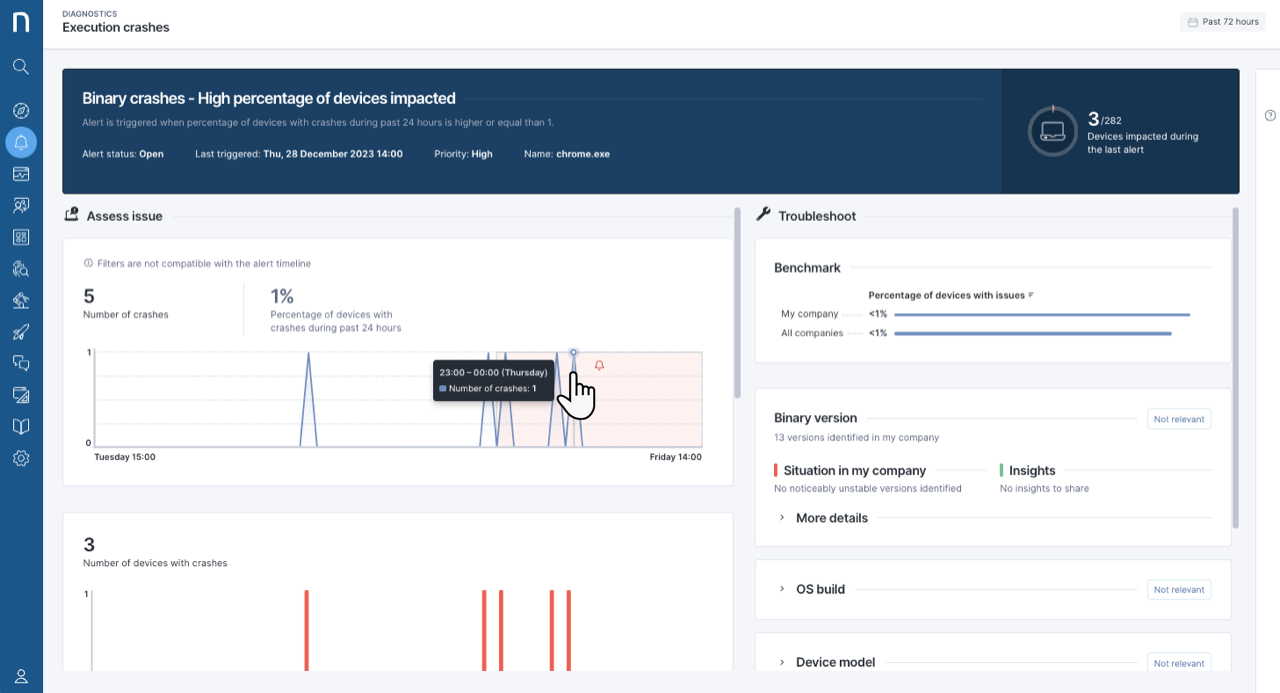
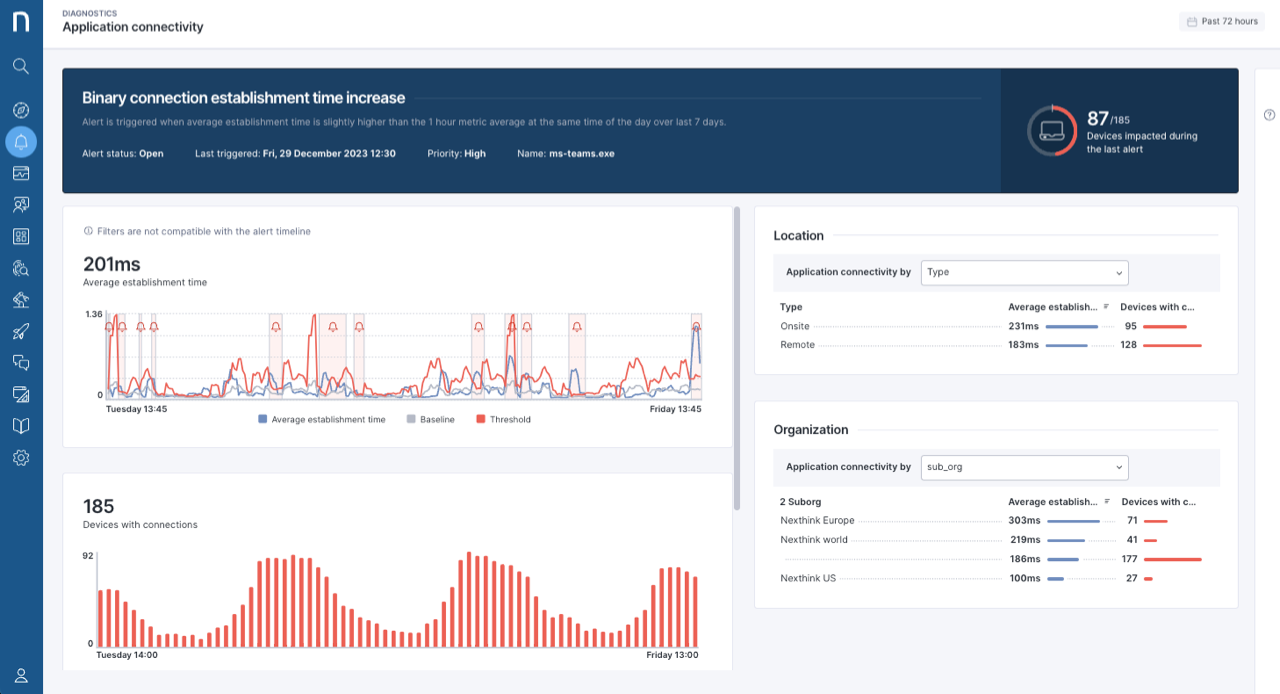
アラートが発生した問題の**Diagnostics**ページ上部には、モニター名、アラートがトリガーされたコンテキスト、システムが監視している主な条件が表示されます。
### 前回のアラート時に影響を受けたデバイス
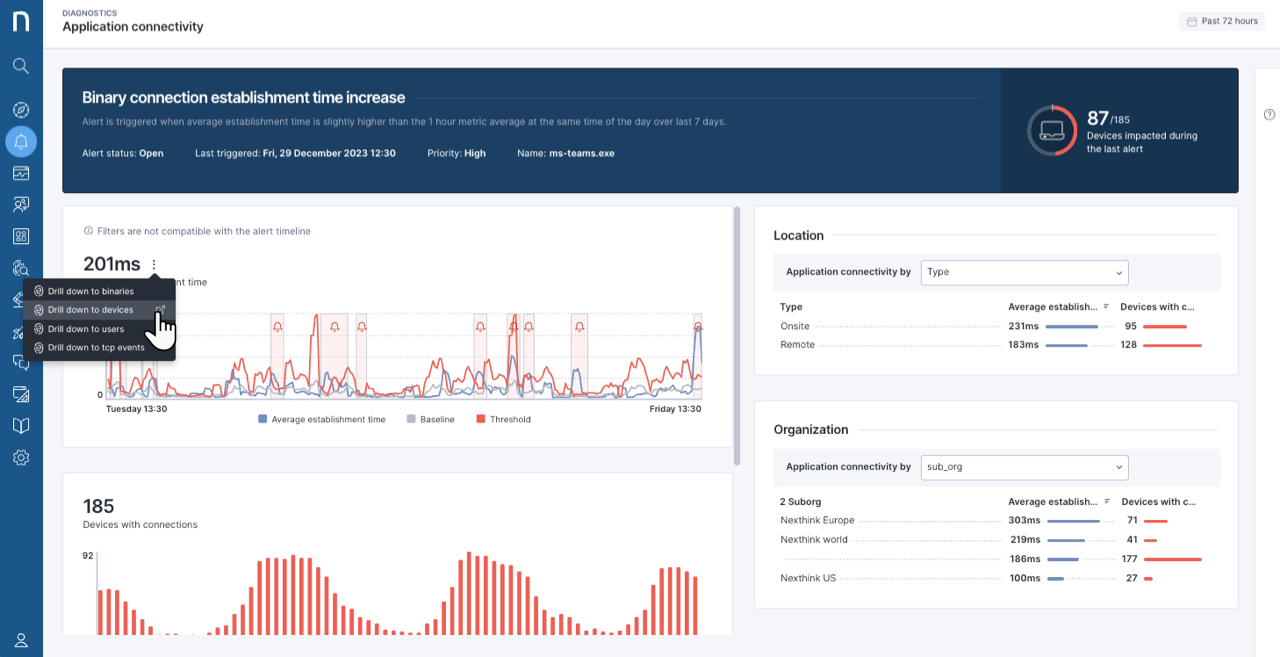
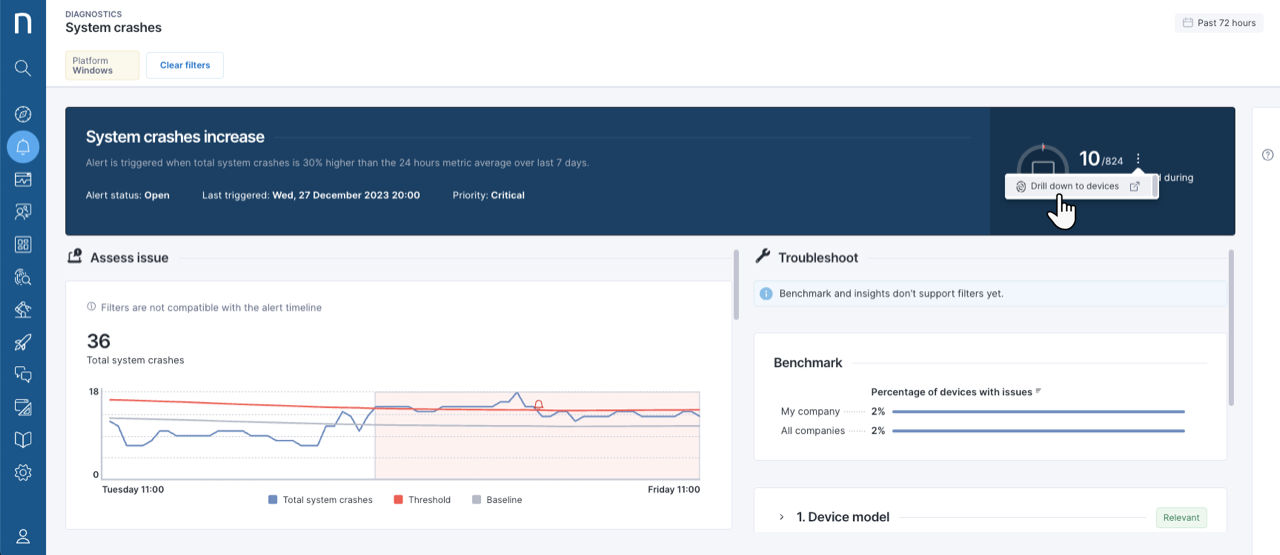
ページの右上では、前回のアラート時に影響を受けたエンドポイントまたはモバイルデバイスの数も確認できます。以下を考慮してください:
* KPIには、前回のアラート時に影響を受けたデバイス数のみが表示されます。
* システムは、アラートが回復するまで、影響を受けたデバイスを定期的に更新します。
[アラートの概要](/platform/platform/ja/user-guide/alerts-and-diagnostics/getting-started-with-alerts/responding-to-alerts/alerts-overview.md)ドキュメントの「影響を受けたデバイスについて」を参照してください。
影響を受けたデバイスのリストを開くには、次の手順を実行します。
1. ゲージにカーソルを合わせると、アクションメニューが表示されます。
2. **デバイスにドリルダウン**を選択すると、影響を受けたデバイスの結果が表示されたInvestigationsページが開きます。
## アラートのタイムライン
アラートと監視対象メトリックのタイムラインを表示します。モニターはタイムラインに値を提供し、メトリック値の集計はモニターのNQLクエリに対応しています。
### メトリック変化モニターのアラートタイムライン
監視対象メトリックの変化によってトリガーされるアラート、つまり**メトリック変化**および**メトリック季節変化**モニターの場合、タイムラインの値は次のとおりです。
* 青色のメトリックラインは、時間の経過に伴う現在のメトリック(例:CPU使用率)を表します。
* **ベースライン**ラインは、過去の平均値です。
* **メトリック変化**の場合は、グローバルな7日間の平均値。
* **メトリック季節変化**の場合は、直近7日間の同時刻の平均値。
* トリガー境界線:
* **メトリック変化**の場合、赤色の**しきい値**ラインは、**ベースライン**とモニターで設定されたしきい値から導出されます。
* **メトリック季節変化**の場合、**しきい値**ラインは、標準偏差(σ)の比率であるモニター設定の感度に基づいて、**ベースライン**から計算されます。
* **わずかに** = 標準偏差1つ分(±1σ)
* **中程度に** = 標準偏差の2倍(±2σ)
* **大幅に** = 標準偏差の3倍(±3σ)
{% hint style="info" %}
システムによるベースラインの計算方法については、[アラートに関するFAQ](/platform/platform/ja/user-guide/alerts-and-diagnostics/alerts-faq.md#how-does-the-system-compute-the-baseline-for-the-detection-methods-metric-change-and-metric-seasonal)ドキュメントを参照してください。
{% endhint %}
### メトリックしきい値モニターのアラートタイムライン
カスタム定義された静的しきい値の超過によってトリガーされるアラートの場合、つまり。メトリックしきい値モニターの場合、タイムライン値を確認するには:
* 折れ線グラフにカーソルを合わせると、最後に監視されたメトリック値のKPIが表示されます。メトリックが比率の場合、タイムラインにはその比率の分子が表示されます。
### アラートタイムラインの詳細表示
アラートタイムラインにデータを入力するモニターのNQLクエリを詳しく調べることができます:
1. タイムラインの上にあるKPIにカーソルを合わせると、アクションメニューが表示されます。**詳細表示**オプションは、アラートの問題またはモニターによって異なります。
2. 目的の詳細表示オプションを選択すると、NQLクエリの結果が表示されたInvestigationsページが開きます。
## オブジェクト数のタイムライン
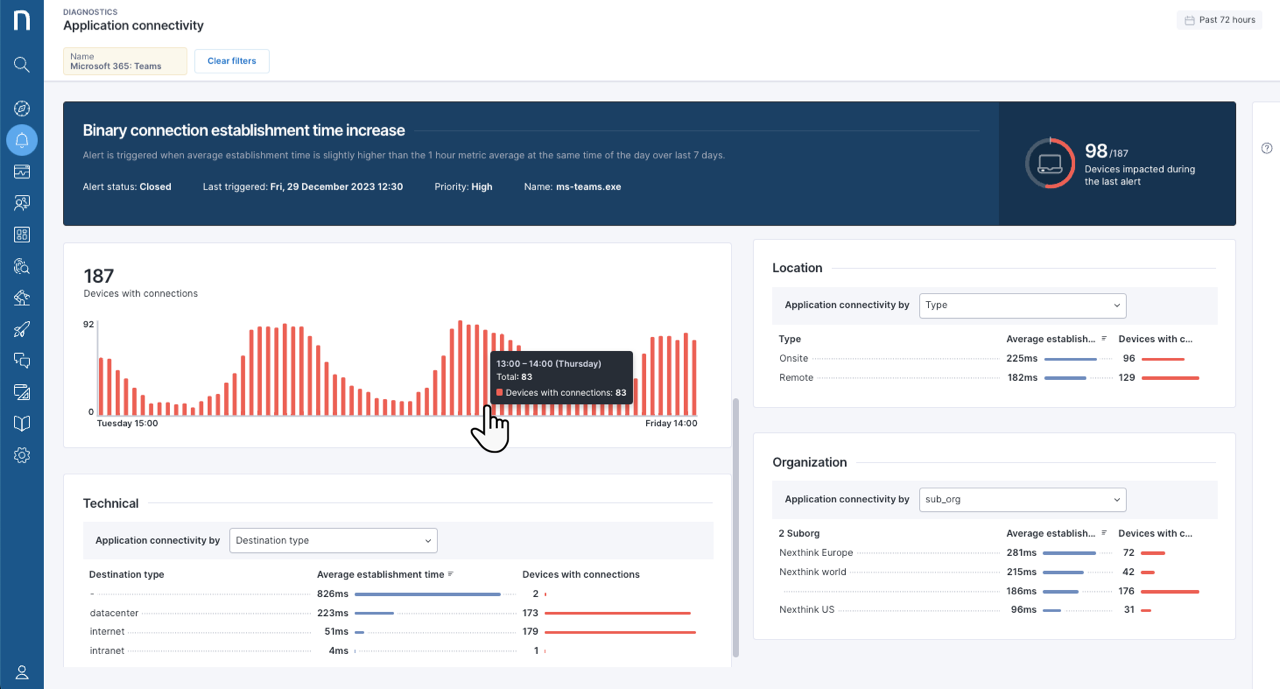
アラートタイムラインの下にある棒グラフには、モニターのメトリック設定に基づくデバイス数またはユーザー数が表示されます。メトリックが比率の場合、タイムラインにはその比率の分子が表示されます:
* 棒グラフにカーソルを合わせると、オブジェクト数の値が表示されます。
## 内訳
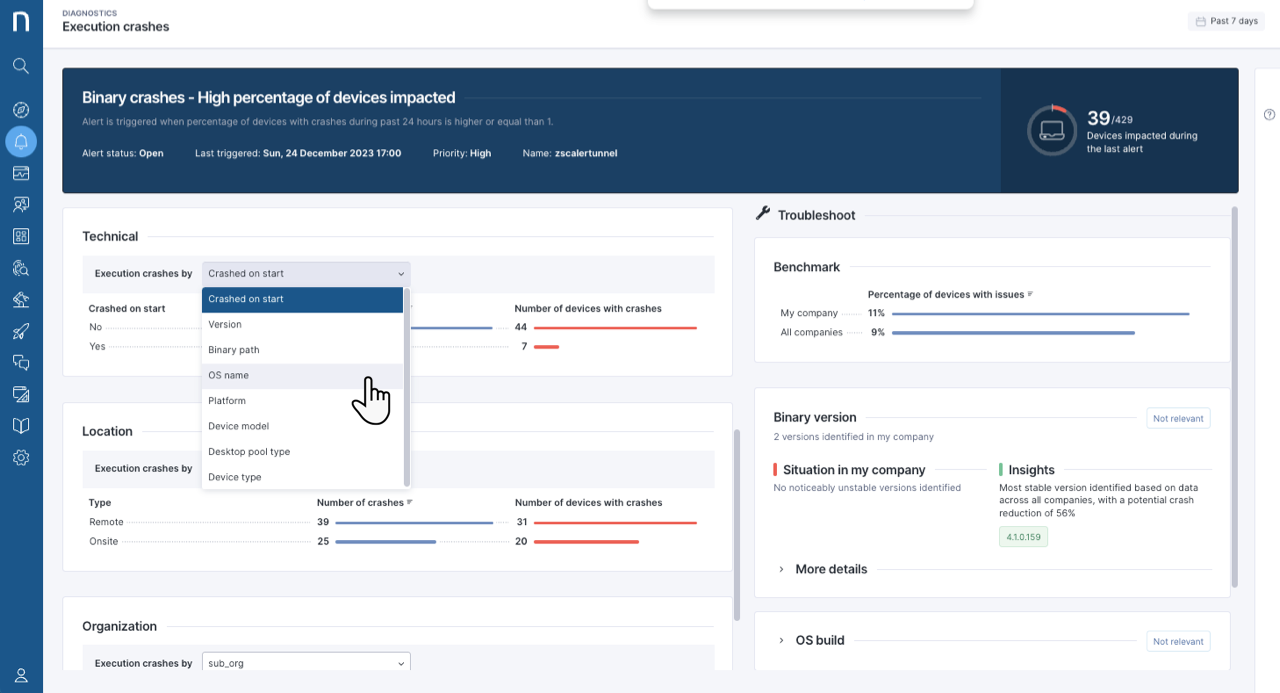
内訳テーブルでは、分析対象の問題の範囲を詳細に絞り込めます。内訳を使用してページをフィルタリングし、特定の従業員集団または技術的条件に焦点を当てます。
* 次のような**技術的**条件で結果をフィルタリングします:
* オペレーティングシステム
* プラットフォーム
* デバイスモデル
* 仮想化タイプ
* **組織**:エンティティおよび組織階層で結果をフィルタリングします。
* **場所**:地理位置情報の階層で結果をフィルタリングします。まず、製品設定ページで地理位置情報機能を有効にする必要があります。詳細については、[Product configuration](/platform/platform/ja/user-guide/administration/system-configuration/data-management/environment/product-configuration.md)ドキュメントを参照してください。
***
関連トピック
* [アラートの概要](/platform/platform/ja/user-guide/alerts-and-diagnostics/getting-started-with-alerts.md)
* [アラートの管理](/platform/platform/ja/user-guide/alerts-and-diagnostics/setting-up-and-managing-monitors/managing-alerts.md)
* [製品設定](/platform/platform/ja/user-guide/administration/system-configuration/data-management/environment/product-configuration.md)
---
# Agent Instructions
This documentation is published with GitBook. GitBook is the documentation platform designed so that both humans and AI agents can read, navigate, and reason over technical content effectively. Learn more at gitbook.com.
## Querying This Documentation
If you need additional information that is not directly available in this page, you can query the documentation by asking a question.
Perform an HTTP GET request on the following URL with the `ask` and `goal` query parameters:
```
GET https://docs.nexthink.com/platform/platform/ja/user-guide/alerts-and-diagnostics/getting-started-with-alerts/responding-to-alerts/diagnostics-for-alerted-issues.md?ask=&goal=
```
`ask` is the immediate question: it should be specific, self-contained, and written in natural language.
`goal` is what the user is ultimately trying to achieve, the reason they need the answer. Sharing it helps GitBook give you a better, more relevant answer. A goal is most helpful when it describes the outcome the user wants rather than restating the question. For example, with `ask=how do I create an API token`, a goal like `automate deployments from our CI pipeline` lets GitBook tailor the answer to that use case.
The response will contain a direct answer to the question and relevant excerpts and sources from the documentation.
Use this mechanism when the answer is not explicitly present in the current page, you need clarification or additional context, or you want to retrieve related documentation sections.

.png?alt=media)