> For the complete documentation index, see [llms.txt](https://docs.nexthink.com/llms.txt). Markdown versions of documentation pages are available by appending `.md` to page URLs; this page is available as [Markdown](https://docs.nexthink.com/platform/ja/user-guide/ai-tools/setting-up-and-managing-ai-tools.md).
# AI ツールのセットアップと管理
AI Tools ユーザーが中断なく AI Tools を最大限に活用できるよう、AI Tools とそのコンテンツを構成します。
AI Tools の構成を開始するには:
* このページの [#before-you-begin](#before-you-begin "mention") セクションに記載されている AI Tools の技術的な前提条件を確認します。
* [AI ツールの構成](/platform/ja/user-guide/ai-tools/setting-up-and-managing-ai-tools/configuring-ai-tools.md) を参照してください。
* [API 資格情報を使用した Microsoft Copilot の構成](/platform/ja/user-guide/ai-tools/setting-up-and-managing-ai-tools/configuring-ai-tools/configuring-microsoft-copilot-using-api-credentials.md) を参照してください。
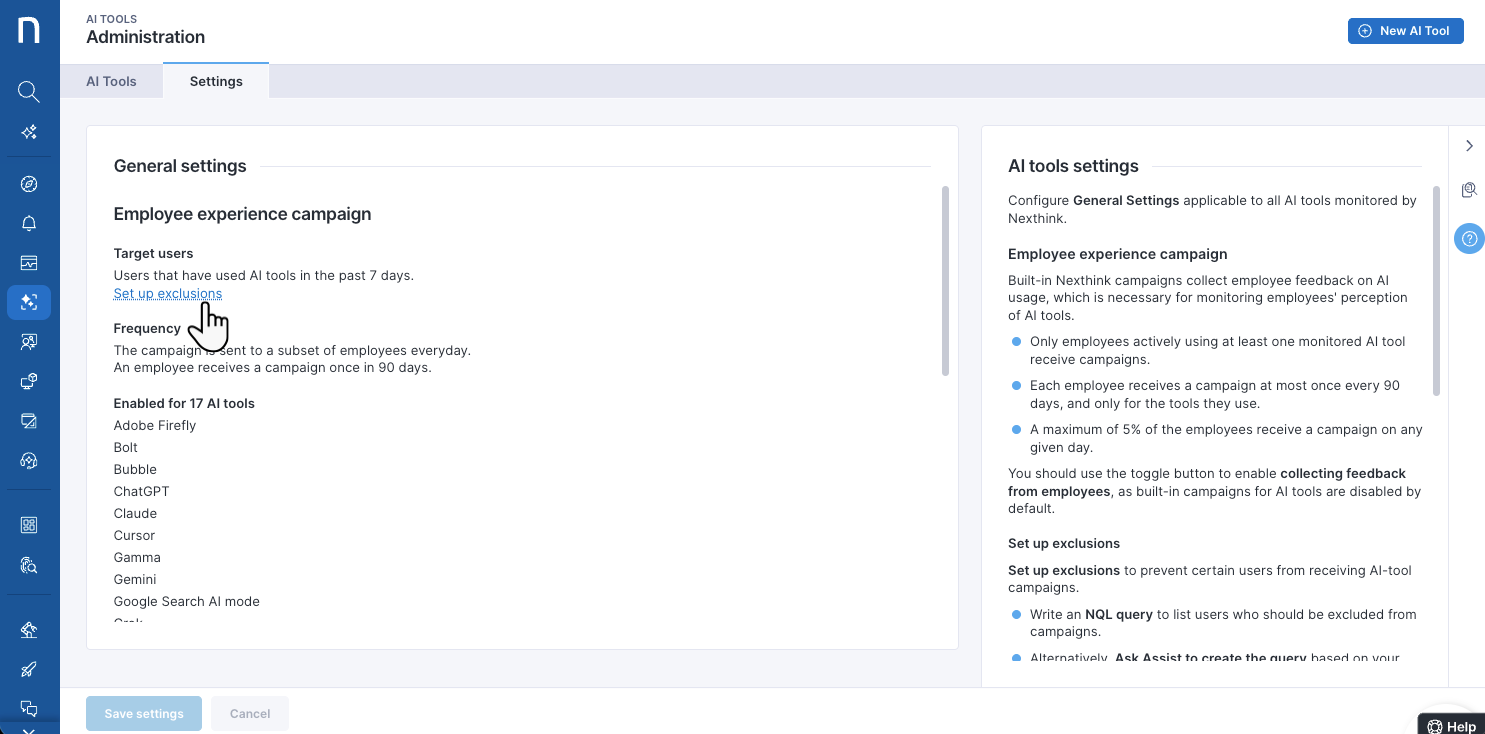
* キャンペーンの対象除外を設定したり送信者情報を変更したりするには、[AI ツール向けキャンペーン設定の変更](/platform/ja/user-guide/ai-tools/setting-up-and-managing-ai-tools/modifying-campaign-setups-for-ai-tools.md) を参照してください。
{% hint style="info" %}
Nexthink インスタンスでの構成が完了したら、[AI Tools コンテンツを管理](/platform/ja/user-guide/ai-tools/setting-up-and-managing-ai-tools/managing-ai-tools.md)します。
{% endhint %}
## 開始前に
AI Tools の正しい構成と監視を確実に行い、スムーズなオンボーディングを実現するため、以下の前提条件を完了してください。
{% stepper %}
{% step %}
#### データ収集のために Nexthink ブラウザー拡張機能を展開する.
Nexthink が AI ツールの Web 使用状況に関するデータを収集できるように、すべての従業員のデバイスに Nexthink [ブラウザ拡張機能](/platform/ja/configuring_nexthink/bringing-data-into-your-nexthink-instance/deploying-nexthink-in-non-vdi-environment/installing-the-nexthink-browser-extension.md)—`25.8.1` 以降—をインストールして展開します。
Nexthink ブラウザー拡張機能は Mozilla Firefox 上での AI Tools の Web 利用を追跡できません
{% endstep %}
{% step %}
#### 組み込みキャンペーンを展開するために Collector バージョンを検証する.
すべての従業員デバイスが Collector バージョン `25.5.1` 以上であることを確認してください。これは、組み込みの Nexthink キャンペーンを正しく展開するためのものです。これらのキャンペーンは、従業員の AI 利用に関するフィードバックを収集し、AI Tools に対する認識を監視するために、特定の [AI Tool の構成](/platform/ja/user-guide/ai-tools/setting-up-and-managing-ai-tools/configuring-ai-tools.md#configuring-ai-tools-for-nexthink-monitoring) から有効化する必要があります。
調査モジュールで次のクエリを実行し、サポートされていない Collector バージョンを使用しているデバイスを一覧表示します:
```
devices
| where collector.version < v25.5.1
```
{% endstep %}
{% step %}
#### デスクトップ向け AI ツールを監視するために `focus_time` フィールドを有効にする.
Nexthink Library の [library pack](https://nexthink.com/library/collector-configuration#set-collector-configuration) にある *Set Collector Configuration* リモートアクションを使用し、`execution.events` の `focus_time` フィールドをオプトインして有効化してください。
システムは `focus_time` フィールドを使用して、デスクトップタイプのアプリケーションにおける **AI 利用** を推定します。 `focus_time` がない場合、Nexthink はデスクトップアプリケーション上での AI Tools の操作を監視できません。
{% endstep %}
{% step %}
#### Microsoft Copilot 用にコネクターの認証情報と Entra ID コネクターを設定する.
このシステムは Microsoft Copilot に対して API ベースの構成を使用しており、Nexthink で **コネクター認証情報** と **Entra ID コネクター** の構成が必要です。
コネクター認証情報を構成する
{% hint style="info" %}
このセクションでは外部ソースを参照しています。 Nexthink はサードパーティのドキュメントの正確性や、このページに記載されている情報に矛盾を生じさせる可能性のある外部の更新または変更を制御することはできません。エラーや矛盾を[Nexthink サポート](https://support.nexthink.com/)に報告してください。
{% endhint %}
**ステップ 1 - Azure アプリケーションの設定**
[Azure](https://azure.microsoft.com/es-es/free/search/?ef_id=_k_EAIaIQobChMIodqLx8ichgMVu5xQBh2GnA_UEAAYASAAEgJxevD_BwE_k_\&OCID=AIDcmm68ejnsa0_SEM__k_EAIaIQobChMIodqLx8ichgMVu5xQBh2GnA_UEAAYASAAEgJxevD_BwE_k_\&gad_source=1\&gclid=EAIaIQobChMIodqLx8ichgMVu5xQBh2GnA_UEAAYASAAEgJxevD_BwE) ページからアプリケーションを構成し、AI と従業員のインタラクションデータを取得します。
1. Azure の資格情報を使用してサインインします。
2. 新しいアプリケーションを登録します。
* 登録プロセス中、**シングル テナント** オプションを選択してください。
3. **リダイレクト URL** には **Web** を選択します。
* アプリケーションが Azure ポータルにすでに存在する場合、AI と従業員のインタラクションデータを取得するためのアクセス許可を割り当てるために再利用できます。
4. アプリケーションを**登録**します。
5. 左側のメニューから **API のアクセス許可** オプションにアクセスします。
6. **Microsoft Graph** のアクセス許可を追加します。
* **`AiEnterpriseInteraction.Read.All`** を選択し、API のアクセス許可を追加します。以下の画像を参照してください。
 
アクセス許可リストの **ステータス** 列は、使用している Azure アカウントに必要な権限が不足しているかどうかを示します。上記の手順に関する詳細は、Microsoft のドキュメント [Register an application with the Microsoft identity platform](https://learn.microsoft.com/en-us/graph/auth-register-app-v2) を参照してください。
7. 構成済みアプリケーションの **概要** セクションにアクセスし、Nexthink コネクタ構成用に Azure AD の資格情報をコピーして保存します。
* **アプリケーション (クライアント) ID**
* **ディレクトリ (テナント) ID**

* Nexthink ツールの構成のため、Azure ポータルの **証明書とシークレット** オプションを使用してクライアントシークレットの値を生成してコピーします。
* **新しいクライアントシークレット** を選択します。
* **説明** と **有効期限の値** を入力します。
* **追加** を選択し、**値** をコピーします。

有効期限後、Azure ポータルおよび Nexthink コネクタの資格情報でクライアントシークレットを更新する必要があります。
**ステップ 2 - Nexthink で Microsoft Copilot コネクタ資格情報を構成する**
[コネクタ認証情報](/platform/ja/configuring_nexthink/bringing-data-into-your-nexthink-instance/integrating-nexthink-with-third-party-tools/outbound-connectors/connector-credentials.md#connectorcredentials-connectorcredentialsforhttpshttpsprotocol)の設定ページで、Azure で作成した接続の情報を使用してフィールドに入力します。
1. **プロトコル** ドロップダウンから **HTTPS** オプションを選択します。
2. Microsoft API `https://graph.microsoft.com` を **URL アドレス** フィールドに貼り付けます。
3. **認証** ドロップダウンから `OAuth 2.0 - Client Credentials` オプションを選択します。
4. Copilot 接続から **ディレクトリ (テナント) ID** をコピーし、**アクセストークン URL** フィールドに貼り付けます(URL 全体を含めてください)。
* `https://login.microsoftonline.com/<<`**`Tenant ID`**`>>/oauth2/v2.0/token`
* 例: `https://login.microsoftonline.com/2efa03d5-62e6-XXXX-XXXX-XXXXXXXXXXXX/oauth2/v2.0/token`
5. Azure アプリケーションの構成で取得した **クライアント ID** と **クライアントシークレット** を入力します。
6. **スコープ** フィールドに `https://graph.microsoft.com/.default` を追加します。
7. **認証情報** の下で **ヘッダー** を選択します。 Nexthink は、RFC 標準に基づき **Body** の選択を推奨しません。
8. 資格情報を**保存**します。
Entra ID コネクタのセットアップ
システムは **Entra ID コネクタ** を使用してユーザーライセンスデータを収集し、従業員が Microsoft Copilot の無料版またはライセンス版を使用しているかに基づいてインタラクションイベントにタグを付与します。このコネクタは構成する必要があります。
構成手順については、[connector-for-microsoft-entra-id-azure-ad.md](/platform/ja/configuring_nexthink/bringing-data-into-your-nexthink-instance/integrating-nexthink-with-third-party-tools/inbound-connectors/connector-for-microsoft-entra-id-azure-ad.md) を参照してください。
{% hint style="warning" %}
Nexthink AI Tools は、AI Tools で Microsoft Copilot を構成していない場合でも、デフォルトで Microsoft Copilot のユーザーライセンスデータを収集します。詳細については、[#configuring-the-tool-in-the-nexthink-web-interface](/platform/ja/user-guide/ai-tools/setting-up-and-managing-ai-tools/configuring-ai-tools/configuring-microsoft-copilot-using-api-credentials.md#configuring-the-tool-in-the-nexthink-web-interface) を参照してください。
{% endhint %}
{% endstep %}
{% step %}
#### 組織に合わせた使用状況の内訳を作成するために、ユーザー組織フィールドを構成します。
Nexthink の **ユーザー組織フィールド** を使用すると、組織構造や従業員グループに合わせたカスタムダッシュボードフィルターを利用できます。
データフィールドの拡張方法によっては、ステップ 4 で構成した **Entra ID コネクタ** を使用できます。
ユーザー組織フィールドを作成して拡充するには、[デバイスとユーザーの分類](/platform/ja/user-guide/administration/system-configuration/data-management/environment/product-configuration.md#configuring-user-organization) を参照してください。
{% endstep %}
{% step %}
#### AI ガバナンスのためにツール検出用のドメイン名を有効にする
環境内で使用されているすべての AI ツールをシステムが検出できるように、Collector レベルでドメイン名を有効にします。これは、**AI ツールガバナンス**機能を正しく動作させるために不可欠です。
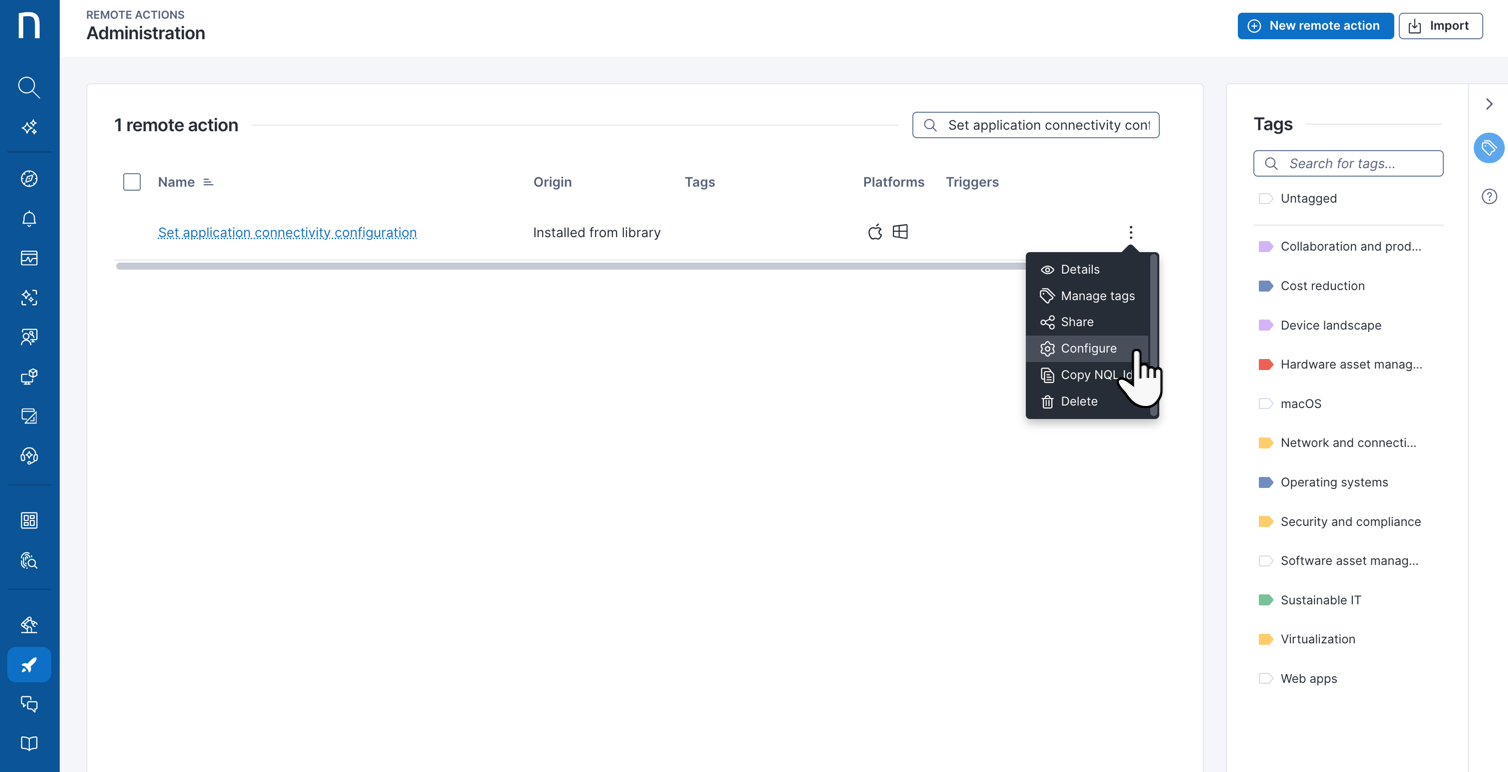
ドメイン名を有効化するには、Nexthink Library から *Set application connectivity configuration* リモートアクションをダウンロードして実行します。
Nexthink Library からリモートアクションを実行してドメイン名を有効化する
Nexthink Infinity の Web インターフェースから:
1. **Nexthink Library** から *Set application connectivity configuration* リモートアクションをダウンロードします。
2. メインナビゲーションパネルから **Remote Actions > Manage remote actions** に移動し、**Remote Actions Administration** ページを開きます。
3. **Remote Actions Administration** ページで、テーブルの検索バーを使用して *Set application connectivity configuration* リモートアクションを検索します。アクションメニューを開き、リモートアクション設定を **Configure** します。
4. リモートアクションの構成で、**General** タブの下にある項目から:
* 希望する **Trigger** を選択します。リモートアクションを **手動** で実行するか、**スケジュール** 設定して定期的に実行します。
* 必要に応じて、すべての **Devices** および **VDI sessions** をターゲットに含めていることを確認します。
5. リモートアクションの構成で、**Script** タブの下にある項目から:
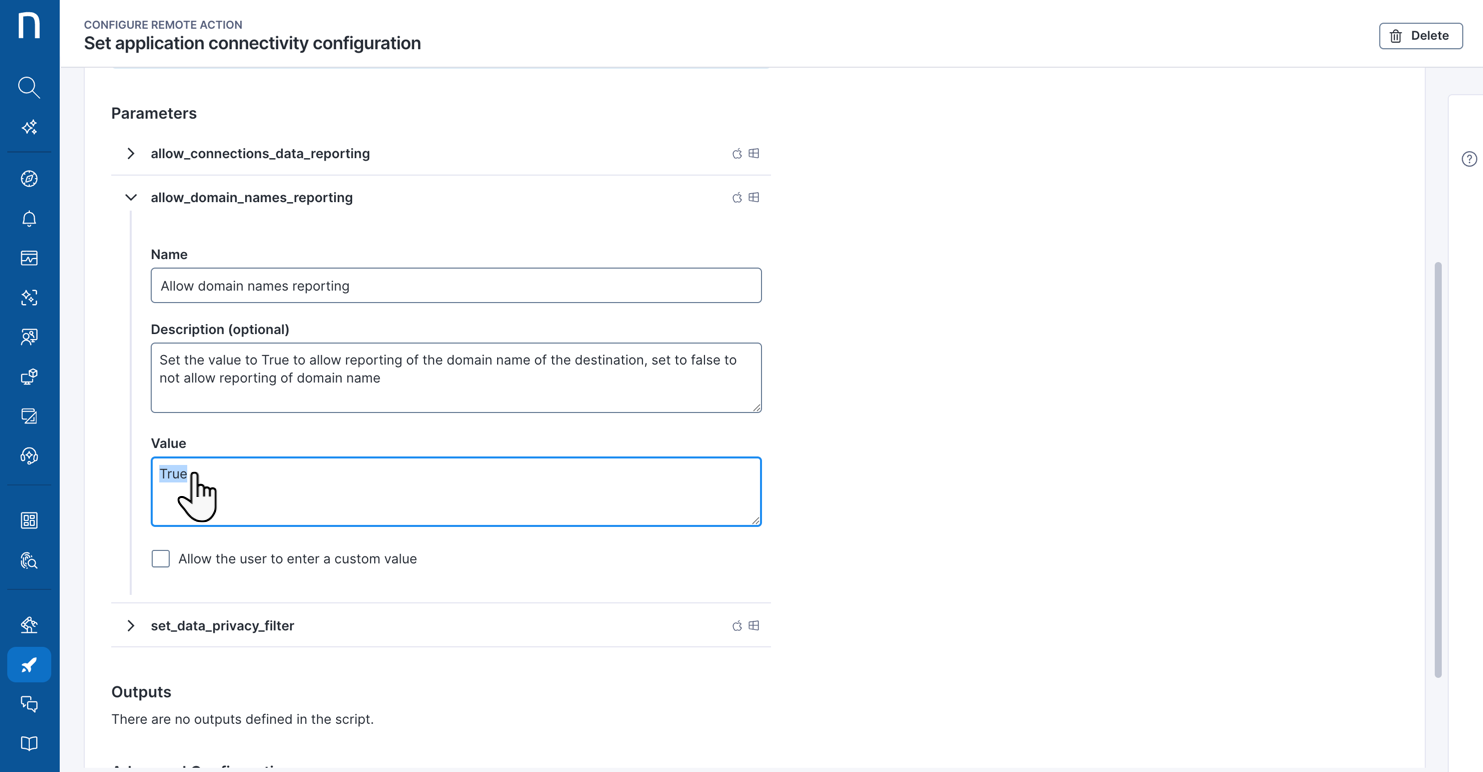
* **allow\_domain\_names\_reporting** の **Value** を `True` に設定します。
* **set\_data\_privacy\_filter** の **Value** を、すべてのドメインを `ALLOW*` する設定にします。詳細については、 [Collector レベルの匿名化の設定](/platform/ja/configuring_nexthink/bringing-data-into-your-nexthink-instance/deploying-nexthink-in-non-vdi-environment/installing-collector/configuring-collector-level-anonymization.md#configuringcollectorlevelanonymization-domainnamewithwildcard) を参照してください。
Nexthink Collector は、ネットワーク接続をデフォルトで報告します。ただし、過去にネットワーク接続の報告を無効化している場合は、**allow\_connection\_data\_reporting** の **Value** を `True` に設定してください。
6. *Set application connectivity configuration* リモートアクションの設定を保存した後、手動で実行する必要があります。 [リモートアクションを管理する](/platform/ja/user-guide/remote-actions/setting-up-and-managing-remote-actions/managing-remote-actions.md#executing-remote-actions-from-the-manage-remote-actions-page) を参照してください。
{% hint style="info" %}
Nexthink は、`connection.events` データに基づいて使用中の **AI ツール** をすべて検出します。システムは、検出された AI ツールの `domains` を **AI ツールガバナンス** タブに表示するようにマッピングします。
`domain` の報告は特定のユーザーやツールに限定されるものではなく、インスタンス全体に適用される Collector の設定です。
{% endhint %}
{% endstep %}
{% step %}
#### AI ツールの権限を付与する.
管理者として **AI Tools** モジュールの権限を有効にします。
1. メインナビゲーションパネルから **Administration >** [Roles](https://docs.nexthink.com/platform/ja/user-guide/administration/account-management/roles) を選択します。
2. **新しいロール** を作成するか、既存のロールをホバーして編集します。
3. **権限** セクションの下で、**AI Tools** セクションまでスクロールして次を行います:
AI の導入状況の監視と管理のための権限を有効にする
**AI** **導入**の監視と管理の権限を有効にします:
* **すべての AI ツールを管理** して、組織が構成した **AI 導入** の監視用 AI ツールを作成および管理します。
* **View all AI tool dashboards** を利用して、**AI adoption** のダッシュボードとインサイトを確認します。
AI ツール ガバナンス のための権限を有効にする
必要に応じて、上記の導入監視の権限とは別に、**AI ツール ガバナンス** のための権限を付与できます。
* **Manage AI tools governance** を使用して、すべての AI ツールに対するガバナンスポリシーを管理し、必要に応じて新しい AI ツールを追加してガバナンスポリシーを割り当てます。
* **View AI tools governance** を利用して、**AI tools governance** のダッシュボードデータを確認します。
{% hint style="warning" %}
**AI ツール ガバナンス** の権限のみを持つユーザー ロールは、製品内のどこからも **AI 導入関連** のデータ、構成、またはダッシュボードにアクセスできません。
{% endhint %}
4. 特定のユーザーロールに対して、**Data Model Visibility** の **AI Tools** へのアクセスを付与してください。詳細については、[ロール](/platform/ja/user-guide/administration/account-management/roles.md#data-model-visibility) を参照してください。
{% endstep %}
{% endstepper %}
## AI Tools 構成の主要コンセプト
### AI Tool アプリケーションの種類:デスクトップと Web
Nexthink は、AI Tools に対して次のアプリケーション構成タイプをサポートしています。
* **デスクトップ** AI アプリケーションでは、AI Tool のインタラクションを実行するための対応する **バイナリ** が必要です。
* **Web** AI アプリケーションは、AI ツールとのやり取りを検出するために使用される **Conversation endpoint** のパスとして URL に依存します。
[#configuring-ai-tools-for-nexthink-monitoring](/platform/ja/user-guide/ai-tools/setting-up-and-managing-ai-tools/configuring-ai-tools.md#configuring-ai-tools-for-nexthink-monitoring) を参照してください。
{% hint style="warning" %}
**API** ベースのセットアップは Microsoft **Copilot** のみで利用できます。詳細については、[configuring-microsoft-copilot-using-api-credentials.md](/platform/ja/user-guide/ai-tools/setting-up-and-managing-ai-tools/configuring-ai-tools/configuring-microsoft-copilot-using-api-credentials.md) を参照してください。
{% endhint %}
***
### 組み込みキャンペーンのユーザー対象除外
AI Tools の組み込みキャンペーンは編集不可のコンテンツで、特定の条件下で展開されます。ただし、必要に応じて、AI ツールのキャンペーン設定を変更して特定のユーザーをキャンペーンから除外したり、キャンペーン送信者情報の詳細を変更したりできます。
[modifying-campaign-setups-for-ai-tools.md](/platform/ja/user-guide/ai-tools/setting-up-and-managing-ai-tools/modifying-campaign-setups-for-ai-tools.md) を参照してください。
{% hint style="info" %}
AI Tools キャンペーンのコンテンツ、展開条件、解釈について詳しく知るには、[AI ツールの監視](/platform/ja/user-guide/ai-tools/working-with-ai-tools.md#built-in-campaign-content-for-sentiment-tracking) を参照してください。
{% endhint %}
---
# Agent Instructions
This documentation is published with GitBook. GitBook is the documentation platform designed so that both humans and AI agents can read, navigate, and reason over technical content effectively. Learn more at gitbook.com.
## Querying This Documentation
If you need additional information that is not directly available in this page, you can query the documentation by asking a question.
Perform an HTTP GET request on the following URL with the `ask` and `goal` query parameters:
```
GET https://docs.nexthink.com/platform/ja/user-guide/ai-tools/setting-up-and-managing-ai-tools.md?ask=&goal=
```
`ask` is the immediate question: it should be specific, self-contained, and written in natural language.
`goal` is what the user is ultimately trying to achieve, the reason they need the answer. Sharing it helps GitBook give you a better, more relevant answer. A goal is most helpful when it describes the outcome the user wants rather than restating the question. For example, with `ask=how do I create an API token`, a goal like `automate deployments from our CI pipeline` lets GitBook tailor the answer to that use case.
The response will contain a direct answer to the question and relevant excerpts and sources from the documentation.
Use this mechanism when the answer is not explicitly present in the current page, you need clarification or additional context, or you want to retrieve related documentation sections.