> For the complete documentation index, see [llms.txt](https://docs.nexthink.com/llms.txt). Markdown versions of documentation pages are available by appending `.md` to page URLs; this page is available as [Markdown](https://docs.nexthink.com/platform/ja/library-packs/applications/adopt-library-packs/adopt-workday-essentials/usage-guide-adopt-workday-essentials.md).
# 使用ガイド:Adopt-ワークデイエッセンシャル
**Adopt - ワークデー エッセンシャルズ** ライブラリパックは新入社員が以下を可能にします:
* ワークデイのインターフェイスをナビゲートし、レイアウト、メニュー、主要なアクションエリアを理解する。
* 個人用メールアドレスを変更してください。
* 人事部が連絡を取りやすくするため、自宅の連絡先を更新してください。
* 職場の安全とコンプライアンスを確保するために、緊急連絡先を更新してください。
* ワークデイプロファイルで優先名を簡単に更新する方法を発見する。
## ライブラリパックは使用している
{% hint style="info" %}
このページの[使用ケース](#use-cases)にジャンプして、関連するシナリオアプリケーションを確認してください。
{% endhint %}
以下の目的のためにライブラリパックのコンテンツを使用します。
### **可視性**
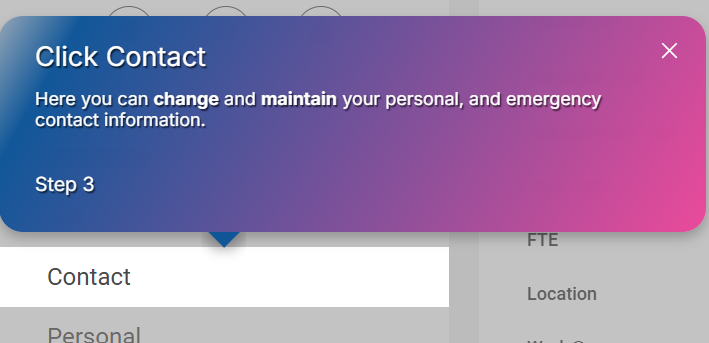
**Adopt - ワークデー エッセンシャルズ**[ アプリ内ガイド](https://docs.nexthink.com/platform/ja/user-guide/adopt#make-any-software-easy-to-use-with-in-app-guides)は、このライブラリパックの出発点です。これらは新入社員が初日からワークデイプラットフォームを自信を持ってナビゲートし使用できるようにするインタラクティブプロセスを提供します。
## 使用例
以下で取り上げられる関連する使用例に加えて、自分の環境に特有の他のトラブルシューティングシナリオを発見する可能性があります。
#### **緊急連絡先の更新**
職場の安全とコンプライアンスのために、人事部は各社員の緊急連絡先情報をファイルに正確かつ最新の状態で保持しておくことが必須です。新入社員として、この情報をWorkdayシステムに入力する必要がありますが、どうやって、どこに入力するのかは明示的ではないことがあります。
ワークデイの [**Adopt**](https://docs.nexthink.com/platform/ja/user-guide/adopt) メニューインターフェイスから:
1. Adoptメニューをクリックし、リストから「緊急連絡先を追加または変更する」ガイドを選択してください。
2. ガイドは、段階を追って社員を手順に沿って案内します。
3. フォーム入力段階では、ガイドの流れを中断することなく、画面上の要素を編集して保存できます。
#### **優先名の変更**
従業員の優先名とは、同僚、クライアント、および個人の生活で関わる個人と交流するときに使用することを選択した名前であり、法的な名前と異なる場合があります。これには、従業員の名前の短縮バージョン(例:ジョセフをジョーとするなど)が含まれることがありますが、これに限定されません。
新入社員にとって、ワークデイでこの情報をどのように、またはどこで変更するかは明らかでない場合がありますが、できるだけ早くそれを変更するのがベストです。
Workdayの[**Adopt**](https://docs.nexthink.com/platform/ja/user-guide/adopt)メニューインターフェースから:
1. Adopt メニューをクリックして、リストから「優先名の変更」ガイドを選択します。
2. ガイドはこの変更を行うために必要なステップを案内します。
関連トピック
* [ガイドを管理する](https://docs.nexthink.com/platform/ja/user-guide/adopt/guide-creation-and-management-from-nexthink-applications/managing-guides)
* [概要ページ:Adopt - Workday essentials](/platform/ja/library-packs/applications/adopt-library-packs/adopt-workday-essentials.md)
* [設定ガイド:Adopt - Workday essentials](/platform/ja/library-packs/applications/adopt-library-packs/adopt-workday-essentials/configuration-guide-adopt-workday-essentials.md)
---
# Agent Instructions
This documentation is published with GitBook. GitBook is the documentation platform designed so that both humans and AI agents can read, navigate, and reason over technical content effectively. Learn more at gitbook.com.
## Querying This Documentation
If you need additional information that is not directly available in this page, you can query the documentation by asking a question.
Perform an HTTP GET request on the following URL with the `ask` and `goal` query parameters:
```
GET https://docs.nexthink.com/platform/ja/library-packs/applications/adopt-library-packs/adopt-workday-essentials/usage-guide-adopt-workday-essentials.md?ask=&goal=
```
`ask` is the immediate question: it should be specific, self-contained, and written in natural language.
`goal` is what the user is ultimately trying to achieve, the reason they need the answer. Sharing it helps GitBook give you a better, more relevant answer. A goal is most helpful when it describes the outcome the user wants rather than restating the question. For example, with `ask=how do I create an API token`, a goal like `automate deployments from our CI pipeline` lets GitBook tailor the answer to that use case.
The response will contain a direct answer to the question and relevant excerpts and sources from the documentation.
Use this mechanism when the answer is not explicitly present in the current page, you need clarification or additional context, or you want to retrieve related documentation sections.