> For the complete documentation index, see [llms.txt](https://docs.nexthink.com/platform/llms.txt). Markdown versions of documentation pages are available by appending `.md` to page URLs; this page is available as [Markdown](https://docs.nexthink.com/platform/configuring_nexthink/bringing-data-into-your-nexthink-instance/integrating-nexthink-with-third-party-tools/outbound-connectors/webhooks/webhook-use-cases-setup/sending-data-to-azure-event-hubs.md).
# Sending data to Azure Event Hubs
{% hint style="warning" %}
This documentation references external sources.
Nexthink does not control the accuracy of third-party documentation or external updates that can result in inconsistencies.
Report any errors or inconsistencies to [Nexthink Support](https://support.nexthink.com/).
{% endhint %}
This document outlines how to send data to Azure Event Hubs using Nexthink Webhooks.
## Prerequisites
Before you start, ensure you have the following:
* Azure account
* Postman account
* Nexthink license
## In Azure portal
### Create a resource group
A resource group is a logical container for Azure resources.
1. Sign in to the [Azure portal](https://portal.azure.com).
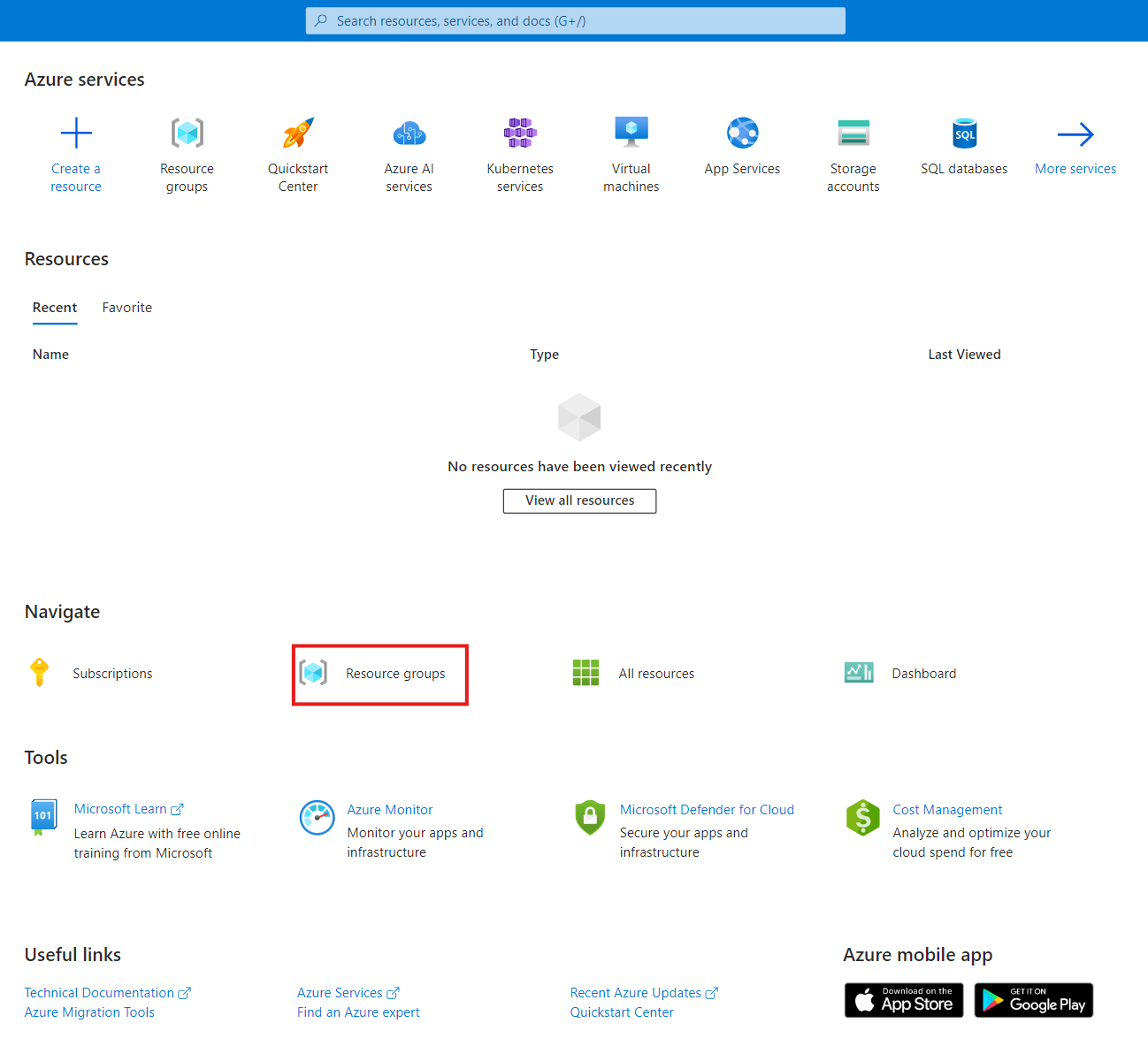
2. Select **Resource groups** from the main menu, and click **Create**.
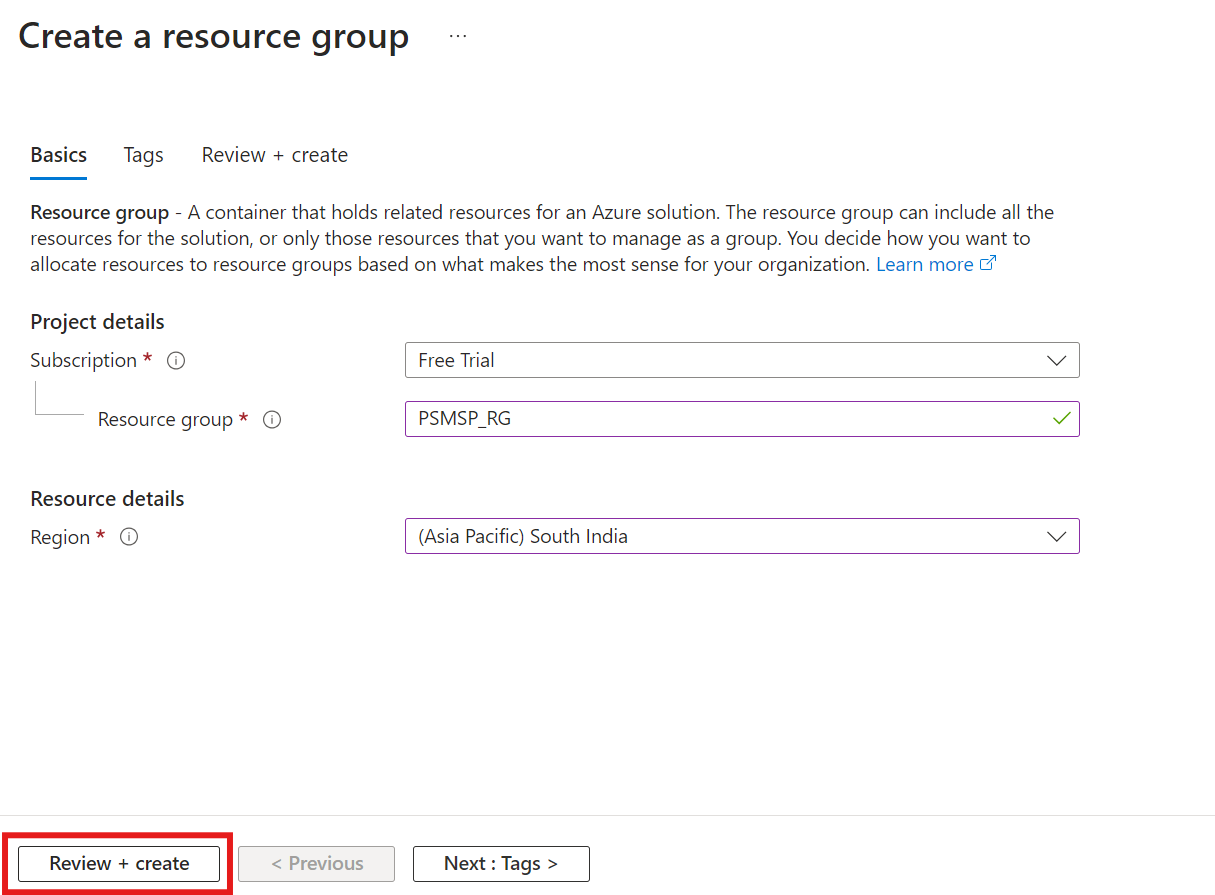
2. Select the relevant subscription and provide a unique name for the resource group.
3. From the **Region group** drop-down, select the relevant region group, and click **Review + Create**.
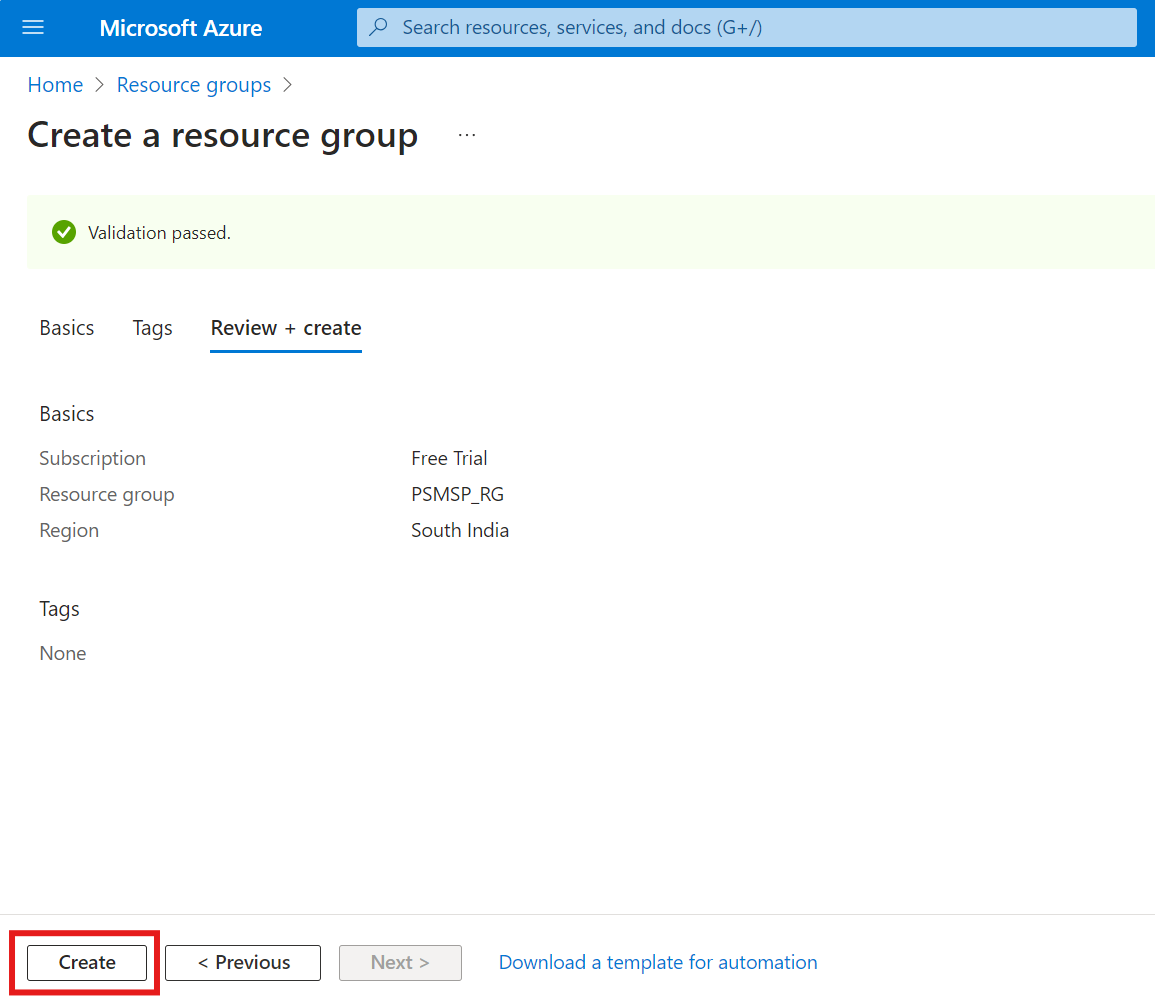
4. Review the details, and click **Create**.
### Create an Event Hubs namespace
Before creating an Event Hub, the system requires an Event Hubs namespace.
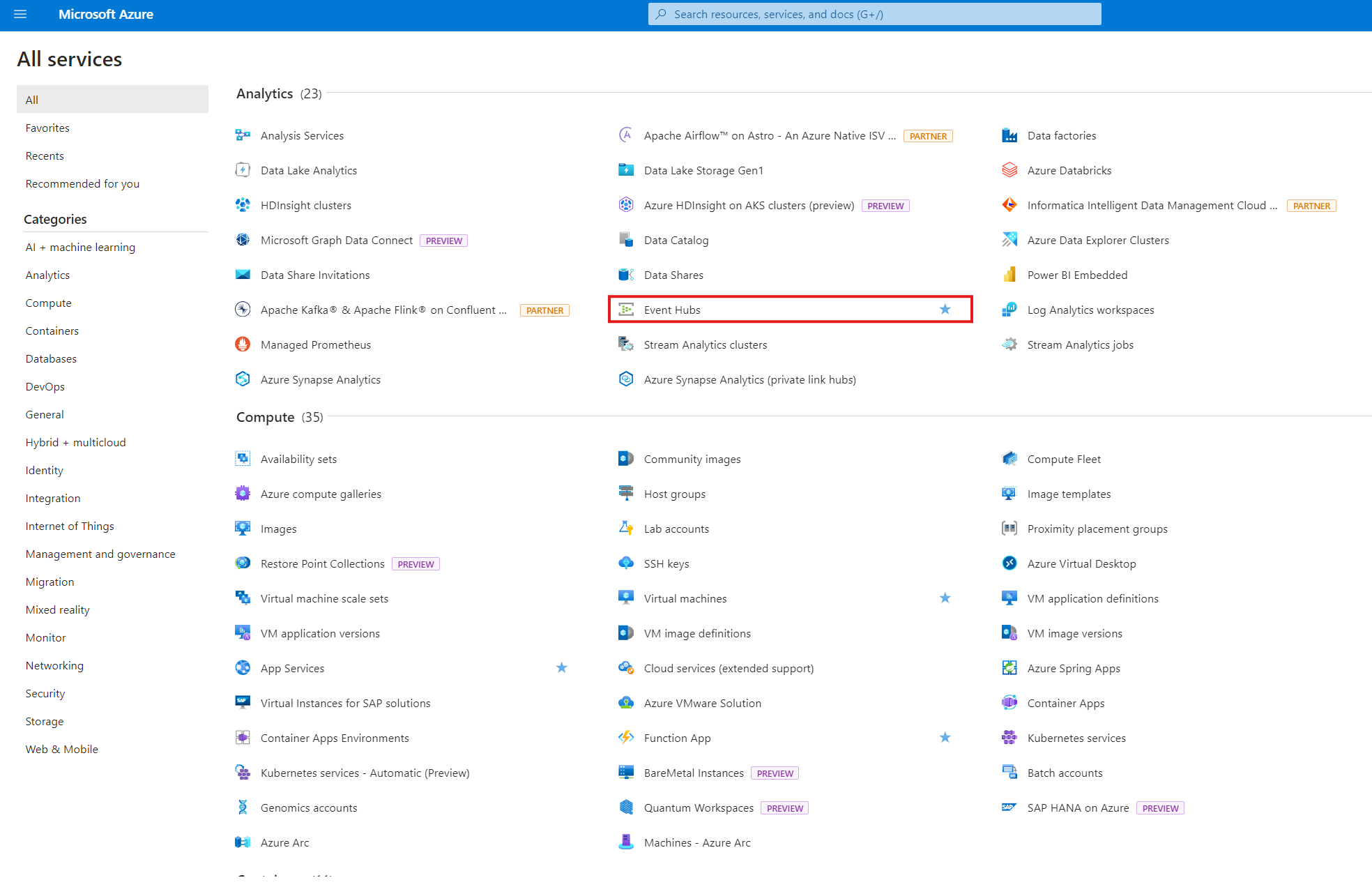
1. In the Azure portal, select **All services**.
2. Type **Event Hubs into the search field.**
3. Hover over **Event Hubs** and click the star to add Event Hubs to the **Favorites** list.
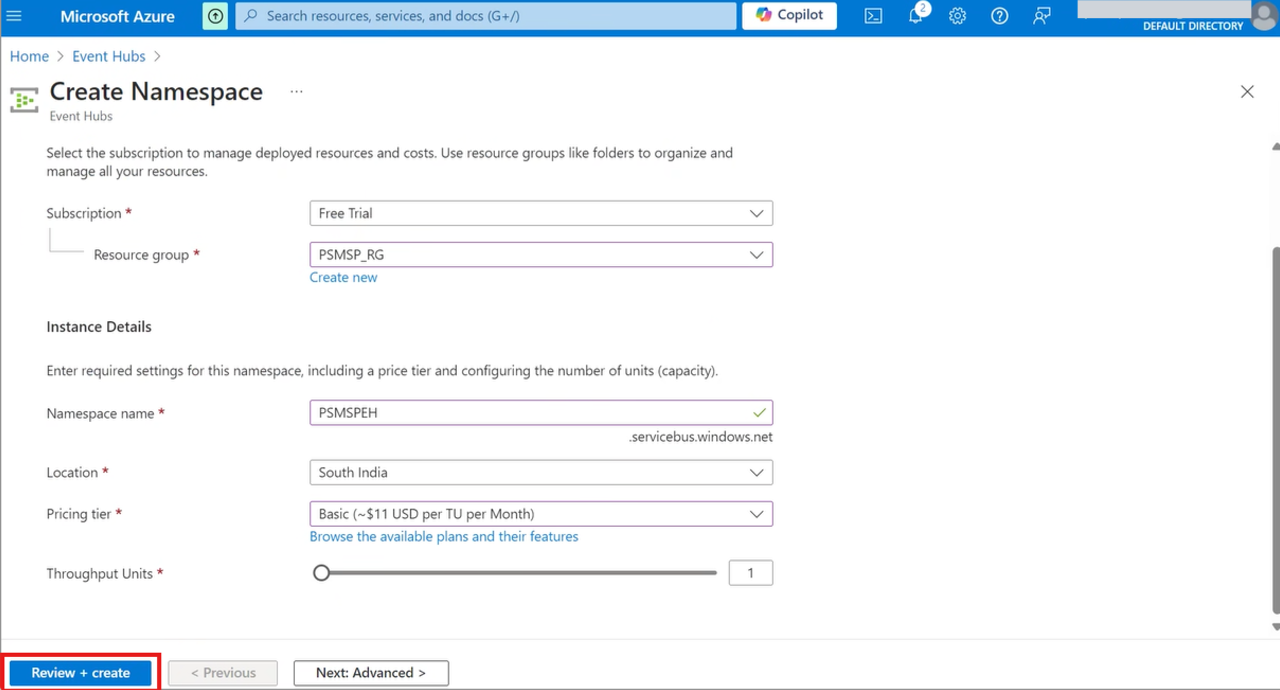
4. Under the **Favorites** tab, select **Event Hubs** and click **Create**.
5. From the drop-down menu in the search field, select the relevant **Subscription** and **Resource group**.
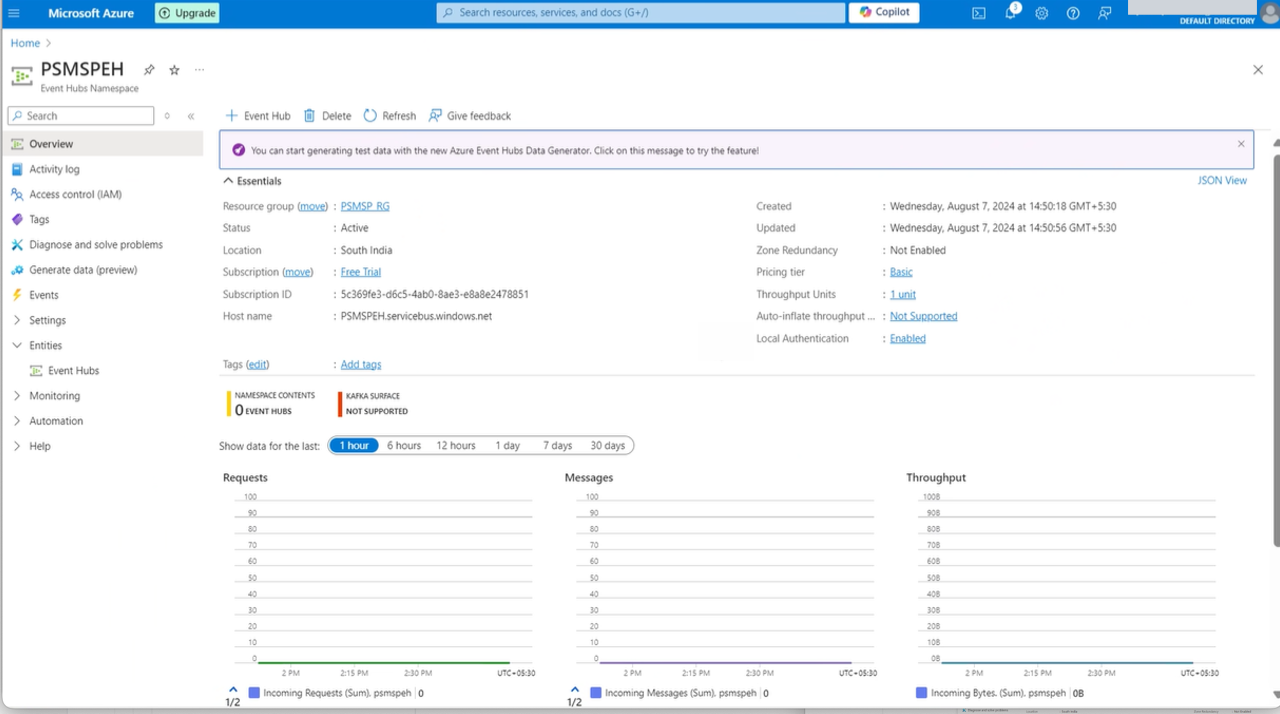
6. Once the namespace is deployed, navigate to the **Namespace page**.
* On the **Deployment** page, select **Go to resource** to navigate to the page for your namespace.
* Confirm that you see an **Event Hubs Namespace** page similar to the following example:
### Create an Event Hub
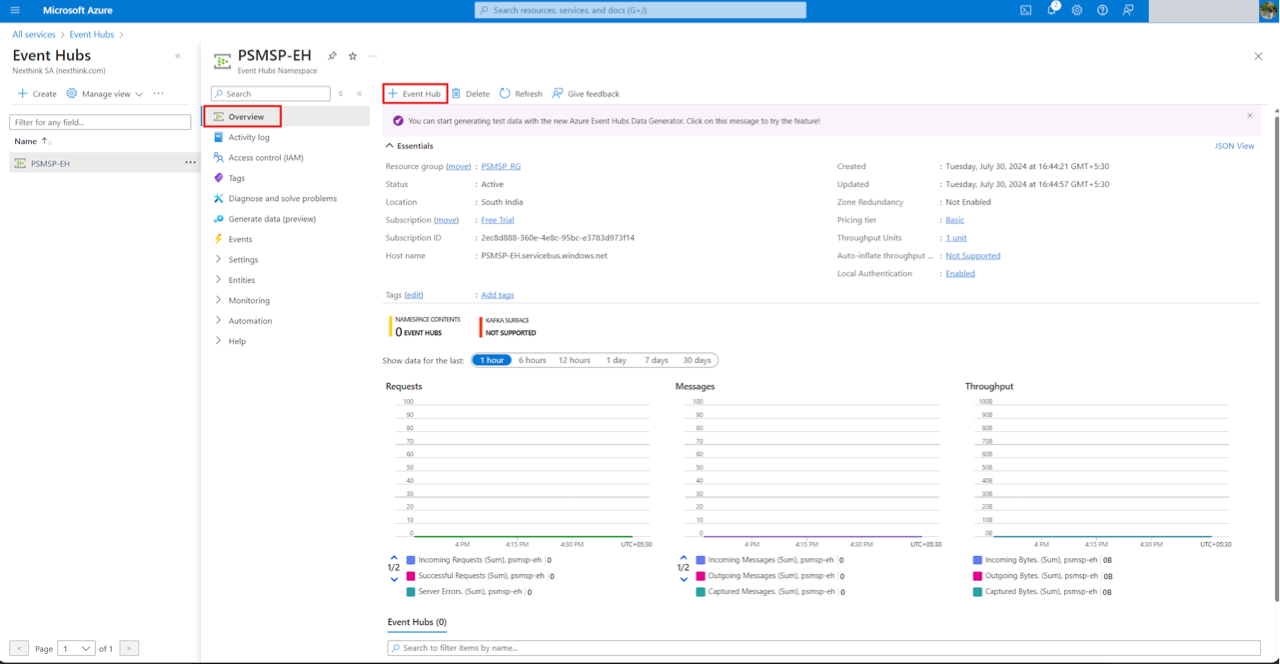
1. On the Event Hubs page, select **Overview** > **+** **Event Hub**.
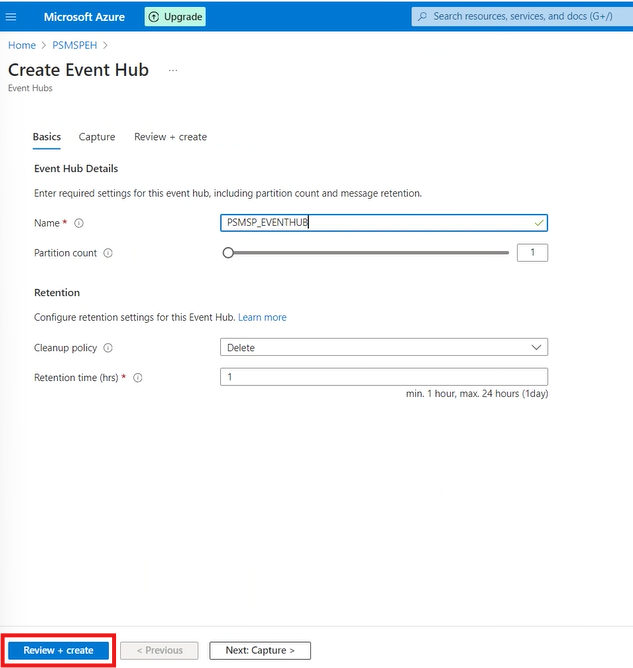
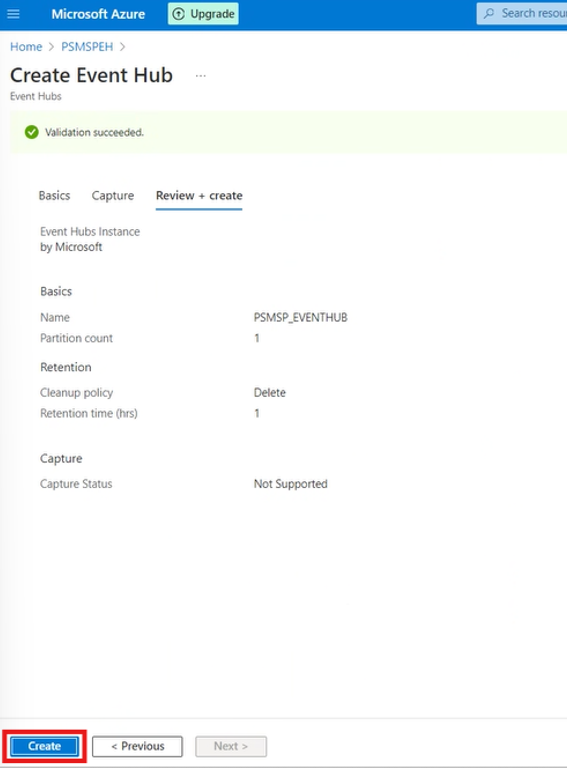
2. Enter a name for the Event Hub and click **Review + create**.
3. Review the Event Hub information, and click **Create**.
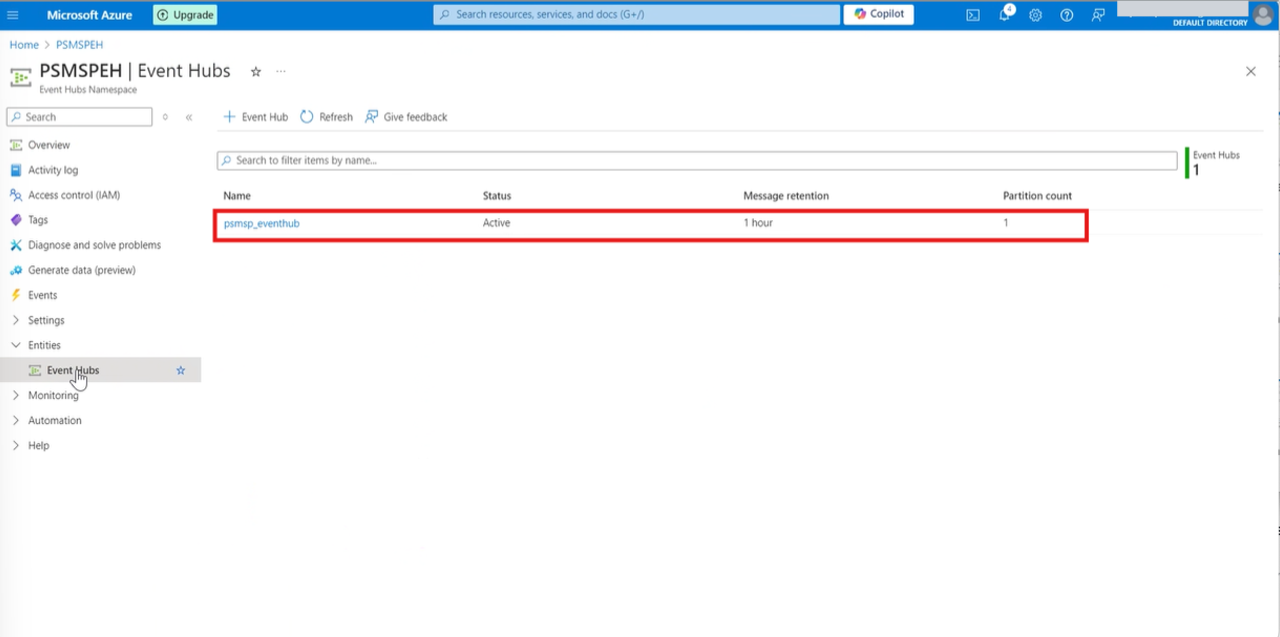
4. Under the **Entities** tab, select **Event Hubs** to review a list of Event Hubs.
### Register the application with Microsoft Entra ID
To authenticate against Azure, register the application using Microsoft Entra ID (formerly Azure AD).
1. Sign in to the [Azure portal](https://portal.azure.com/).
2. Enter **Microsoft Entra ID** in the search field and select it from the drop-down list.
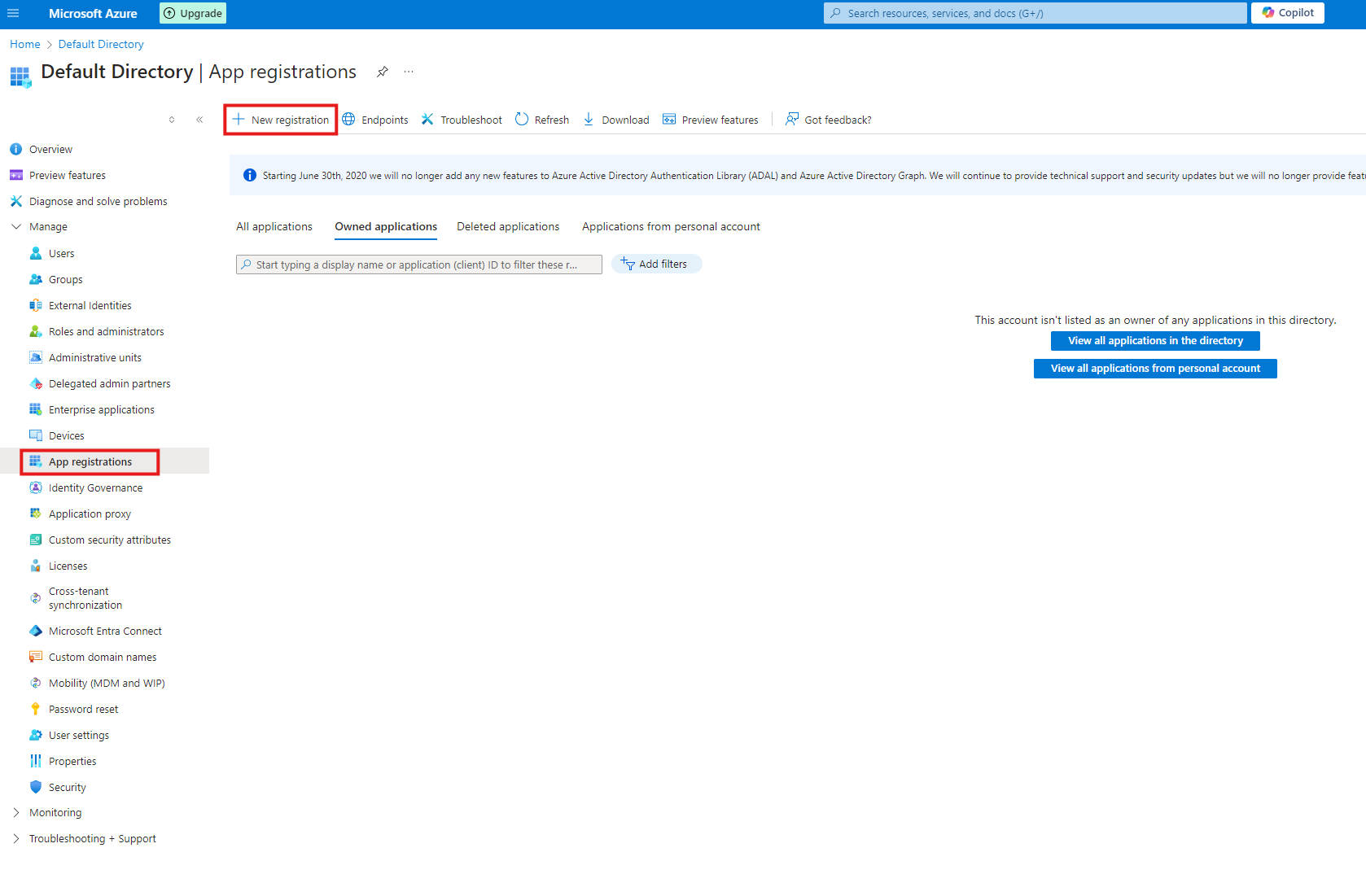
3. Select **App registrations** from the main menu.
4. Click on **+ New registration**.
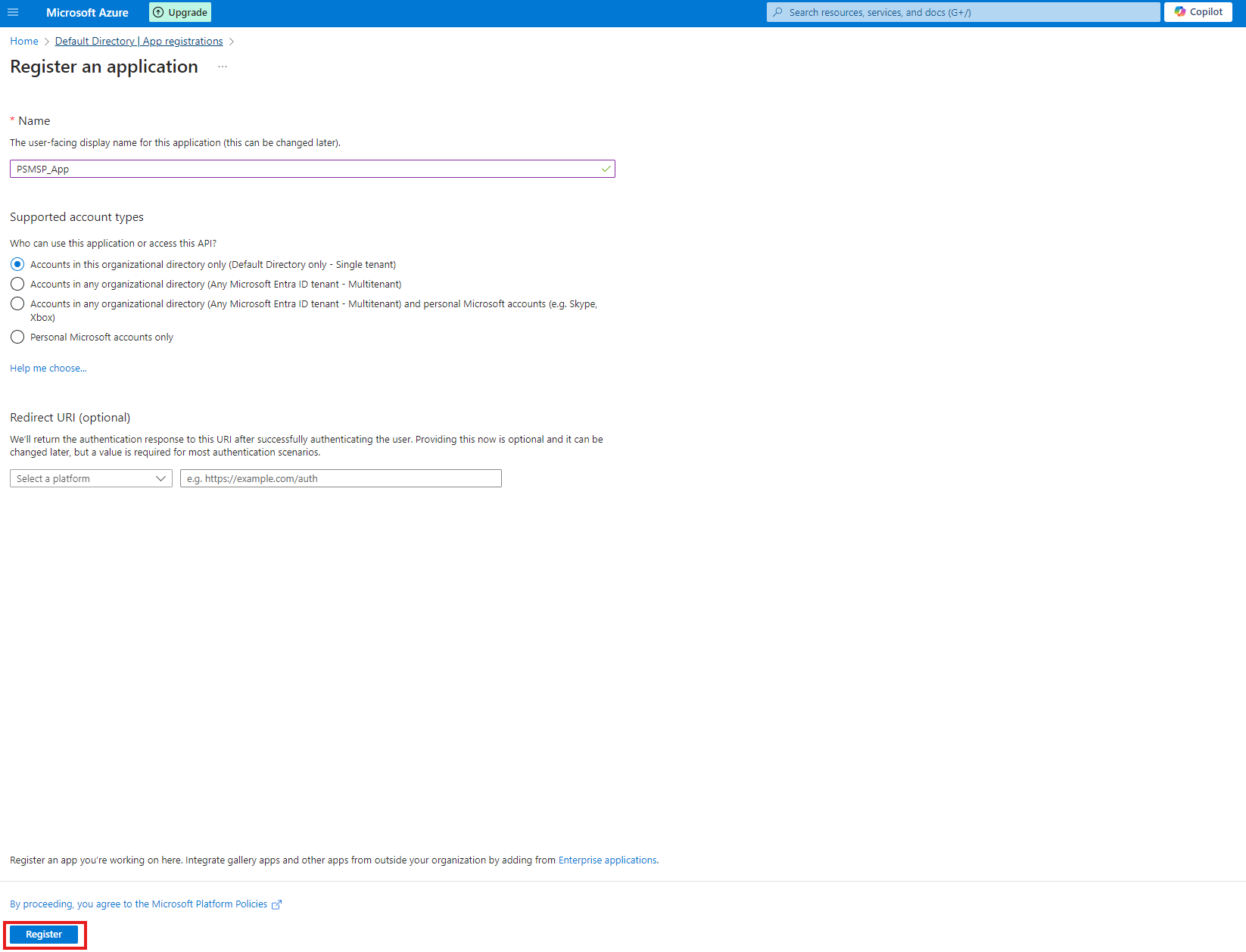
5. Enter a name for the application and click **Register**.
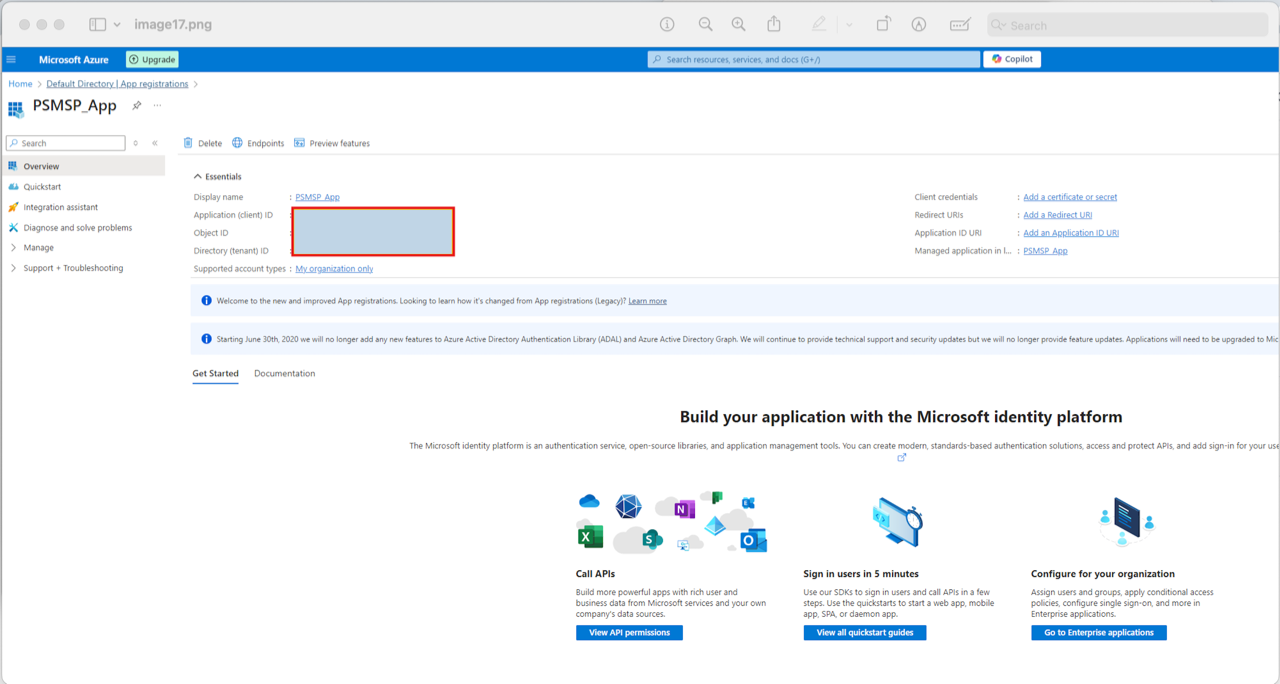
6. On the **Overview** page, copy the **Application (client) ID** and **Directory (tenant) ID**. Use these values to get a token from Microsoft Entra ID.
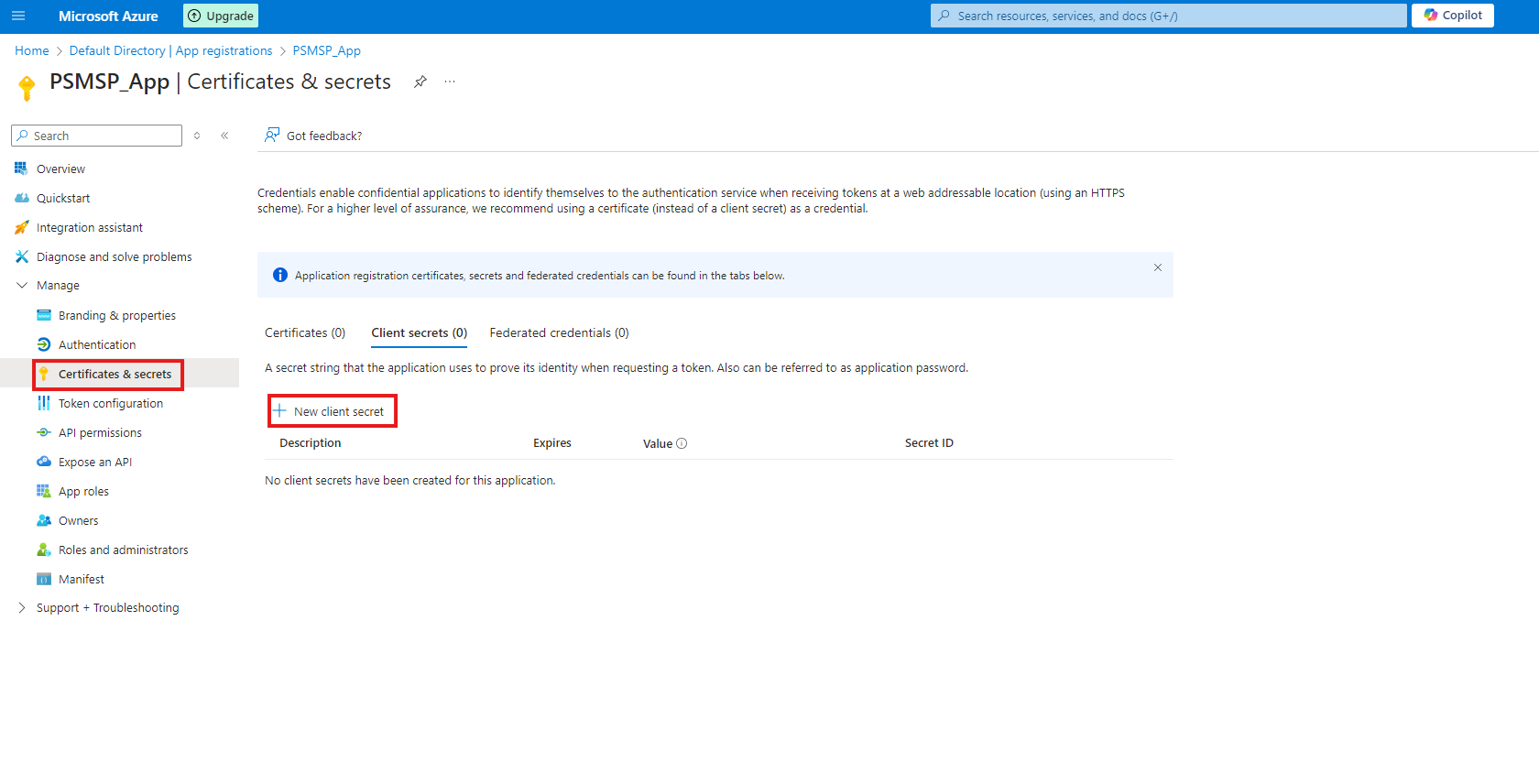
7. Select **Certificates & secrets** in the main menu, and click **+ New client secret**.
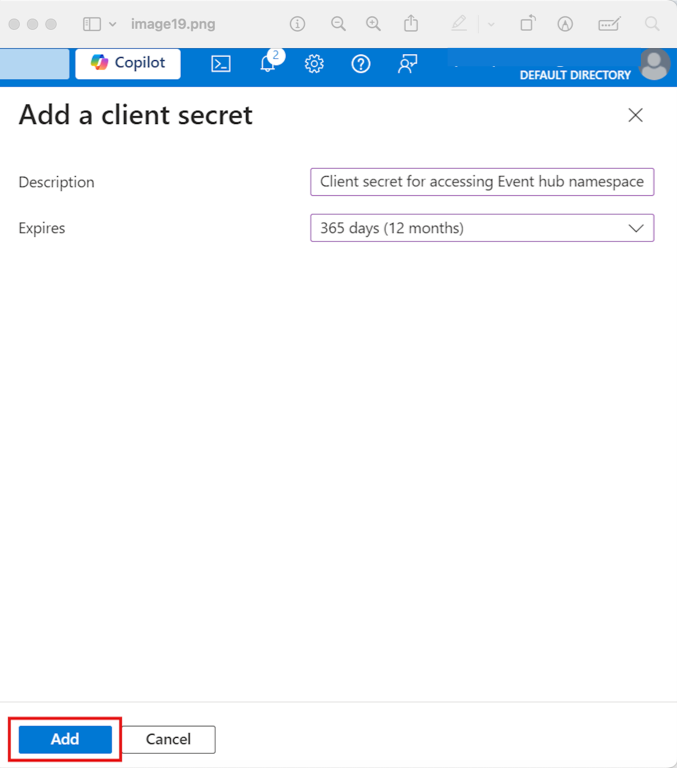
8. In the **Description** field, add a description of the client secret**.**
9. From the **Expires** drop-down, select the expiry period for the application.
10. Click **Add**.
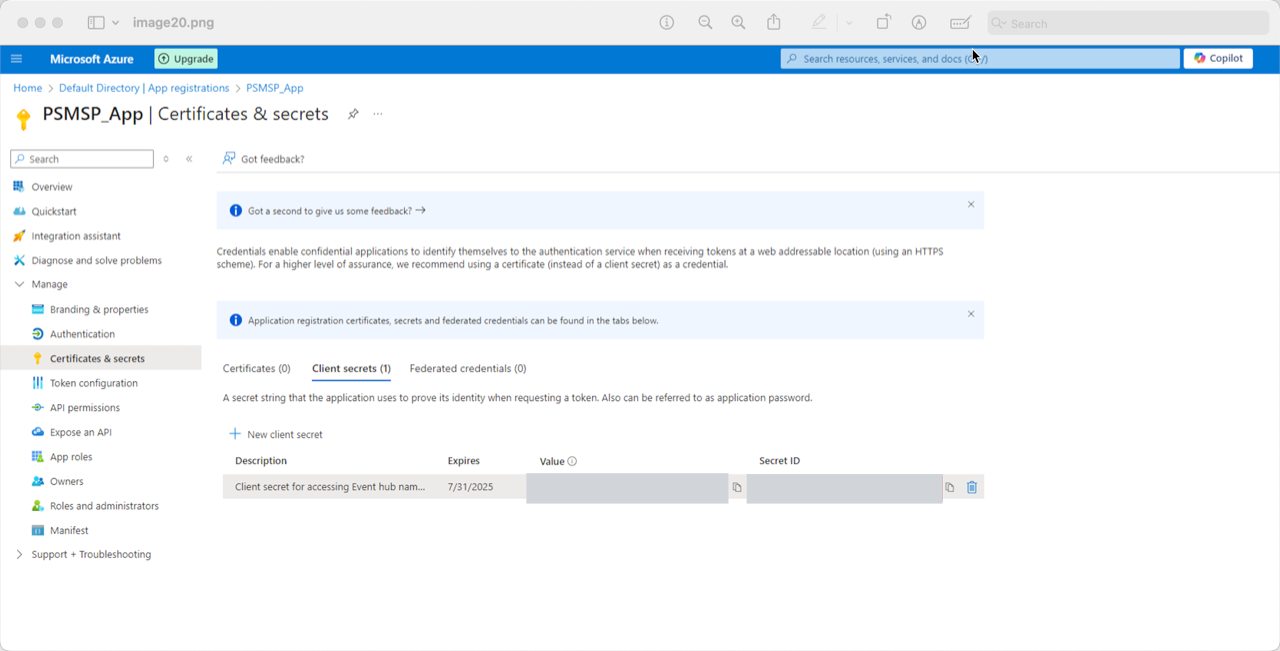
11. Under the **Client secrets** tab, click the copy icon next to the **Value** and **Secret ID** fields to get a token from Microsoft Entra ID.
### Add the application to the Event Hubs data sender
Assign your application to the **Azure Event Hubs Data Sender** role for access.
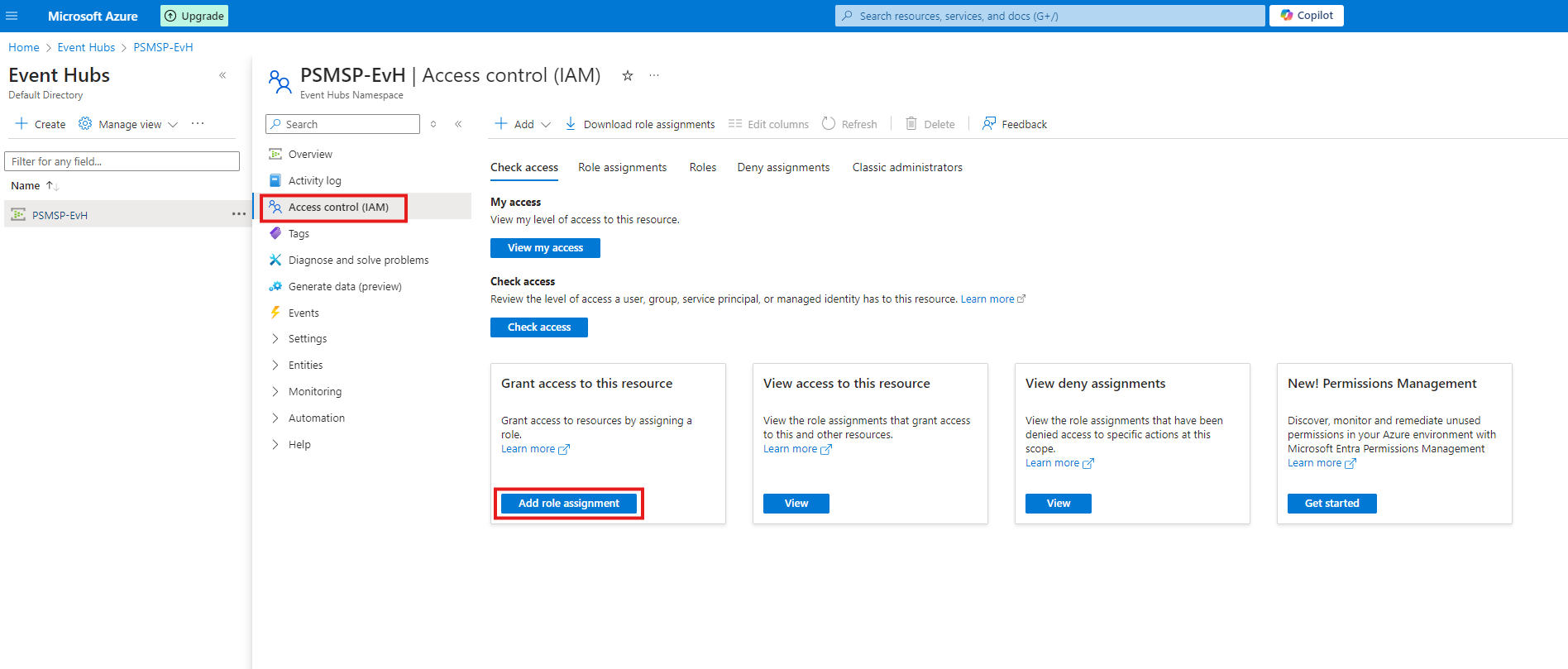
1. Select **Access control (IAM),** and click **Add role assignment**.
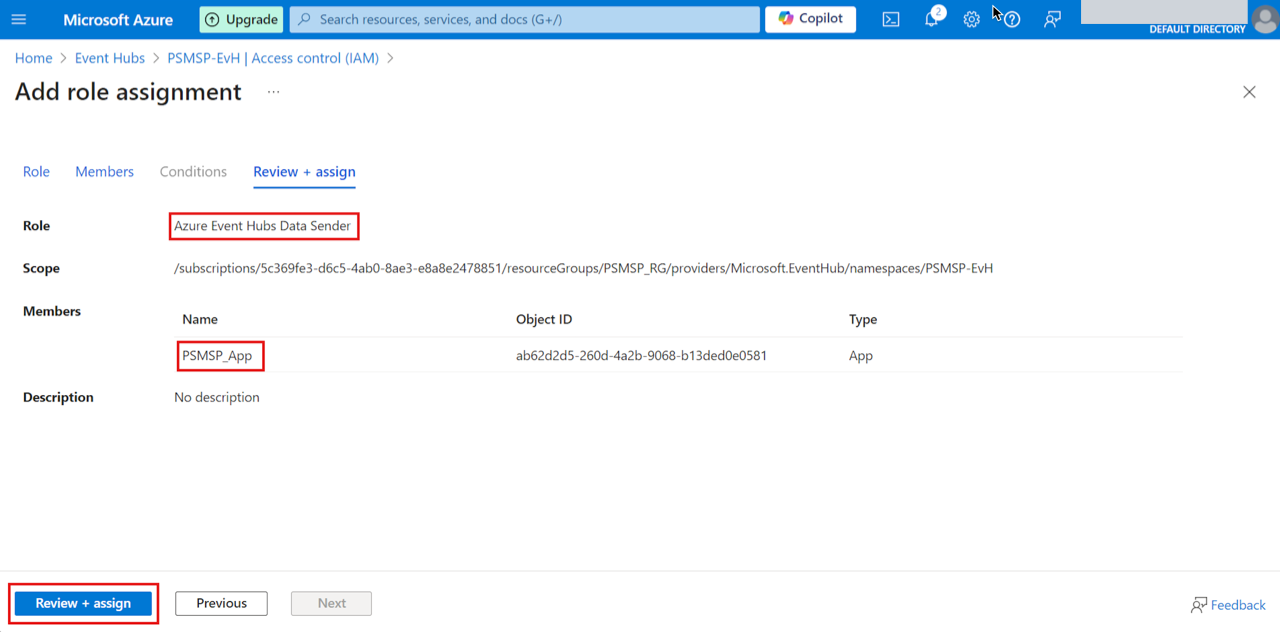
2. Select **Azure Event Hubs Data Sender** to role and the application under **Members**.
3. Click **Review + assign**.
## In Postman
Use Postman to get a Microsoft Entra token. Authenticate the webhook requests using either:
* Bearer token
* OAuth 2.0
### Bearer token
1. Sign in to Postman and create a new request.
2. Set the method to **GET** and enter the following URL:\
`https://login.microsoftonline.com//oauth2/v2.0/token`
3. Under the **Headers** tab, add the **Content-Type** key `application/x-www-form-urlencoded` for the value.
4. Under the **Body** tab, select **form-data** and add the following key-value pairs:
* `grant_type`: `client_credentials`
* `client_id`: Paste the client ID from earlier.
* `client_secret`: Paste the client secret.
* `resource`: `https://eventhubs.azure.net`
5. Click **Send** and save the token. This returns the **200** status code.
### OAuth 2.0
1. In Postman, open a new tab.
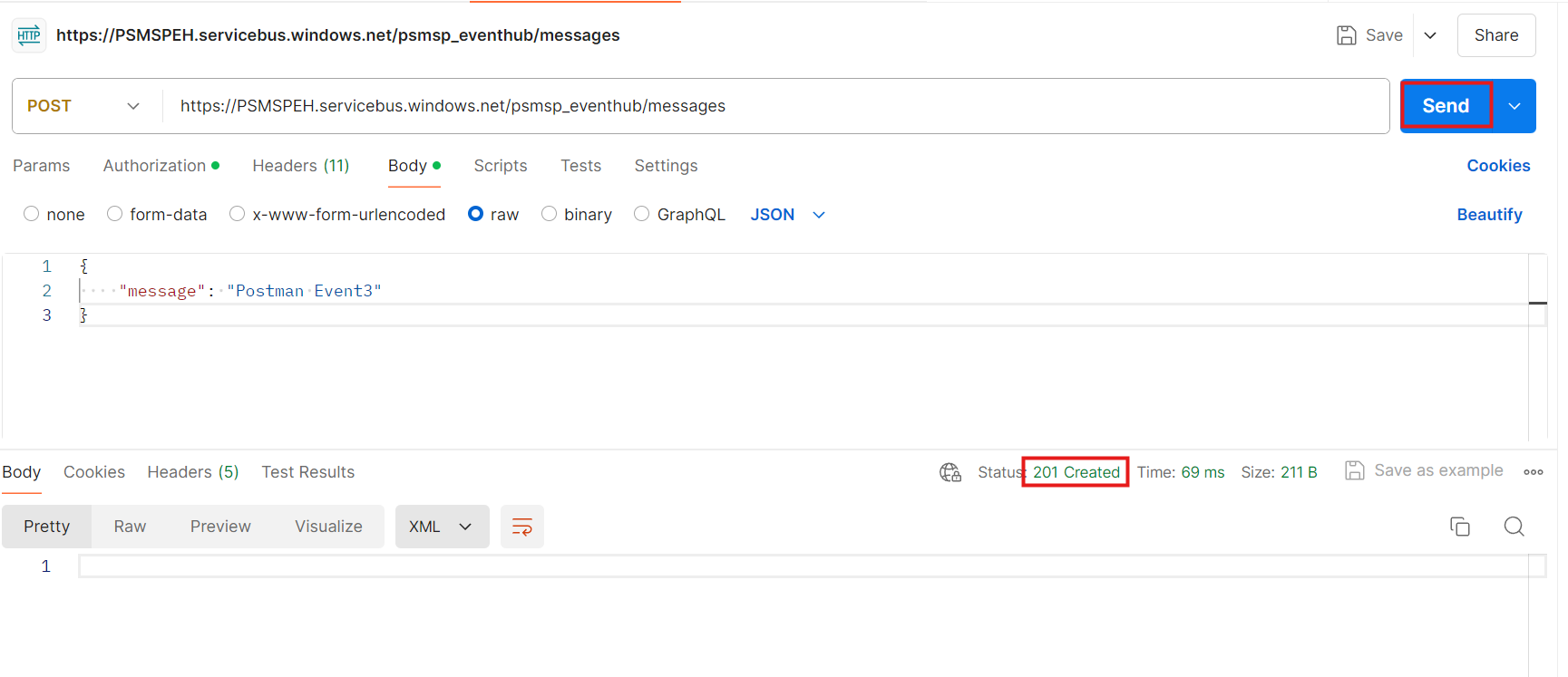
2. Select **POST** for the method.
3. Enter the URL in the following format: `https://.servicebus.windows.net//messages`. Replace:
* `` with the name of the Event Hubs namespace.
* `` with the name of the queue—the queue name will be the Event Hub name.
4. Under the **Body** tab, select **raw** for the data type and add the message you want to send in the request.
5. Select **Send**. This returns the **201** status code, as shown in the image.
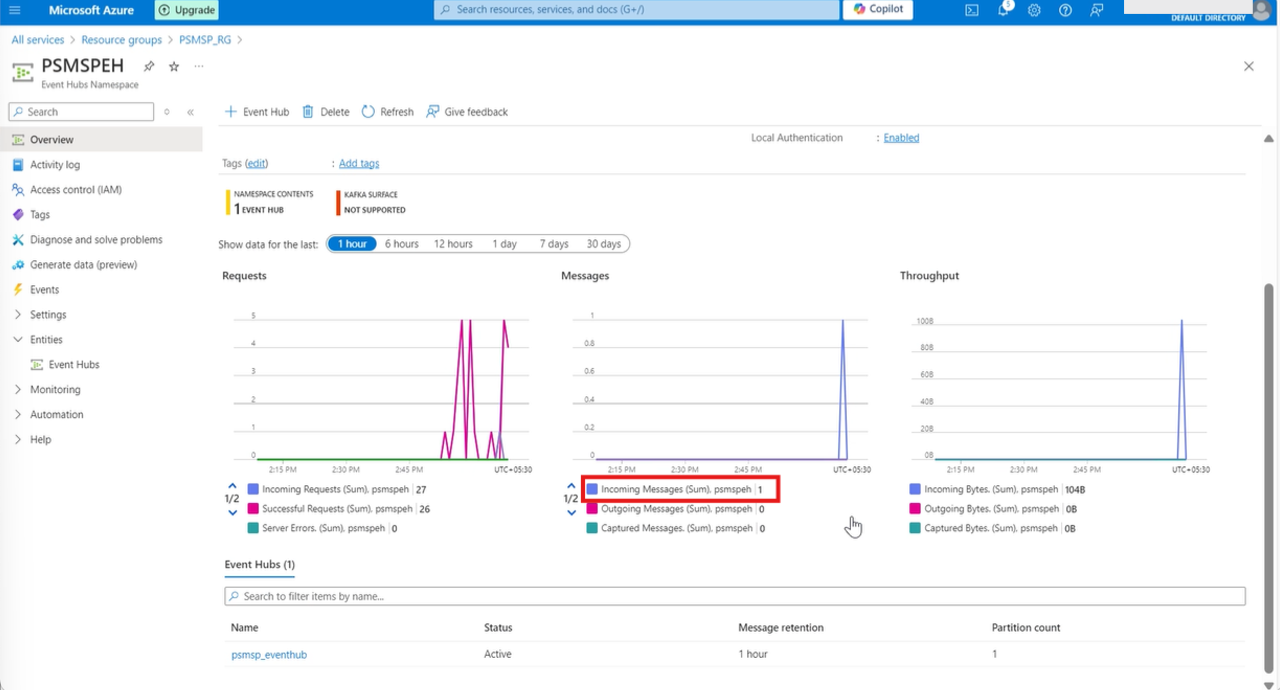
The message is posted on the **Event Hubs Namespace** page.
## In Nexthink
### Create webhook credentials
From the Nexthink web interface:
1. Go to **Administration > Connector Credentials** in the main menu.
2. Click **New Credential** and fill out the following details:
* **Name:** Name of the webhook.
* **Description:** Meaningful description of the action performed by the webhook.
* **Protocol**: Select **Hypertext Transfer Protocol Secure (HTTPS)**. Refer to the [Connector credentials for HTTPS](https://docs.nexthink.com/platform/integrations/outbound-connectors/connector-credentials) section in the [Connector credentials](https://docs.nexthink.com/platform/latest/webhooks-manage-credentials) documentation.
* **URL for HTTPS protocol**
Enter the URL of the third-party tool in the following format: `https://.servicebus.windows.net/`
* **Authorization:** Choose the authorization type from the drop-down list.
3. Save the newly created credential and return to configure a webhook.
### Create a webhook in Nexthink
From the Nexthink web interface:
1. Go to **Administration > Outbound Connectors > Webhooks**.
2. Click **New Webhook**, and complete the form:
* **Name**: Enter a name for the webhook.
* **NQL Condition**: Configure an NQL query that defines the condition to trigger the webhook.
* **Request Method**: POST.
* **Resource**: URL of the Event Hub in the format:\
`/messages`
* **Payload**: JSON payload to be sent to the Event Hub.
3. Click **Send Test** to validate the configuration.
4. Once the configuration is validated, click **Save webhook**.
###
---
# Agent Instructions
This documentation is published with GitBook. GitBook is the documentation platform designed so that both humans and AI agents can read, navigate, and reason over technical content effectively. Learn more at gitbook.com.
## Querying This Documentation
If you need additional information that is not directly available in this page, you can query the documentation dynamically by asking a question.
Perform an HTTP GET request on the current page URL with the `ask` query parameter, and the optional `goal` query parameter:
```
GET https://docs.nexthink.com/platform/configuring_nexthink/bringing-data-into-your-nexthink-instance/integrating-nexthink-with-third-party-tools/outbound-connectors/webhooks/webhook-use-cases-setup/sending-data-to-azure-event-hubs.md?ask=&goal=
```
`ask` is the immediate question: it should be specific, self-contained, and written in natural language.
`goal` is optional and describes the broader end goal you are ultimately trying to accomplish on behalf of the user. GitBook uses it to tailor the answer towards what is most useful for that goal.
The response will contain a direct answer to the question and relevant excerpts and sources from the documentation.
Use this mechanism when the answer is not explicitly present in the current page, you need clarification or additional context, or you want to retrieve related documentation sections.

.png?alt=media)
.png?alt=media)