> For the complete documentation index, see [llms.txt](https://docs.nexthink.com/platform/llms.txt). Markdown versions of documentation pages are available by appending `.md` to page URLs; this page is available as [Markdown](https://docs.nexthink.com/platform/configuring_nexthink/bringing-data-into-your-nexthink-instance/integrating-nexthink-with-third-party-tools/outbound-connectors/webhooks/webhook-use-cases-setup/posting-a-message-to-an-ms-teams-channel.md).
# Posting a message to an MS Teams channel
{% hint style="warning" %}
This documentation references external sources. Nexthink does not control the accuracy of third-party documentation or external updates that can result in inconsistencies.
Report any errors or inconsistencies to [Nexthink Support](https://support.nexthink.com/).
{% endhint %}
This document demonstrates how to post a message to an MS Teams channel using a webhook.
## In MS Teams
After creating a new MS Teams channel, configure a new workflow using Microsoft Power Automate.
1. Click three dots on the created channel and select **Workflows**.
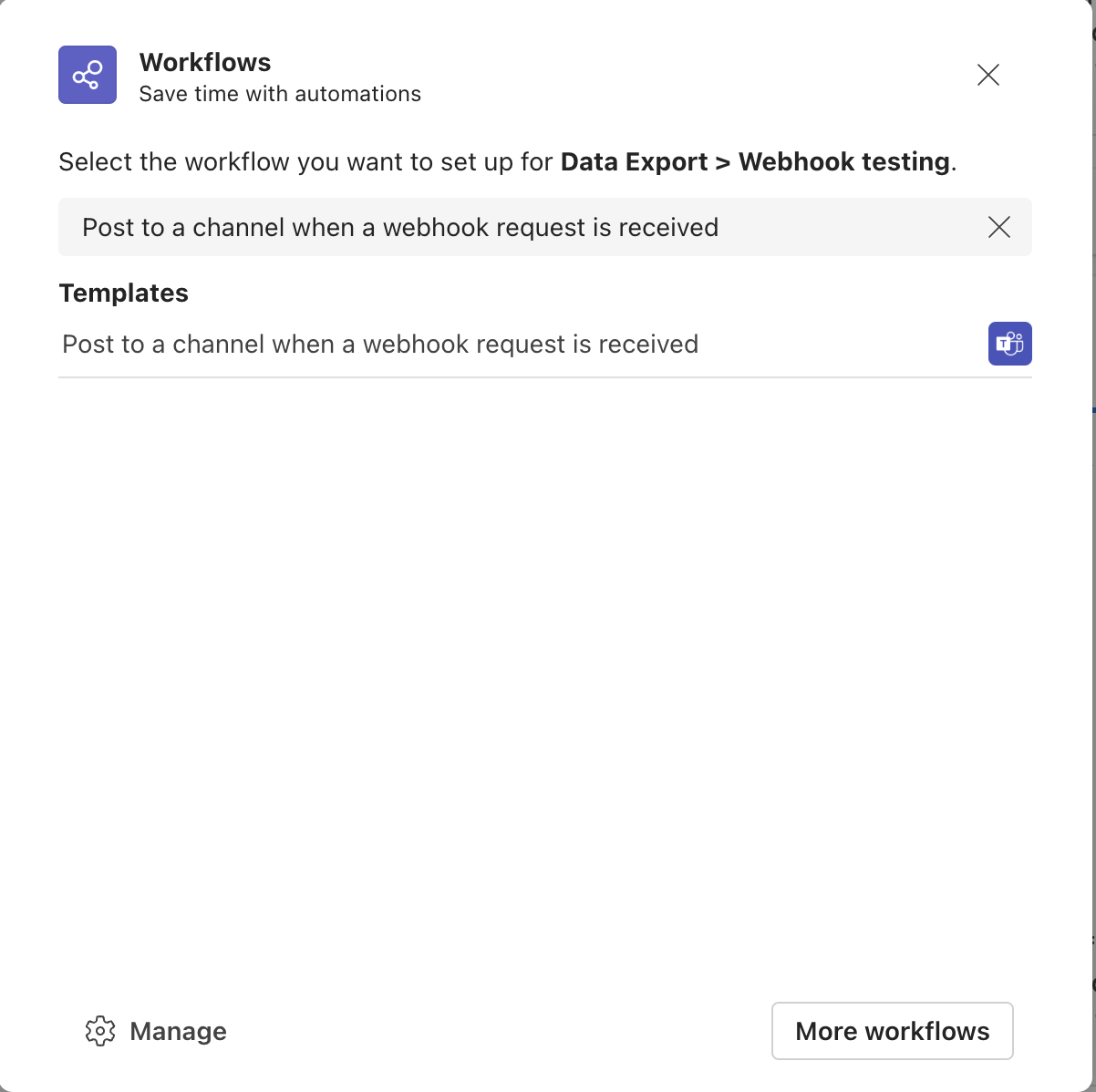
2. From the pop-up, search for and choose **Post to a channel when a webhook request is received** option. See the image below.
3. Name the workflow and define the workflow connection.
* Define the Team channel (from MS Teams) to notify using the Nexthink webhook.
4. Select the **Add Workflow** button to create the new workflow.
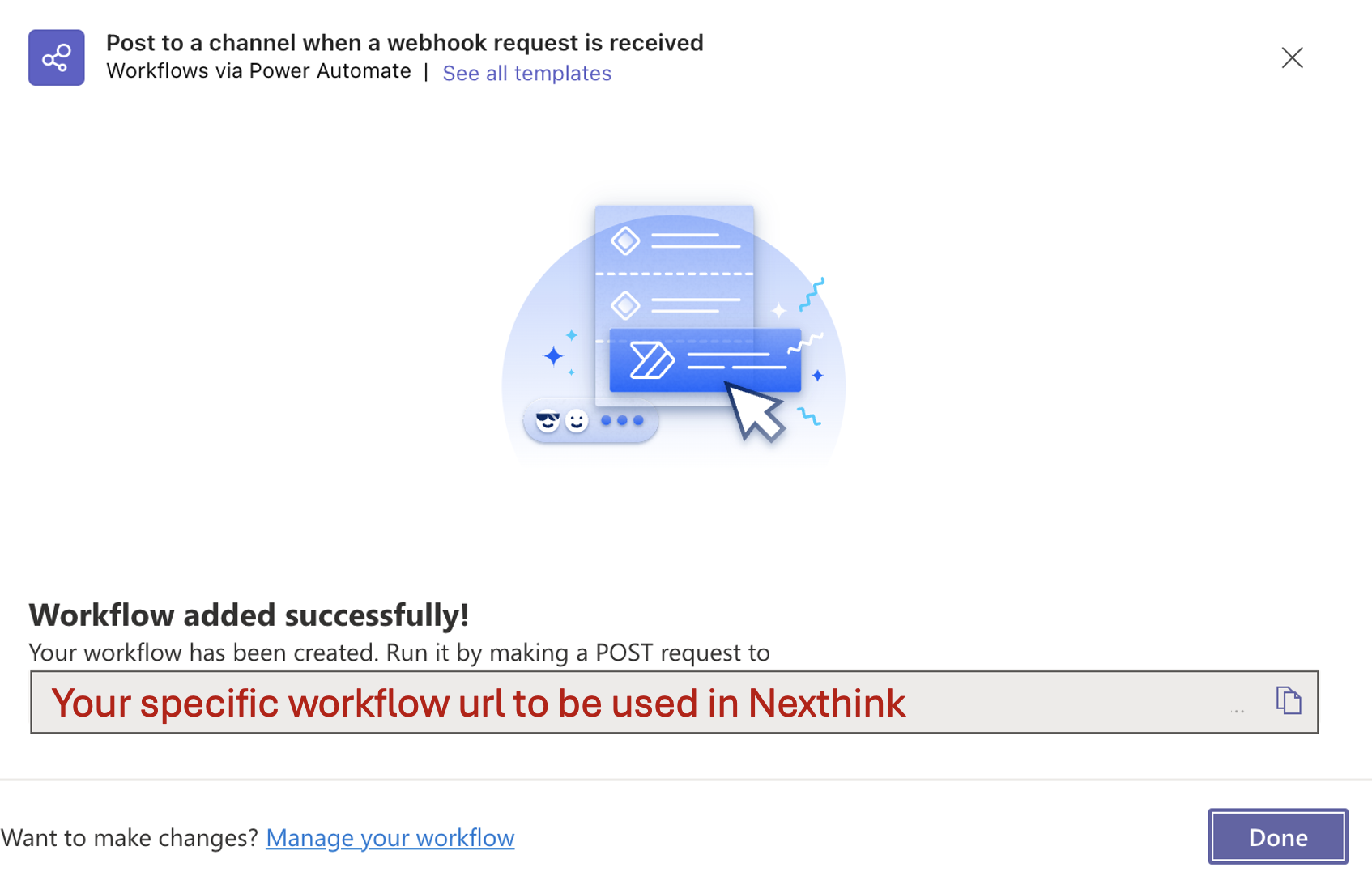
5. Copy the URL for future reference. That is, for the [connector credential](#postingamessagetoanmsteamschannel-configuringaconnectorcredentialformsteam) and [webhook configuration](#postingamessagetoanmsteamschannel-configuringawebhookformschannel) in the Nexthink web interface. See the image below.
* URL example for NoAuth: `https://defaultXXXXXXXXXXXXXXXXXXXXXXXXXXXXXX.XX.environment.api.powerplatform.com:443/powerautomate/automations/direct/workflows/XXXXXXXXXXXXXXXXXXXXXXXXXXXXXXXX/triggers/manual/paths/invoke?api-version=1&sp=%2Ftriggers%2Fmanual%2Frun&sv=1.0&sig=XXXXXXXXXXXXXXXXXXXXXXXXXXXXXXXXXXXXXXXXXXX`
* URL example for OAuth2: `https://defaultXXXXXXXXXXXXXXXXXXXXXXXXXXXXXX.XX.environment.api.powerplatform.com:443/powerautomate/automations/direct/workflows/XXXXXXXXXXXXXXXXXXXXXXXXXXXXXXXX/triggers/manual/paths/invoke?api-version=1&sp=%2Ftriggers%2Fmanual%2Frun&sv=1.0`
{% hint style="info" %}
If you are using the OAuth2 method, you must remove the `sig` parameters from the URL and ensure the URL is not encoded.
{% endhint %}
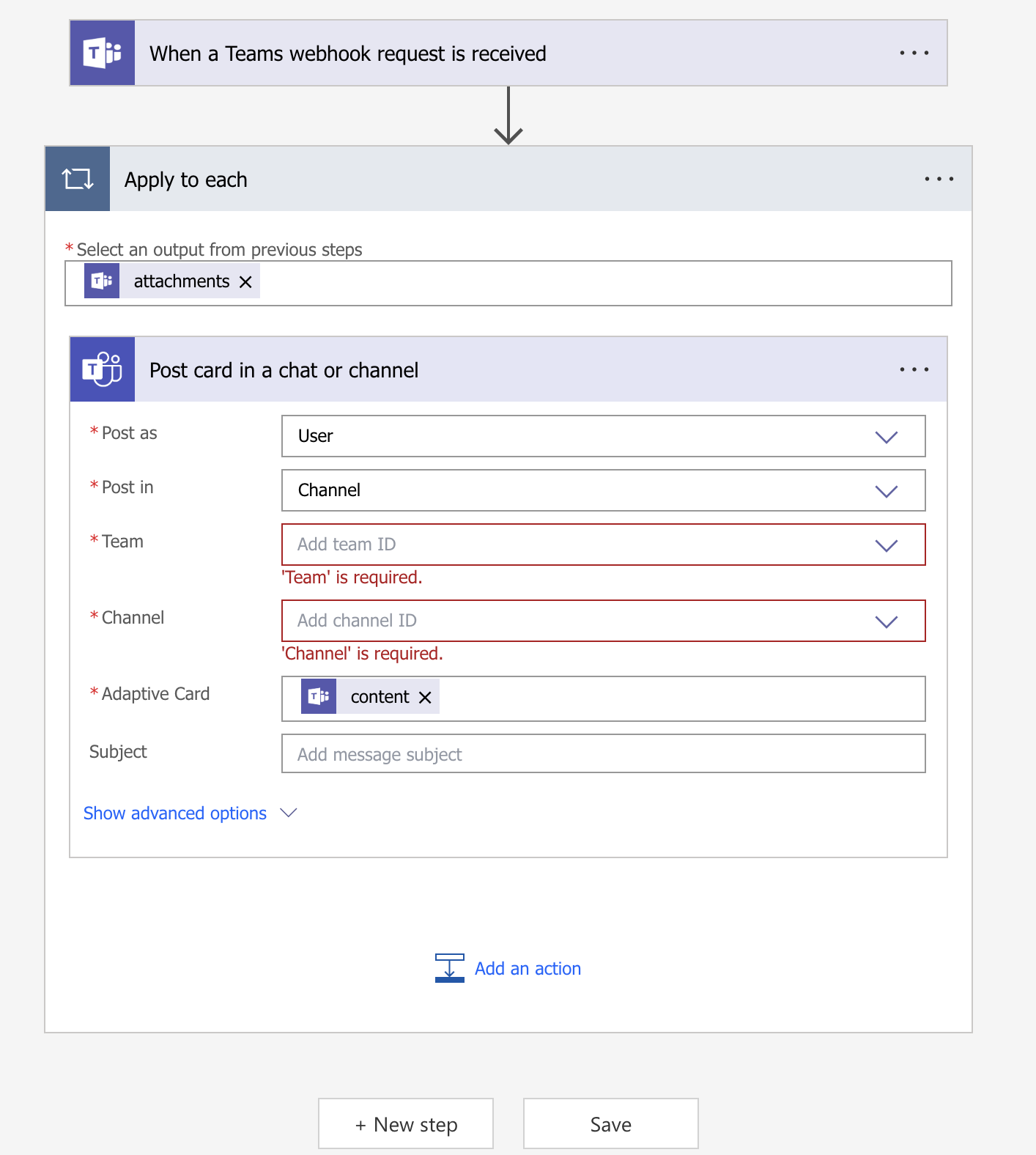
6. Select **Manage your Workflow**:
* Ensure the correct **permissions** are set:
* For **NoAuth:** Set to **Anyone**.
* For **OAuth2**: Set to **Any user in my tenant** after initially saving the workflow.
* Ensure the **output** format is set to **attachments**.
* Ensure the **Adaptive card** is defined as **content**.
* For private Team channels, use the dropdowns to set **Post as: User**. Otherwise, you can select **Flow Bot**.
{% hint style="warning" %}
You must decode the URL from the Power Automator before pasting it in the webhook configuration in Nexthink.
{% endhint %}
## In Entra ID
{% hint style="info" %}
Jump to the [In Nexthink](#postingamessagetoanmsteamschannel-innexthink-1) section if you do not require authentication **OAuth 2.0** for the connector credentials.
{% endhint %}
Follow the steps below in Microsoft Entra ID:
1. Go to your Entra ID instance and register a new Application.
* **Manage** > **App registrations** > **New registration**
2. Name the application and define the supported account type.
3. **Register** the application and copy the application ID for future reference when [configuring the connector credentials with authetication](#postingamessagetoanmsteamschannel-configuringaconnectorcredentialformsteam-1) in Nexthink.
4. Click on the new **Client secret** and define the experience date.
5. Copy the secret **value** (not the ID) for future reference when [configuring the connector credentials with authetication](#postingamessagetoanmsteamschannel-configuringaconnectorcredentialformsteam-1) in Nexthink.
* You can only copy the secret **value** after created.
6. Navigate to the **API permission** tab and add the **Access Microsoft Flow as signed in user** permission.
7. Navigate back to overview of the just registered app and navigate to the to **Endpoints** tab.
8. Save the **OAuth 2.0 token endpoint (v2)** for future reference when [configuring the webhook](#postingamessagetoanmsteamschannel-configuringawebhookformschannel) in Nexthink.
## In Nexthink
From the Nexthink web interface:
* Configure a connector credential for the outgoing webhook to MS Team
* [Without authetication: **No Auth (None)**](#postingamessagetoanmsteamschannel-configuringaconnectorcredentialformsteam)
* [With **OAuth 2.0** authentication](#postingamessagetoanmsteamschannel-configuringaconnectorcredentialformsteam-1)
* [Configure and test a webhook to post messages in the MS channel](#postingamessagetoanmsteamschannel-configuringawebhookformschannel)
### Configuring a connector credential for MS Team without authentication
From the [connector credential](/platform/configuring_nexthink/bringing-data-into-your-nexthink-instance/integrating-nexthink-with-third-party-tools/outbound-connectors/connector-credentials.md) configuration page, fill out the fields using the information from the configured incoming webhook in MS Teams:
1. Choose the **HTTPS** option from the **Protocol** drop-down.
2. Paste the root `https://xxxxx.your-instance.logic.azure.com:443` into the **URL address** field from URL from [MS Teams](#postingamessagetoanmsteamschannel-inmsteamsmsteamsconnector).
3. Choose **No Auth (None)** option from the **Authorization** drop-down.
4. **Save** the credential.
### Configuring a connector credential for MS Team with authentication
From the [connector credential](/platform/configuring_nexthink/bringing-data-into-your-nexthink-instance/integrating-nexthink-with-third-party-tools/outbound-connectors/connector-credentials.md) configuration page, fill out the fields using the information from the configured incoming webhook in MS Teams:
1. Choose the **HTTPS** option from the **Protocol** drop-down.
2. Paste the root `https://xxxxx.your-instance.logic.azure.com:443` into the **URL address** field from URL from [MS Teams](#postingamessagetoanmsteamschannel-inmsteamsmsteamsconnector).
3. Choose **OAuth 2.0 - Client Credentials** option from the **Authorization** drop-down.
4. Enter the **Access token URL**, **Client ID** and **Client secret** using the values from the [Entra ID application registration.](#postingamessagetoanmsteamschannel-innexthink)
5. **Save** the credential.
{% hint style="warning" %}
The use of double slash `//` is mandatory when you request a token for a resource URL with a trailing slash using `.default`. For example: `https://service.flow.microsoft.com//.default.`
Refer to [Microsoft ](https://learn.microsoft.com/en-us/entra/identity-platform/scopes-oidc#trailing-slash-and-default)documentation for more information about trailing slash and `.default`.
Nexthink does not control the accuracy of third-party documentation or external updates that can result in inconsistencies.
{% endhint %}
### Configuring a webhook for MS channel
From the [webhook configuration page](/platform/configuring_nexthink/bringing-data-into-your-nexthink-instance/integrating-nexthink-with-third-party-tools/outbound-connectors/webhooks/managing-webhooks.md), fill out the fields using the information from the connection you created in MS Teams and the connector credential defined in Nexthink:
1. Fill in the **NQL Condition** following the [Configuring webhook NQL conditions](/platform/configuring_nexthink/bringing-data-into-your-nexthink-instance/integrating-nexthink-with-third-party-tools/outbound-connectors/webhooks/managing-webhooks/configuring-webhook-nql-conditions.md) documentation. See query below.
* After filling in the NQL Condition, the system lists the [allowed placeholders](/platform/configuring_nexthink/bringing-data-into-your-nexthink-instance/integrating-nexthink-with-third-party-tools/outbound-connectors/webhooks/managing-webhooks/configuring-webhook-fields_-method-resource-and-payload.md#configuringwebhookfields-method-resource-andpayload-usingdatamodelvariablesasplaceholdersinthepayloa) for the **Payload**.
```
alert.alerts
| where monitor.tags contains "web-applications"
| where alert.context contains "*Salesforce*" or alert.context contains "*Microsoft*"
| list alert.monitor.name, alert.status, monitor.tags, alert.context, trigger_time, recovery_time, alert.monitor.thresholds, monitor.priority, alert.trigger_values, alert.trigger_reference_value, alert.recovery_values, alert.context, device_view_link , issue_view_link
```
2. Choose the configured connector credential for MS Team (depending on the case, [with authentication](#postingamessagetoanmsteamschannel-configuringaconnectorcredentialformsteam-1) or [without authentication)](#postingamessagetoanmsteamschannel-configuringaconnectorcredentialformsteam) from the **Credentials** drop-down.
3. Select the **POST** from the **Method** drop-down.
4. Paste into the **Resources** field, the URL endpoint from the [MS Teams configuration](#postingamessagetoanmsteamschannel-inmsteamsmsteamsconnector) without the root URL address. For example: `/workflows/XXXXXXXXXXXXXXXXXXX/triggers/manual/paths/invoke?api-version=?????&sp=/triggers/manual/run&sv=1.0&sig=XXXXXXXXXXXXXXX`
{% hint style="warning" %}
Make sure the URL is not encoded.
{% endhint %}
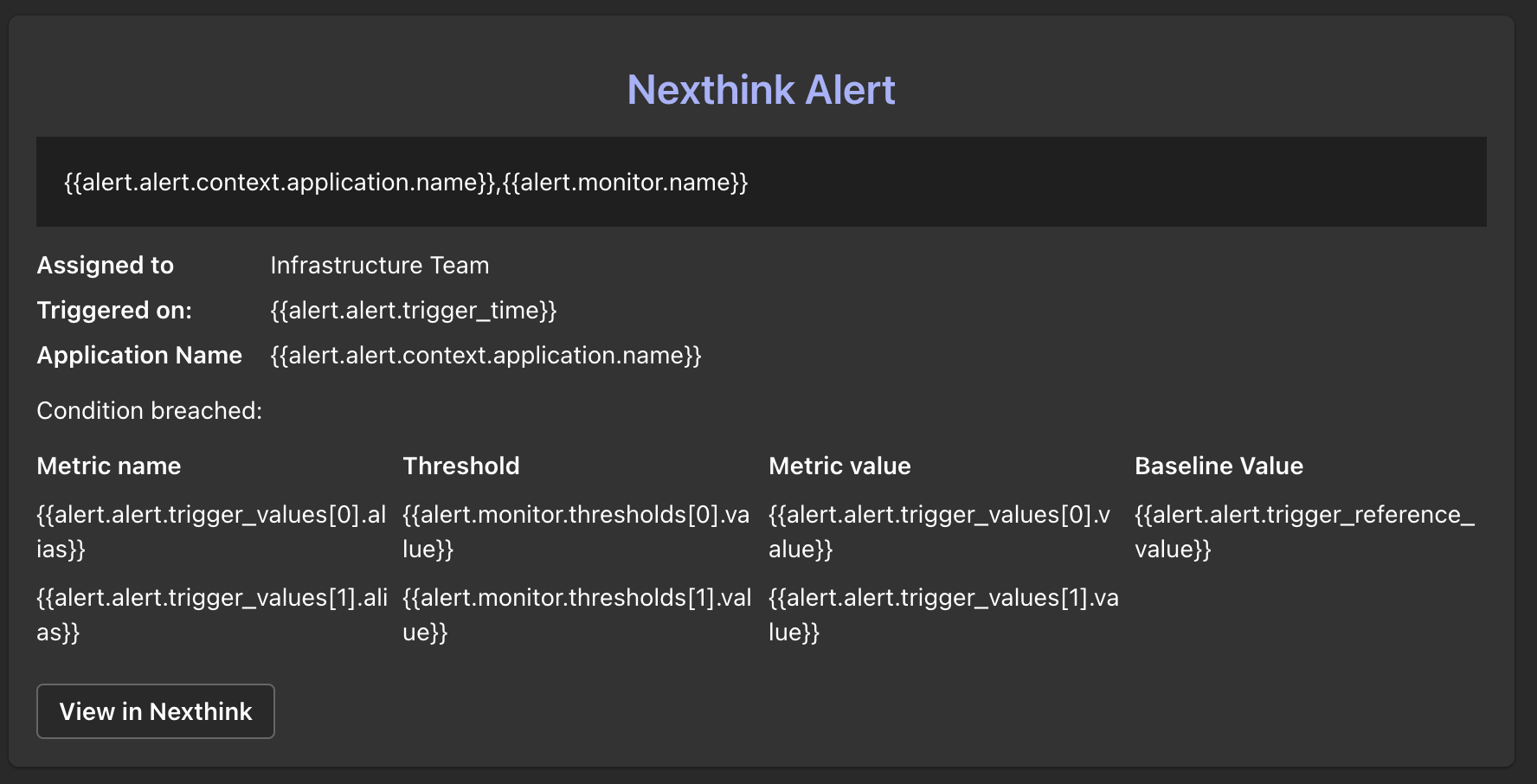
5. Add the message you want to send in **Payload**. See the example below.
* Notice that the payload example below uses [Special placeholders for alerts data model variables](/platform/configuring_nexthink/bringing-data-into-your-nexthink-instance/integrating-nexthink-with-third-party-tools/outbound-connectors/webhooks/managing-webhooks/configuring-webhook-fields_-method-resource-and-payload.md#configuringwebhookfields-method-resource-andpayload-specialplaceholdersforalertsdatamodelvariablesal).
```
{
"type": "message",
"attachments": [{
"contentType": "application/vnd.microsoft.card.adaptive",
"content": {
"$schema": "http://adaptivecards.io/schemas/adaptive-card.json",
"type": "AdaptiveCard",
"version": "1.0",
"msteams": {
"width": "Full"
},
"body": [{
"type": "TextBlock",
"text": "Nexthink Alert",
"id": "Title",
"spacing": "Medium",
"horizontalAlignment": "Center",
"size": "ExtraLarge",
"weight": "Bolder",
"color": "Accent"
}, {
"type": "Container",
"items": [{
"type": "TextBlock",
"text": "{{alert.alert.context.application.name}},{{alert.monitor.name}}",
"wrap": true,
"color": "Default",
"size": "Medium"
}
],
"style": "emphasis"
}, {
"type": "FactSet",
"facts": [{
"title": "Assigned to",
"value": "Infrastructure Team"
}, {
"title": "Triggered on: ",
"value": "{{alert.alert.trigger_time}}"
}, {
"title": "Application Name",
"value": "{{alert.alert.context.application.name}}"
},
]
}, {
"type": "TextBlock",
"text": "Condition breached:",
"wrap": true
}, {
"type": "Table",
"columns": [{
"width": 1
}, {
"width": 1
}, {
"width": 1
}, {
"width": 1
}
],
"rows": [{
"type": "TableRow",
"cells": [{
"type": "TableCell",
"items": [{
"type": "TextBlock",
"text": "Metric name",
"wrap": true
}
]
}, {
"type": "TableCell",
"items": [{
"type": "TextBlock",
"text": "Threshold",
"wrap": true
}
]
}, {
"type": "TableCell",
"items": [{
"type": "TextBlock",
"text": "Metric value",
"wrap": true
}
]
}, {
"type": "TableCell",
"items": [{
"type": "TextBlock",
"text": "Baseline Value",
"wrap": true
}
]
}
]
}, {
"type": "TableRow",
"cells": [{
"type": "TableCell",
"items": [{
"type": "TextBlock",
"text": "{{alert.alert.trigger_values[0].alias}}",
"wrap": true
}
]
}, {
"type": "TableCell",
"items": [{
"type": "TextBlock",
"text": "{{alert.monitor.thresholds[0].value}}",
"wrap": true
}
]
}, {
"type": "TableCell",
"items": [{
"type": "TextBlock",
"text": "{{alert.alert.trigger_values[0].value}}",
"wrap": true
}
]
}, {
"type": "TableCell",
"items": [{
"type": "TextBlock",
"text": "{{alert.alert.trigger_reference_value}}",
"wrap": true
}
]
}
]
}, {
"type": "TableRow",
"cells": [{
"type": "TableCell",
"items": [{
"type": "TextBlock",
"text": "{{alert.alert.trigger_values[1].alias}}",
"wrap": true
}
]
}, {
"type": "TableCell",
"items": [{
"type": "TextBlock",
"text": "{{alert.monitor.thresholds[1].value}}",
"wrap": true
}
]
}, {
"type": "TableCell",
"items": [{
"type": "TextBlock",
"text": "{{alert.alert.trigger_values[1].value}}",
"wrap": true
}
]
}, {
"type": "TableCell",
"items": [{
"type": "TextBlock",
"text": "",
"wrap": true
}
]
}
]
}
],
"showGridLines": false
}, {
"type": "ActionSet",
"actions": [{
"type": "Action.OpenUrl",
"title": "View in Nexthink",
"URL": "{{alert.alert.issue_view_link}}"
}
]
}
]
}
}
]
}
```
5. **Send Test** to make sure the message is pushed into MS Teams.
---
# Agent Instructions
This documentation is published with GitBook. GitBook is the documentation platform designed so that both humans and AI agents can read, navigate, and reason over technical content effectively. Learn more at gitbook.com.
## Querying This Documentation
If you need additional information that is not directly available in this page, you can query the documentation dynamically by asking a question.
Perform an HTTP GET request on the current page URL with the `ask` query parameter, and the optional `goal` query parameter:
```
GET https://docs.nexthink.com/platform/configuring_nexthink/bringing-data-into-your-nexthink-instance/integrating-nexthink-with-third-party-tools/outbound-connectors/webhooks/webhook-use-cases-setup/posting-a-message-to-an-ms-teams-channel.md?ask=&goal=
```
`ask` is the immediate question: it should be specific, self-contained, and written in natural language.
`goal` is optional and describes the broader end goal you are ultimately trying to accomplish on behalf of the user. GitBook uses it to tailor the answer towards what is most useful for that goal.
The response will contain a direct answer to the question and relevant excerpts and sources from the documentation.
Use this mechanism when the answer is not explicitly present in the current page, you need clarification or additional context, or you want to retrieve related documentation sections.