> For the complete documentation index, see [llms.txt](https://docs.nexthink.com/platform/llms.txt). Markdown versions of documentation pages are available by appending `.md` to page URLs; this page is available as [Markdown](https://docs.nexthink.com/platform/configuring_nexthink/bringing-data-into-your-nexthink-instance/integrating-nexthink-with-third-party-tools/outbound-connectors/webhooks/webhook-use-cases-setup/creating-an-event-in-splunk.md).
# Creating an event in Splunk
{% hint style="warning" %}
This documentation references external sources.
Nexthink does not control the accuracy of third-party documentation or external updates that can result in inconsistencies.
Report any errors or inconsistencies to [Nexthink Support](https://support.nexthink.com/).
{% endhint %}
This document demonstrates how to configure Nexthink Webhook to send out an event to HTTP Event Collector (HEC) in Splunk.
## In Splunk
Complete the following steps to send data to [Splunk HTTP Event Collector](https://docs.splunk.com/Documentation/SplunkCloud/latest/Data/UsetheHTTPEventCollector):
1. Log in to your Splunk server.
2. Go to **Settings**, then **Data Inputs**, then **HTTP Event Collector** and select **Global Settings**.
3. Edit the Global Settings:
* Click the **Enabled** button for the **All Tokens** option.
* If you want to send data to Splunk via HTTPS, click the **Enable SSL** checkbox. You must configure the Data Streamer to use Transport Layer Security (TLS).
* In the **HTTP Port Number** field, specify the port number for the HEC to listen to.
* Click **Save**.
4. Go to **Settings** then **Data Inputs**.
5. Click **Add New** in the **HTTP Event Collector** row to create a new HEC token.
* In the **Name** field, specify a name for the HEC token.
* If you want to replace the source name for events that this input generates, specify the value in the **Source name override** field.
* **Next**, in the **Index** section, select the index in which Splunk stores the HEC event data. We suggest using a test index to verify your data before pushing it to a production index.
{% hint style="warning" %}
To send webhook information into Splunk using HEC, you cannot select the **Enable indexer acknowledegment**.
To leave the **Enable indexer acknowledgement** selected by default, the system requires a custom header (`X-Splunk-Request-Channel`) which Webhooks does not support.
Refer to the [HEC indexer acknowledgement](https://docs.splunk.com/Documentation/SplunkCloud/8.2.2203/Data/AboutHECIDXAck) Splunk documentation for more information. Alternatively, you can use a URL query parameter instead.
{% endhint %}
## In Nexthink
From the Nexthink web interface:
* [Configure a connector credential for the webhook](#postingamessageinzoom-configuringaconnectorcredentialforzoomcredentialzoomtrue)
* [Configure and test the webhook to post messages in Splunk](#postingamessageinzoom-configuringawebhookforzoomwebhookzoomtrue)
### Configuring a connector credential for Splunk
From the [connector credential](/platform/configuring_nexthink/bringing-data-into-your-nexthink-instance/integrating-nexthink-with-third-party-tools/outbound-connectors/connector-credentials.md) configuration page, fill out the fields using the information from the connection you created in Splunk.
1. Choose the **HTTPS** option from the **Protocol** drop-down.
2. Paste the root `https://prdXXXXXXXX.splunkcloud.com:80XX` into the **URL address** field.
3. Choose the **Bearer token** option from the **Authorization** drop-down.
4. Type in `Splunk` in the **Header prefix** field.
5. Copy the HEC token from the Splunk connection and paste it into the **Token** field.
6. **Save** the credential.
### Configuring a webhook for Splunk
From the [webhook configuration page](/platform/configuring_nexthink/bringing-data-into-your-nexthink-instance/integrating-nexthink-with-third-party-tools/outbound-connectors/webhooks/managing-webhooks.md), fill out the fields using the information from the connection you created in Splunk and the connector credential defined in Nexthink.
1. Fill in the **NQL Condition** following the [Configuring webhook NQL conditions](/platform/configuring_nexthink/bringing-data-into-your-nexthink-instance/integrating-nexthink-with-third-party-tools/outbound-connectors/webhooks/managing-webhooks/configuring-webhook-nql-conditions.md) documentation. See the query below.
* After filling in the NQL Condition, the system lists the [allowed placeholders](/platform/configuring_nexthink/bringing-data-into-your-nexthink-instance/integrating-nexthink-with-third-party-tools/outbound-connectors/webhooks/managing-webhooks/configuring-webhook-fields_-method-resource-and-payload.md#configuringwebhookfields-method-resource-andpayload-usingdatamodelvariablesasplaceholdersinthepayloa) for the **Payload**.
```
device_performance.system_crashes
| list error_code, time, label
```
2. Choose the [connector credential](#creatinganeventinsplunk-step1-configurecredentialsconfigure-credentials) you created for Splunk from the **Credentials** drop-down.
3. Select the **POST** from the **Method** drop-down.
4. Copy and paste into the **Resources** field, the URL endpoint from the Splunk connection without the URL address. For example: `services/collector`
5. Add the message you want to send in **Payload**. See the example below.
* Some of the properties included in the payload can be added as query parameters.
For instance, you can specify `index` as a query parameter in the **Resources** field as follows: `services/collector?index=main`
```
{
"time": {{device_performance.crashes.time}},
"index":"main",
"event": "metric",
"source": "metrics",
"sourcetype": "perflog",
"host": "host_1.splunk.com",
"fields": {
"region": "us-west-1",
"datacenter": "dc2",
"rack": "63",
"Crashes count": "{{device_performance.crashes.count}}",
"Crashes error code": "{{device_performance.crashes.error_code}}",
"Crashes label": "{{device_performance.crashes.label}}"
}
}
```
{% hint style="info" %}
Refer to the [Configuring webhook fields: Method, Resource, and Payload](/platform/configuring_nexthink/bringing-data-into-your-nexthink-instance/integrating-nexthink-with-third-party-tools/outbound-connectors/webhooks/managing-webhooks/configuring-webhook-fields_-method-resource-and-payload.md#configuringwebhookfields-method-resource-andpayload-usingdatamodelvariablesasplaceholdersinthepayloa) to learn more about allowed placeholders for payloads.
{% endhint %}
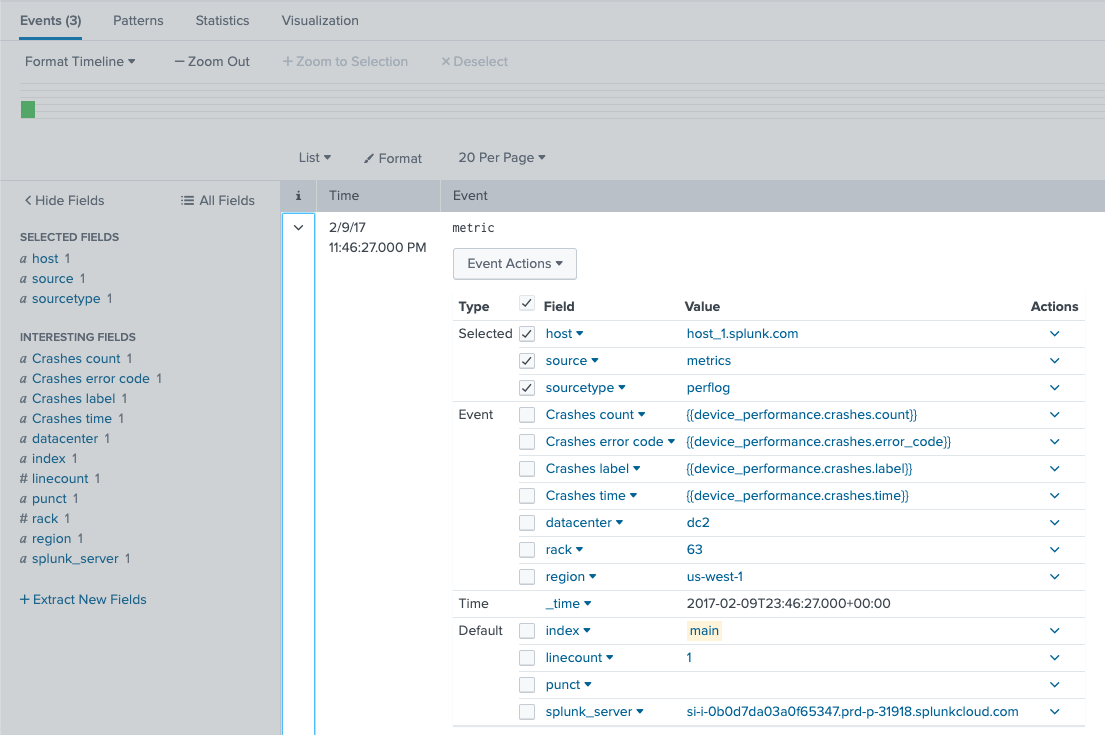
7. **Sent test** and verify the information appears in Splunk. See the image below.
* Find the event in Splunk by using the **Search** tab.
---
# Agent Instructions
This documentation is published with GitBook. GitBook is the documentation platform designed so that both humans and AI agents can read, navigate, and reason over technical content effectively. Learn more at gitbook.com.
## Querying This Documentation
If you need additional information that is not directly available in this page, you can query the documentation dynamically by asking a question.
Perform an HTTP GET request on the current page URL with the `ask` query parameter, and the optional `goal` query parameter:
```
GET https://docs.nexthink.com/platform/configuring_nexthink/bringing-data-into-your-nexthink-instance/integrating-nexthink-with-third-party-tools/outbound-connectors/webhooks/webhook-use-cases-setup/creating-an-event-in-splunk.md?ask=&goal=
```
`ask` is the immediate question: it should be specific, self-contained, and written in natural language.
`goal` is optional and describes the broader end goal you are ultimately trying to accomplish on behalf of the user. GitBook uses it to tailor the answer towards what is most useful for that goal.
The response will contain a direct answer to the question and relevant excerpts and sources from the documentation.
Use this mechanism when the answer is not explicitly present in the current page, you need clarification or additional context, or you want to retrieve related documentation sections.