# Configuring webhook fields: Method, Resource, and Payload

The main advantage of configuring a Webhook is that Nexthink data from alerts or events can be pushed into various third-party tools, depending on the destination.

On the [Webhook configuration](/platform/configuring_nexthink/bringing-data-into-your-nexthink-instance/integrating-nexthink-with-third-party-tools/outbound-connectors/webhooks/managing-webhooks.md) page, three fields are critical to performing an action on the destination third-party tool:

* **Method**
* **Resource**
* **Payload**

The following sections explain how to configure the attributes to execute an action on the third-party tool.

## Selecting the Method <a href="#configuringwebhookfields-method-resource-andpayload-selectingthemethod" id="configuringwebhookfields-method-resource-andpayload-selectingthemethod"></a>

From the [Webhook configuration](/platform/configuring_nexthink/bringing-data-into-your-nexthink-instance/integrating-nexthink-with-third-party-tools/outbound-connectors/webhooks/managing-webhooks.md) page, after choosing the[ credentials](/platform/configuring_nexthink/bringing-data-into-your-nexthink-instance/integrating-nexthink-with-third-party-tools/outbound-connectors/connector-credentials.md):

1. Select one option from the **Method** dropdown: **POST**, **PUT** or **PATCH**. See the table below.
2. Optionally, review the pertinent third-party software documentation to identify the semantics of each method clearly.
   * Do not assume all methods are similarly used by all vendors and providers of third-party tools.

{% hint style="info" %}
The REST standard is used over HTTP, comprising a major portion of the uniform interface constraint and provide the request methods available for webhooks.
{% endhint %}

| HTTP Method | CRUD\*         | Description                                                                                                                                                                         |
| ----------- | -------------- | ----------------------------------------------------------------------------------------------------------------------------------------------------------------------------------- |
| POST        | Create         | POST is most often utilized to create new resources.                                                                                                                                |
| PUT         | Update/Replace | PUT is most often used for its update capabilities. You can PUT to a known resource URI with the request body containing the newly updated representation of the original resource. |
| PATCH       | Update/Modify  | PATCH is used for its modification capabilities. The PATCH request only needs to contain the changes to the resource and not the complete resource.                                 |

\**CRUD* is an acronym for create, read, update, and delete.

## Filling in the Resource field <a href="#configuringwebhookfields-method-resource-andpayload-fillingintheresourcefieldresource" id="configuringwebhookfields-method-resource-andpayload-fillingintheresourcefieldresource"></a>

Special considerations for resources:

* Resources are data sets accessible via endpoints that can be used with APIs.
* Resources relate to other resources and are limited by the operations that can be carried out on them.
* Resources are presented as endpoint groups based on related data, or the objects they can work with.
* Resources have simple names, making it easy for users to find the right endpoints. However, this may lead to overlooking essential functionality.

To add the **Resource** value from the [Webhook configuration](/platform/configuring_nexthink/bringing-data-into-your-nexthink-instance/integrating-nexthink-with-third-party-tools/outbound-connectors/webhooks/managing-webhooks.md) page:

1. Paste the **Resource** value which is the action specified by the third-party REST API.
   * The URI shouldn’t be added since it is concatenated to the **Instance URL** defined in the webhook [credentials](/platform/configuring_nexthink/bringing-data-into-your-nexthink-instance/integrating-nexthink-with-third-party-tools/outbound-connectors/connector-credentials.md).
   * The **Resource** value can contain parameters (key=value) that the third-party tool requires.
2. If needed, add placeholders `{{variable_name}}` to the **Resource**. Refer to the [Using data model variables as placeholders in the payload](#configuringwebhookfields-method-resource-andpayload-usingdatamodelvariablesasplaceholdersinthepayloa) section on this page.

### Examples of valid Resource values <a href="#configuringwebhookfields-method-resource-andpayload-examplesofvalidresourcevalues" id="configuringwebhookfields-method-resource-andpayload-examplesofvalidresourcevalues"></a>

| Vendor API URL                                               | Resource value in Webhook   |
| ------------------------------------------------------------ | --------------------------- |
| <https://webhook.atlassian.net/rest/servicedeskapi/request>  | rest/servicedeskapi/request |
| <https://api.4me.com/v1/requests>                            | v1/requests                 |
| <https://fra1.qualtrics.com/API/v3/users>                    | API/v3/users                |
| <https://ven01063.service-now.com/api/now/v1/table/incident> | api/now/v1/table/incident   |
| <https://api.4me.com/v1/requests?api\\_\\><token>=           | v1/requests?api\_\<token>=  |

## Writing the Payload <a href="#configuringwebhookfields-method-resource-andpayload-writingthepayloadpayload" id="configuringwebhookfields-method-resource-andpayload-writingthepayloadpayload"></a>

The **Payload** is the data pack sent with the POST/PUT/PATCH method in HTTP.

To write the **Paload** value from the [webhook configuration](/platform/configuring_nexthink/bringing-data-into-your-nexthink-instance/integrating-nexthink-with-third-party-tools/outbound-connectors/webhooks/managing-webhooks.md) page:

1. Include in the **Payload** the crucial information you submit to the server when requesting the API.
   * Optionally, review the pertinent third-party fields and values as the **Payload** depends on the tool used in the webhook.
2. If needed, use [Nexthink data model variables as placeholders](#configuringwebhookfields-method-resource-andpayload-usingdatamodelvariablesasplaceholdersinthepayloa) `{{variable_name}}` within the **Payload.**
   * After filling in the webhook **NQL conditions**, the system lists the **Allowed placeholders** in the Nexthink web interface for your convenience.
3. Use the [Examples of Method, Resource and Payload from multiple providers](#configuringwebhookfields-method-resource-andpayload-examplesofmethod-resourceandpayloadfrommultiplep) included on this page as reference.

{% hint style="info" %}
The **Payload** field only accepts JSON format.
{% endhint %}

### Using data model variables as placeholders in the payload <a href="#configuringwebhookfields-method-resource-andpayload-usingdatamodelvariablesasplaceholdersinthepayloa" id="configuringwebhookfields-method-resource-andpayload-usingdatamodelvariablesasplaceholdersinthepayloa"></a>

One of the most significant advantages of pushing data from Nexthink into third-party tools is the ability to pass information about an event that has taken place.

To use Nexthink data model variables as placeholders within the **Payload**:

1. Reference Nexthink variables using the placeholder `{{variable_name}}` within any field reported in the payload.
2. After filling in the [webhook NQL conditions](/platform/configuring_nexthink/bringing-data-into-your-nexthink-instance/integrating-nexthink-with-third-party-tools/outbound-connectors/webhooks/managing-webhooks/configuring-webhook-nql-conditions.md), the webhook configuration page lists the **Allowed placeholders** in the Nexthink web interface for your convenience.
   * The placeholders in the payload must align with the [webhook NQL conditions](/platform/configuring_nexthink/bringing-data-into-your-nexthink-instance/integrating-nexthink-with-third-party-tools/outbound-connectors/webhooks/managing-webhooks/configuring-webhook-nql-conditions.md) populating the Nexthink variables.
3. Additionally, you can review the [NQL data model](/platform/understanding-key-data-platform-concepts/nql-data-model.md) to determine the Nexthink variables available for placeholders.
   * Remember, the NQL data model is organized by namespace > table > field.
   * For example, the placeholder `{{alert.monitor.name}}` contains the `name` field, from the `monitor` table, in the `alerts` namespace. Refer to the[ Data organization](/platform/understanding-key-data-platform-concepts/data-organization.md) documentation for more information.
4. Add the `as(format = text)` in the placeholder to ensure the output is readable and user-friendly when generated in the third-party tool. For example, `{{remote_action.execution.outputs.as(format = text)}}` .
5. If needed, use special placeholders not strictly defined in the NQL data model, that are included on this page and also referenced in **Allowed placeholders** in the Nexthink web interface:

* [Special placeholders for Alerts data model variables](#configuringwebhookfields-method-resource-andpayload-specialplaceholdersforalertsdatamodelvariablesal)
* [Special placeholders for Remote Actions model variables](#configuringwebhookfields-method-resource-andpayload-specialplaceholdersforremoteactionsdatamodelvari)

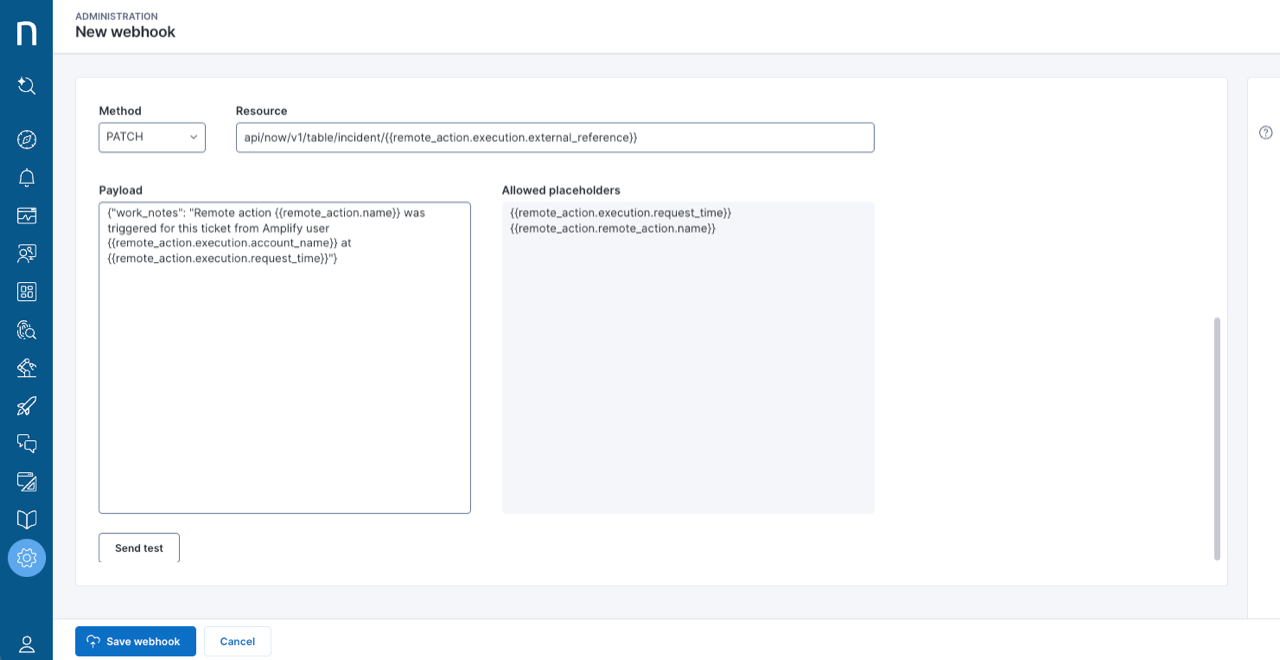
The image below is an example of a payload with placeholders referencing Nexthink data-model variables. Note how the system lists the **Allowed placeholders** for this case.

<figure><img src="/files/z3CldiAxZ76jt2r2Qe4u" alt="Allowed placeholders from the webhook configuration page." width="760"><figcaption></figcaption></figure>

{% hint style="info" %}
The system cannot replace placeholders with empty values or invalid. In these cases, `{{variable_name}}` appears as is.
{% endhint %}

### Special placeholders for Alerts data model variables <a href="#configuringwebhookfields-method-resource-andpayload-specialplaceholdersforalertsdatamodelvariablesal" id="configuringwebhookfields-method-resource-andpayload-specialplaceholdersforalertsdatamodelvariablesal"></a>

This table includes special placeholders for alerts not strictly defined in the NQL data properties.

| Property in NQL data model                                                                                                                                                                                      | Special placeholders                                                                                                                                                                                                                                                                                                                                                                                                                                                                                                                                                                                                                                                                                                                                                                                                                                                                                                                                                                                                                                                                    |
| --------------------------------------------------------------------------------------------------------------------------------------------------------------------------------------------------------------- | --------------------------------------------------------------------------------------------------------------------------------------------------------------------------------------------------------------------------------------------------------------------------------------------------------------------------------------------------------------------------------------------------------------------------------------------------------------------------------------------------------------------------------------------------------------------------------------------------------------------------------------------------------------------------------------------------------------------------------------------------------------------------------------------------------------------------------------------------------------------------------------------------------------------------------------------------------------------------------------------------------------------------------------------------------------------------------------- |
| `alert.monitor.thresholds`                                                                                                                                                                                      | <p>Each array item has an <code>alias</code> (metric name) and a corresponding <code>value</code>:</p><p><code>{{alert.monitor.thresholds\[n].alias}}</code></p><p><code>{{alert.monitor.thresholds\[n].values}}</code></p><p>Replace the <code>\[n]</code> value with an integer. The number of <code>\[n]</code> values depends on the number of <a href="/pages/hQ68xWoC6MdDmjlvpGwA">metric thresholds </a>defined in the monitor:</p><p>• <code>\[0]</code> value is always available.</p><p>• <code>\[1]</code> or higher values are optional.</p>                                                                                                                                                                                                                                                                                                                                                                                                                                                                                                                                |
| `alert.trigger_values`                                                                                                                                                                                          | <p>Each array item has an <code>alias</code> (metric name) and a corresponding <code>value</code>:</p><p><code>{{alert.alert.trigger\_values\[n].alias}}</code></p><p><code>{{alert.alert.trigger\_values\[n].value}}</code></p><p>Replace the <code>\[n]</code> value with an integer: <code>\[0]</code> , <code>\[1]</code>, etc.</p>                                                                                                                                                                                                                                                                                                                                                                                                                                                                                                                                                                                                                                                                                                                                                 |
| `alert.trigger_reference_value`                                                                                                                                                                                 | <p><code>{{alert.alert.trigger\_reference\_value}}</code></p><p>Refer to the <em>Metric change</em> item under the <em>Type</em> section in the <a href="/pages/hQ68xWoC6MdDmjlvpGwA">Customizing built-in monitors</a> documentation to learn more about <code>reference\_value</code> computation.</p>                                                                                                                                                                                                                                                                                                                                                                                                                                                                                                                                                                                                                                                                                                                                                                                |
| `alert.context`                                                                                                                                                                                                 | <p><code>{{alert.alert.context}}</code></p><p><code>{{alert.alert.context.\<property name>}}</code></p><p><code>{{alert.alert.context.\<property name>.label}}</code></p><p><code>{{alert.alert.context.\<property name>.data\_path}}</code></p><p><code>{{alert.alert.context.\<property name>.data\_type}}</code></p><p>See the examples below\*:</p><p><code>{{alert.alert.context.binary.name}}</code></p><p><code>{{alert.alert.context.binary.name.label}}</code></p><p><code>{{alert.alert.context.binary.name.data\_path}}</code></p><p><code>{{alert.alert.context.binary.name.data\_type}}</code></p><p>\*The <code>context</code> field contains only the data model properties defined in the <a href="/pages/xiwTncV3X9Y1MAGY0j73">monitor NQL query and conditions.</a></p><p>Therefore, the <code>context</code> field may include the name of the binary, device or user associated with the alert.</p>                                                                                                                                                                 |
| <p><code>alert.alert.issue\_view\_link</code></p><p><code>alert.alert.device\_view\_link</code></p><p><code>alert.alerts.links</code></p><p>This properties are not currently listed in the NQL data model.</p> | <p><code>alert.alert.issue\_view\_link</code> provides the link to the <a href="/pages/v17LNUjW3QEv4s2vbdYD">troubleshooting dashboard</a> associated with the alert. You must add the <code>issue\_view\_link</code> field to the <code>list</code> clause in the webhook <strong>NQL condition</strong>.</p><p><code>alert.alert.device\_view\_link</code> provides the link provides the link to the <a href="/pages/l7qbs9cZKUxC0WysAyjX">Device view</a>. You must add the <code>device\_view\_link</code> field to the <code>list</code> clause in the webhook <strong>NQL condition</strong>.</p><p>Depending on the alert configuration, the <code>alert.alerts.links</code> placeholder provides the link to the <a href="/pages/l7qbs9cZKUxC0WysAyjX">Device view</a> or to the <a href="/pages/v17LNUjW3QEv4s2vbdYD">troubleshooting dashboard</a> associated with the alert.<br>In this case, you must add both <code>device\_view\_link</code> and <code>issue\_view\_link</code>fields to the <code>list</code> clause in the webhook <strong>NQL condition</strong>.</p> |

### Special placeholders for Remote actions data model variables <a href="#configuringwebhookfields-method-resource-andpayload-specialplaceholdersforremoteactionsdatamodelvari" id="configuringwebhookfields-method-resource-andpayload-specialplaceholdersforremoteactionsdatamodelvari"></a>

This table includes special placeholders for remote actions not strictly defined in the NQL data properties.

| Property in NQL data model                                                                                                    | Special placeholders                                                                                                                                                   |
| ----------------------------------------------------------------------------------------------------------------------------- | ---------------------------------------------------------------------------------------------------------------------------------------------------------------------- |
| `remote_action.execution.outputs`                                                                                             | <p><code>{{remote\_action.execution.outputs.\<property name>}}</code></p><p>For example:</p><p><code>{{remote\_action.execution.outputs.MeteredConnection}}</code></p> |
| `remote_action.execution.inputs`                                                                                              | <p><code>{{remote\_action.execution.inputs.\<property name>}}</code></p><p>For example:</p><p><code>{{remote\_action.execution.inputs.InputPath}}</code></p>           |
| <p><code>remote\_action.execution.account\_name</code></p><p>This property is not currently listed in the NQL data model.</p> | <p><code>{{remote\_action.execution.account\_name}}</code></p><p>This placeholder provides the user/employee that executed a remote action.</p>                        |

## Examples of Method, Resource and Payload from multiple providers and tools <a href="#configuringwebhookfields-method-resource-andpayload-examplesofmethod-resourceandpayloadfrommultiplep" id="configuringwebhookfields-method-resource-andpayload-examplesofmethod-resourceandpayloadfrommultiplep"></a>

{% hint style="info" %}
Refer to the [Webhook use cases setup](/platform/configuring_nexthink/bringing-data-into-your-nexthink-instance/integrating-nexthink-with-third-party-tools/outbound-connectors/webhooks/webhook-use-cases-setup.md) documentation for full webhook configurations for several third-party tools.
{% endhint %}

### ITSM Tools <a href="#configuringwebhookfields-method-resource-andpayload-itsmtools" id="configuringwebhookfields-method-resource-andpayload-itsmtools"></a>

#### **Creating an incident for ServiceNow**

Method: `POST`

Resource: `api/now/v1/table/incident`

Payload:

```
{
 "assignment_group":"Application Team",
 "business_service":"MS Teams",
 "caller_id":"Nexthink Alert",
 "description":"Alert created from the Alerts team,",
 "impact":"5",
 "short_description":"Alert for testing purposes David G {{alert.monitor.name}}",
 "sys_created_by":"Nexthink Integration test David G.",
 "urgency":4
}
```

[Follow this guideline](/platform/configuring_nexthink/bringing-data-into-your-nexthink-instance/integrating-nexthink-with-third-party-tools/outbound-connectors/webhooks/webhook-use-cases-setup/creating-an-incident-in-servicenow.md) to set up webhooks to detect alerts and events and transmit them to ServiceNow to create an incident.

#### **Updating ServiceNow incident ticket from Amplify**

Method: `PATCH`

Resource: `api/now/v1/table/incident/{{remote_action.execution.external_reference}}`

Payload (message):

```
{"work_notes": "Remote action {{remote_action.execution.outputs.as(format = text)}} was triggered for this ticket from Amplify user {{remote_action.execution.account_name}} at {{remote_action.execution.request_time}}"}
```

Include the `as(format = text)` function in `"work_notes"` to display the output of a remote action in a readable format.

[Follow this guideline](/platform/configuring_nexthink/bringing-data-into-your-nexthink-instance/integrating-nexthink-with-third-party-tools/outbound-connectors/webhooks/webhook-use-cases-setup/updating-servicenow-from-amplify.md) to set up webhooks to update ServiceNow executed actions log from Amplify.

#### **Creating a problem for ServiceNow**

Method: `POST`

Resource: `api/now/v1/table/problem`

Payload:

```
{
 "impact":"1",
 "urgency":"2",
 "category":"Hardware",
 "short_description":"The alert: {{alert.monitor.name}} has been raised by Nexthink",
 "description":"The Alert {{alert.monitor.name}} has been raised automatically by Nexthink at {{alert.monitor.time}}. The NQL query that triggered the alert is https://tinyurl.com/29k9xy8d",
 "assignment_group":"Application Team",
 "business_service":"MS Teams",
}
```

#### **Creating an incident for BMC**

Method: `POST`

Resource: `api/arsys/v1/entry/HPD:IncidentInterface_Create?fields=values(Incident Number , Request ID, First_Name)`

Payload:

```
{
 "values": {
 "First_Name": "Allen",
 "Last_Name": "Allbrook",
 "Description": "REST API: Nexthink alert {{alert.monitor.name}} has been triggered",
 "Impact": "1-Extensive/Widespread",
 "Urgency": "1-Critical",
 "Status": "Assigned",
 "Reported Source": "Direct Input",
 "Service_Type": "User Service Restoration" 
 }
}
```

#### **Creating an incident for 4me**

Method: `POST`

Resource: `v1/requests`

Payload:

```
{
"category":"incident",
"subject":"This is a result triggered by the alert {{alert.monitor.name}}",
"impact":"low",
"service_instance_id":"147488",
"ci":"21819154",
"ci_id":"21819154",
"note":"The alert has been triggered at {{alert.alert.trigger_time}} with the following values: {{alert.alerts.trigger_values[0].alias}}: {{alert.alerts.trigger_values[0].value}}, {{alert.alerts.trigger_values[1].alias}}: {{alert.alerts.trigger_values[1].value}}"
}
```

#### **Creating a service request for Jira Service Desk**

Method: `POST`

Resource: `rest/servicedeskapi/request`

Payload:

```
{
 "serviceDeskId": "1",
 "requestTypeId": "5",
 "requestFieldValues": {
 "summary": "Request JSD help via REST",
 "description": "I need a new *mouse* for my Mac"
  }
}
```

### Alerting Tools <a href="#configuringwebhookfields-method-resource-andpayload-alertingtools" id="configuringwebhookfields-method-resource-andpayload-alertingtools"></a>

#### **Creating an incident for Pager Duty**

Method: `POST`

Resource: `incidents`

Payload:

```
{
 "incident": {
 "type": "incident",
 "title": "api incident for nexthink alert {{alert.monitor.name}}",
 "service": {
 "id": "PXZF637",
 "summary": null,
 "type": "service_reference",
 "self": null,
 "html_url": null
    },
 "priority": {
 "id": "high",
 "summary": null,
 "type": "priority_reference",
 "self": null,
 "html_url": null
    },
 "urgency": "high",
 "body": {
 "type": "incident_body",
 "details": "string"
    },
 "incident_key": "incident_{{alert.alert.trigger_time}}",
 "escalation_policy": {
 "id": "P14MFQ2",
 "summary": null,
 "type": "escalation_policy_reference",
 "self": null,
 "html_url": null
    },
 "conference_bridge": {
 "conference_number": "string",
 "conference_url": "string"
    }
  }
}
```

### Messaging Tools <a href="#configuringwebhookfields-method-resource-andpayload-messagingtools" id="configuringwebhookfields-method-resource-andpayload-messagingtools"></a>

#### **Posting a message on an MS Teams channel**

Method: `POST`

Resource: `/workflows/XXXXXXXXXXXXXXXXXXX/triggers/manual/paths/invoke?api-version=?????&sp=/triggers/manual/run&sv=1.0&sig=XXXXXXXXXXXXXXX`

Payload:

```
{
    "type": "message",
    "attachments": [
        {
            "contentType": "application/vnd.microsoft.card.adaptive",
            "content": {
                "$schema": "http://adaptivecards.io/schemas/adaptive-card.json",
                "type": "AdaptiveCard",
                "version": "1.0",
"msteams": {  
        "width": "Full"  
    },  
                "body": [
                    {
                        "type": "TextBlock",
                        "text": "Nexthink Alert",
                        "id": "Title",
                        "spacing": "Medium",
                        "horizontalAlignment": "Center",
                        "size": "ExtraLarge",
                        "weight": "Bolder",
                        "color": "Accent"
                    },
                    
                    {
            "type": "Container",
            "items": [
                {
                    "type": "TextBlock",
                    "text": "{{alert.alert.context.application.name}},{{alert.monitor.name}}",
                    "wrap": true,
                     "color": "Default",
                    "size": "Medium"
                }
            ],
            "style": "emphasis"
        },
{
                        "type": "FactSet",
                        "facts": [
                            {
                                "title": "Assigned to",
                                "value": "Infrastructure Team"
                            }, {
                               "title": "Triggered on: ",
                               "value": "{{alert.alert.trigger_time}}"
                           },  {
                               "title": "Application Name",
                               "value": "{{alert.alert.context.application.name}}"
                           },

           ]
        },


                     {
            "type": "TextBlock",
            "text": "Condition breached:",
            "wrap": true
        },
        {
            "type": "Table",
            "columns": [
                {
                    "width": 1
                },
                {
                    "width": 1
                },
                {
                    "width": 1
                },
                {
                    "width": 1
                }
            ],
            "rows": [
                {
                    "type": "TableRow",
                    "cells": [
                        {
                            "type": "TableCell",
                            "items": [
                                {
                                    "type": "TextBlock",
                                    "text": "Metric name",
                                    "wrap": true
                                }
                            ]
                        },
                        {
                            "type": "TableCell",
                            "items": [
                                {
                                    "type": "TextBlock",
                                    "text": "Threshold",
                                    "wrap": true
                                }
                            ]
                        },
                        {
                            "type": "TableCell",
                            "items": [
                                {
                                    "type": "TextBlock",
                                    "text": "Metric value",
                                    "wrap": true
                                }
                            ]
                        },
                        {
                            "type": "TableCell",
                            "items": [
                                {
                                    "type": "TextBlock",
                                    "text": "Baseline Value",
                                    "wrap": true
                                }
                            ]
                        }
                    ]
                },
                {
                    "type": "TableRow",
                    "cells": [
                        {
                            "type": "TableCell",
                            "items": [
                                {
                                    "type": "TextBlock",
                                    "text": "{{alert.alert.trigger_values[0].alias}}",
                                    "wrap": true
                                }
                            ]
                        },
                        {
                            "type": "TableCell",
                            "items": [
                                {
                                    "type": "TextBlock",
                                    "text": "{{alert.monitor.thresholds[0].value}}",
                                    "wrap": true
                                }
                            ]
                        },
                        {
                            "type": "TableCell",
                            "items": [
                                {
                                    "type": "TextBlock",
                                    "text": "{{alert.alert.trigger_values[0].value}}",
                                    "wrap": true
                                }
                            ]
                        },
                        {
                            "type": "TableCell",
                            "items": [
                                {
                                    "type": "TextBlock",
                                    "text": "{{alert.alert.trigger_reference_value}}",
                                    "wrap": true
                                }
                            ]
                        }
                    ]
                },
                {
                    "type": "TableRow",
                    "cells": [
                        {
                            "type": "TableCell",
                            "items": [
                                {
                                    "type": "TextBlock",
                                    "text": "{{alert.alert.trigger_values[1].alias}}",
                                    "wrap": true
                                }
                            ]
                        },
                        {
                            "type": "TableCell",
                            "items": [
                                {
                                    "type": "TextBlock",
                                    "text": "{{alert.monitor.thresholds[1].value}}",
                                    "wrap": true
                                }
                            ]
                        },
                        {
                            "type": "TableCell",
                            "items": [
                                {
                                    "type": "TextBlock",
                                    "text": "{{alert.alert.trigger_values[1].value}}",
                                    "wrap": true
                                }
                            ]
                        },
                        {
                            "type": "TableCell",
                            "items": [
                                {
                                    "type": "TextBlock",
                                    "text": "",
                                    "wrap": true
                                }
                            ]
                        }
                    ]
                },
                {
                    "type": "TableRow",
                    "cells": [
                        {
                            "type": "TableCell",
                            "items": [
                                {
                                    "type": "TextBlock",
                                    "text": "",
                                    "wrap": true
                                }
                            ]
                        },
                        {
                            "type": "TableCell",
                            "items": [
                                {
                                    "type": "TextBlock",
                                    "text": "",
                                    "wrap": true
                                }
                            ]
                        },
                        {
                            "type": "TableCell",
                            "items": [
                                {
                                    "type": "TextBlock",
                                    "text": "",
                                    "wrap": true
                                }
                            ]
                        },
                        {
                            "type": "TableCell",
                            "items": [
                                {
                                    "type": "TextBlock",
                                    "text": "",
                                    "wrap": true
                                }
                            ]
                        }
                    ]
                }
            ], "showGridLines": false
        },
        {
            "type": "ActionSet",
            "actions": [
                {
                    "type": "Action.OpenUrl",
                    "title": "View in Nexthink",
                    "URL": "{{alert.alert.issue_view_link}}"
                }
            ]
        }
                ] 
            }
        }
    ]
}
```

[Follow this guideline](/platform/configuring_nexthink/bringing-data-into-your-nexthink-instance/integrating-nexthink-with-third-party-tools/outbound-connectors/webhooks/webhook-use-cases-setup/posting-a-message-to-an-ms-teams-channel.md#postingamessagetoanmsteamschannel-comment-1085538388) to set up MS Teams to receive incoming requests.

#### **Posting a message on a specific channel for Slack**

Method: `POST`

Resource: `services/T01S01V0HB3/B02GY9BKZ7G/DIDFWXuCAeFfqkgNntQqJV7e`

Payload:

```
{
 "channel":"C01R6KV8CA3",
 "text":"There is an alert {{alert.monitor.name}} that is affecting the digital experience",
 "attachments":[
        {
 "text":"Who should take a look at it?",
 "fallback":"You could be telling the computer exactly what it can do with a lifetime supply of chocolate.",
 "color":"#3AA3E3",
 "attachment_type":"default",
 "callback_id":"select_simple_1234",
 "actions":[
             {"name":"winners_list",
 "text":"Who should take care of the alert?",
 "type":"select",
 "data_source":"users"
              }
            ]
        }
    ]
}
```

[Follow this guideline](/platform/configuring_nexthink/bringing-data-into-your-nexthink-instance/integrating-nexthink-with-third-party-tools/outbound-connectors/webhooks/webhook-use-cases-setup/sending-data-to-a-slack-channel.md) to set up Slack to receive incoming requests.

#### **Posting a message in Zoom**

Method: `POST`

Resource: `chat/webhooks/incomingwebhook/dSUcla-dQaGYgqGuBk3BsQ`.

The URL resource above is for illustration purposes only as it depends on the Endpoint URL you directly configure in Zoom.

Payload: Add the message you want to send to Zoom. See the example below.

```
[
{
"text":"input message",
"img":["file1","file2"]
}
] 
```

[Follow this guideline](/platform/configuring_nexthink/bringing-data-into-your-nexthink-instance/integrating-nexthink-with-third-party-tools/outbound-connectors/webhooks/webhook-use-cases-setup/posting-a-message-in-zoom.md) to set up Zoom to receive incoming requests.

### Productivity Tools <a href="#configuringwebhookfields-method-resource-andpayload-productivitytools" id="configuringwebhookfields-method-resource-andpayload-productivitytools"></a>

#### **Creating a bug on a specific project for Jira**

Method: `POST`

Resource: `services/T01S01V0HB3/B02GY9BKZ7G/DIDFWXuCAeFfqkgNntQqJV7e`

Payload:

```
{
 "fields": {
 "project":
       {
 "key": "WHKBUG"
       },
 "summary": "User is experience bad audio quality call",
 "description": "Nexthink alert {{alert.monitor.name}} has been triggered",
 "issuetype": {
 "name": "Bug"
        },
 "priority":{
 "name": "{{alert.alert.priority}}"
        },      
 "timetracking":
        {
 "originalEstimate": "1d 2h",
 "remainingEstimate": "3h 25m"
        }
    }
}
```

### Data Platforms <a href="#configuringwebhookfields-method-resource-andpayload-dataplatforms" id="configuringwebhookfields-method-resource-andpayload-dataplatforms"></a>

#### **Sending an event to the event collector for Splunk**

Method: `POST`

Resource: `services/collector?index=_main`

Payload:

```
{
 "event": "metric",
 "source": "metrics",
 "sourcetype":"perflog",
 "fields": {
 "event_name":"System crash",
 "event_label":"{{device_performance.system_crash.label}}",
 "event_error_code":"{{device_performance.system_crash.error_code}}",
 "event_time":"{{device_performance.system_crash.time}}",
 "region": "us-west-1",
 "datacenter": "dc2",
 "rack": "63",
 "os": "Ubuntu16.10",
 "arch": "x64",
 "team": "LON",
 "service": "6",
 "service_version": "0",
 "service_environment": "test",
 "path": "/dev/sda1",
 "fstype": "ext3"
  }
}
```


---

# Agent Instructions: Querying This Documentation

If you need additional information that is not directly available in this page, you can query the documentation dynamically by asking a question.

Perform an HTTP GET request on the current page URL with the `ask` query parameter:

```
GET https://docs.nexthink.com/platform/configuring_nexthink/bringing-data-into-your-nexthink-instance/integrating-nexthink-with-third-party-tools/outbound-connectors/webhooks/managing-webhooks/configuring-webhook-fields_-method-resource-and-payload.md?ask=<question>
```

The question should be specific, self-contained, and written in natural language.
The response will contain a direct answer to the question and relevant excerpts and sources from the documentation.

Use this mechanism when the answer is not explicitly present in the current page, you need clarification or additional context, or you want to retrieve related documentation sections.
