> For the complete documentation index, see [llms.txt](https://docs.nexthink.com/platform/llms.txt). Markdown versions of documentation pages are available by appending `.md` to page URLs; this page is available as [Markdown](https://docs.nexthink.com/platform/configuring_nexthink/bringing-data-into-your-nexthink-instance/integrating-nexthink-with-third-party-tools/outbound-connectors/webhooks/managing-webhooks.md).
# Managing webhooks
## Connector credentials
Before Nexthink can export data to any third-party supported tools, you must create and define new credentials to connect and enable such communication and then apply the credentials when configuring a webhook. Refer to the [Connector credentials](/platform/configuring_nexthink/bringing-data-into-your-nexthink-instance/integrating-nexthink-with-third-party-tools/outbound-connectors/connector-credentials.md) documentation for more information.
{% hint style="info" %}
Nexthink uses a mechanism to regulate the delivery of messages sent to third-party tools, preventing them from becoming overloaded with data.
This means that information delivery is not immediate and some delays may occur.
{% endhint %}
## Accessing webhooks
To configure a Webhook, you must have Central Administrative privileges and the Integrations module enabled.
Follow these steps to access Webhooks:
1. Open **Administration** > **Outbound connectors** from the main menu.
2. Select **Webhooks** from the list of outbound connectors.
* The system lists all existing webhooks. Therefore, when you access the Webhooks page for the first time, no elements are displayed
{% hint style="info" %}
Confirm the validity of an existing webhook setup by checking and hovering over the icons under the **Configuration** column.
{% endhint %}
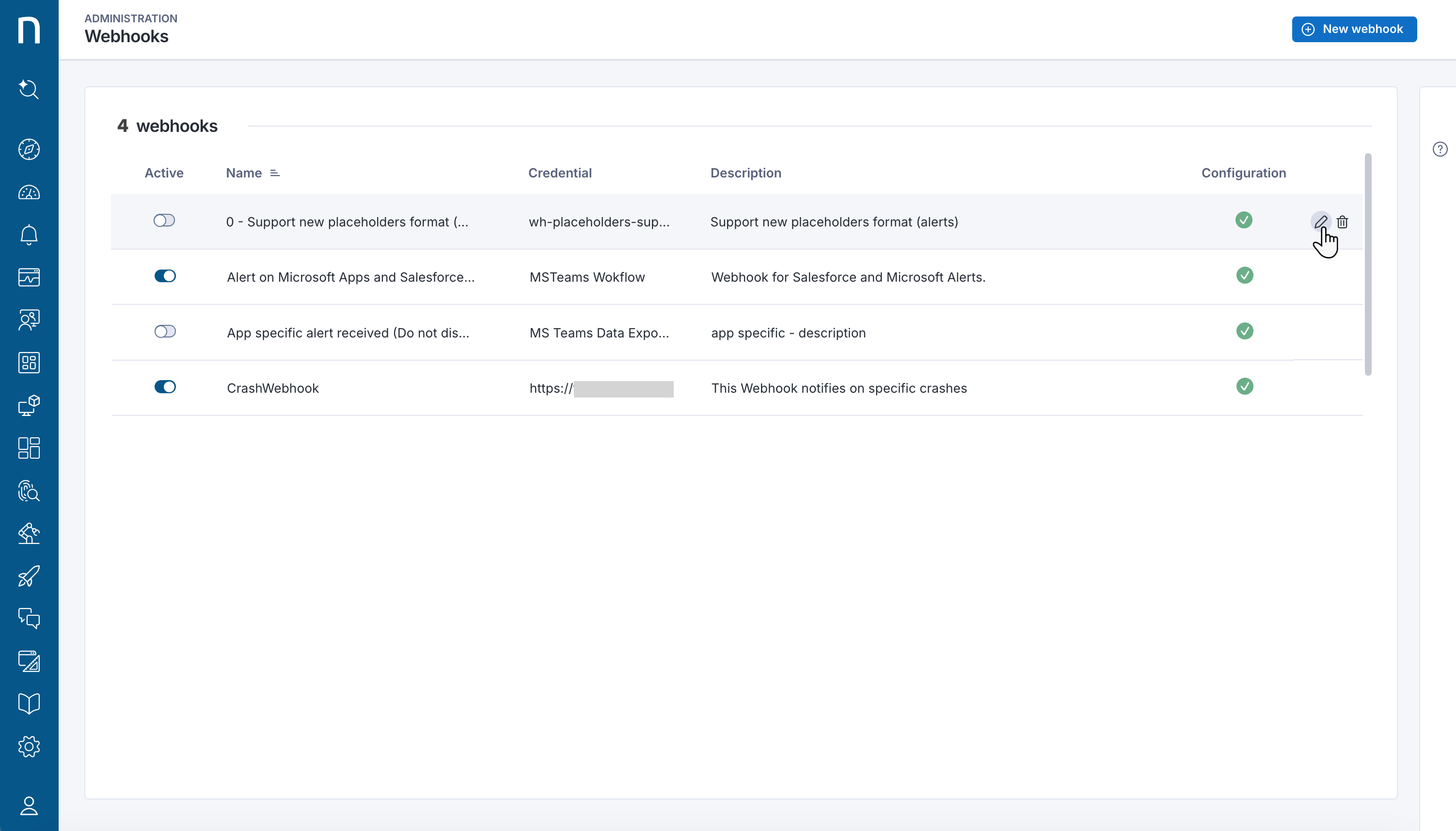
Find below the table fields on the Webhooks page:
* **Active:** Toggle that enables a webhook to listen to the occurrence of an alert or event in order to perform an action
* **Name:** Name of the webhook
* **Credentials:** Defines the credentials from the third-party tool that the webhook will push the data to
* **Description:** Meaningful description of the action performed by the webhook
## Creating and testing a webhook
From the **Administration > Outbound connectors > Webhooks** page:
1. Click **New webhook** button located to open the webhook configuration page.
2. Fill out the form:
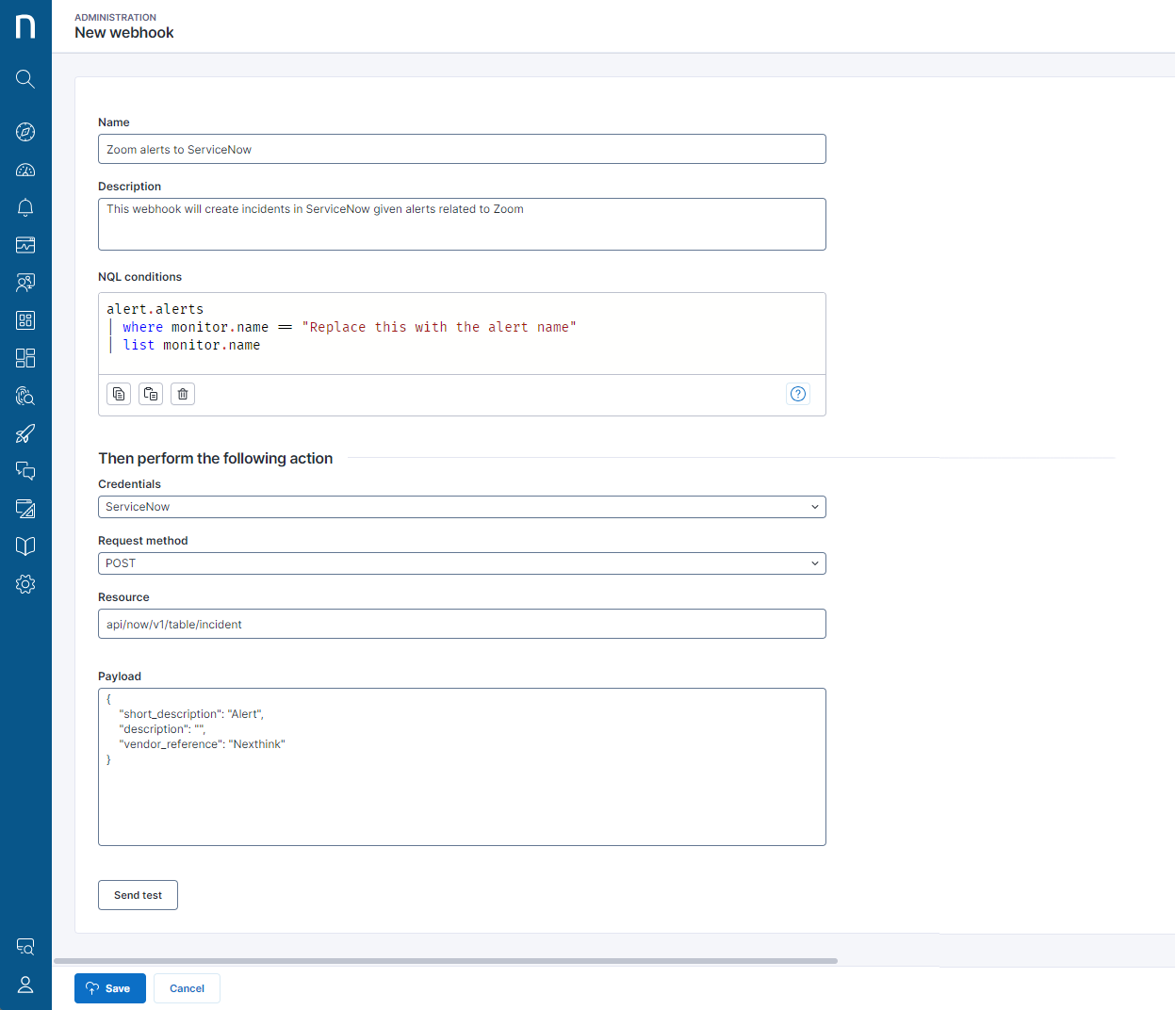
* **Name** the webhook being created.
* **Description** of the action performed by the webhook.
* **NQL Conditions** is a NQL query that specifies the condition of an alert or event that triggers an action configured in the **Request method** section. Refer to the [Configuring webhook NQL conditions](/platform/configuring_nexthink/bringing-data-into-your-nexthink-instance/integrating-nexthink-with-third-party-tools/outbound-connectors/webhooks/managing-webhooks/configuring-webhook-nql-conditions.md) documentation.
* **Credentials** specify the credentials of the third-party tool that you intend to target.
* **Request method**, **Resource** and **Payload** define the information that represents the action executed on the third-party tool. Refer to the [Configuring webhook fields: Method, Resource, and Payload](/platform/configuring_nexthink/bringing-data-into-your-nexthink-instance/integrating-nexthink-with-third-party-tools/outbound-connectors/webhooks/managing-webhooks/configuring-webhook-fields_-method-resource-and-payload.md) documentation for information about request methods, **Resource** API and **Payload**.
3. **Send Test** to verify the correct configuration of **Credentials**, **Request method**, **Resource** and **Payload**.
* The system warns you of any mistakes or missing configuration fields.
* Testing does not replace any use of placeholders within the payload, for example: `{{variable_name}}`. The system treats all variables as plain strings.
The image below displays an example of webhook configuration fields.
The image below shows the ServiceNow incident created using the **Sent Test** button from the webhook configuration page.
## Editing/deleting an existing webhook
From the **Administration** > **Outbound connectors** > **Webhooks** page:
1. Hover over the webhook to reveal icons on the right side of the selected item:
* Click on the pencil icon to open the configuration page for the webhook.
* Click on the bin icon to delete the webhook.
{% hint style="info" %}
Deleting a webhook cannot be undone.
{% endhint %}
## Disabling a webhook
Disabling a webhook disengages the third-party tool even if the NQL conditions satisfy the alert setting requirements.
You can switch off the **Active** toggle for a webhook in two different places:
* In the **Active** column of the list of webhooks on the Webhooks page.
* On the Webhook edit page by editing the webhook Active property.
***
RELATED TASK
[Connector credentials](/platform/configuring_nexthink/bringing-data-into-your-nexthink-instance/integrating-nexthink-with-third-party-tools/outbound-connectors/connector-credentials.md)
---
# Agent Instructions
This documentation is published with GitBook. GitBook is the documentation platform designed so that both humans and AI agents can read, navigate, and reason over technical content effectively. Learn more at gitbook.com.
## Querying This Documentation
If you need additional information that is not directly available in this page, you can query the documentation by asking a question.
Perform an HTTP GET request on the following URL with the `ask` and `goal` query parameters:
```
GET https://docs.nexthink.com/platform/configuring_nexthink/bringing-data-into-your-nexthink-instance/integrating-nexthink-with-third-party-tools/outbound-connectors/webhooks/managing-webhooks.md?ask=&goal=
```
`ask` is the immediate question: it should be specific, self-contained, and written in natural language.
`goal` is what the user is ultimately trying to achieve, the reason they need the answer. Sharing it helps GitBook give you a better, more relevant answer. A goal is most helpful when it describes the outcome the user wants rather than restating the question. For example, with `ask=how do I create an API token`, a goal like `automate deployments from our CI pipeline` lets GitBook tailor the answer to that use case.
The response will contain a direct answer to the question and relevant excerpts and sources from the documentation.
Use this mechanism when the answer is not explicitly present in the current page, you need clarification or additional context, or you want to retrieve related documentation sections.