> For the complete documentation index, see [llms.txt](https://docs.nexthink.com/platform/llms.txt). Markdown versions of documentation pages are available by appending `.md` to page URLs; this page is available as [Markdown](https://docs.nexthink.com/platform/configuring_nexthink/bringing-data-into-your-nexthink-instance/integrating-nexthink-with-third-party-tools/outbound-connectors/data-exporters/managing-data-exporters.md).
# Managing data exporters
## Connector credentials
Before Nexthink can export data to any third-party supported tools, you must create and define new credentials to connect and enable such communication and then apply the credentials when configuring a data exporter. Refer to the [Connector credentials](/platform/configuring_nexthink/bringing-data-into-your-nexthink-instance/integrating-nexthink-with-third-party-tools/outbound-connectors/connector-credentials.md) documentation for more information.
{% hint style="info" %}
Nexthink uses a mechanism that regulates the delivery of messages sent to third-party tools in order to prevent them from getting overloaded with data. This means that the delivery of information is not immediate and some delays may occur.
{% endhint %}
## Accessing data exporters
From the main menu in the Nexthink web interface:
* Click on **Administration** > **Outbound connectors** > **Data Exporter** to open the administration page.
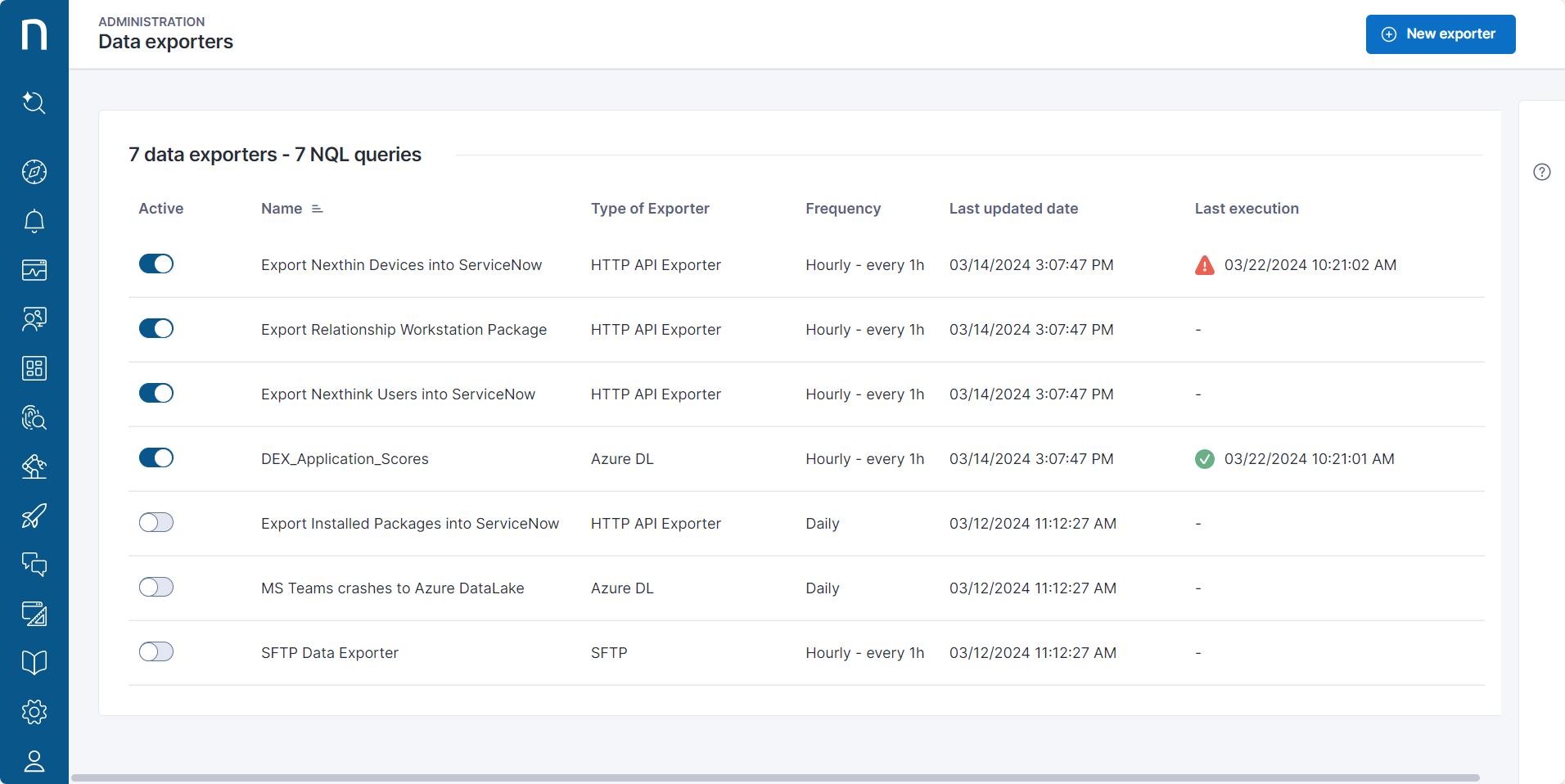
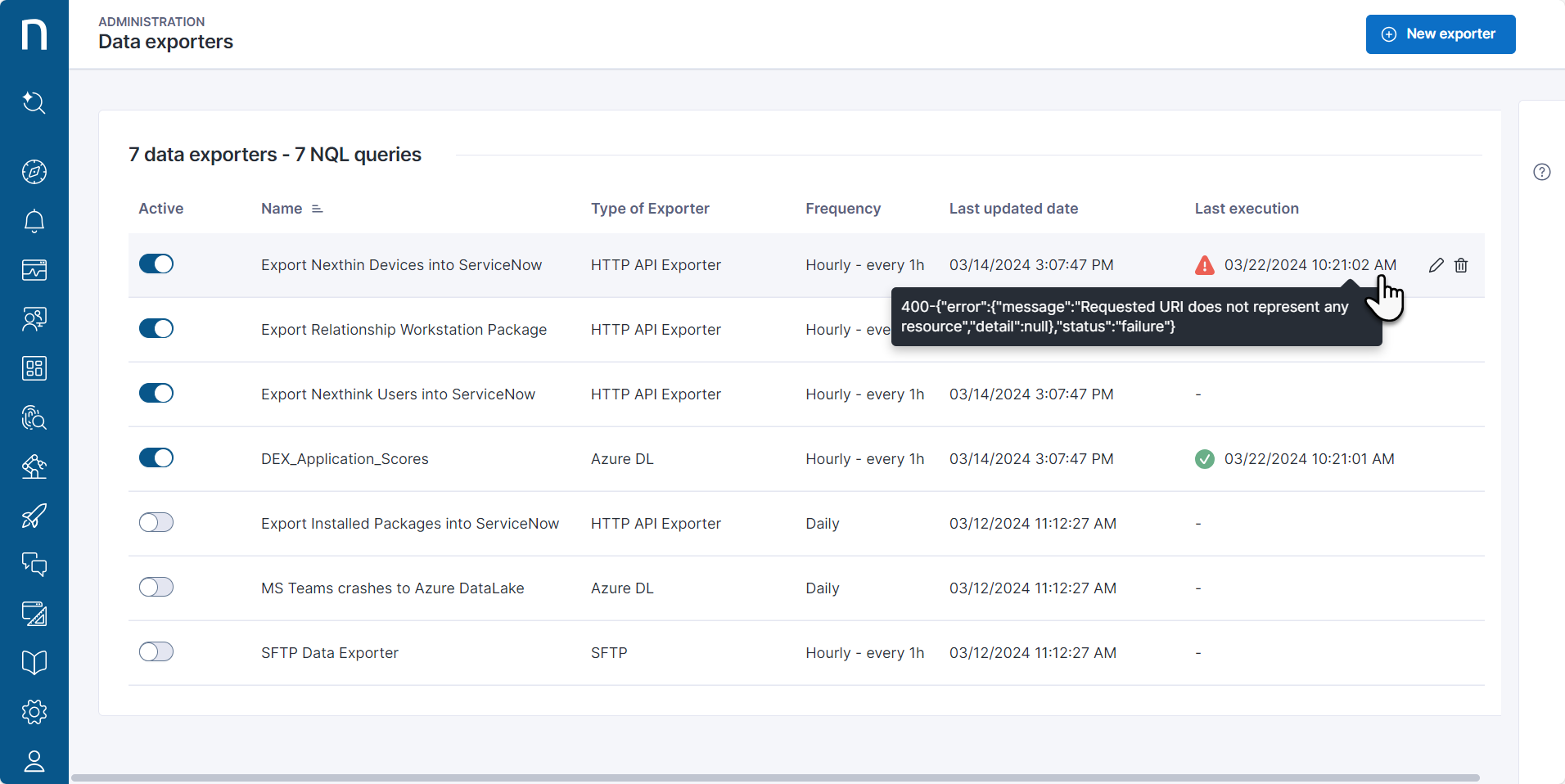
All data exporters are listed on the **Data exporters** administration page. The fields shown are:
* **Active** toggle to enable/disable data exporters.
* **Name** of the data exporter.
* **Type** of data exporter.
* Scheduling **Frequency** matching the NQL time period: Hourly, Daily = 1d, Weekly = 7d.
* **Last updated date** for the data exporter.
* **Last execution** indicating success or failure of the data exporter execution. See the section [Troubleshooting a data exporter](#managingdataexporters-troubleshootingadataexportertroubleshootingdataexporters) on this page.
## Creating a data exporter
From the **Data exporters** administration page:
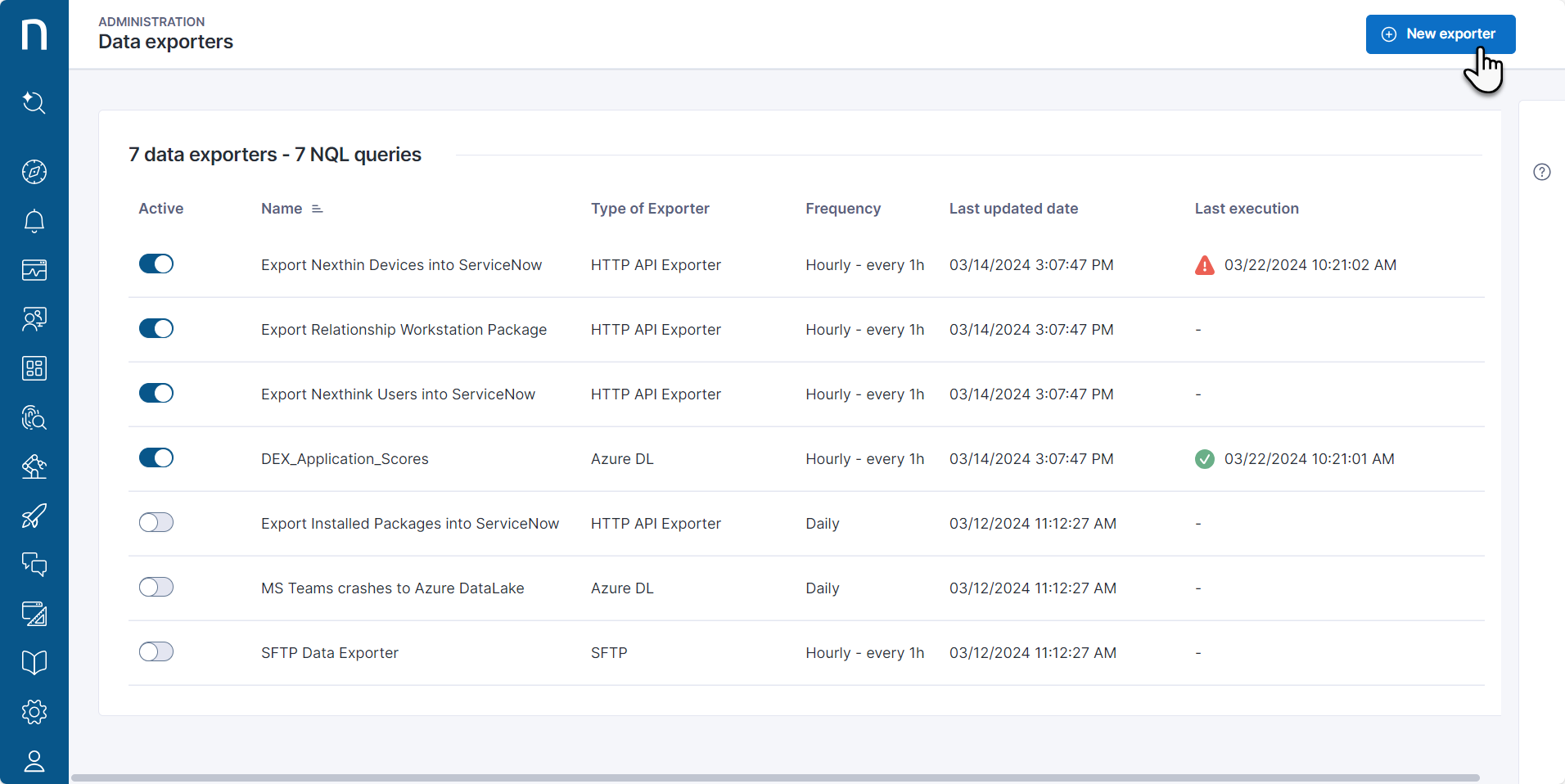
1. Click the **New Exporter** button in the top right corner of the page to open the data exporter configuration page.
2. Select a data exporter **Type** from the popup. Refer to the links below depending on the data exporter:
* [Azure DL](/platform/configuring_nexthink/bringing-data-into-your-nexthink-instance/integrating-nexthink-with-third-party-tools/outbound-connectors/data-exporters/exporter-for-azure-data-lake.md)
* [Secure File Transfer Protocol (SFTP)](/platform/configuring_nexthink/bringing-data-into-your-nexthink-instance/integrating-nexthink-with-third-party-tools/outbound-connectors/data-exporters/exporter-for-secure-file-transfer-protocol-sftp-server.md)
* [HTTP API Exporter](/platform/configuring_nexthink/bringing-data-into-your-nexthink-instance/integrating-nexthink-with-third-party-tools/outbound-connectors/data-exporters/http-api-exporter.md)
{% hint style="warning" %}
Using `sort` in a data exporter NQL query can truncate results for large exports. Remove the `sort` clause unless the query returns a small result set.
{% endhint %}
## Editing/deleting data exporter
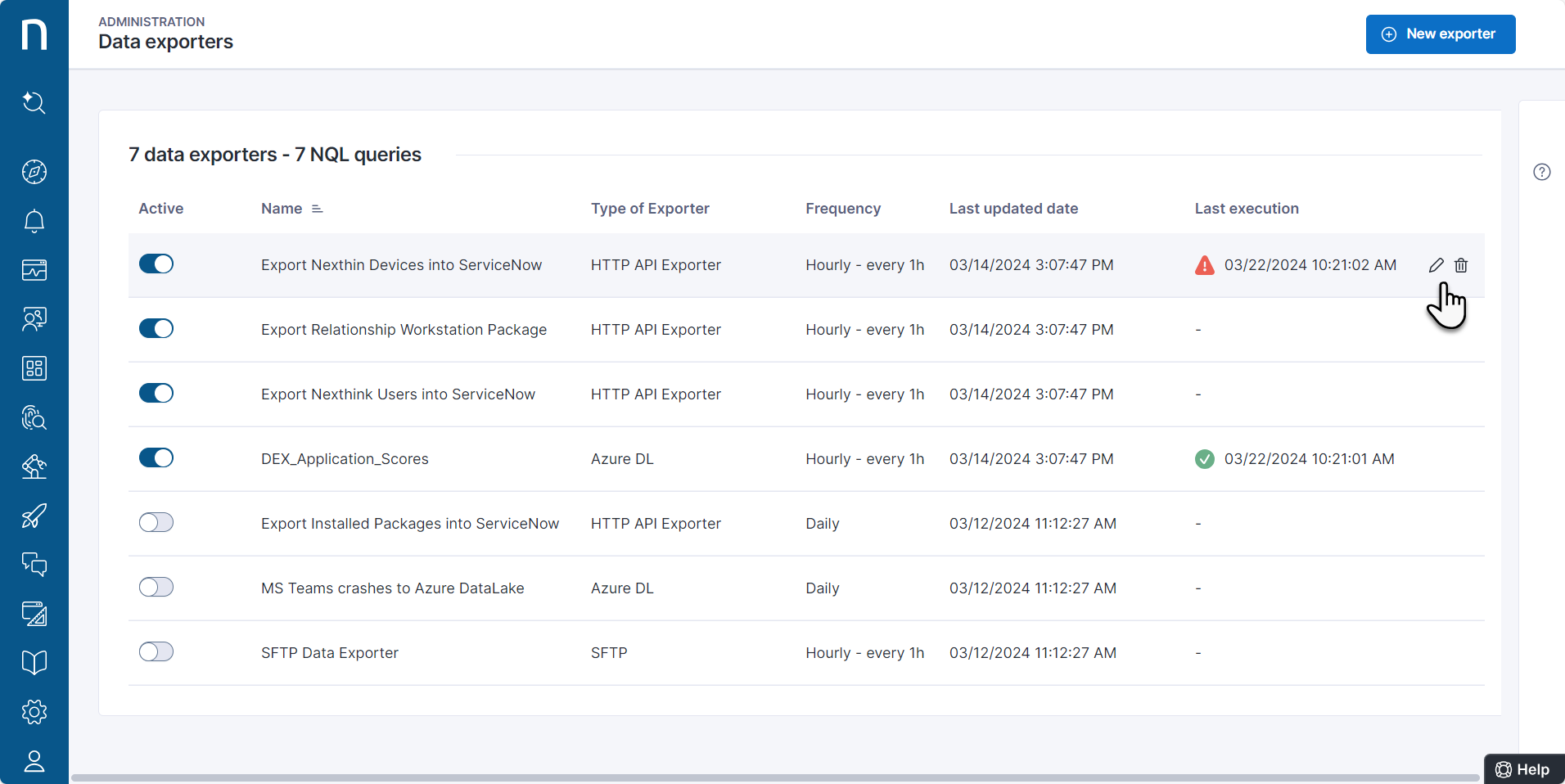
Hover over the data exporter listed on the **Data exporters** administration page to reveal icons on the right side of the selected item:
* Click on the pencil icon to open the configuration page for the data exporter.
* Click on the bin icon to delete the data exporter.
{% hint style="info" %}
Deleting a data exporter cannot be undone.
{% endhint %}
## **Investigating data exporter logs**
{% hint style="info" %}
The Bulk Data Exporter now supports investigating data that is not aligned with the scheduling frequency. This enables you to create and save exporters that target any dataset, regardless of whether it includes time-based data, giving you greater flexibility when automating exports and scheduling them.
{% endhint %}
Data exporters can fail for various reasons, such as expired credentials or unavailable resources. These failures may lead to missing data in your data lake. Understanding these failures is crucial to resolving issues quickly and creating visibility into possible problems with the data displayed on the dashboards.
The system saves each bulk data export event with details such as export duration time, status and data export NQL ID in the `platform.date_exporter_logs` table. Use the following NQL query to investigate the cause of specific data exporter failures:
```
platform.data_export_logs during past 30d
| where status = failure
| where details.nql_id ="#my_data_export_ID"
| list data_export_log.status , data_export_log.time , details.description , details.number_of_retries , details.nql_id
```
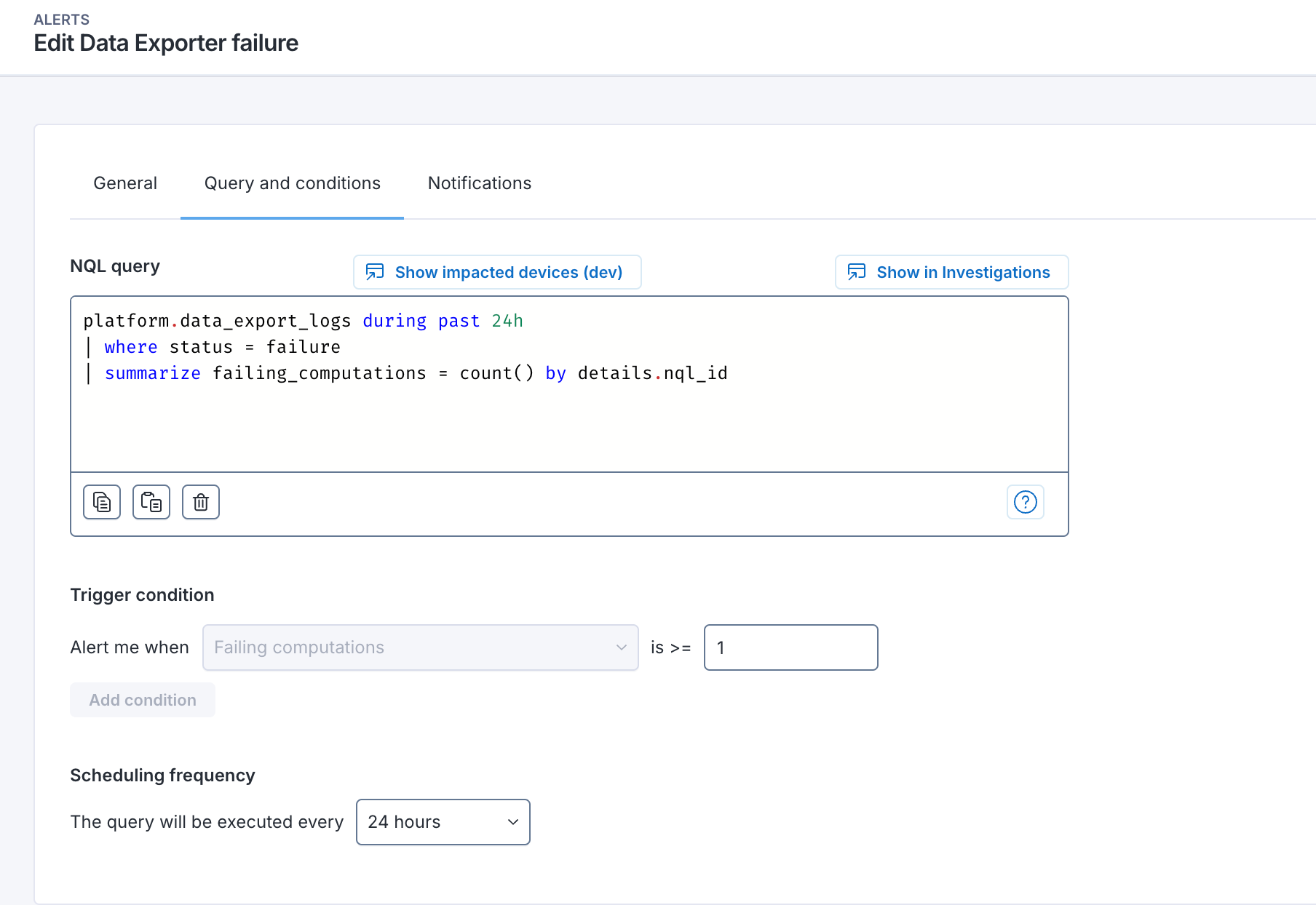
Nexthink recommends configuring a monitor that detects all data exporter failures to help you stay informed and react quickly. Use the following monitor NQL query and settings:
```
platform.data_export_logs during past 24h
| where status = failure
| summarize failing_computations = count() by details.nql_id
```
If an execution fails, the system displays a red icon next to the date of the last execution attempt on the **Data exporters** configuration page. Hover over the failed status to reveal a pop-up containing detailed error information.
## Monitoring daily limits
Nexthink enables employees to monitor global limits and daily data export consumption based on specific use cases.
### Monitoring data export usage with NQL query
Run the following NQL query to investigate bulk data export usage:
```
platform.data_export_logs during past 1d
| summarize exportedRows = details.number_of_rows.sum()
```
This returns the total number of rows exported over the past 24 hours.
### Monitoring data export usage with NQL Analytical API
Send a **GET** status request to query daily consumption. The API includes the following headers in its response:
* `x-nexthink-daily-record-consumption`: The global daily limits consumed.
* `x-nexthink-daily-record-limit`: Default daily export global limit. This limit resets daily at 00:00 UTC.
* `x-nexthink-individual-query-record-limit`: The limit on how many rows can be exported with a single exporter.
Refer to the [NQL API](https://docs.nexthink.com/api/nql) documentation for more information.
### Creating a custom dashboard
Create a custom dashboard from scratch to proactively monitor bulk data usage according to your own needs and specific use cases.
To create a dashboard:
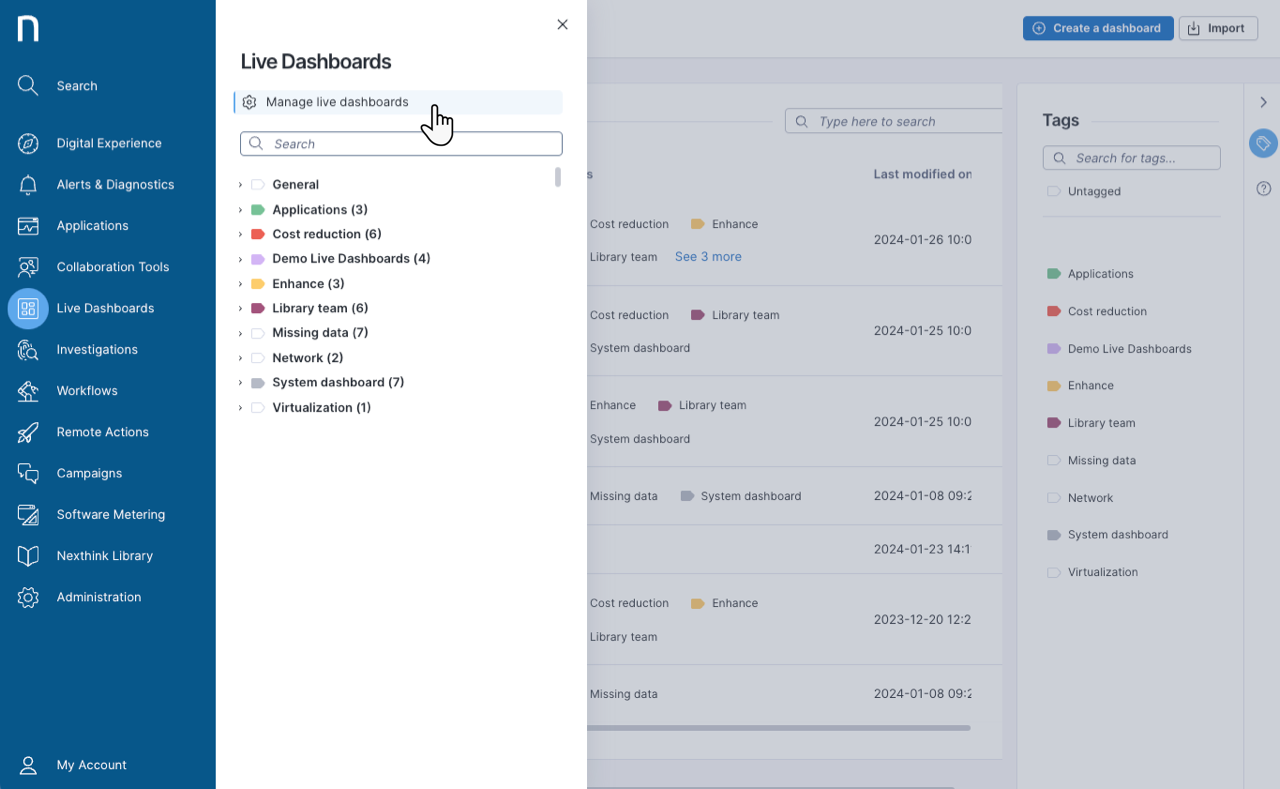
1. Select **Live Dashboards** from the main menu.
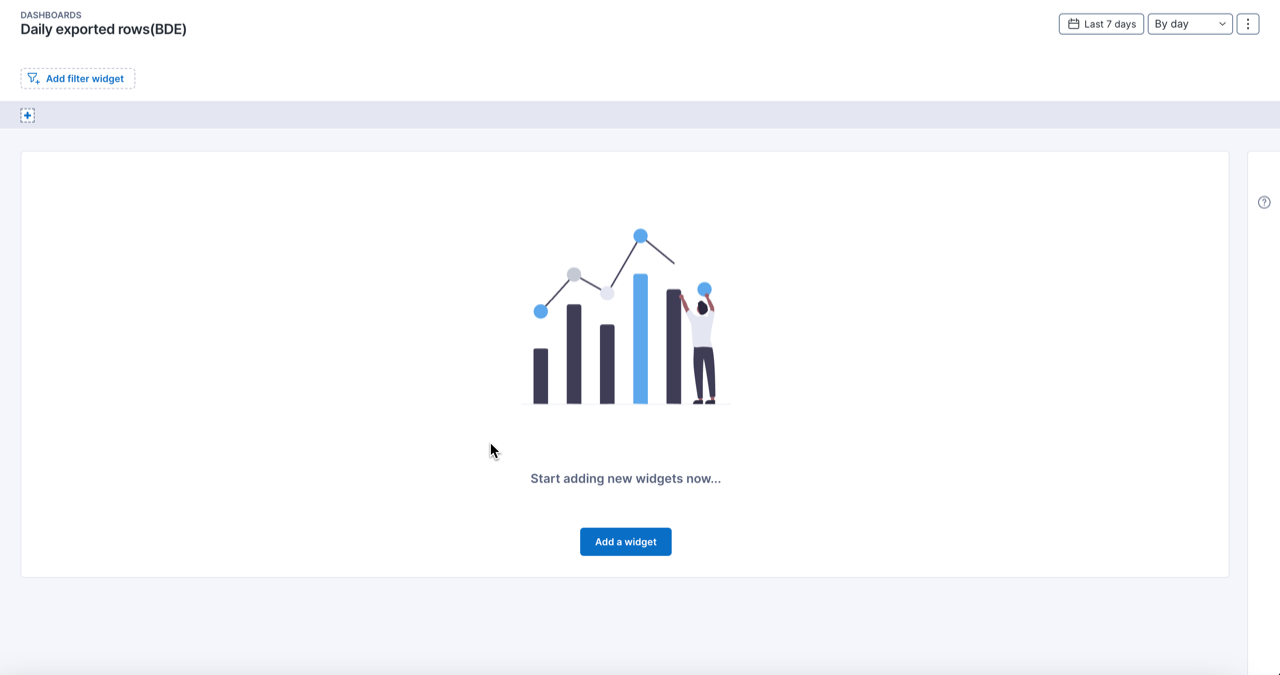
2. Click on **Create a dashboard** in the top-right corner of the empty **Dashboards** page.
3. Enter a meaningful name for the dashboard and click **Save**.
#### Adding a widget
After you save your dashboard, add widgets in edit mode:
1. Click on **Add a widget** to add a new widget.
2. Select the widget type you want to add:
* **Visualizations**, to present data as a line chart, bar chart, gauge chart, table or other type of visualization.
* **Heading**, to enter the name of a new section or a group of widgets on your dashboard.
3. Fill in the visualization fields in the **Add a widget** pop-up.
4. Click **Save widget**.
Refer to the [Creating dashboard](/platform/user-guide/live-dashboards/managing-live-dashboards.md#managinglivedashboards-creatingdashboardscreating_dashboards)[s ](/platform/user-guide/live-dashboards/managing-live-dashboards.md#managinglivedashboards-creatingdashboardscreating_dashboards)documentation for more information.
### Troubleshooting failed exceeded limits
When a limit is exceeded, the bulk data export log notifies customers about the failure. The log provides detailed information, including the number of records that caused the issue.
Run the following NQL query to identify exports that failed due to exceeded limits:
```
platform.data_export_logs
| where status == failure
| where details.description in ["*Limit exceeded*"]
| list details.nql_id
```
***
RELATED TASK
[Connector credentials](/platform/configuring_nexthink/bringing-data-into-your-nexthink-instance/integrating-nexthink-with-third-party-tools/outbound-connectors/connector-credentials.md)
---
# Agent Instructions
This documentation is published with GitBook. GitBook is the documentation platform designed so that both humans and AI agents can read, navigate, and reason over technical content effectively. Learn more at gitbook.com.
## Querying This Documentation
If you need additional information that is not directly available in this page, you can query the documentation by asking a question.
Perform an HTTP GET request on the following URL with the `ask` and `goal` query parameters:
```
GET https://docs.nexthink.com/platform/configuring_nexthink/bringing-data-into-your-nexthink-instance/integrating-nexthink-with-third-party-tools/outbound-connectors/data-exporters/managing-data-exporters.md?ask=&goal=
```
`ask` is the immediate question: it should be specific, self-contained, and written in natural language.
`goal` is what the user is ultimately trying to achieve, the reason they need the answer. Sharing it helps GitBook give you a better, more relevant answer. A goal is most helpful when it describes the outcome the user wants rather than restating the question. For example, with `ask=how do I create an API token`, a goal like `automate deployments from our CI pipeline` lets GitBook tailor the answer to that use case.
The response will contain a direct answer to the question and relevant excerpts and sources from the documentation.
Use this mechanism when the answer is not explicitly present in the current page, you need clarification or additional context, or you want to retrieve related documentation sections.