> For the complete documentation index, see [llms.txt](https://docs.nexthink.com/platform/llms.txt). Markdown versions of documentation pages are available by appending `.md` to page URLs; this page is available as [Markdown](https://docs.nexthink.com/platform/configuring_nexthink/bringing-data-into-your-nexthink-instance/integrating-nexthink-with-third-party-tools/outbound-connectors/data-exporters/exporter-for-azure-data-lake.md).
# Exporter for Azure Data Lake
{% hint style="warning" %}
This documentation references external sources. Nexthink does not have control over the accuracy of third-party documentation, nor any external updates or changes that might create inconsistencies with the information presented on this page. Please report any errors or inconsistencies to [Nexthink Support](https://support.nexthink.com/).
{% endhint %}
Data Export allows you to export Nexthink data insights into Azure Data Lake via CSV files, comma separated and in UTF-8 format.
Configure Azure Data Lake Storage Gen2 data destinations to store data and create a Data Export in Nexthink web interface to distribute it.
## Prerequisites
Before setting up the date exporter in the Nexthink web interface, you must first:
1. [Create a Storage Account in Azure Portal](#exporterforazuredatalake-creatingastorageaccountinazureportalstorage_account)
2. [Create a data lake Container within a Storage Account](#exporterforazuredatalake-creatingadatalakecontainerwithinastorageaccountcointainerstorageaccount)
3. [Register an application in Azure Portal](#exporterforazuredatalake-registeringanapplicationinazureportalregister_application)
### Creating a Storage Account in Azure Portal
Log in to the [Azure](https://portal.azure.com/) portal:
To create a file system using the general-purpose v2 storage account (not a data lake storage gen1) in the Azure portal, follow these steps:
1. In the Azure portal menu, select All services.
2. In the list of resources, type *Storage Accounts*. As you begin typing, the list filters the content based on your input.
3. Select **Storage Accounts**.
4. Select **Add** in the Storage Accounts window.
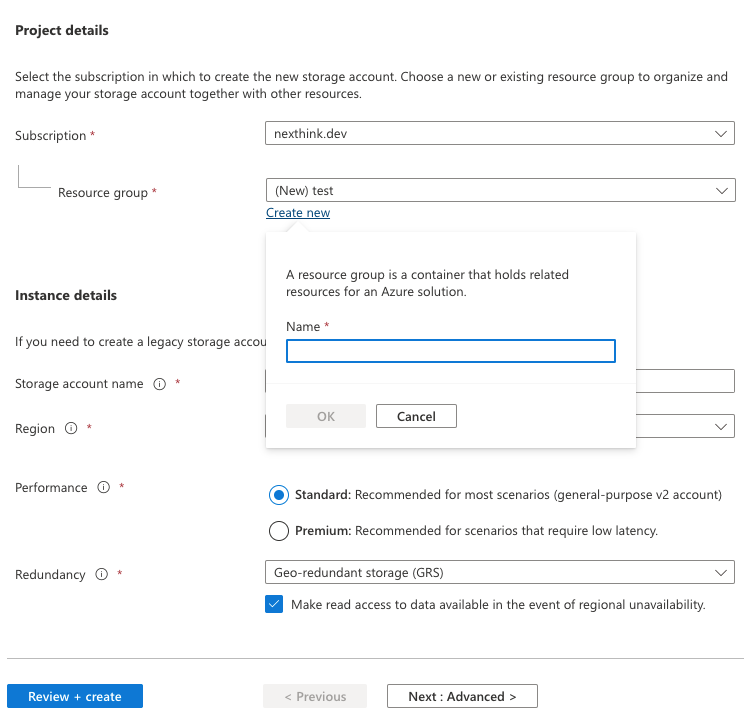
5. Select the subscription for which you want to create the storage account.
6. Select **Create new** under the **Resource group** field. Enter the name of your new resource group. If a Resource group already exists, select it from the dropdown list.
7. Enter the name of your storage account. The name you choose must be unique across Azure. The name also must be between 3 and 24 characters in length and can include numbers and lowercase letters only.
8. Select a location for your storage account or use the default location.
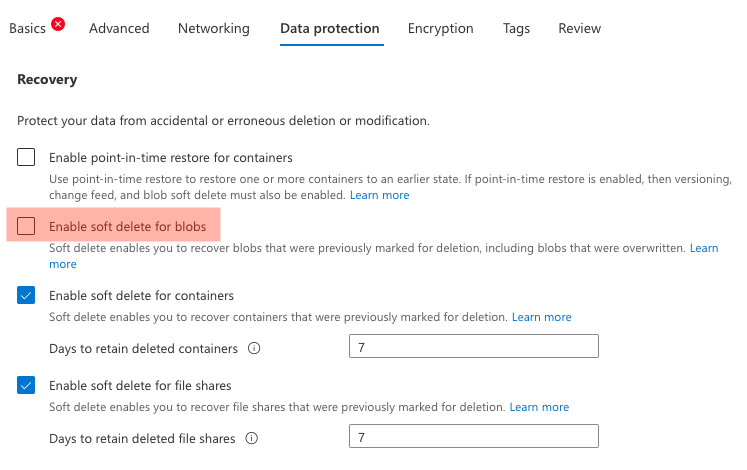
9. Fill in the information for the rest of the tabs, **Advanced**, **Networking**, **Data Protection**, **Encryption and Tags.**
* **Disable** *Soft delete for blobs* in the Data Protection tab
* **Enable** *Hierarchical namespace* in the Advanced tab
10. Select **Review + Create** to review your storage account settings and create the account.
### Creating a data lake Container within a Storage Account
1. Locate your newly created storage account under **Storage accounts**.
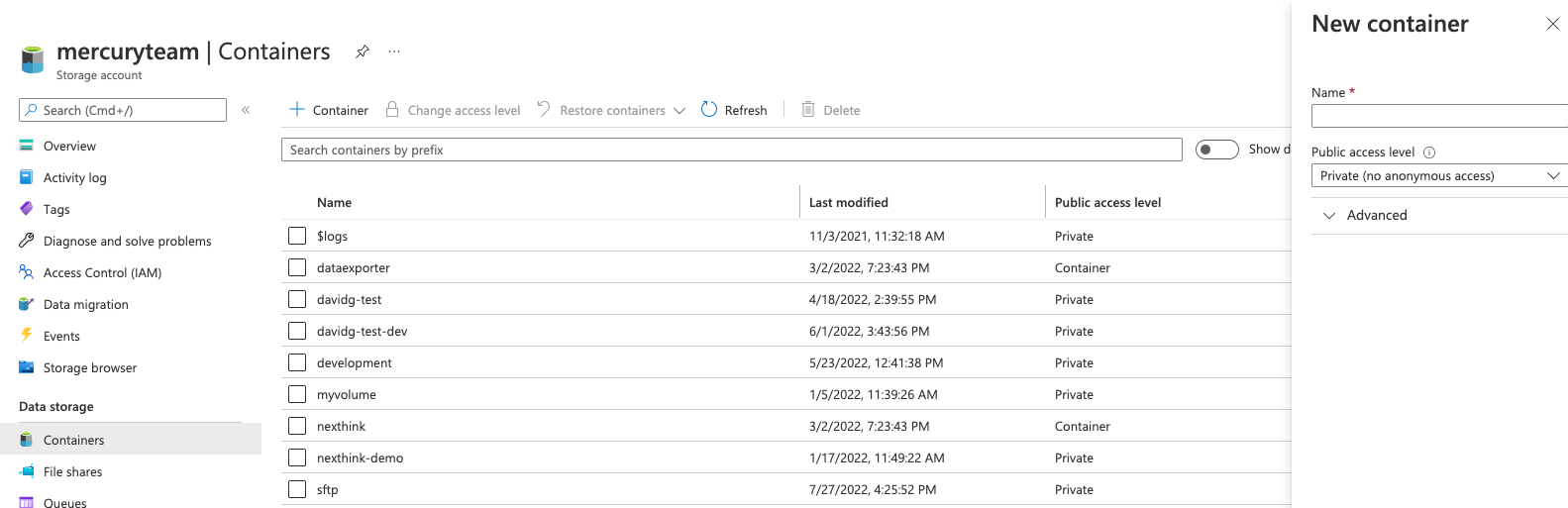
2. Select the storage account you want to use.
* You must create a new container.
3. Select **Containers**, add a new container and enter a meaningful name for it, for example, openbridge-data-lake.
4. Make sure access is set to **Private (no anonymous access)**.
5. Click on **Create.**
### Registering an application in Azure Portal
Register an application with the [Microsoft identity platform](https://docs.microsoft.com/en-us/azure/active-directory/develop/quickstart-register-app) and apply the valid role assignment for access.
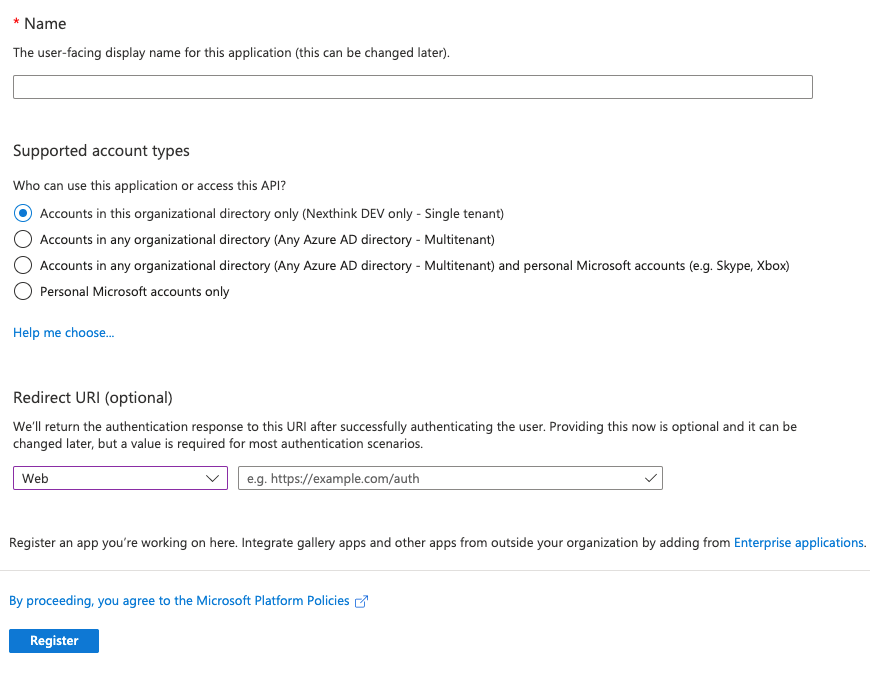
1. Register a new application in the Azure portal.
2. Select the account type based on your business requirements.
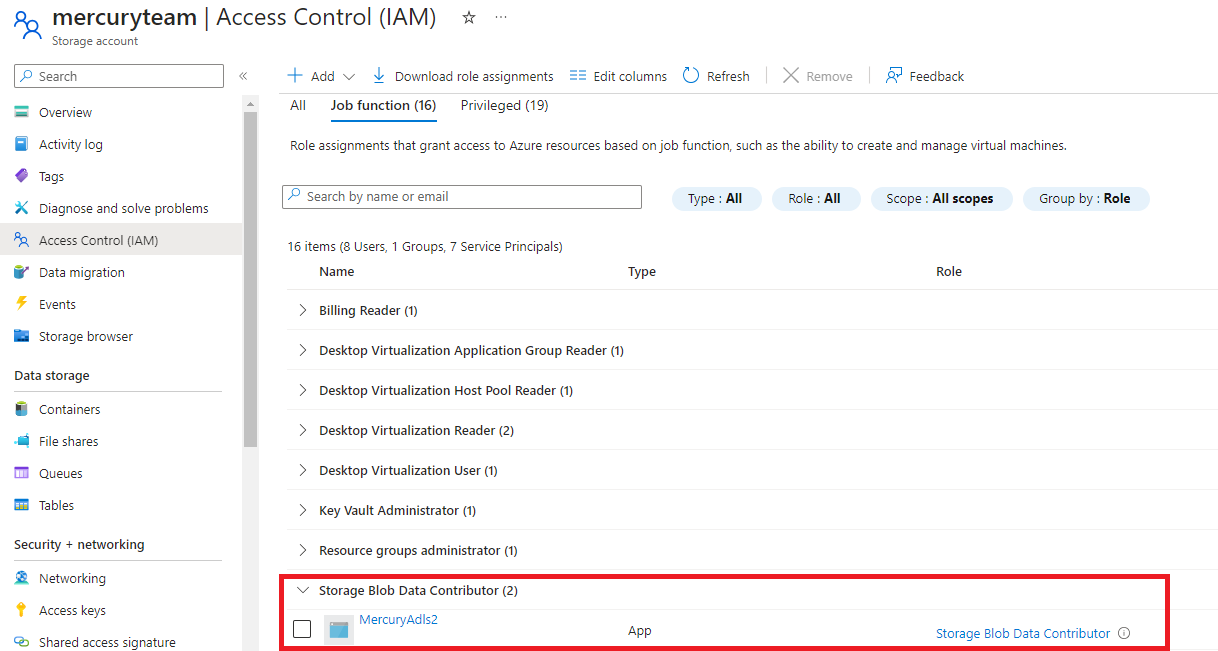
3. Assign the **Storage Blob Data Owner** or **Storage Blob Data Contributor** role to the service principal, which grants the service principal full access to blob data rights. Assign other blob data roles according to your business requirements. For the details of built-in role permissions, please refer to the [Azure built-in roles](https://docs.microsoft.com/en-us/azure/role-based-access-control/built-in-roles#storage-blob-data-owner) documentation on the Microsoft website.
## Configuring Azure DL connector credentials in Nexthink
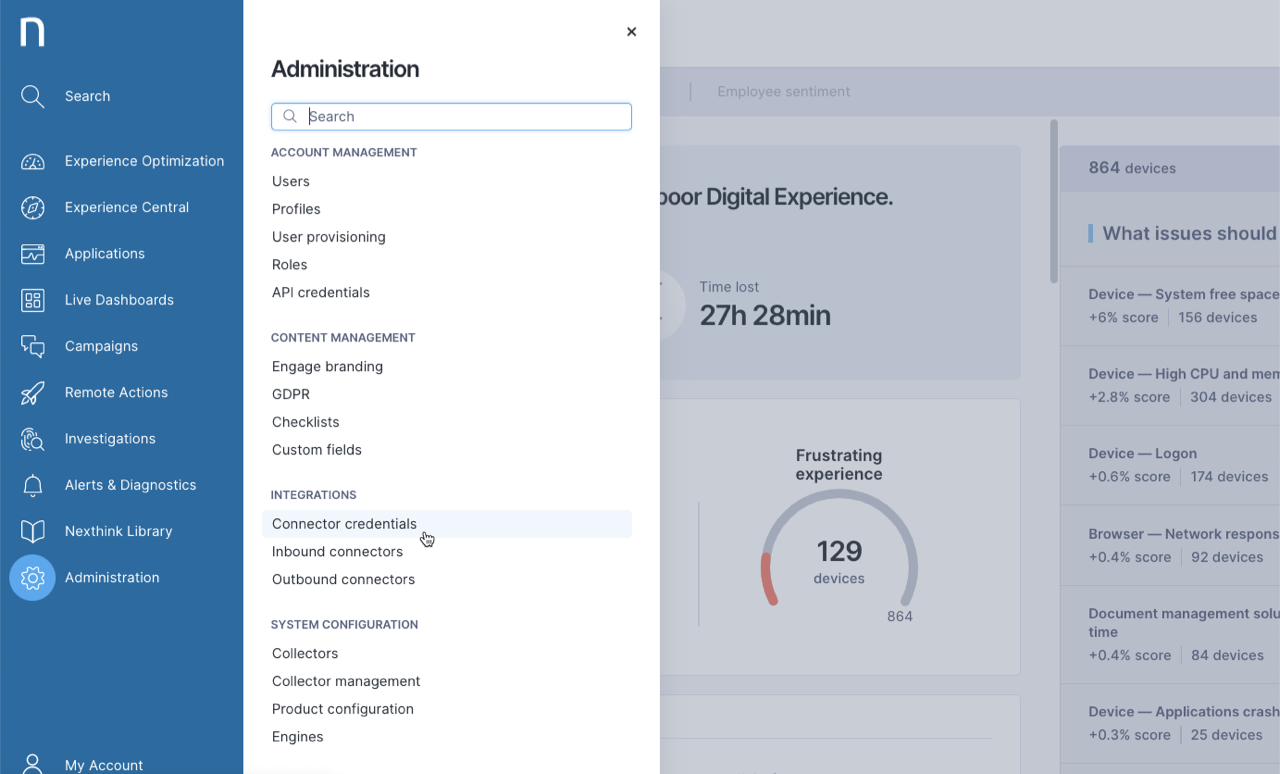
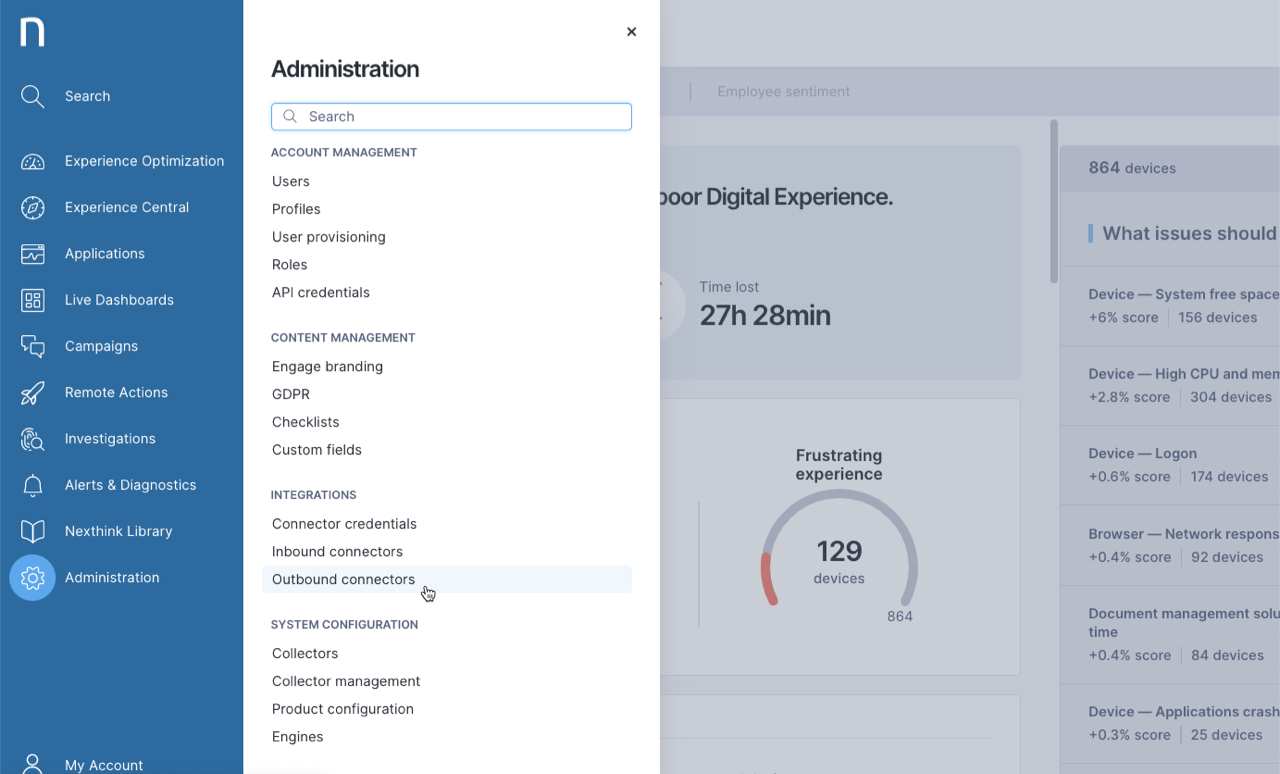
1. Select **Administration** from the main menu.
2. Click on **Connector credentials** from the Integrations section of the navigation menu.
3. Click on the **New credential** button located in the top-right of the Credentials page.
4. Fill in the **Name**.
5. Select **HTTPS** as the protocol.
6. Select **OAuth 2.0 - Client Credentials** as the authorization mechanism.
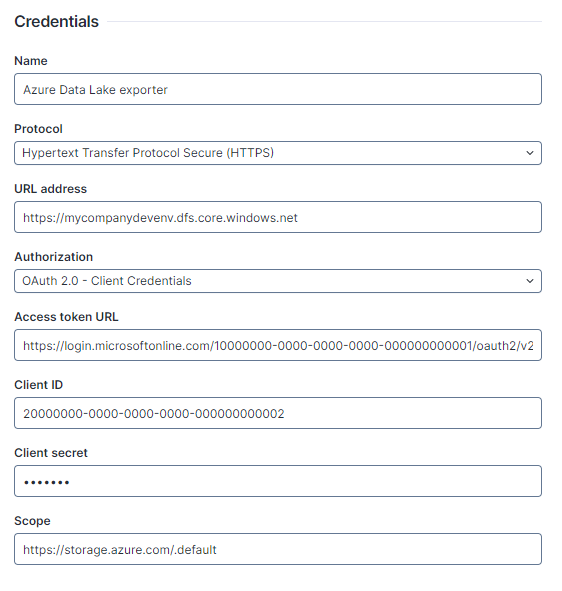
7. Fill in the credential values with the Storage and Application information from the Azure portal. See the image and values listed below.
{% hint style="info" %}
Refer to the [Connector credentials](/platform/configuring_nexthink/bringing-data-into-your-nexthink-instance/integrating-nexthink-with-third-party-tools/outbound-connectors/connector-credentials.md) documentation for more information.
{% endhint %}
* **URL address:** `https://$STORAGE_ACCOUNT_NAME.dfs.core.windows.net`
* The `$STORAGE_ACCOUNT_NAME` name of the Storage created in [Step 1](#exporterforazuredatalake-creatingastorageaccountinazureportalstorage_account).
* **Access token URL:** `https://login.microsoftonline.com/$TENANT_ID/oauth2/v2.0/token`\
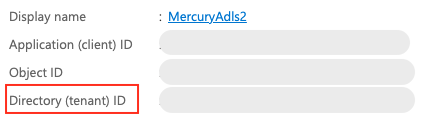
`$TENANT_ID`: Directory (tenant) ID of the application created in [Step 3](#exporterforazuredatalake-registeringanapplicationinazureportalregister_application).
* In the Overview section, copy the Directory (tenant) ID.
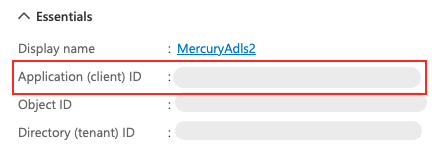
* **Client ID:** Select Application (client) ID from the Overview section of the application created in [Step 3](#exporterforazuredatalake-registeringanapplicationinazureportalregister_application).
* **Client secret:** Value taken from the **Certificates & secrets** section of the application created in [Step 3](#exporterforazuredatalake-registeringanapplicationinazureportalregister_application).
* **Scope:** `https://storage.azure.com/.default`
## Creating an Azure DL data exporter in Nexthink
You must have administrative permissions to configure the data exporter. Refer to the [Adding users](/platform/user-guide/administration/account-management.md) documentation for more information about user role.
To access Data Export:
1. Select **Administration** from the main menu.
2. Select **Outbound connectors** from the **Integrations** section of the navigation panel.
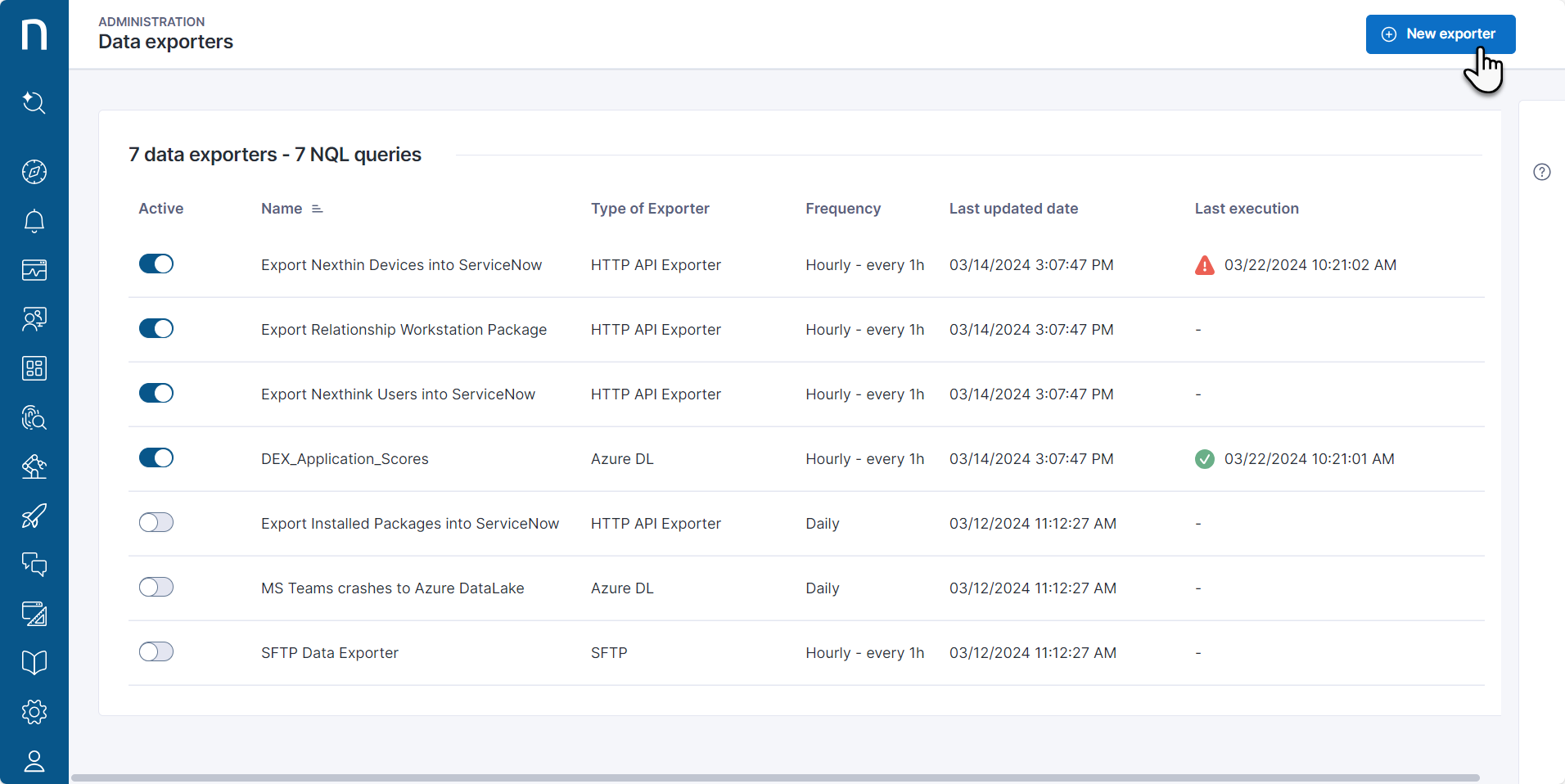
3. Select **Data Exporter** from the list of Outbound connectors. When you access the Data exporter page for the first time, there are no elements on the page. Once you create a data exporter, it is listed on the page along with the total number of created data exporters.
4. Click on the **New exporter** button located in the upper-right corner of the page to create a new data exporter.
5. Select the **Azure DL** data exporter type.
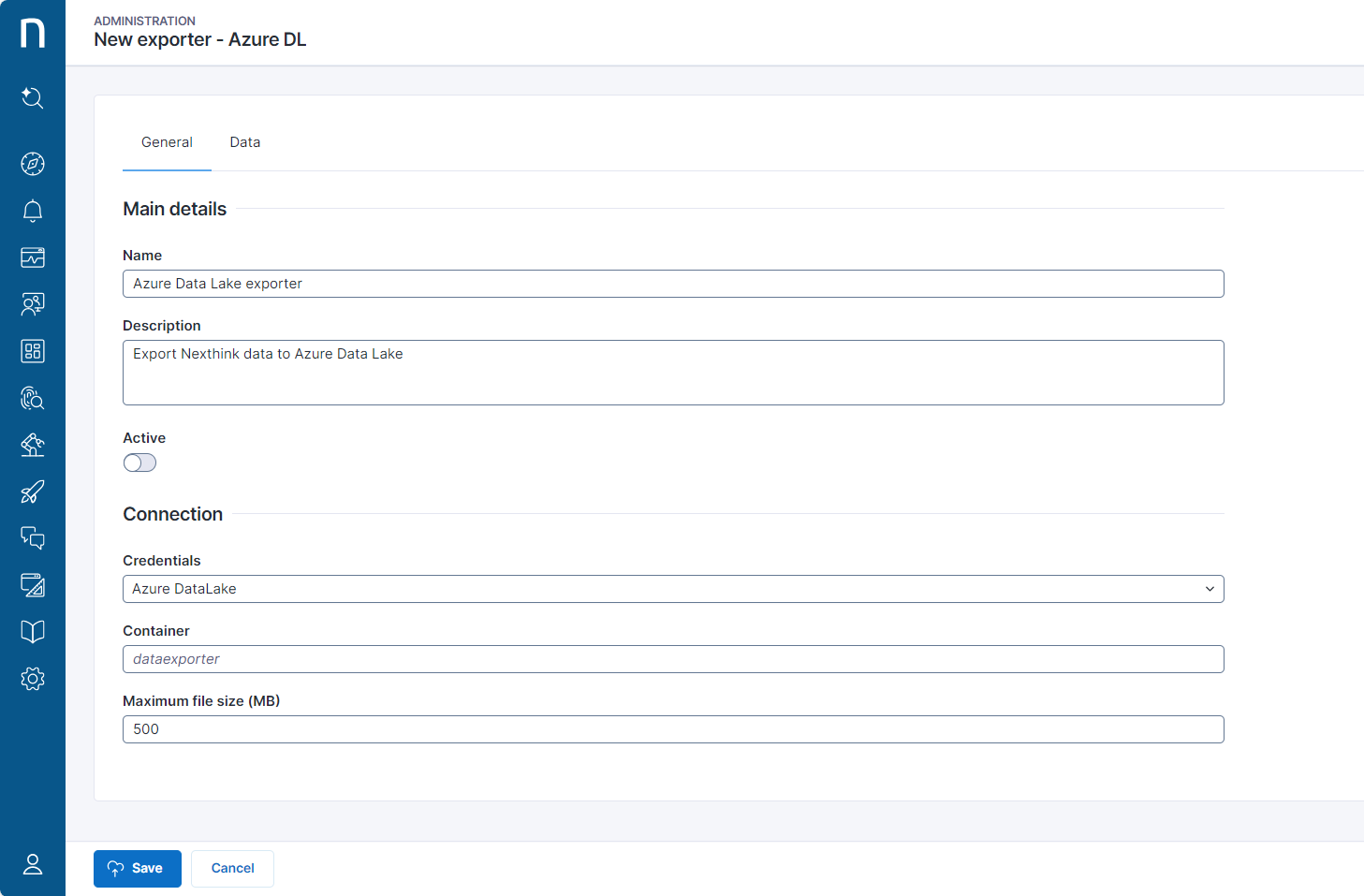
### General tab
* **Name:** enter a meaningful name for the data exporter.
* **Description:** enter a meaningful description of the goal of the data exporter.
* **Active:** switch on the toggle to enable the exporter.
* **Credentials:** define credentials from the third-party tool that the data exporter sends the data to. Refer to [Connector credentials](/platform/configuring_nexthink/bringing-data-into-your-nexthink-instance/integrating-nexthink-with-third-party-tools/outbound-connectors/connector-credentials.md) for more information.
* **Container:** enter the name of the container in Azure Data Lake to push the data to.
* **Maximum file size:** define the maximum file size generated by Data Export. If the data set from a specific **NQL query** is larger than the specified file size, it splits it into several separate files.
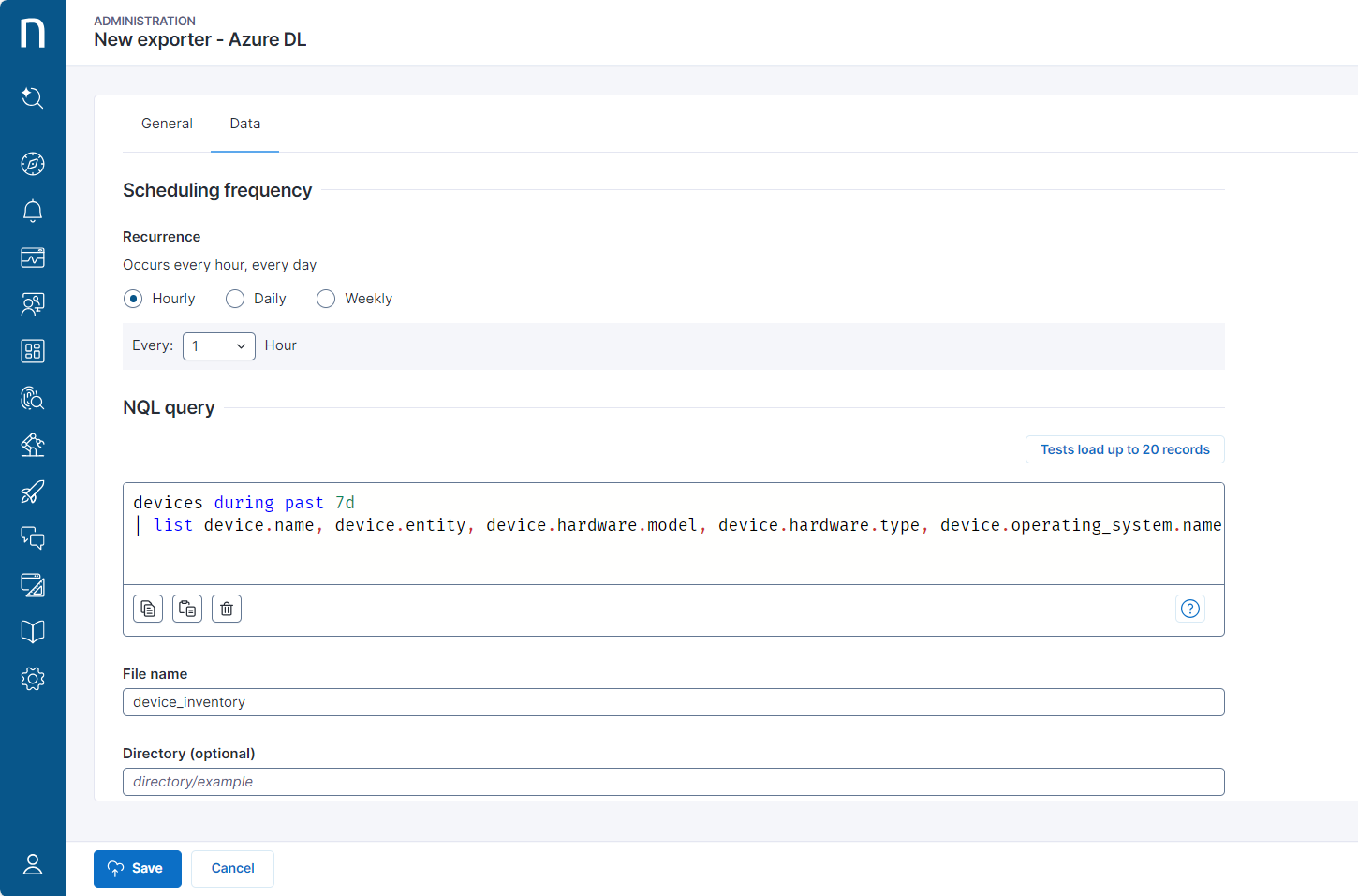
### Data tab
* **Scheduling frequency:** define how often the system executes the NQL query and exports data. The available options are:
* **Hourly:** The system triggers the data export data based on the value selected in the drop-down menu. For instance, every 1h, 2h, 3h, 4h, 6h or 12h.
* **Daily:** The system triggers the data export every day at 00:00 of the timezone where the Nexthink cloud instance is located.
* **Weekly:** The system triggers the data export weekly, on the selected day at 00:00 of the timezone where the Nexthink cloud instance is located.
For **Hourly** and **Daily** scheduling frequencies, the system waits 20 minutes to execute the data exporter to allow the previous bucket to close properly for data completeness.
{% hint style="info" %}
You must select a value for the **Recurrence** option because the system does not generate a default value and does not indicate that the value is missing during the validation process.
{% endhint %}
* **NQL query:** define the data exported from Nexthink web interface into the destination using an NQL query.
* **File name:** Enter the filename created in the destination. Underscore is the only special character supported, for example: *IT\_lake\_exporter*.
* **Directory (optional):** define the directory within the container credentials from the third-party tool that the data is exported to. If the directory doesn’t exist, the system will automatically create it.
### Testing the Azure DL data exporter
Click the **Tests load up to 20 records** button to validate the connection to Azure Data Lake before saving the configuration.
* If the NQL query and the connection are valid, a message appears indicating that the query results has been successfully delivered.
* If the NQL query or the connection is invalid, a message appears informing about the error details.
{% hint style="info" %}
Refer to the [Managing data exporters](/platform/configuring_nexthink/bringing-data-into-your-nexthink-instance/integrating-nexthink-with-third-party-tools/outbound-connectors/data-exporters/managing-data-exporters.md) documentation to learn more about data exporters creation, editing, deleting and disabling.
{% endhint %}
## Limits
Refer to the [Nexthink Infinity thresholds and limits overview](https://edocs.nexthink.com/nexthink-infinity/infinity-specifications/nexthink-infinity-default-thresholds-overview) for the list of the most up-to-date limits.
---
# Agent Instructions
This documentation is published with GitBook. GitBook is the documentation platform designed so that both humans and AI agents can read, navigate, and reason over technical content effectively. Learn more at gitbook.com.
## Querying This Documentation
If you need additional information that is not directly available in this page, you can query the documentation by asking a question.
Perform an HTTP GET request on the following URL with the `ask` and `goal` query parameters:
```
GET https://docs.nexthink.com/platform/configuring_nexthink/bringing-data-into-your-nexthink-instance/integrating-nexthink-with-third-party-tools/outbound-connectors/data-exporters/exporter-for-azure-data-lake.md?ask=&goal=
```
`ask` is the immediate question: it should be specific, self-contained, and written in natural language.
`goal` is what the user is ultimately trying to achieve, the reason they need the answer. Sharing it helps GitBook give you a better, more relevant answer. A goal is most helpful when it describes the outcome the user wants rather than restating the question. For example, with `ask=how do I create an API token`, a goal like `automate deployments from our CI pipeline` lets GitBook tailor the answer to that use case.
The response will contain a direct answer to the question and relevant excerpts and sources from the documentation.
Use this mechanism when the answer is not explicitly present in the current page, you need clarification or additional context, or you want to retrieve related documentation sections.