VMware vSphere Hypervisor connector

circle-info

This documentation references external sources. Nexthink does not have control over the accuracy of third-party documentation, nor any external updates or changes that might create inconsistencies with the information presented on this page. Please report any errors or inconsistencies to Nexthink Supportarrow-up-right.

The Nexthink Connector for VMware VSphere retrieves essential information about your VSphere virtual desktop infrastructure (VDI), most notably the name of the desktop pool and related virtualization context to which virtual machines (VMs) belong. The connector enriches your Nexthink environment with VSphere-specific data that enhances visibility into VDI health, usage patterns, and configuration drift.

This installation guide is designed to help you securely deploy the connector for VSphere. We recommend your organization’s security team reviews the configuration and installation steps outlined here and adjusts them as needed to align with internal security policies and compliance requirements.

Device fields

The vSphere connector imports the following device virtualization fields under the device_performance.hypervisor_host_events table.

Field
Description

Virtualization hostname

The name of the virtualization host running the VMs.

Virtualization cluster

The logical grouping of hypervisor hosts managed as a single unit to provide shared resources, policy enforcement and other features.

Number of logical processors

The number of CPU cores multiplied by the number of threads that can run on each core of the hypervisor host.

CPU ready

Ratio of time when VMs were ready, but could not get scheduled to run on the physical CPU during the observed period of time. High CPU Ready can signal noisy neighbors, CPU overcommit, or too many vCPUs assigned.

Normalized CPU usage

Average physical CPU utilization over the selected time period, expressed on a 0–100% scale. Indicates the proportion of time the CPU was busy. The value is normalized to enable comparison across hosts of different sizes and is useful for capacity planning.

CPU time

Total time the physical CPUs were actively used during the observed period. Represents absolute CPU consumption, useful for capacity planning and for comparing workloads.

Number of virtual processors

The number of virtual processors provisioned on the host during the observed period of time. Useful for understanding over-provisioning and underutilization of CPUs.

Disk read throughput

Average disk read throughput during the observed period, measured in bytes per second. Useful for identifying storage performance and potential bottlenecks affecting data-intensive workloads.

Disk write throughput

Average disk write throughput during the observed period, measured in bytes per second. Useful for identifying storage performance and potential bottlenecks affecting data-intensive workloads.

Disk latency

Maximum disk latency during the collection interval, representing the time taken to process SCSI commands issued by the guest OS. Indicates storage responsiveness and potential performance bottlenecks.

Memory pressure state

Indicates the current memory pressure state and the memory reclamation techniques applied by the hypervisor. As memory pressure increases, the hypervisor progressively applies ballooning, compression, and swapping. Possible values: high, soft, hard, low.

Swap in throughput

Average rate at which guest physical memory is swapped in from disk during the observed period. Indicates real memory contention that can directly impact VDI user experience.

Swap out throughput

Average rate at which guest physical memory is swapped out to disk during the observed period. Indicates real memory contention that can directly impact VDI user experience.

Swap in use

Amount of swap storage actively used by the virtual machine, representing memory pages stored on disk instead of physical memory. Indicates sustained memory overcommit and the level of performance degradation carried over time.

Memory usage

Percentage of host physical memory consumed during the observed period. Hypervisors cache memory aggressively, so high values (for example, around 90%) are common and do not necessarily indicate memory contention. Useful for capacity planning and establishing a baseline memory footprint.

Memory ballooning

Total amount of memory reclaimed from guest virtual machines by the balloon driver. Indicates memory pressure on the host; sustained ballooning typically signals memory overcommit and can affect VDI performance if workloads are memory-sensitive.

Installed memory

The total amount of physical memory installed on the hypervisor host. Used as a capacity baseline to evaluate memory utilization, overcommitment on the hypervisor.

Committed memory

The total amount of memory configured for all powered-on virtual machines running on the hypervisor. A sustained committed-to-installed memory ratio greater than 1.0 may indicate memory overcommitment and can lead to increased memory contention under load.

NUMA misaligned VMs

Number of virtual machines running on the host whose vCPU and memory placement is not aligned with the host’s NUMA topology or spans multiple NUMA nodes. Indicates potential NUMA-related performance inefficiencies, particularly for CPU- or memory-intensive workloads.

Hyper-threading

Indicates whether CPU simultaneous multithreading is enabled on the host. When enabled, each physical core presents multiple logical processors to the hypervisor, affecting scheduling efficiency and consolidation density. Possible values: enabled, disabled.

Power policy

Power management mode configured on the host, defining the balance between performance and energy efficiency. Affects CPU frequency scaling, power-saving behavior, and workload performance. Possible values: high_performance, balanced, low_power.

Number of VMs

Number of active VMs running on the hypervisor, including VMs without active user sessions. Commonly used to assess host consolidation, baseline resource load, and identify background or idle VMs contributing to resource consumption.

Nexthink connector server

Nexthink recommends installing the vSphere connector on a separate server.

Prerequisites

URLs to allow through firewall/proxy for PowerShell Install-Module

Purpose
URL

PowerShell Gallery

https://www.powershellgallery.com

NuGet provider

https://www.nuget.org

NuGet API

https://api.nuget.org

CDN for packages

https://www.powershellgallery.com/api/v2/

Alternate NuGet V2 API

https://www.nuget.org/api/v2/

Certificate revocation

http://crl.microsoft.com (normally optional; sometimes necessary)

Additional Considerations

  • Only one vSphere connector is supported; do not set up the connector on multiple servers because it can lead to duplicated events.

  • If SSL inspection is enabled on your proxy, ensure it does not break the TLS handshake.

  • If you're behind a proxy, ensure PowerShell is configured to use it by running the following command:

Test connectivity

Test access using a PowerShell terminal by running the following command:

Networking

The vSphere connector needs to query the VSphere REST API.

Service account for scheduled tasks

The vSphere connector runs as a scheduled task and needs to be able to access the vSphere APIs. To limit security concerns, we recommend using a local user account on the Nexthink connector server or a regular domain user account without any special privileges at the domain level.

The following guide uses a local account on the Nexthink connector server.

1

Log on as an administrator to the server that will run the vSphere connector.

2

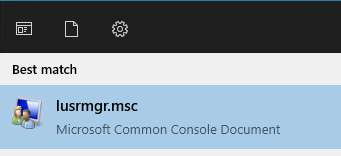
Launch the local users and groups console by running the following command from the Start Menu:

Run the lusrmgr.msc command
3

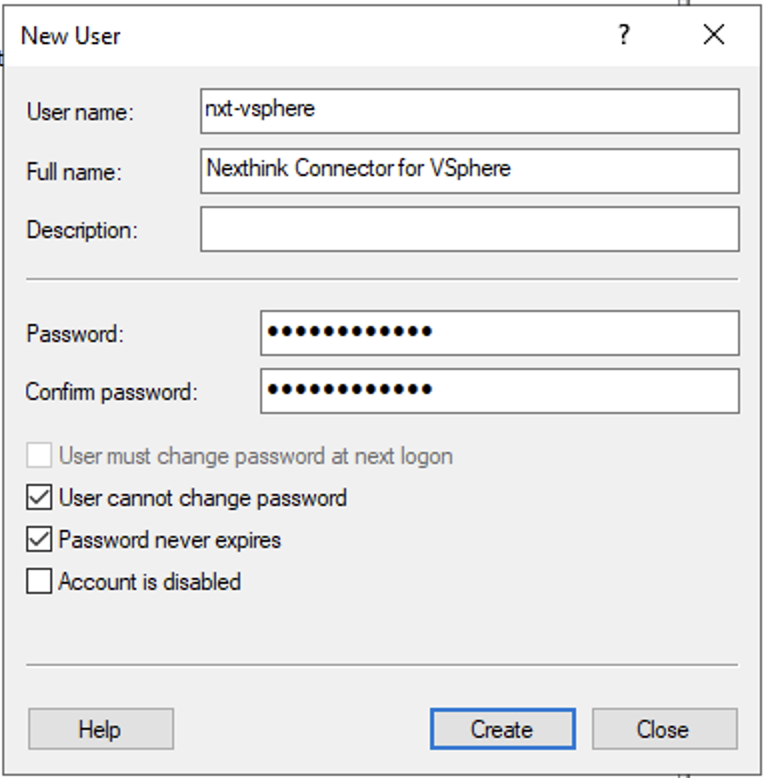
Right-click on the Users folder in the Local Users and Groups (Local) directory and select New user…

4

Create a user account according to your organization's naming conventions. Make a note of the User name and Password as you will need these later when creating a scheduled task. To safeguard the functionality of the connector, select the following options:

  • User cannot change password

  • Password never expires

5

Select Create.

6

Open the local group policy editor by running the following command from the Start Menu:

7

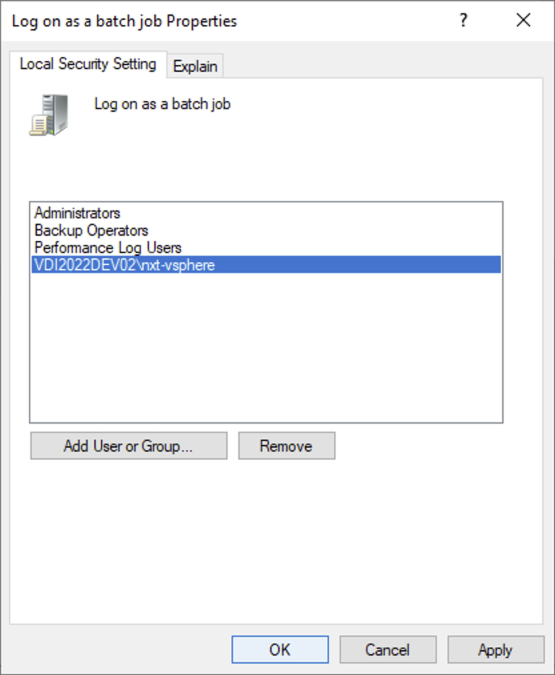
Navigate to Computer Configuration > Windows Settings > Security Settings> Local Policies > User Rights Assignment and locate the Log on as a batch Job policy.

8

Open the policy and select Add User or Group to add the previously created user to the list.

9

Ensure the account is enabled by running the following commands:

Installing the connector

1

Download the vSphere connector.

2

Extract the zip file to a folder on your system. Nexthink recommends placing it in the following folder:

C:\program files\Nexthink\Connectors\VSphere

3

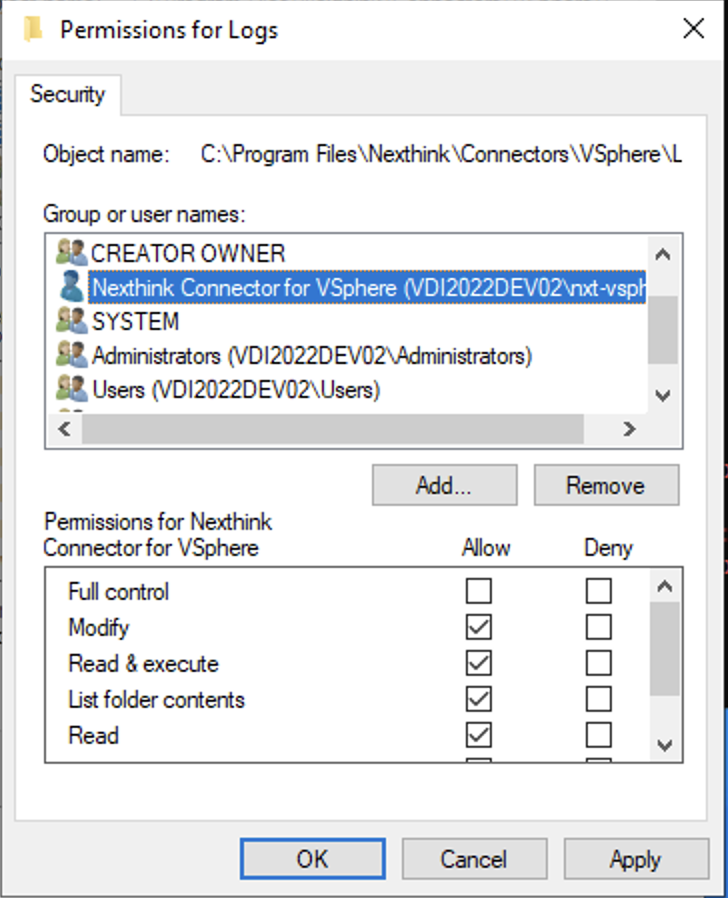
Apply Modify permissions for the Logs folder for the user account you created earlier.

Nexthink Enrichment API credentials

The vSphere connector needs appropriate credentials to connect to the Nexthink Enrichment API. Nexthink stores the credentials safely in the credential store of the local user account you created earlier.

Updating the configuration file

For the configuration file update, you need the URL of your Nexthink Cloud API instance. The URL pattern is as follows:

instance.api.region.nexthink.cloud

See the following steps for more details.

circle-info

If you do not know your region, reach out to your Nexthink representative to obtain this information.

1

Locate the folder where you unzipped the vSphere connector.

2

Navigate to the Config folder and open the config.json file using a text editor.

3

Scroll to the "NexthinkAPI" section and insert the following code:

4

Change the following values under the "NexthinkAPI" section:

  • Replace the "HostFQDN" value with the URL of your Nexthink cloud API instance using the format <instance>.api.<region>.nexthink.cloud where <instance> and <region> are placeholders.

    • Replace <instance> with the name of the instance

    • Replace <region> with the name of one of the following regions:

      • us for the United States

      • eu for the European Union

      • pac for Asia-Pacific

      • meta for the Middle East, Turkey, and Africa

    • If needed, refer to the following URL example: gwy-eu-west-3-fuji-rest.api.eu.nexthink.cloud

  • Replace the “WindowsCredentialEntry" with the TargetName of the credentials you noted down from the PowerShell window earlier, for example: "WindowsCredentialEntry": "nxt-vsphere-credentials",

circle-exclamation

Setting up stored credentials

1

On the server that will be running the vSphere connector, open PowerShell under the credentials of the local user you created earlier by running runas in the command line:

2

In the newly opened PowerShell window, add the API credentials you just created in the Nexthink web interface by running the following command:

Replace the <domain\username> and <password> with the values you noted down when creating a domain user account with a read-only vSphere administrator.

Make a note of the TargetName you used as you will need this value for the configuration file.

Updating the configuration file

Each Citrix CVAD environment has its own section in the configuration file. The configuration file that comes with the connector contains an example of how to configure multiple environments. If needed, create a copy of the original config.json file for future reference.

1

Locate the folder where you unzipped the vSphere connector.

2

Navigate to the Config folder and open the config.json file using a text editor.

3

Scroll to the "VSphereEnvironments" section and remove the second item on the list. The code should look similar to the following:

Change the following values in the "VSphereEnvironments" section:

  • Replace <environment-name-1> with the name of your environment.

  • Replace <host> with the vSphere host.

  • Replace <vsphere-user-credentials-1> with the TargetName of the stored credentials you created earlier in PowerShell.

  • Make a note of the identifier as you will need it later.

Testing the connector

1

On the server that will be running the vSphere connector, open PowerShell under the credentials of the local user you created earlier using the runas command:

2

Change to the directory where you installed the connector, for example:

3

Run the following command:

4

Then run the following command:

Replace <vsphere-name> with the value you put as a name in the config in the following section:

After executing the command, the PowerShell window closes, and a folder with the name you chose for the connection appears containing a log file with the test result.

Setting up scheduled tasks

Auto updater

1

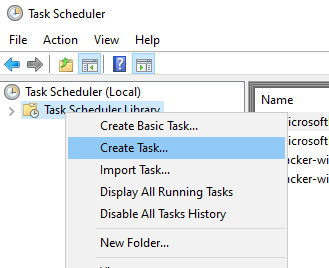
Open the task scheduler and select Create task…

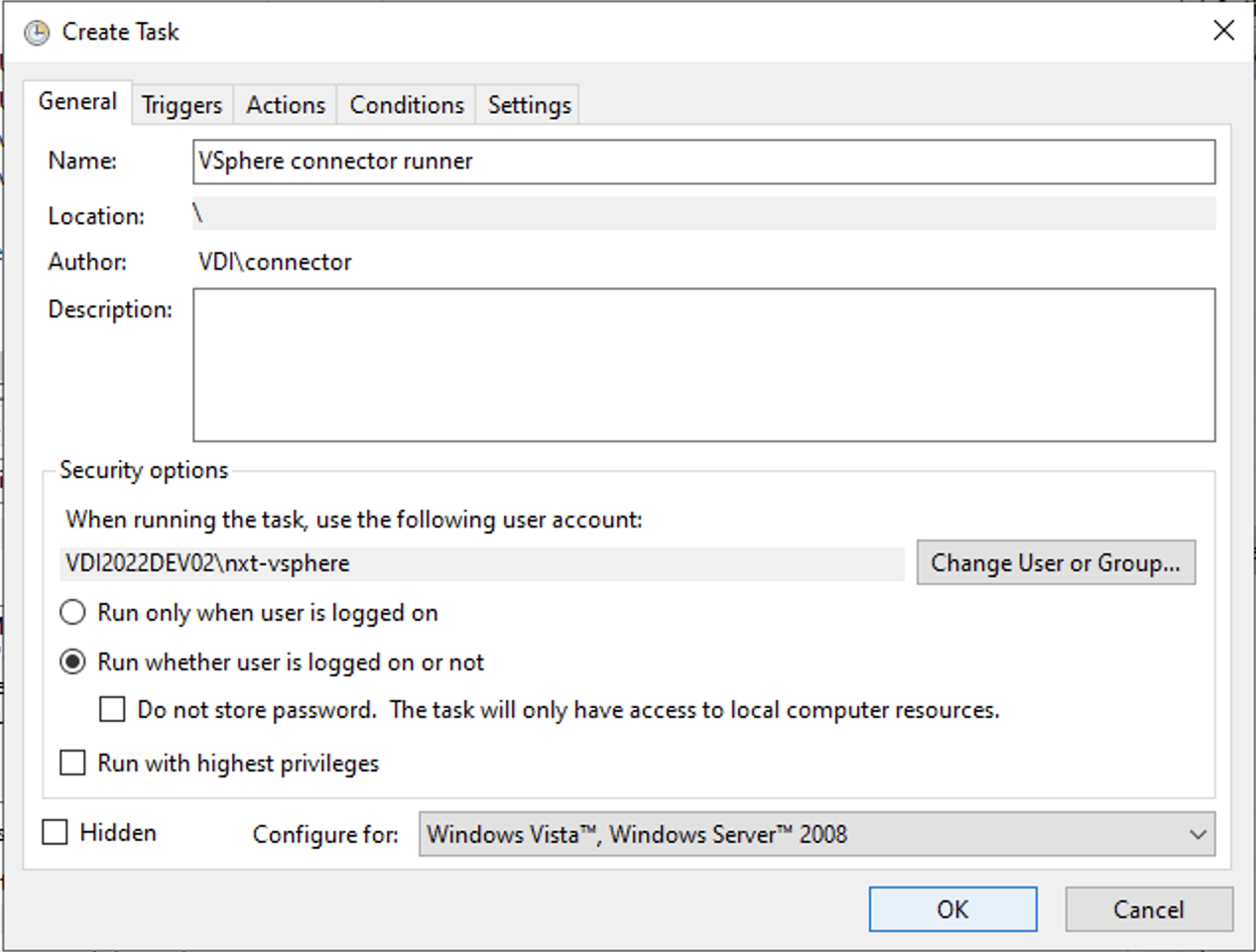
Create a task
2

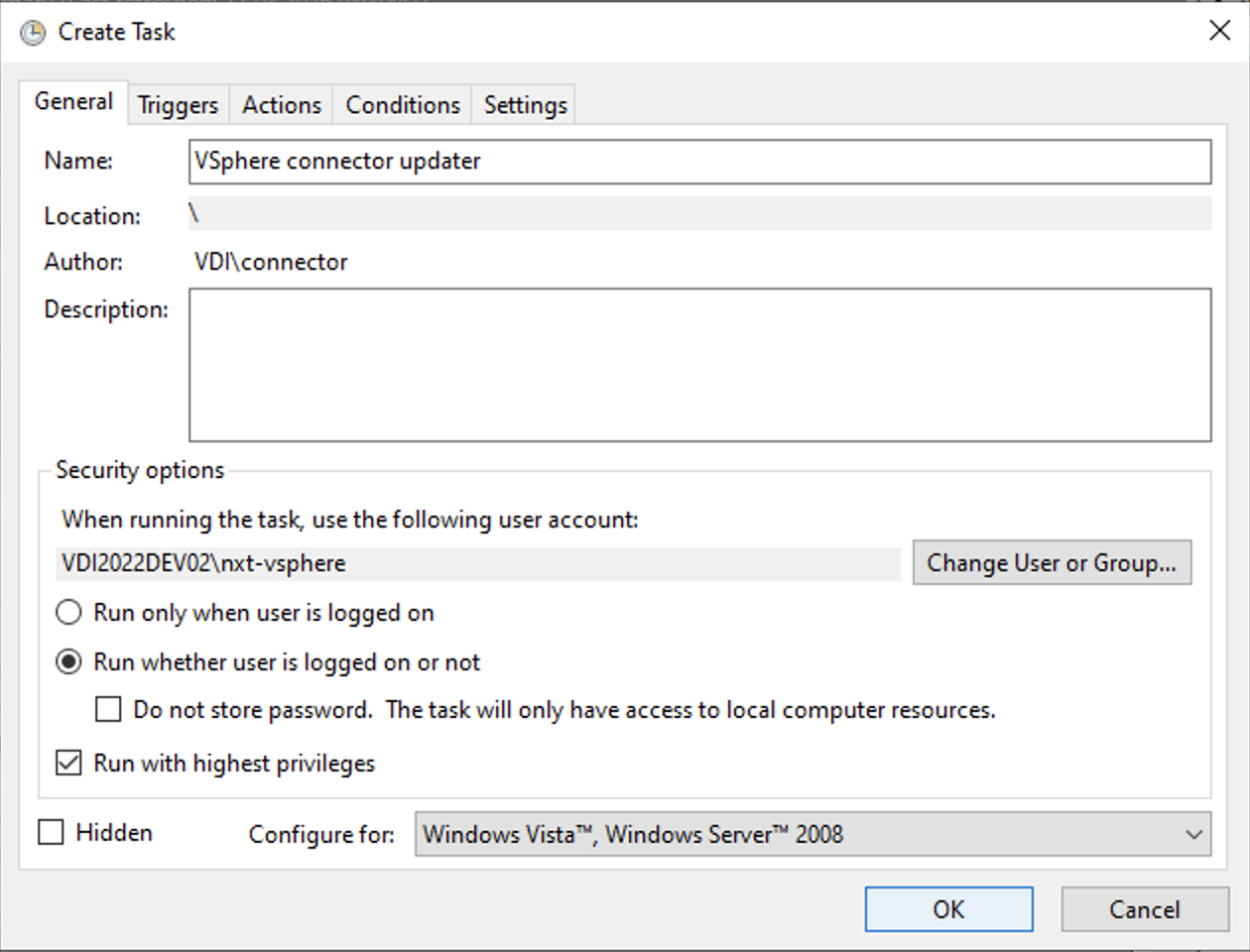
Name the task and change the user to the service account that you previously created in the General tab. Select Run whether user is logged on or not. Select OK.

3

Switch to the Triggers tab.

4

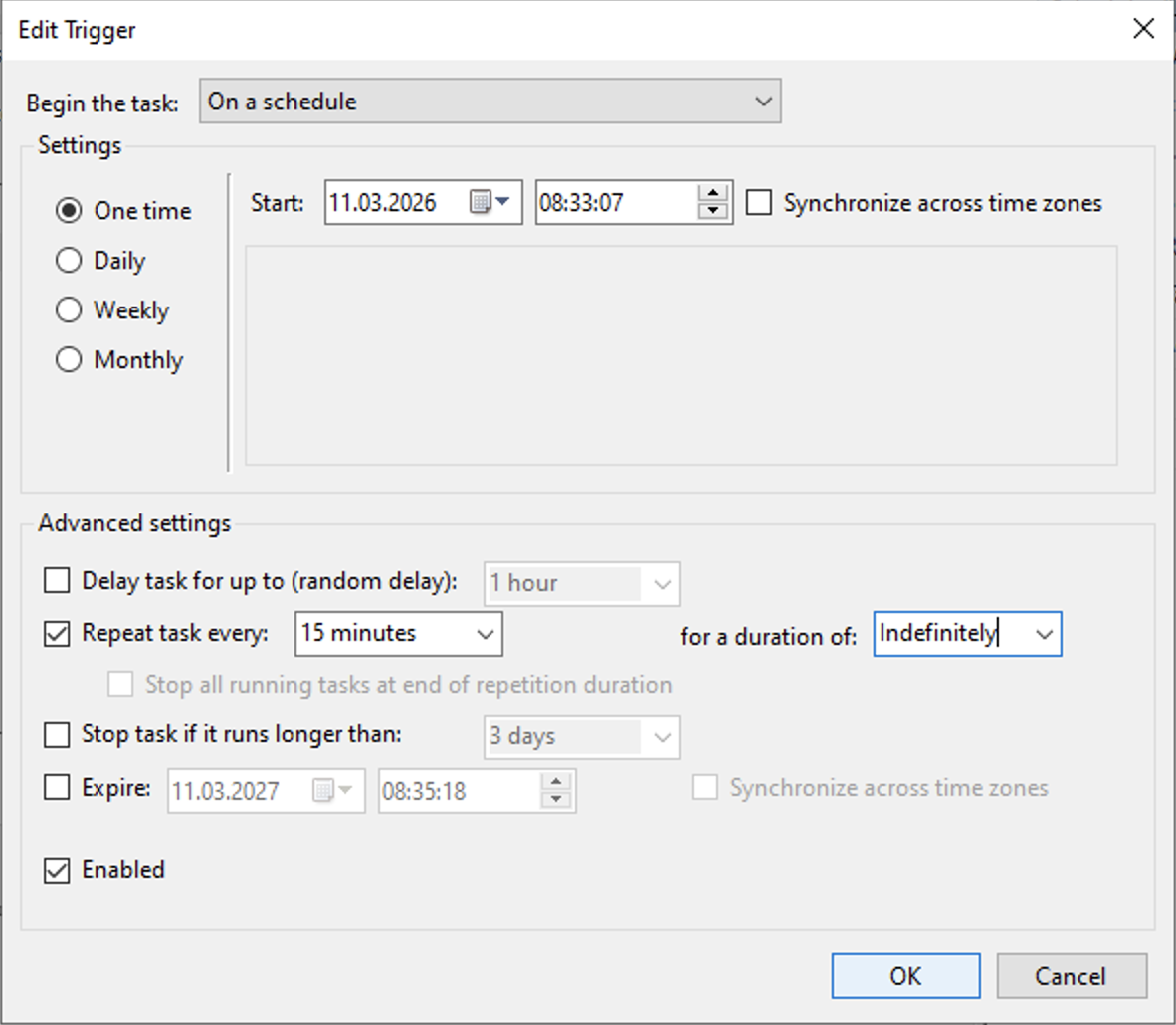
Under Advanced settings, select Repeat tasks every 15 minutes. Select OK.

5

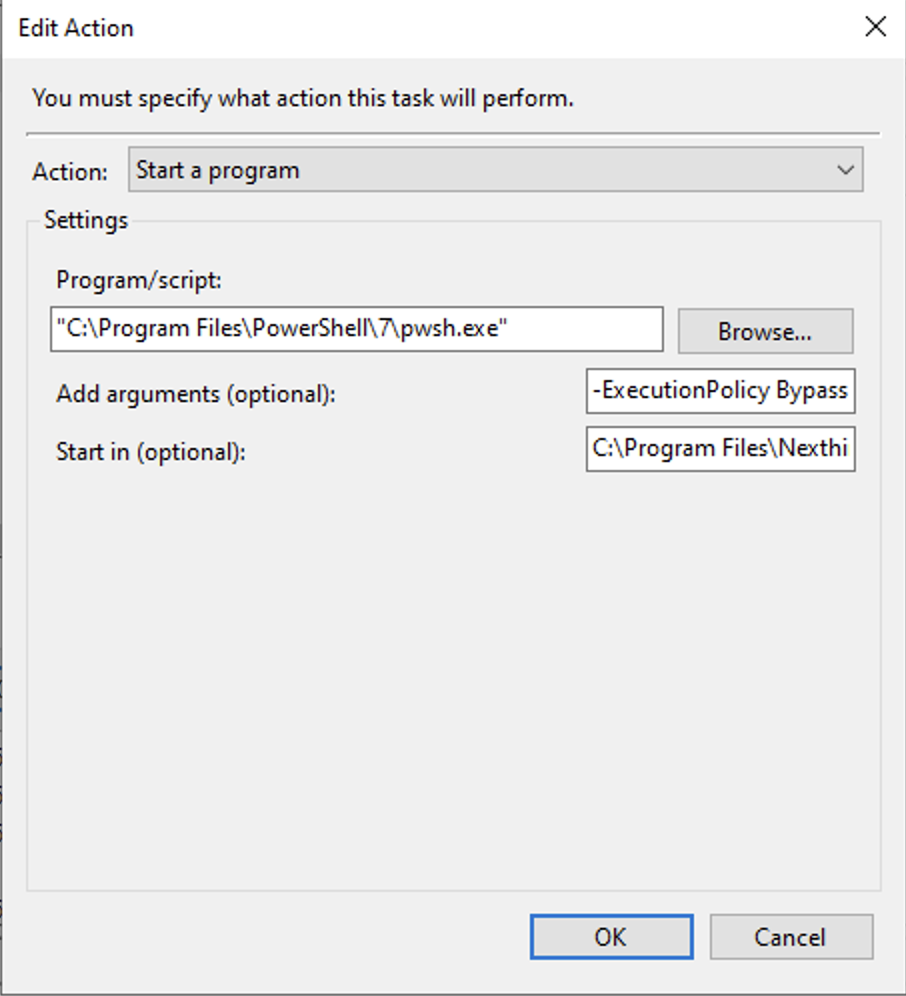
Switch to the Actions tab and create a new action.

6
circle-exclamation

Paste the full path of the VSphere-Connector-Auto-Updater.ps1 script into the Add arguments (optional) field, including the environment name, for example:

-ExecutionPolicy Bypass -File "C:\Program Files\Nexthink\Connectors\VSphere\VSphere-Connector-Auto-Updater.ps1"

Start in the folder containing the script, for example:

C:\Program Files\Nexthink\Connectors\VSphere.

Select OK.

7

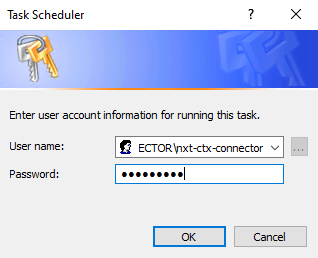
A window will prompt you to enter the password of the service account. Select OK.

Confirm credentials

Runner

1

Open the task scheduler and select Create task…

Create a task
2

Name the task and change the user to the service account that you previously created in the General tab. Select Run whether user is logged on or not. Select OK.

3

Switch to the Triggers tab.

4

Under Advanced settings, select Repeat tasks every 15 minutes. Select OK.

5

Switch to the Actions tab and create a new action.

6
circle-exclamation

Paste the full path of the VSphere-Connector-Runner.ps1 script into the Add arguments (optional) field, including the environment name, for example:

-ExecutionPolicy Bypass -File "C:\Program Files\Nexthink\Connectors\VSphere\VSphere-Connector-Runner.ps1" -VSphereEnvironment "vsphere-name".

Start in the folder containing the script, for example:

C:\Program Files\Nexthink\Connectors\VSphere

Select OK.

7

A window will prompt you to enter the password of the service account. Select OK.

Confirm credentials

RELATED TOPIC

Last updated

Was this helpful?