> For the complete documentation index, see [llms.txt](https://docs.nexthink.com/platform/llms.txt). Markdown versions of documentation pages are available by appending `.md` to page URLs; this page is available as [Markdown](https://docs.nexthink.com/platform/configuring_nexthink/bringing-data-into-your-nexthink-instance/integrating-nexthink-with-third-party-tools/inbound-connectors/connector-for-servicenow-request-catalog.md).
# ServiceNow Request Catalog connector
The ServiceNow Request Catalog connector provides a secure and configurable integration with the ServiceNow Service Catalog and Employee Profile modules. It enables automated retrieval, validation, and submission of service requests, supporting common use cases such as software provisioning, access changes, and equipment orders. By aligning with existing ServiceNow workflows and approval processes, the connector extends capabilities beyond incident management to include catalog-driven requests, while maintaining ServiceNow as the system of record.
The connector enables Spark to recommend relevant service requests and guide users through request fulfillment based on available ServiceNow catalog items. Refer to [Managing Spark settings and data inputs](/platform/user-guide/spark/setting-up-and-managing-spark/managing-spark-settings.md) documentation.
## Configuring the Connector credentials
To allow Nexthink to retrieve items from your ServiceNow Request Catalog, you need to set up a dedicated integration account in ServiceNow with the right level of access.
When Nexthink fetches Request Catalog data, it does so by calling the following ServiceNow API endpoint:
`GET /api/sn_sc/servicecatalog/items`
ServiceNow controls which catalog items this API returns based on the permissions of the user making the request. This means the ServiceNow account that Nexthink uses must be correctly configured, not just to authenticate, but also to see the right catalog items.
Follow the steps below to configure the ServiceNow credentials used to fetch the request catalog:
1. Create a dedicated active ServiceNow user account for Nexthink integration in the ServiceNow Admin Console and enable it for API authentication.
2. Assign only the minimum required API access roles, such as `snc_internal`, to the Nexthink integration user in ServiceNow Roles administration.
3. Create a dedicated ServiceNow User Criteria record for the Nexthink connector and include the Nexthink integration user in it. Apply the Nexthink User Criteria at
* **Catalog level** when Nexthink should ingest all accessible items in a catalog.
* **Category level** when Nexthink should ingest items only from selected categories.
* **Catalog item level** when Nexthink should ingest only specific items or when item-level visibility must be explicitly controlled.
4. Configure the Nexthink User Criteria in the **Available For** section of the relevant catalog, category, or catalog item configuration.
5. Do not assign administrative or write-access roles to the Nexthink integration user.
Refer to the [Third-party credentials](/platform/configuring_nexthink/bringing-data-into-your-nexthink-instance/integrating-nexthink-with-third-party-tools/outbound-connectors/connector-credentials.md) documentation for more information about connector credentials.
## Configuring the ServiceNow Request Catalog connector
{% hint style="warning" %}
Before configuring the connector, verify that each ServiceNow catalog item has a descriptive title and a detailed description. Spark matches employee requests against this text. Items with only a short title and no description reduce match accuracy.
{% endhint %}
From the Nexthink web interface:
1. Go to **Administration** > **Inbound connectors**.
2. Click the **New connector** button in the top-right corner of the page.
3. Select **ServiceNow Request Catalog**.
### General tab
* **Name**: A meaningful name for the connector. This name appears on the administration page.
* **NQL ID**: A unique identifier for the connector used when referencing the ServiceNow connector in NQL queries. You can initially modify the suggested NQL ID, but once you save the connector, you can no longer change it.
* **Description**: A short description of the purpose and behavior of the connector.
* **Schedule**:
* **Recurrence**: Set the execution time and recurrence. Executions start at the scheduled time and distribute over the hour.
* **Connection:**
* **Credentials**: Select preconfigured credentials from the [Third-party credentials](/platform/configuring_nexthink/bringing-data-into-your-nexthink-instance/integrating-nexthink-with-third-party-tools/outbound-connectors/connector-credentials.md) page. The credentials must be of a dedicated integration user whose user-criteria assignments mirror a standard employee, ensuring the API returns only the catalog items that are visible to all employees. The connector supports OAuth 2.0, Basic Auth and Bearer authentication methods.
### Parameters tab
* **Query (optional)**: A single full-text search string. Examples:
* Type "keyboard" to fetch catalog items containing the "keyboard" keyword.
* Type "keyboard OR mouse" to fetch items containing "keyboard" or "mouse" keywords
* **External link**: The ServiceNow hostname, often matching the URL configured in the connector credentials, used to link to the request items.
* **User criteria (optional)**: An NQL query that defines which employees see items from this request catalog. Leave the field empty to make the request catalog available to every employee in the selected target group. Refer to [Filtering request catalogs by audience](#filtering-request-catalogs-by-audience) for more information.
* **Custom header**: Use a custom header to include additional credential information in OAuth 2.0 authentication methods, such as **Client Credentials** and **Authorization Code**. This is useful when additional authorization methods are needed beyond the default OAuth 2.0 authorization mechanism. Select **Add custom header** to include additional information in either **OAuth 2.0 - Client credentials** or **OAuth 2.0 - Authorization code** authorizations.
## Filtering request catalogs by audience
Organizations often maintain separate request catalogs for different audiences, such as an IT-only request catalog or one request catalog per country. Define a **User criteria** query on each connector so that Spark searches only the request catalogs intended for the employee asking the question. This reduces irrelevant results.
### How Spark evaluates user criteria
When an employee starts a conversation, Spark identifies the employee and evaluates the **User criteria** query of every connected request catalog. Spark searches the request catalogs whose query matches that employee and skips the others. A connector without a query stays available to every employee in its target group.
User criteria narrow the audience within the selected **Target group**. They do not replace it.
{% hint style="warning" %}
User criteria reduce irrelevant results. They do not replicate the user criteria configured in ServiceNow and they are not an access control mechanism. Keep enforcement of request catalog access rules in ServiceNow, and update the query whenever the corresponding ServiceNow criteria change.
{% endhint %}
### Writing the user criteria query
The **User criteria** editor accepts a subset of NQL scoped to user attributes:
* Query the `users` table.
* Filter on standard user fields, such as `ad.country_code` or `ad.department`. Refer to the [NQL data model](/platform/understanding-key-data-platform-concepts/nql-data-model.md) documentation for the full list of `users` fields.
* Filter on manually defined custom fields. Refer to the [Custom fields management](/platform/user-guide/administration/content-management/custom-fields-management.md) documentation for more information.
The editor does not accept time selection, the `include` and `with` clauses, or computed custom fields.
Most `users` fields derive from Microsoft Entra ID. Configure the connector for Microsoft Entra ID before you filter on these fields. Refer to the [Microsoft Entra ID (Azure AD) connector](/platform/configuring_nexthink/bringing-data-into-your-nexthink-instance/integrating-nexthink-with-third-party-tools/inbound-connectors/connector-for-microsoft-entra-id-azure-ad.md) documentation for more information.
The following query targets a request catalog at the IT department in Spain. The `ad.country_code` field holds a two-character ISO-3166 country code:
```sql
users
| where ad.country_code == "ES" and ad.department == "IT"
```
The following query targets a request catalog at employees in three countries:
```sql
users
| where ad.country_code in ["ES", "PT", "FR"]
```
## Test results panel
{% hint style="info" %}
The **Test results** panel is available only for supported connectors. Connector availability also depends on your license.
{% endhint %}
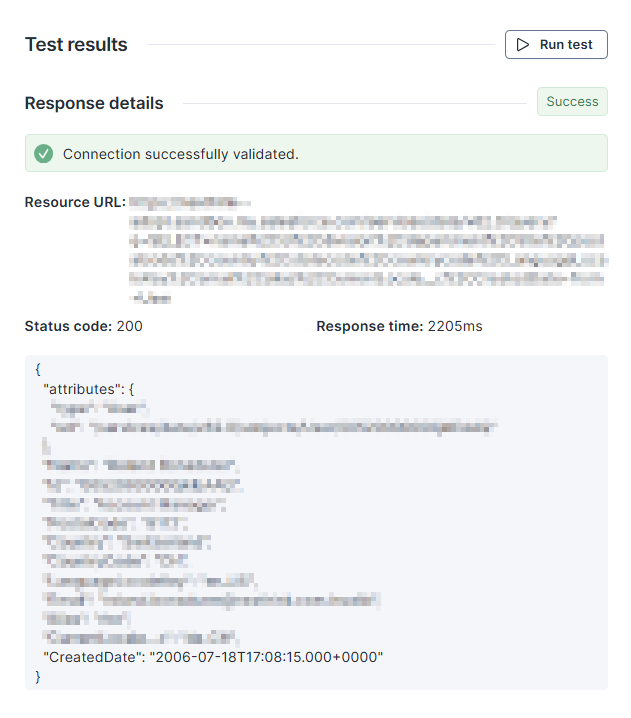
Use the **Test results** panel on the right side to run the connector with real data on demand, and inspect responses and errors. The test panel helps with faster debugging and validation during setup, and also with more reliable mappings with less trial and error.
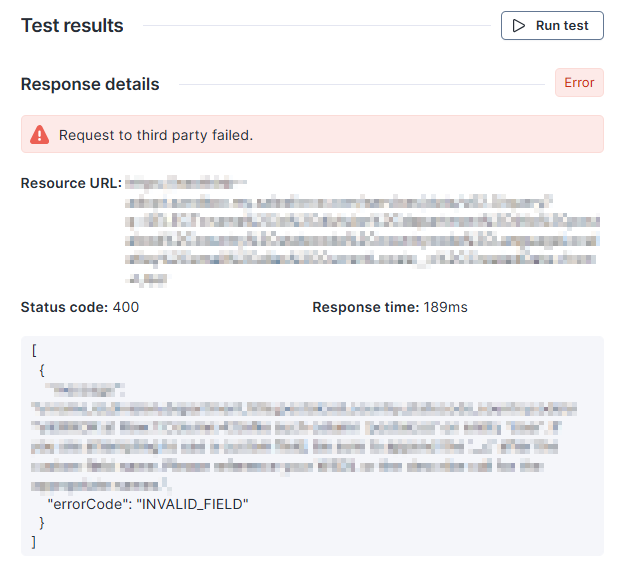
Select the **Run test** button to call the API, validate the credentials, and check connectivity to the targeted endpoint.
Besides basic information, such as the response status code and time, the panel also shows a sample record of the response at the bottom.
Use the sample record to verify that the returned catalog items include a detailed description; not only, for example, a title.
In the event of an error, the system displays the API response to aid in diagnosing the issue.
---
# Agent Instructions
This documentation is published with GitBook. GitBook is the documentation platform designed so that both humans and AI agents can read, navigate, and reason over technical content effectively. Learn more at gitbook.com.
## Querying This Documentation
If you need additional information that is not directly available in this page, you can query the documentation by asking a question.
Perform an HTTP GET request on the following URL with the `ask` and `goal` query parameters:
```
GET https://docs.nexthink.com/platform/configuring_nexthink/bringing-data-into-your-nexthink-instance/integrating-nexthink-with-third-party-tools/inbound-connectors/connector-for-servicenow-request-catalog.md?ask=&goal=
```
`ask` is the immediate question: it should be specific, self-contained, and written in natural language.
`goal` is what the user is ultimately trying to achieve, the reason they need the answer. Sharing it helps GitBook give you a better, more relevant answer. A goal is most helpful when it describes the outcome the user wants rather than restating the question. For example, with `ask=how do I create an API token`, a goal like `automate deployments from our CI pipeline` lets GitBook tailor the answer to that use case.
The response will contain a direct answer to the question and relevant excerpts and sources from the documentation.
Use this mechanism when the answer is not explicitly present in the current page, you need clarification or additional context, or you want to retrieve related documentation sections.