> For the complete documentation index, see [llms.txt](https://docs.nexthink.com/platform/llms.txt). Markdown versions of documentation pages are available by appending `.md` to page URLs; this page is available as [Markdown](https://docs.nexthink.com/platform/configuring_nexthink/bringing-data-into-your-nexthink-instance/integrating-nexthink-with-third-party-tools/inbound-connectors/connector-for-servicenow-knowledge-base.md).
# ServiceNow Knowledge Base connector
The ServiceNow Knowledge Base connector provides a secure and configurable integration with ServiceNow Knowledge Base systems. It automatically ingests and synchronizes knowledge base content on a daily schedule, ensuring that the latest versions of articles are always available while removing outdated or duplicate entries. With out-of-the-box capabilities for seamless data integration, it enables consistent access to up-to-date knowledge while maintaining the source of truth within the customer’s ServiceNow environment.
The connector makes ServiceNow knowledge articles available to Spark, enabling it to access the latest approved knowledge and provide more accurate recommendations and responses. Refer to [Managing Spark settings and data inputs](/platform/user-guide/spark/setting-up-and-managing-spark/managing-spark-settings.md) documentation.
## Setting up credentials in ServiceNow
To allow Nexthink to retrieve articles from your ServiceNow Knowledge Base, set up a dedicated integration account in ServiceNow with the right level of access.
Follow these steps to configure the credentials the Nexthink connector uses to fetch knowledge articles:
1. Create a dedicated **read-only role** with ACLs on the `kb_knowledge` table. Grant only read access on the article fields `number` and `content`. The connector cannot ingest articles without both. Nexthink uses `number` as the article ID and to build the external link back to ServiceNow.
2. Create a dedicated active **ServiceNow user account** for the Nexthink integration in the ServiceNow Admin Console. Enable the account for API authentication.
3. Assign the read-only role you created in step 1 to the integration user. Do not assign administrative or write-access roles.
4. Create a customized **User Criteria** under **Administration > User Criteria** to define which articles the integration user can access. Roles alone cannot bypass the knowledge base **Can Read** access control, so you must create this criteria.
5. Map the integration user with the **User Criteria** you created in step 4.
6. Navigate to **Service > Knowledge > Knowledge Bases**, select the knowledge base, and verify the **Active** field is enabled.
For more information about connector credentials, refer to the [Third-party credentials](/platform/configuring_nexthink/bringing-data-into-your-nexthink-instance/integrating-nexthink-with-third-party-tools/outbound-connectors/connector-credentials.md) documentation.
## Creating the connector in Nexthink
From the Nexthink web interface, create and configure the ServiceNow Knowledge Base connector:
1. Go to **Administration > Inbound connectors**.
2. Click the **New connector** button in the top-right corner of the page.
3. Select **ServiceNow Knowledge Base**.
4. Configure the connector by filling in the **General** and **Parameters** tabs.
### General tab
Configure the basic connector settings:
* **Name**: A meaningful name for the connector. This name appears on the administration page.
* **NQL ID**: A unique identifier for the connector used when referencing the ServiceNow connector in NQL queries. You can initially modify the suggested NQL ID, but once you save the connector, you can no longer change it.
* **Description**: A short description of the purpose and behavior of the connector.
* **Schedule**:
* **Recurrence**: Set the execution time and recurrence. Executions start at the scheduled time and distribute over the hour.
* **Connection**:
* **Credentials**: Select preconfigured credentials from the Connector credentials page. The connector supports OAuth 2.0 and Basic Auth authentication methods. The credentials must be of a dedicated integration user whose user-criteria assignments mirror a standard or technical employee. This ensures the API returns only the knowledge articles visible to the target group. The integration user must also have read access to the mandatory article fields `number` and `content`. Refer to the [Third-party credentials](/platform/configuring_nexthink/bringing-data-into-your-nexthink-instance/integrating-nexthink-with-third-party-tools/outbound-connectors/connector-credentials.md) documentation for more information.
### Parameters tab
Configure how Nexthink retrieves and filters knowledge base articles:
* **Knowledge base title**: Enter the title of the knowledge base as it appears in ServiceNow. This value is used to filter and retrieve articles from the specified knowledge base.
* **Query (optional)**: Query to filter ServiceNow Knowledge Base articles. Nexthink recommends including the `workflow_state=published` filter in the query. This ensures Spark uses only published articles and also prevents returning drafts or retired articles. The filter is not applied by default because ServiceNow workflow states can be customized, and `published` may not match every environment.
* **External link**: Enter a full, parameterized URL that links to individual knowledge articles in your ServiceNow knowledge system. The URL must include a placeholder for the article identifier so AI agents can generate direct links to the original content. Root-only hostnames are not supported.
* **Example**: `https://.service-now.com/sp?id=kb_article&sysparm_article={number}`
* **Target group**: Select the target user group for filtering knowledge base articles. **Employee** group shows articles for general employees, while **Technical Support** group shows articles for support staff.
* **User criteria**: Enter an NQL query that defines which employees see articles from this knowledge base. This query must match the **ServiceNow User Criteria** you created in step 4 of the ServiceNow setup. For more information, refer to [#filtering-knowledge-base-articles-by-audience](#filtering-knowledge-base-articles-by-audience "mention")in this page.
{% hint style="info" %}
Leave the user criteria field empty if you want to make the knowledge base available to every employee in the selected target group. Nexthink evaluates this query for every employee and restricts knowledge base visibility to only those who match both your NQL query and the ServiceNow User Criteria you configured.
{% endhint %}
* **Custom header**: Use a custom header to include additional credential information in OAuth 2.0 authentication methods, such as **Client Credentials** and **Authorization Code**. This is useful when additional authorization methods are needed beyond the default OAuth 2.0 authorization mechanism. Select **Add custom header** to include additional information in either **OAuth 2.0 - Client credentials** or **OAuth 2.0 - Authorization code** authorizations.
## Filtering knowledge base articles by audience
Organizations often maintain separate knowledge bases for different audiences, such as an IT-only knowledge base or one knowledge base per country. Define a **User criteria** query on each connector so that Spark searches only the knowledge bases intended for the employee asking the question. This reduces irrelevant results and keeps support content out of employee-facing answers.
### How Spark evaluates user criteria
When an employee starts a conversation, Spark identifies the employee and evaluates the **User criteria** query of every connected knowledge base. Spark searches the knowledge bases whose query matches that employee and skips the others. A connector without a query stays available to every employee in its target group.
User criteria narrow the audience within the selected **Target group**. They do not replace it.
{% hint style="warning" %}
User criteria reduce irrelevant results. They do not replicate the user criteria configured in ServiceNow and they are not an access control mechanism. Keep enforcement of knowledge base access rules in ServiceNow, and update the query whenever the corresponding ServiceNow criteria change.
{% endhint %}
### Writing the user criteria query
The **User criteria** editor accepts a subset of NQL scoped to user attributes:
* Query the `users` table.
* Filter on standard user fields, such as `ad.country_code` or `ad.department`. Refer to the [NQL data model](/platform/understanding-key-data-platform-concepts/nql-data-model.md) documentation for the full list of `users` fields.
* Filter on manually defined custom fields. Refer to the [Custom fields management](/platform/user-guide/administration/content-management/custom-fields-management.md) documentation for more information.
The editor does not accept time selection, the `include` and `with` clauses, or computed custom fields.
Most `users` fields derive from Microsoft Entra ID. Configure the connector for Microsoft Entra ID before you filter on these fields. Refer to the [Microsoft Entra ID (Azure AD) connector](/platform/configuring_nexthink/bringing-data-into-your-nexthink-instance/integrating-nexthink-with-third-party-tools/inbound-connectors/connector-for-microsoft-entra-id-azure-ad.md) documentation for more information.
{% hint style="warning" %}
The user criteria must match the **ServiceNow User Criteria** you created in step 4 of the [ServiceNow setup.](#setting-up-credentials-in-servicenow) For example, if you restricted access to IT department employees in ServiceNow, write:
{% code lineNumbers="true" %}
```sql
users
| where ad.department == "IT"
```
{% endcode %}
{% endhint %}
The following query targets a knowledge base at the IT department in Spain. The `ad.country_code` field holds a two-character ISO-3166 country code:
```sql
users
| where ad.country_code == "ES" and ad.department == "IT"
```
The following query targets a knowledge base at employees in three countries:
```sql
users
| where ad.country_code in ["ES", "PT", "FR"]
```
## Test results panel
{% hint style="info" %}
The **Test results** panel is available only for supported connectors. Connector availability also depends on your license.
{% endhint %}
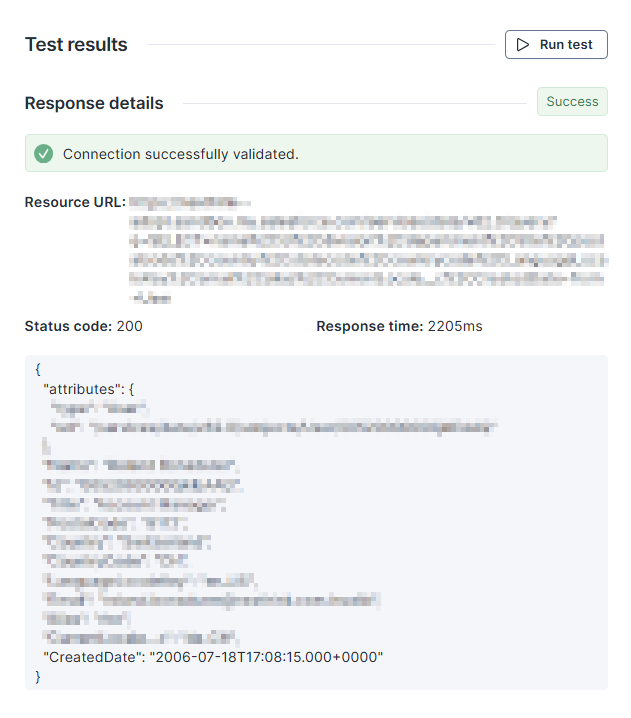
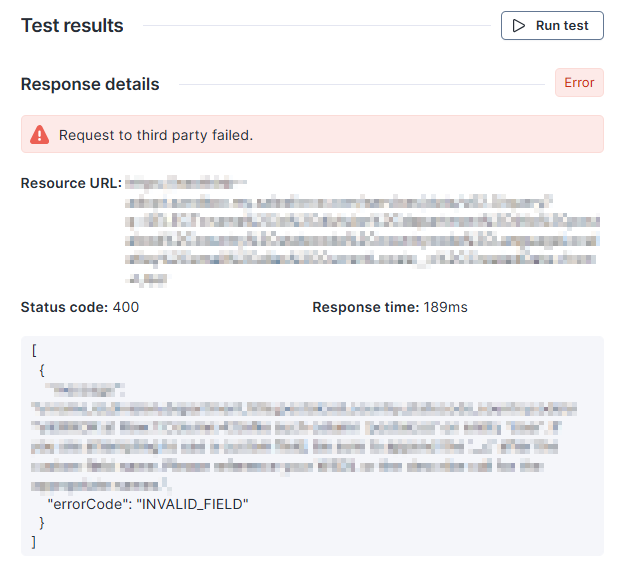
Use the **Test results** panel on the right side to run the connector with real data on demand, and inspect responses and errors. The test panel helps with faster debugging and validation during setup, and also with more reliable mappings with less trial and error.
Select the **Run test** button to call the API, validate the credentials, and check connectivity to the targeted endpoint.
Besides basic information, such as the response status code and time, the panel also shows a sample record of the response at the bottom.
In the event of an error, the system displays the API response to aid in diagnosing the issue.
## Verifying the number of articles
Verify the connector after the first run, or after any configuration change.
{% hint style="warning" %}
To query connector execution logs, your role must include **Platform logs** set to **Visible**. Refer to the [Roles](/platform/user-guide/administration/account-management/roles.md) documentation.
{% endhint %}
Run the following NQL query to check the latest execution status and the number of rows processed by the connector:
```sql
platform.inbound_connector_logs during past 8d
| where details.connector == "servicenow_knowledge"
| summarize last_update = time.last() , last_status = status.last(), number_of_processed_rows_ = details.number_of_processed_rows.last(), number_of_received_rows_ = details.number_of_received_rows.last() by details.nql_id, details.name
```
Use the query results to validate that the `number_of_processed_rows_` matches the number of knowledge articles you expect to fetch from ServiceNow.
---
# Agent Instructions
This documentation is published with GitBook. GitBook is the documentation platform designed so that both humans and AI agents can read, navigate, and reason over technical content effectively. Learn more at gitbook.com.
## Querying This Documentation
If you need additional information that is not directly available in this page, you can query the documentation by asking a question.
Perform an HTTP GET request on the following URL with the `ask` and `goal` query parameters:
```
GET https://docs.nexthink.com/platform/configuring_nexthink/bringing-data-into-your-nexthink-instance/integrating-nexthink-with-third-party-tools/inbound-connectors/connector-for-servicenow-knowledge-base.md?ask=&goal=
```
`ask` is the immediate question: it should be specific, self-contained, and written in natural language.
`goal` is what the user is ultimately trying to achieve, the reason they need the answer. Sharing it helps GitBook give you a better, more relevant answer. A goal is most helpful when it describes the outcome the user wants rather than restating the question. For example, with `ask=how do I create an API token`, a goal like `automate deployments from our CI pipeline` lets GitBook tailor the answer to that use case.
The response will contain a direct answer to the question and relevant excerpts and sources from the documentation.
Use this mechanism when the answer is not explicitly present in the current page, you need clarification or additional context, or you want to retrieve related documentation sections.