> For the complete documentation index, see [llms.txt](https://docs.nexthink.com/platform/llms.txt). Markdown versions of documentation pages are available by appending `.md` to page URLs; this page is available as [Markdown](https://docs.nexthink.com/platform/configuring_nexthink/bringing-data-into-your-nexthink-instance/integrating-nexthink-with-third-party-tools/api-and-integrations-classic/other-integrations-classic/bidirectional-integration-with-finder-classic.md).
# Bidirectional integration with Finder (classic)
## Overview
The Finder is a user-friendly graphical interface to the Nexthink database. As such, the integration with the Finder is not based on sharing data with external applications (the Web API already covers that part), but on interacting with other applications. The Finder can be launched from external tools in an automated way and it is capable of triggering specific actions on external applications as well. The Finder interacts with other applications by means of the nxt application protocol and custom actions.
## The nxt application protocol
The *nxt application protocol* provides you with the means to launch the Finder and perform some specific actions on it by just stating a URL. The Finder registers the nxt protocol in Windows during its installation. From that point on, Windows recognizes the URI scheme **nxt**, associating it to the Finder application. You can embed **nxt** URLs as hyperlinks in HTML web pages, use them directly in the address bar of your web browser, or launch them from the Run dialog box of Windows.
There are various types of actions that the Finder can handle when called from an **nxt** URL:
* Open a new Finder.
* Display the device view.
* Display the user view.
* Display the service view.
* Edit a metric.
* Edit a category.
* Edit a campaign.
* Edit a remote action.
* Launch an arbitrary investigation.
The nxt protocol offers a mechanism to specify both the Portal and the Engine to which the Finder must connect, as well as the name of the Finder user for the connection.
### Open a new Finder
The simplest action that can be triggered with the nxt protocol is to open a new instance of the Finder:
`nxt://New-NxFinder`
### Display the Device View
This command of the nxt protocol opens the device view of a particular device. Identify the device either by its name or its last known IP address. Starting from V6.18, the use of the ID to identify the device is deprecated, although still functional.
```
nxt://Show-NxSource?Name=DEVICE_NAME
nxt://Show-NxSource?IpAddress=SOURCE_LAST_IP_ADDRESS
nxt://Show-NxSource?Id=DEVICE_ID
```
\
By default, the Device View displays the last 24 hours of the device. Optionally, specify a different range of dates for the Device View with the parameters **StartDate** and **EndDate**:
`nxt://Show-NxSource?Name=SOURCE_NAME&StartDate=START_DATE&EndDate=END_DATE`
The dates must be expressed in the UTC time zone with the format: YYYY-MM-JJ**T**hh:mm. For example 2016-04-04T12:00. The time span between the **StartDate** and the **EndDate** must be strictly smaller than 7 days.
### Display the User View
Use this command to open the user view of a particular user in the Finder. Identify users by their name:
`nxt://Show-NxUser?Name=USER_NAME`
By default, the User View displays the last 24 hours of the user. Optionally, specify a different range of dates in the same way as explained for the Device View above.
### Display the Service View
The following command of the nxt protocol lets you open the service view for a given service in the Finder:
`nxt://Show-NxService?name=SERVICE_NAME`
Replace SERVICE\_NAME with the actual name of the service that you want to monitor, paying attention to capital letters because this argument is case sensitive.
### Edit a metric
To open the Finder for editing a particular metric, build an nxt protocol URL with the following command and provide the name of the metric as parameter:
`nxt://Edit-NxMetric?Name=METRIC_NAME`
Note that the names of metrics are case-sensitive.
### Edit a category
To open the Finder for editing a particular category, build an nxt protocol URL with the following command:
`nxt://Edit-NxCategory?Name=CATEGORY_NAME&Type=CATEGORY_TYPE`
Replace CATEGORY\_NAME with the name of the category that you want to edit and CATEGORY\_TYPE by the type of object to which the category applies: application, binary, destination, device, domain, executable, package, port, or user.
### Edit a campaign
To open the Finder for editing a particular campaign, build an nxt protocol URL with the following command:
`nxt://Edit-NxCampaign?Encoding=Url&Name=CAMPAIGN_NAME`
Replace CAMPAIGN\_NAME with the name of the campaign that you want to edit.
### Edit a remote action
To open the Finder for editing a particular remote action, build an nxt protocol URL with the following command:
`nxt://Edit-NxRemoteAction?Encoding=Url&Name=REMOTE_ACTION_NAME`
Replace REMOTE\_ACTION\_NAME with the name of the remote action that you want to edit.
### Launch an investigation
Using the nxt protocol, you may also run an arbitrary investigation in the Finder. The command that you need to use for launching an investigation is the following:
`nxt://Run-NxInvestigation?Encoding=ENCODING_FORMAT&InvestigationXml=INVESTIGATION_XML`
The investigation is specified in XML format. You can get the XML representation of an investigation from the Finder by right-clicking the name of the investigation and selecting the option **Export**. You may then choose to export the investigation to the clipboard or to a file. In any case, you get the investigation in its XML form.
Note that the XML of an investigation contains special characters that are not supported by URLs. Solve by properly encoding the investigation by setting the parameter Encoding to **Url** or **Base64** (see the section [Encoding the arguments of the nxt URL](#bidirectionalintegrationwithfinder-classic-encodingtheargumentsofthenxturl-encoding-the-arguments-of)). Find below the same investigation encoded in the two formats. Note that parameters are encoded.
Example of **Url** encoding:
```
nxt://Run-NxInvestigation?Encoding=Url&Host=192.168.5.5&Port=443&
InvestigationXml=%3C%3Fxml%20version%3D%221.0%22%20encoding%3D%22utf-16
%22%3F%3E%3CInvestigation%20xmlns%3Axsi%3D%22http%3A%2F%2Fwww.w3.org
%2F2001%2FXMLSchema-Instance%22%20xmlns%3Axsd%3D%22http%3A%2F%2Fwww.w3.org
%2F2001%2FXMLSchema%22%20DataModelVersion%3D%228%22%20SyntaxVersion%3D%22
2%22%3E%3CLabel%3Etest%3C%2FLabel%3E%3CObject%3Esource%3C%2FObject%3E%3C
Description%20%2F%3E%3CFieldList%3E%3Cstring%3Ename%3C%2Fstring%3E%3C%2F
FieldList%3E%3CCategoryList%20%2F%3E%3CAggregateList%20%2F%3E%3C
ObjectConditionList%20%2F%3E%3C%2FInvestigation%3E
```
\
Example of **Base64** encoding:
```
nxt://Run-NxInvestigation?Encoding=Base64&Host=MTkyLjE2OC41LjU=&Port=NDQz&
InvestigationXml=PD94bWwgdmVyc2lvbj0iMS4wIiBlbmNvZGluZz0idXRmLTE2Ij8+PEludmVzdGl
nYXRpb24geG1sbnM6eHNpPSJodHRwOi8vd3d3LnczLm9yZy8yMDAxL1hNTFNjaGVtYS1JbnN0YW5jZSI
geG1sbnM6eHNkPSJodHRwOi8vd3d3LnczLm9yZy8yMDAxL1hNTFNjaGVtYSIgRGF0YU1vZGVsVmVyc2l
vbj0iOCIgU3ludGF4VmVyc2lvbj0iMiI+PExhYmVsPnRlc3Q8L0xhYmVsPjxPYmplY3Q+c291cmNlPC9
PYmplY3Q+PERlc2NyaXB0aW9uIC8+PEZpZWxkTGlzdD48c3RyaW5nPm5hbWU8L3N0cmluZz48L0ZpZWx
kTGlzdD48Q2F0ZWdvcnlMaXN0IC8+PEFnZ3JlZ2F0ZUxpc3QgLz48T2JqZWN0Q29uZGl0aW9uTGlzdCA
vPjwvSW52ZXN0aWdhdGlvbj4=
```
\
Note that, for the links to fit the page width, the examples above include line breaks. To test them, remove the line breaks when copying the URLs or copy the links from the [NXT protocol test](http://download.nexthink.com/doc/nxt_protocol.md) page.
### Establishing the connection
If you do not provide connection details to the nxt protocol, the Finder either executes the action in the context of the current session (if a running Finder is available with a session already established), or asks the user to open a new session (by displaying the login dialog) and then executes the action.
Alternatively, state the connection details as parameters in the URI:
**Host**\
The DNS name or IP address of Portal.
**Port**\
The port number where Portal listens to Finder connections (443 by default).
**UserName (optional)**\
The name of the Finder user to impersonate for the connection.
**EngineName (optional)**\
The name of the Engine to select.
The Finder opens the first session that matches the connection details. If you do not provide an Engine name, the Finder displays the Engine selection dialog (unless there is only one Engine or the user has a favorite Engine). If you do not provide the user name, the Finder opens the first matching session regardless of whom the user is.
For instance, to open the device view on a particular connection: `nxt://Show-NxSource?Name=SOURCE_NAME&Host=PORTAL_ADDRESS&Port=PORT_NUMBER&UserName=USER&EngineName=ENGINE`
For backward compatibility with V5, you can supply a session name to the nxt protocol in place of the connection details. Note however that, in V6, a session defines a connection between the Finder and a Portal; whereas in V5, a session defines a connection between the Finder and an Engine. Therefore, in a multi-Engine V6 setup, specifying the session name may not be enough to completely describe the connection: the Finder knows about the targeted Portal, but not about the Engine. In that case, the Finder usually displays the Engine selection dialog. Only if the user has a favorite Engine for the session (or in single Engine setups), Finder skips Engine selection step. Thus, the parameter **SessionName** is deprecated in V6.
To open a device view from a particular session, write the following URI:
`nxt://Show-NxSource?Name=SOURCE_NAME&SessionName=SESSION_NAME`
To prevent the Finder from asking for user credentials, use those sessions or connection details for which you have saved the password. Alternatively, if you have enabled either or SAML authentication or Windows authentication of users in your setup, you can instruct the nxt protocol to use it by setting the parameter **UseSso** to *true*:
`nxt://Show-NxSource?Name=SOURCE_NAME&Host=PORTAL_ADDRESS&Port=PORT_NUMBER&UseSso=true`
When using either SAML or Windows authentication, keep in mind that the Portal address must be a proper DNS name and not an IP address.
## Creating nxt protocol links from Finder
Nxt protocol links are very useful, for instance, in [dashboard descriptions](/platform/user-guide/custom-dashboards-classic/documenting-custom-dashboards-classic.md) to offer the possibility of configuring a dashboard (edit related metrics or categories), or simply to complete the dashboard with complementary information displayed in the Finder. Writing a link for the nxt protocol, however, may be a cumbersome task, especially when you need to encode an investigation. To make this task easier for you, it is possible to create nxt protocol links for some actions directly from the Finder.
Generate nxt protocol links from the Finder for the following actions:
* [Launch an investigation](#bidirectionalintegrationwithfinder-classic-launchaninvestigation-launch-an-investigation)
* [Edit a category](#bidirectionalintegrationwithfinder-classic-editacategory-edit-a-category)
* [Edit a metric](#bidirectionalintegrationwithfinder-classic-editametric-edit-a-metric)
* [Display the Service View](#bidirectionalintegrationwithfinder-classic-displaytheserviceview-display-the-service-view)
To easily create nxt protocol links from the Finder:
1. Right-click the name of an investigation, category, metric, or investigation in the left-hand side accordion menu.
2. Select **Export** from the context menu. Depending on the kind of item that you right-clicked, select:
* **Run investigation URL to clipboard**, if you chose an investigation. When the resulting URL is longer than 2083 characters, the Finder displays a message to warn you that some browsers might not support this kind of link (see the [Limitations of the nxt protocol](#bidirectionalintegrationwithfinder-classic-limitations-of-the-nxt-protocol) section).
* **Edit category URL to clipboard**, if you chose a category.
* **Edit metric URL to clipboard**, if you chose a metric.
* **View service URL to clipboard**, if you chose a service.
3. Paste the URL from the clipboard and share it in a web page, email, or dashboard description.
## Limitations of the nxt protocol
Investigations in XML form can be quite verbose. The more conditions you add to an investigation, the longer the XML becomes. However, the maximum supported length for an nxt URL is limited to 2083 characters. Therefore, you may not be able to use this method to launch complex investigations.
Note that the limit in the number of characters of a URL can be even more restrictive depending on the browser that you use to launch the request. For instance, Internet Explorer supports a maximum of 507 characters.
## Encoding the arguments of the nxt URL
In the case that the arguments of an nxt URL contain special characters which are not supported by URLs, you may encode them using Base64 or URL (percent) encoding. In order to specify the encoding method, you must include an additional Encoding argument as the first argument of the nxt URL. This argument can take either one of two values: [Base64](https://en.wikipedia.org/wiki/Base64) or [Url](https://en.wikipedia.org/wiki/Percent-encoding). Please note that once you have chosen an encoding method, all the arguments of the URL must be encoded using that method. It is not possible to mix different encoding methods in the same nxt URL.
### Base64 encoding
Whenever possible, it is recommended to use Base64 encoding for nxt URLs, as it is more robust. This method prevents double encoding or double decoding scenarios that may appear with URL encoding. The disadvantage of this method is that arguments become unreadable to humans. For example, the following URL instructs the Finder to display a device with id 12:
`nxt://Show-NxSource?Encoding=Base64&Id=MTI=`
### URL encoding
URL encoding is a simple alternative to Base64 encoding that ensures support for limited scenarios. URL encoding can be used for instance when one of the arguments contains a space character. Some browsers in fact automatically encode a space in a URL as "%20". The following hyperlink:
`My link`
when invoked from such browsers is translated into:
`nxt://Show-NxSource?Name=Work%20PC1`
with the consequence that, if no encoding is specified, the system will look for a device with name *Work%20PC1* instead of *Work PC1*. The following example shows how to correct such an issue using URL encoding:
`My link`
## Information levels
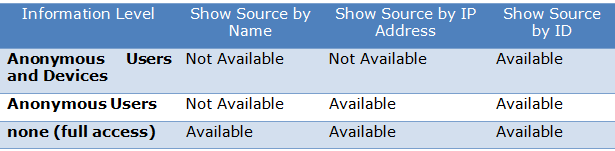
Finder sessions are bound to Finder user accounts. Depending on the information level of the user account that is bound to a given session, you may or may not be able to perform a particular query to the Engine using the nxt protocol. As a guideline, the following table shows the variants of the Show-NxSource command which are available depending on the information level of the Finder account that the session provided is using to connect to the Engine.
## Testing and debugging nxt protocol invocations
When invoking a malformed nxt URL with a wrong command, argument or encoding, the nxt protocol handler terminates silently without displaying any error message. During integration, however, it is useful to have some feedback and know why an invocation failed. A possibility is to attach a trace listener to the protocol handler.
Create a file named **Nexthink.Finder.PowerShell.exe.config** with the content below and save it to the folder where the **Nexthink.Finder.Powershell.exe** file is found (the **Integration** directory under the installation directory of the Finder):
```
```
\
where DESTINATION\_FILE is the full path of the log file where trace information will be saved (for instance, c:\log\Finder\_Launcher.log).
## Custom actions
Custom actions let the user launch external operations from the Finder. In that sense, custom actions are complementary to the nxt application protocol, which lets the Finder be automated.
Custom actions are applied within the context of an object, an activity, or an event. Note that when defining custom actions, any of these items is named the *object* of the action. Therefore, the object of a custom action can be not only a device, a user... but also a connection, an execution, or a device warning. A custom action object is thus anything on which we can set an investigation. In addition to specifying an object, a custom action requires the user to specify an attribute or a category of the object. The value of the attribute may later be used as an argument for the custom action.
There are three types of custom actions available:
1. Open a URL
2. Run a command in the Command Prompt
3. Run an external program
The Finder stores custom actions locally in the machine where the Finder was installed. Therefore, your set of defined custom actions will always be available independently of the Engine that you are connecting to. You may also export your set of custom actions in order to share them among different Finder installations.
## Default custom actions
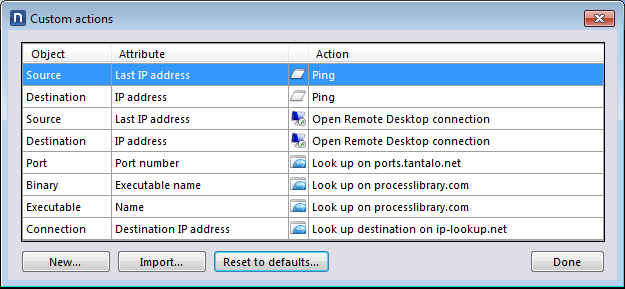
Nexthink Finder comes with a default set of useful custom actions. With the default custom actions, you can ping a machine, open remote desktop connections, or look up information about processes, ports and IPs on well-known websites. Set of default custom actions.
## User-defined custom actions
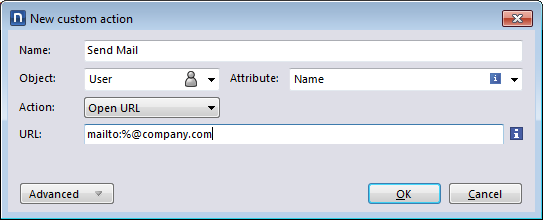
You may extend the set of contextual actions available by defining your own custom actions. As an example, we are going to create a custom action for the user object, so we can automatically send a mail to a specific user. We start by opening the set of available custom actions by clicking on the Tools option in the menu and then selecting Custom actions....
If this is the first custom action that you create, you will see the same set of default actions that we saw in the previous chapter. We just click on New… and a dialog for creating our new custom action will appear. We fill in the dialog with the following values:
The percent character "%" is replaced at the execution of the custom action by the attribute that we selected. In this case, the name of the user will replace the % character. If you need to write a % character in the command that you do not want to be replaced, use a double percent: %%. Please note that this is a simplified example and that we are assuming that we can directly assemble the email address of a user just by concatenating the name of the user and the name of the company. We have used the Open URL action together with the `mailto` scheme in order for the system to launch your default email composer when the action is executed.
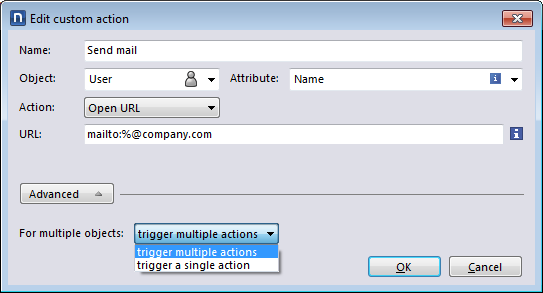
Custom actions can be applied to one or several objects at the same time. When editing a custom action, we can decide if we want the action to be applied separately to each one of the objects selected or if we want to execute the action over all of the selected objects at once.
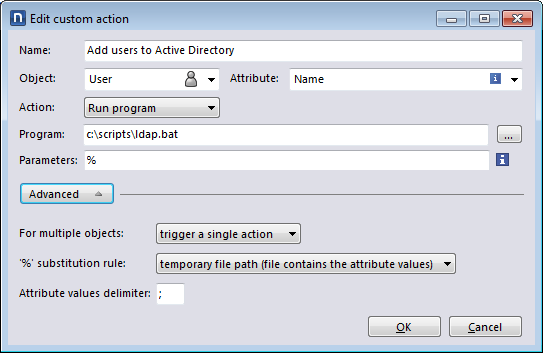
This option can be set by clicking on the Advanced section of the edit dialog of a custom action. In our case, since we have selected the default trigger multiple actions, when multiple users are selected an email will be sent separately to each one of the users. If trigger a single action is selected, the “%” character will be substituted for the concatenated attribute values of all the objects selected and the action will be executed only once. You may specify as well a value delimiter to separate each one of the attribute values. By default, the delimiter character is the semicolon “;”.
When triggering a single action for multiple objects, the concatenation of many attribute values may yield a very long chain of characters to substitute the “%” sign. If your action consists of running a command based on a very long parameter, you may run out of space in the command line. In order to overcome this limitation, there is an additional option in the Finder (starting from version 4.3.3) that lets you save the concatenated parameter in a temporary file.
Thus, only the path of the temporary file replaces the placeholder “%”, as in the following example.
## Executing custom actions
You can invoke custom actions from the context menu of an object or a set of objects. You can select the objects either from the List result of an investigation or from the Network activity or Local activity views. Note that the Network activity and Local activity views may or may not be available depending on the specific kind of object.
## Exporting data from Finder
The Finder also includes a way to share data with external applications through the clipboard. The results of an investigation may be partially or entirely copied to the clipboard. You just have to right-click on the selected objects and choose the option Copy rows. Then you may paste the contents of the clipboard into your favorite spreadsheet application.
Instead of copying the whole rows of your selection, you may just copy to the clipboard the value of the attribute which is below the mouse cursor when you do the right-click. In the example above, the context menu shows that you can copy the name of the first computer. Since this method requires user intervention, it is not adapted to be automated. As we said above, if you regularly need to query the Nexthink database from an external application, the Web API is the recommended methodology.
***
RELATED TASKS
* [Single sign-on](/platform/user-guide/administration/account-management/single-sign-on.md)
---
# Agent Instructions
This documentation is published with GitBook. GitBook is the documentation platform designed so that both humans and AI agents can read, navigate, and reason over technical content effectively. Learn more at gitbook.com.
## Querying This Documentation
If you need additional information that is not directly available in this page, you can query the documentation dynamically by asking a question.
Perform an HTTP GET request on the current page URL with the `ask` query parameter, and the optional `goal` query parameter:
```
GET https://docs.nexthink.com/platform/configuring_nexthink/bringing-data-into-your-nexthink-instance/integrating-nexthink-with-third-party-tools/api-and-integrations-classic/other-integrations-classic/bidirectional-integration-with-finder-classic.md?ask=&goal=
```
`ask` is the immediate question: it should be specific, self-contained, and written in natural language.
`goal` is optional and describes the broader end goal you are ultimately trying to accomplish on behalf of the user. GitBook uses it to tailor the answer towards what is most useful for that goal.
The response will contain a direct answer to the question and relevant excerpts and sources from the documentation.
Use this mechanism when the answer is not explicitly present in the current page, you need clarification or additional context, or you want to retrieve related documentation sections.