> For the complete documentation index, see [llms.txt](https://docs.nexthink.com/llms.txt). Markdown versions of documentation pages are available by appending `.md` to page URLs; this page is available as [Markdown](https://docs.nexthink.com/configuring_nexthink/bringing-data-into-your-nexthink-instance/deploying-nexthink-in-non-vdi-environment/installing-the-nexthink-browser-extension.md).
# Installing the Nexthink browser extension
The Nexthink browser extension enables Nexthink products and capabilities to monitor, target, and interact with websites—including web applications and AI tools. Depending on the product, the extension can collect website performance and usage data, or display in-browser guidance. Nexthink products that rely on the browser extension include **AI Drive**, **Application Experience**, and **Adopt**.
For extension privacy measures and permission requirements, refer to [Nexthink browser extension security](https://edocs.nexthink.com/nexthink-infinity/infinity-specifications/platform-security/nexthink-browser-extension-security).
This page describes how to install the Nexthink browser extension on different types of browsers.
## Obtaining the Nexthink browser extension
The Nexthink browser extension is available for the following browsers:
* **Google Chrome** – via the [Google Chrome Web Store](https://chrome.google.com/webstore/detail/nexthink/miinajhilmmkpdoaimnoncdiliaejpdk) with `miinajhilmmkpdoaimnoncdiliaejpdk` as extension ID
* **Microsoft Edge** – via the [Microsoft Edge add-ons repository](https://microsoftedge.microsoft.com/addons/detail/nexthink/higleibocjmgcnbikjneplkibiopjnkp) with `higleibocjmgcnbikjneplkibiopjnkp` as add-on ID
* **Mozilla Firefox** – directly hosted by Nexthink [Direct download from Nexthink](https://ffextension.nexthink.com/nexthink-latest-an-fx.xpi) with `{393c57f8-28d9-11eb-8f58-3b6871335926}` as extension ID
## Deployment considerations
Deployment pace varies and depends on the release process of your organization. For any change in hardware or software, the implementation of the browser extension should be preceded by a proof of concept and testing phase. This is typically done on a limited number of endpoints.
{% hint style="info" %}
You should use [GPOs on Windows](/configuring_nexthink/bringing-data-into-your-nexthink-instance/deploying-nexthink-in-non-vdi-environment/installing-the-nexthink-browser-extension.md) or [profiles on macOS](#installingthenexthinkbrowserextension-macos) to deploy on all devices, instead of remote actions, if this is the standard way of managing browser extensions in the organization.
{% endhint %}
Additionally, you should ensure that the Nexthink browser extension is a part of their browser policy, which enforces the extension.
{% hint style="info" %}
Without a proper browser policy in place, the existing policies might remove the extension thus preventing Applications from collecting data.
{% endhint %}
You can use a dedicated [remote action](#installingthenexthinkbrowserextension-remoteactions) to deploy the extension. For a new environment, you can deploy it through [Collector](#installingthenexthinkbrowserextension-collector). This offers convenience and speed of deployment on a small set of devices but is not recommended as it can conflict with existing policies.
The remote action, or the Collector installation, installs the browser extension by setting a registry key at the local machine level which can overwrite any existing browser extension policies at the current user level.
{% hint style="info" %}
Ensure that you do not have existing browser extensions set at the current or higher user level before deploying Nexthink browser extension, otherwise, they might be uninstalled.
{% endhint %}
To check your existing policies on a device, type `chrome://policy` in the Chrome address bar or `edge://policy` for Edge.
For more information about policy management, refer to your browser documentation:
* [Understand Chrome policy management](https://support.google.com/chrome/a/answer/9037717)
* [Configure Microsoft Edge policy settings on Windows](https://docs.microsoft.com/en-us/deployedge/configure-microsoft-edge)
* [Customizing Firefox Using Group Policy](https://support.mozilla.org/en-US/kb/customizing-firefox-using-group-policy-windows)
Before rolling out the extension to the whole organization, you should [run a campaign ](/user-guide/campaigns/managing-campaigns/launching-campaign-programs.md)using Nexthink Engage to communicate to the employees about deployment. Explain that only listed domains are monitored, and this can be verified at any time with the tooltip of the extension icon.
[Download a template campaign](https://www.nexthink.com/library/application-experience-sentiment/) as a library pack for a quick start.
{% hint style="warning" %}
The browser extension inherits rights from the user who initiates it.
If a user lacks permission to execute the command prompt `cmd.exe`, the browser extension cannot launch the host application `nxthostapp.exe` necessary for native messaging, which prevents communications with the installed Collector.
{% endhint %}
## Installation
### Policies
Using a Group Policy Object (GPO) or policy profiles, your IT department can deploy the browser extension.
#### **Windows**
In case the extension is not deployed through GPOs on Windows, please verify that there is no existing policy that could remove the extension or prevent NativeMessaging communication.
Google Chrome
To deploy the Nexthink browser extension for Google Chrome, add the Nexthink Applications Chrome browser extension ID to the Extension Install Force list and NativeMessagingAllowList GPO of the Chrome browser.
Here is an example of a registry key pushed by GPO:
```
Windows Registry Editor Version 5.00
[HKEY_LOCAL_MACHINE\SOFTWARE\Policies\Google\Chrome\ExtensionInstallForcelist]
"1"="miinajhilmmkpdoaimnoncdiliaejpdk;https://clients2.google.com/service/update2/crx"
```
Microsoft Edge
To deploy the Nexthink browser extension for the Microsoft Edge, add the Nexthink Applications Edge browser extension ID to the Extension Install Force list and NativeMessagingAllowList GPO of the Edge browser.
Here is an example of a registry key pushed by GPO:
```
Windows Registry Editor Version 5.00
[HKEY_LOCAL_MACHINE\SOFTWARE\Policies\Microsoft\Edge\ExtensionInstallForcelist]
"1"="higleibocjmgcnbikjneplkibiopjnkp;https://edge.microsoft.com/extensionwebstorebase/v1/crx"
```
Mozilla Firefox
To deploy the Nexthink browser extension for Firefox, use the `ExtensionSettings` GPO. Set the extension ID `{393c57f8-28d9-11eb-8f58-3b6871335926}` to have the `installation_mode` as `force_installed` and the `install_url` as `https://ffextension.nexthink.com/nexthink-latest-an-fx.xpi`. Note that the Firefox extension shows a consent pop-up to users if their device does not have a collector installed. However, in practice, no one should see this pop-up because the Nexthink browser extension is designed to function only when the Collector is installed. There is no business or technical rationale for installing the extension without the Collector.
Here is an example of a registry key pushed by GPO:
```
[HKEY_LOCAL_MACHINE\SOFTWARE\Policies\Mozilla\Firefox]
"ExtensionSettings" (REG_MULTI_SZ) =
{
"{393c57f8-28d9-11eb-8f58-3b6871335926}": {
"installation_mode": "force_installed",
"install_url": "https://ffextension.nexthink.com/nexthink-latest-an-fx.xpi"
}
}
```
Alternatively, you can force-install Firefox extensions on managed Windows devices using the `policies.json` configuration file as described in the [Firefox Enterprise Policies](https://support.mozilla.org/en-US/kb/customizing-firefox-using-policiesjson) documentation from Mozilla.
Refer to [Deploying the Nexthink browser extension on Firefox via JSON](/configuring_nexthink/bringing-data-into-your-nexthink-instance/deploying-nexthink-in-non-vdi-environment/installing-the-nexthink-browser-extension/deploying-the-nexthink-browser-extension-on-firefox-via-json.md) for more information on this topic.
#### **macOS**
Google Chrome
To deploy the Nexthink browser extension for Google Chrome on macOS, configure the installation mode as `force_installed` and set the `update_url` to `https://clients2.google.com/service/update2/crx` in the Chrome browser's configuration profile. Additionally, include `com.nexthink.chrome.extension` in the NativeMessagingAllowList.
Here is an example of an XML `plist` you can add to a Jamf profile:
```
ExtensionSettingsmiinajhilmmkpdoaimnoncdiliaejpdkinstallation_modeforce_installedupdate_urlhttps://clients2.google.com/service/update2/crx
```
Microsoft Edge
To force install the Nexthink browser extension for Microsoft Edge on macOS, configure the installation mode as `force_installed` and set the `install_url` to `https://edge.microsoft.com/extensionwebstorebase/v1/crx` in the Edge browser's configuration profile. Additionally, include `com.nexthink.edge.extension` in the NativeMessagingAllowList.
Here is an example of an XML `plist` you can add to a Jamf profile:
```
ExtensionSettingshigleibocjmgcnbikjneplkibiopjnkpinstallation_modeforce_installedupdate_urlhttps://edge.microsoft.com/extensionwebstorebase/v1/crx
```
Mozilla Firefox
To force install the Nexthink browser extension for Mozilla Firefox on macOS, configure the installation mode as `force_installed` and set the `install_url` to `https://ffextension.nexthink.com/nexthink-latest-an-fx.xpi` in the Firefox browser’s configuration profile.
Note that the Firefox extension presents a consent pop-up to users if no collector is installed on their device. In practice, you should not see this pop-up, as the Nexthink browser extension is designed to function exclusively when Collector is installed. There is no business or technical rationale for installing the extension when Collector is absent.
Here is an example of an XML `plist` you can add to a Jamf profile:
```
EnterprisePoliciesEnabledExtensionSettings{393c57f8-28d9-11eb-8f58-3b6871335926}installation_modeforce_installedinstall_urlhttps://ffextension.nexthink.com/nexthink-latest-an-fx.xpi
```
Alternatively, you can force-install Firefox extensions on managed macOS devices using the `policies.json` configuration file as described in the [Firefox Enterprise Policies](https://support.mozilla.org/en-US/kb/customizing-firefox-using-policiesjson) documentation from Mozilla.
Refer to [Deploying the Nexthink browser extension on Firefox via JSON](/configuring_nexthink/bringing-data-into-your-nexthink-instance/deploying-nexthink-in-non-vdi-environment/installing-the-nexthink-browser-extension/deploying-the-nexthink-browser-extension-on-firefox-via-json.md) for more information on this topic.
### Collector Installer
#### **Windows**
You can deploy the Nexthink browser extension for Chrome, Firefox and Edge at the same time Collector is installed. For this purpose, you must enable the `install_browser_extension` flag of the Collector MSI installer. The Collector installer generator also includes a tick box to set this option. Similarly, the `install_browser_extension` flag has a disable value which removes the browser extension when set to this value.
The Collector installer generator tick box only installs the browser extension if checked and does not uninstall the browser extension if not checked.
### Collector configuration tool (nxtcfg)
#### **Windows**
You can use the Collector configuration tool utility to force install and lock the Nexthink browser extension for Chrome, Firefox, and Edge browsers. The tool deploys the browser extensions using registry keys.
The `install_browser_extension` flag with the **enable** value forces the installation of the Nexthink browser extensions. The following command must be run with admin rights:
`nxtcfg.exe /s install_browser_extension=enable`
To uninstall the browser extensions, set the `install_browser_extension` flag to the **disable** value.
`nxtcfg.exe /s install_browser_extension=disable`
{% hint style="info" %}
For Firefox, the Nexthink browser extension is not uninstalled when `install_browser_extension` is set to disable, but it unblocks it, allowing the user to manually remove it.
{% endhint %}
### Remote Actions
Use Nexthink Act to facilitate the deployment of the Nexthink browser extension. The remote action scripts developed by Nexthink deploy all the necessary registry keys.
#### **Windows**
The following remote action deploys the Applications extension for all 3 browsers:
* [Set Applications](https://www.nexthink.com/library/application-experience-configure-browser-extension/)
It does not restart the browser and is not associated with a Nexthink Engage campaign. The same remote action is also capable of disabling the extensions.
Other remote actions are available for a specific browser:
* [Google Chrome](https://www.nexthink.com/library/chrome-browser-management/)
* [Microsoft Edge](https://www.nexthink.com/library/microsoft-edge/)
* [Mozilla Firefox](https://www.nexthink.com/library/firefox-browser-management/)
These remote actions restart the browser and send employees a Nexthink Engage campaign to notify them of the change.
#### **macOS**
The following remote action helps you get the list of extensions for a specific browser and check the browser extension status:
* [Chrome Browser Management](https://www.nexthink.com/library/chrome-browser-management/)
* [Firefox Browser Management](https://www.nexthink.com/library/firefox-browser-management/)
* [Get Nexthink browser extension status](https://www.nexthink.com/library/get-application-experience-browser-extension-status/)
## Monitoring deployment progress
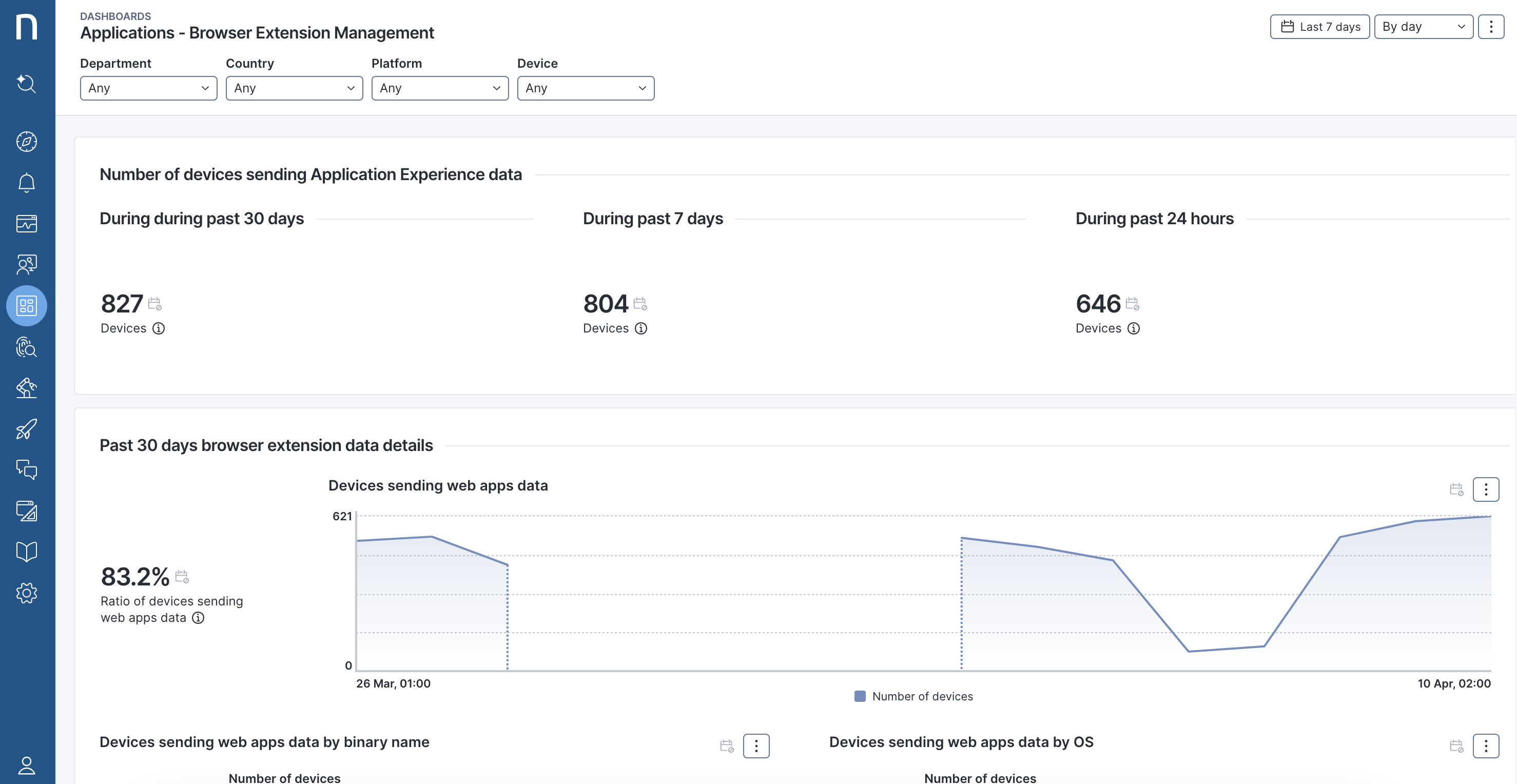
You can monitor the deployment progress with the dedicated **Applications - Browser Extension Management** dashboard provided through [Nexthink Library](https://www.nexthink.com/library/application-experience-manage-browser-extension/). This dashboard also let you monitor the health and status of your Nexthink browser extensions to ensure you are receiving the most accurate results from the [Applications](/user-guide/applications.md) module.
## Browser extension admin mode
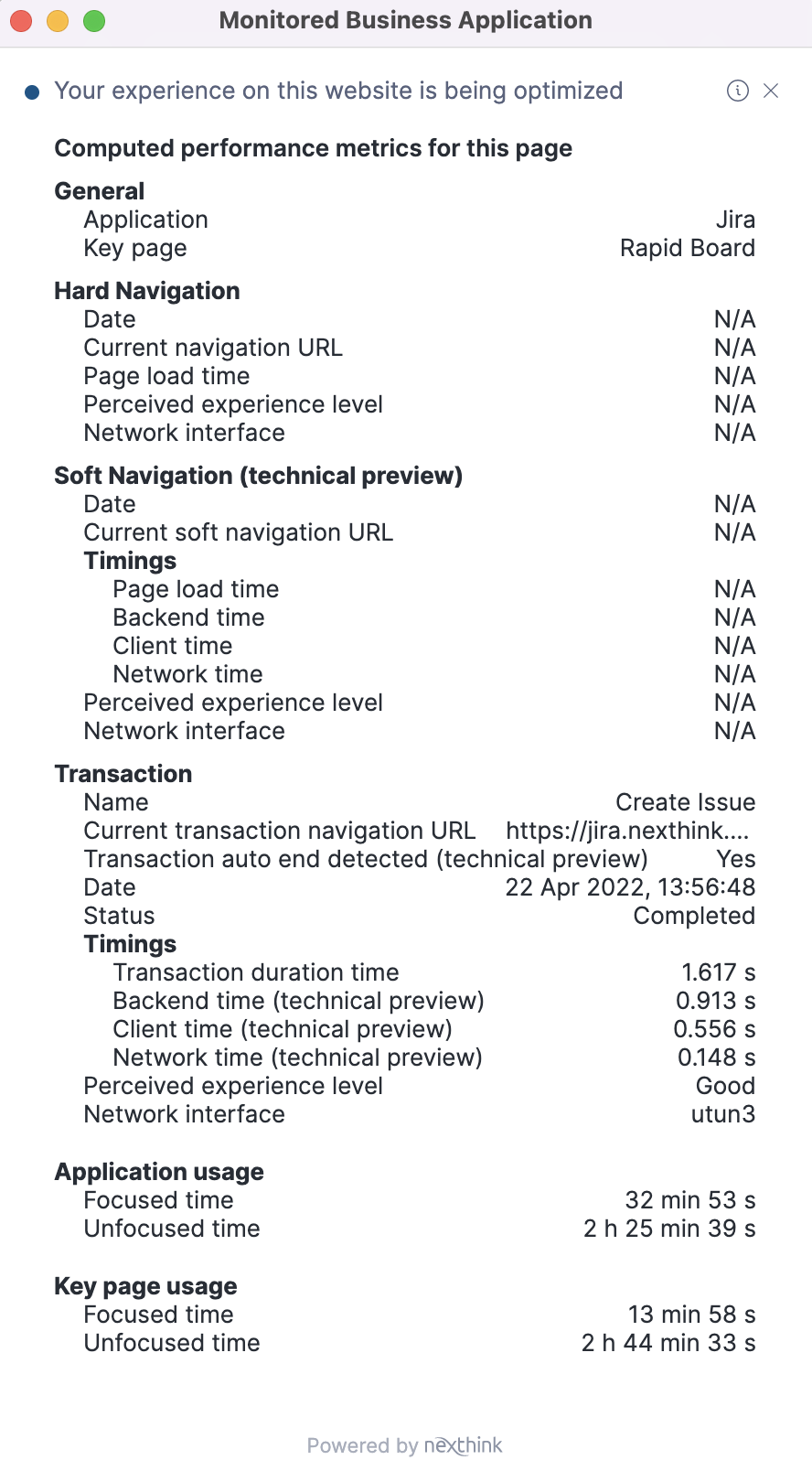
You can access the browser extension admin mode to test transactions in real-time on an endpoint and to view all the data collected by the extension.
To activate the admin mode:
* Select the Nexthink browser extension from the list of extensions.
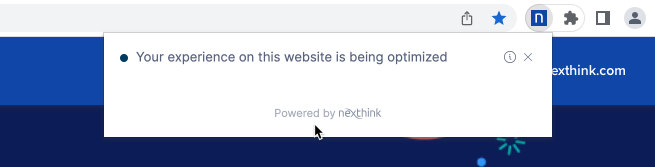
* A pop-up appears indicating whether your experience on the current page is being optimized or not. You can access the admin mode only on web pages monitored by the extension. A blue Nexthink Logo indicates that the web page is being monitored.
* Click five times on **Powered by** to activate the admin mode.
Admin mode eliminates the need to use browser developer tools to test transactions and still works when the **Transaction end** option is set to be detected automatically.
## Unsupported content
Due to technical requirements or as-of-yet unreleased browser updates, the following table displays which parts of the Nexthink platform are unsupported by the available browsers.
| Google Chrome | Microsoft Edge | Mozilla Firefox |
| ------------------------------------------- | ------------------------------------------- | ----------------------------------------------------------- |
| All Nexthink platform content is available. | All Nexthink platform content is available. | Firefox does not support Nexthink Adopt and AI Tools/Drive. |
---
# Agent Instructions
This documentation is published with GitBook. GitBook is the documentation platform designed so that both humans and AI agents can read, navigate, and reason over technical content effectively. Learn more at gitbook.com.
## Querying This Documentation
If you need additional information that is not directly available in this page, you can query the documentation by asking a question.
Perform an HTTP GET request on the following URL with the `ask` and `goal` query parameters:
```
GET https://docs.nexthink.com/configuring_nexthink/bringing-data-into-your-nexthink-instance/deploying-nexthink-in-non-vdi-environment/installing-the-nexthink-browser-extension.md?ask=&goal=
```
`ask` is the immediate question: it should be specific, self-contained, and written in natural language.
`goal` is what the user is ultimately trying to achieve, the reason they need the answer. Sharing it helps GitBook give you a better, more relevant answer. A goal is most helpful when it describes the outcome the user wants rather than restating the question. For example, with `ask=how do I create an API token`, a goal like `automate deployments from our CI pipeline` lets GitBook tailor the answer to that use case.
The response will contain a direct answer to the question and relevant excerpts and sources from the documentation.
Use this mechanism when the answer is not explicitly present in the current page, you need clarification or additional context, or you want to retrieve related documentation sections.