# Rule-based Collector assignment (classic)

## Overview <a href="#rule-basedcollectorassignment-classic-overview" id="rule-basedcollectorassignment-classic-overview"></a>

The rule-based Collector assignment requires a single installer that uses the fully qualified domain name (FQDN) of the Nexthink instance for all Collectors. Upon first connection, each Collector receives the address of its assigned Nexthink V6 Engine. Thereafter Collector can start sending information to the Engine as usual. In subsequent connections to Nexthink, each Collector checks whether it is assigned to the same or to another Engine, and switches Engines accordingly.

Nexthink manages the assignment process using a set of rules. By adjusting them, you can dynamically reassign Collectors to different Engines. The rules define the assignment of Collectors not only to Engines but also to entities. They form the base to organize your devices in hierarchies. The entity assignment specified by the same rules is valid for any version of both Windows and Mac Collector installations.

## Support for rule-based Collector assignment <a href="#rule-basedcollectorassignment-classic-supportforrule-basedcollectorassignment" id="rule-basedcollectorassignment-classic-supportforrule-basedcollectorassignment"></a>

The rule-based assignment supports rules with conditions on the following device fields:

* Last IP address
* Last local IP address
* Name
* Distinguished name reported by Collector
* AD site
* Collector tag number
* Collector string tag

Ensure that you do not have any roaming devices that switch between Engines and whose assignment is based exclusively on the Last IP address of the device. Starting from V6.24, using the **last local IP address** of the device instead solves the issue.

When the conditions depend on the IP address of the device, the rule-based Collector assignment is incompatible with the local IP address beta feature, which is deprecated from V6.24 and superseded by the last local IP address field.

## Writing the assignment rules <a href="#rule-basedcollectorassignment-classic-writingtheassignmentrules" id="rule-basedcollectorassignment-classic-writingtheassignmentrules"></a>

Define the rules for Collector assignment using a CSV file with a tabular structure.

<table data-full-width="true"><thead><tr><th>entity_rule</th><th>Engine</th><th>Entity</th><th>Field1</th><th>Pattern1</th><th>Field2</th><th>Pattern2</th></tr></thead><tbody><tr><td>yes</td><td>Engine-1</td><td>Lyon</td><td>ad_site</td><td>Lyon-?</td><td>dn</td><td>*OU=PROD*</td></tr><tr><td>no</td><td>Engine-2</td><td>Paris</td><td>local_ip</td><td>192.168.212.0/24</td><td>name</td><td>DESKTOP-FR*</td></tr><tr><td>yes</td><td>Engine-3</td><td>Los Angeles</td><td>collector_tag</td><td>212</td><td></td><td></td></tr><tr><td>no</td><td>Engine-4</td><td>New York</td><td>name</td><td>DESKTOP-US*</td><td>ip</td><td>10.100.0.0/16</td></tr></tbody></table>

**entity\_rule** (case sensitive)\
When set to **no**, the rule assigns the device to both an Engine and an entity.\
When set to **yes**, the rule assigns the device to an entity, filtered by Engine.

**Engine** (case insensitive)\
The hostname of the target Engine.

**Entity** (case sensitive)\
The name of the target entity.

**Field1**\
The name of the first device field used for the assignment.

**Pattern1**\
The pattern that the first specified field must match to assign the designated Engine and entity to the device.

**Field2**\
The name of the second device field on which to base the assignment.

**Pattern2**\
The pattern that the second specified field must match to assign the designated Engine and entity to the device.

The columns **Field1** and **Field2** support the following values:

**ip**

The last IP address of the device. As a pattern for the field, specify either:

\- A single IP address in dot-decimal notation, for example `192.168.10.1`

\- A subnet in CIDR notation, for example `192.168.10.0/24`

**local\_ip**

The last local IP address of the device corresponds to the IP address on the local network. Specify patterns in the same way as for the **ip** field.

**name** (case insensitive)

The hostname of the device.

**collector\_tag**

The tag number assigned to Collector during its installation. Only the exact number is matched.

**collector\_string\_tag**

The label assigned to Collector during its installation This value supports pattern matching.

**dn**

The distinguished name of the device, as reported by Collector. The device must be part of an Active Directory domain.

The format of the distinguished name reported by Collector is the standard sequence of `attribute=value` elements connected by commas, from the most specific to the most general attribute. For example `CN=ex01,OU=Computers,DC=example,DC=org`

In contrast, when retrieved from Active Directory, the distinguished name field of a device (or user) uses a similar sequence, but in reverse order, with elements connected by a forward slash. For example `/DC=org/DC=example/OU=Computers/CN=ex01`

**ad\_site**

The Active Directory site in which the device is located. A site represents one or more TCP/IP subnets.

The **name**, **collector\_string\_tag**, **dn** and **ad\_site** fields support character pattern matching. To define the associated string pattern, use the following wildcards:

\- The `?` character substitutes a single character.

\- The `*` character substitutes zero or more characters.

{% hint style="info" %}
To write the CSV file for the rules, use UTF-8 text encoding and limit the size to 20 MB. Avoid writing the rules on text editors that create a BOM character at the beginning of the file (for example, Notepad on Windows). Such additional characters trigger a header error when parsed by the configuration wizard.
{% endhint %}

After the header, write each rule on a new line. Optionally enclose each item in double quotes to make sure the system escapes special characters and use the semicolon as a delimiter. For example, a CSV file for a small company with branch offices in various timezones:

```
"entity_rule";"Engine";"Entity";"Field1";"Pattern1";"Field2";"Pattern2"
"no";"Engine-2";"BOSTON";"local_ip";"10.102.0.0/16";"name";"DESKTOP-*"
"no";"Engine-3";"DUBAI";"local_ip";"10.103.0.0/16";"name";"DESKTOP-*"
"no";"Engine-4";"BRISBANE";"local_ip";"10.104.0.0/16";"name";"DESKTOP-*"
"no";"Engine-5";"ZURICH";"local_ip";"10.107.0.0/16";"name";"DESKTOP-*"
"no";"Engine-1";"REMOTE";"name";"LAPTOP-*"
```

For a rule to be satisfied, conditions on both **Field1** and **Field2** must be fulfilled, so both patterns must match. The rule precedence is established from top to bottom. Entity-only rules allow catch-all default cases to prevent assignments to the empty `-` entity from occurring, especially for sticky, roaming or VPN devices.

To upload a CSV file:

1. Log in to the Nexthink web interface with an account with a central administrator profile.
2. From the **Administration** menu in the main navigation bar, select **Collectors** under **System configuration**.
3. Click on the **Add new ruleset** button.
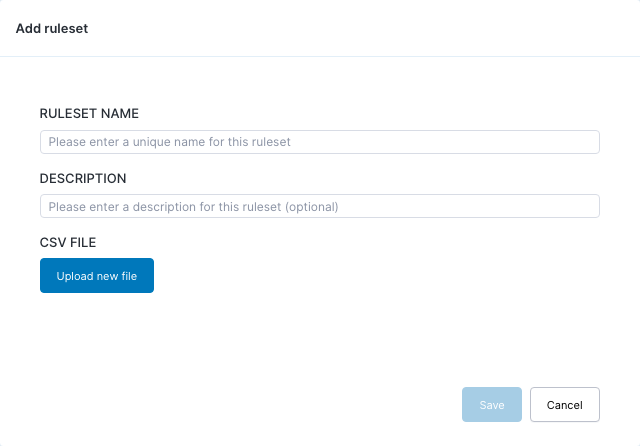
   1. Fill in the fields in the dialog box.

      <figure><img src="https://268444917-files.gitbook.io/~/files/v0/b/gitbook-x-prod.appspot.com/o/spaces%2FxJSUDk9NTtCHYPG5EWs3%2Fuploads%2Fgit-blob-ecf030cadb58952fdcc70dca1b60e2e539ce8088%2Fimage-20220303-082429.png?alt=media" alt=""><figcaption></figcaption></figure>

      * For **RULESET NAME** type in a unique name for the rule.
      * For **DESCRIPTION** explain the purpose of the rule.
      * Under **CSV FILE**, click **Upload new file** and select your previously created CSV file.

## Simulating Collector assignment <a href="#rule-basedcollectorassignment-classic-simulatingcollectorassignment" id="rule-basedcollectorassignment-classic-simulatingcollectorassignment"></a>

For a seamless transition from one ruleset to another, Nexthink strongly advises first simulating your rules. The simulation of Collector assignment rules lets you see the effect of applying the rules without actually changing the currently assigned Engines and entities.

To activate simulation mode:

1. Log in to the Nexthink web interface with an account with a central administrator profile.
2. From the **Administration** menu in the main navigation bar, select **Collectors** under **System configuration**.
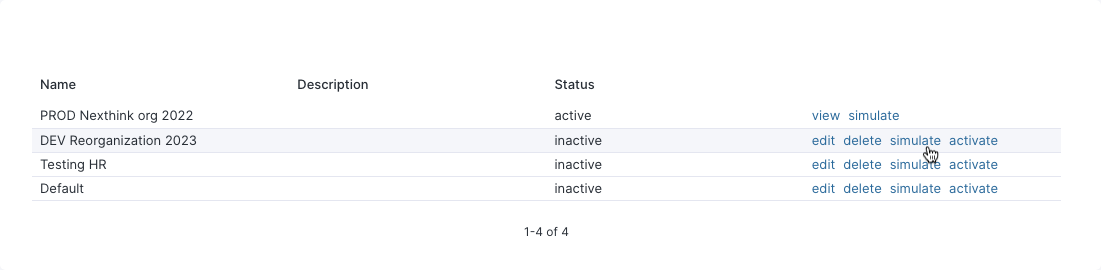
3. Click on **simulate** to trigger the process.

   <figure><img src="https://268444917-files.gitbook.io/~/files/v0/b/gitbook-x-prod.appspot.com/o/spaces%2FxJSUDk9NTtCHYPG5EWs3%2Fuploads%2Fgit-blob-ae197595756e6a646cdeddf28ffc33e169a6c311%2Fimage-20220303-085423.png?alt=media" alt=""><figcaption></figcaption></figure>
4. The results are stored in a CSV file that your web browser automatically downloads. It lists all the devices linked with your instance and some of their properties, organized in columns. The last ones contain the simulated values.

<table data-full-width="true"><thead><tr><th>Device name</th><th>Collector version</th><th>IP address</th><th>Local IP address</th><th>AD site</th><th>Distinguished name</th><th>Collector tag</th><th>Collector string tag</th><th>Last seen (UTC)</th><th>Last seen on</th><th>Assigned Engine</th><th>Assigned entity</th><th>Roaming since (UTC)</th><th>Current 'use assignment' flag</th><th>Simulated Engine with current flag</th><th>Simulated entity with current flag</th><th>Simulated status if flag = YES</th><th>Simulated Engine if flag = YES</th><th>Simulated entity if flag = YES</th></tr></thead><tbody><tr><td>device-36e68c7a</td><td>6.30.4.9</td><td>194.3.224.3</td><td>10.19.3.61</td><td>c40034</td><td></td><td>1000</td><td>BOSTON</td><td>22.11.21 19:03</td><td>10.244.14.5:8443</td><td>-</td><td>BOSTON</td><td>-</td><td>UNKNOWN (considered as NO)</td><td>engine-1</td><td>BOSTON</td><td>assigned</td><td>engine-1</td><td>BOSTON</td></tr><tr><td>device-938b6df4</td><td>22.2.1.22</td><td>194.3.224.3</td><td>10.18.6.2</td><td>c40034</td><td></td><td>1000</td><td>MADRID</td><td>24.02.22 12:07</td><td>10.244.14.5:8443</td><td>-</td><td>MADRID</td><td>-</td><td>UNKNOWN (considered as NO)</td><td>engine-1</td><td>MADRID</td><td>assigned</td><td>engine-1</td><td>MADRID</td></tr><tr><td>device-8cfae42b</td><td>21.7.1.19</td><td>194.3.224.3</td><td>10.5.3.23</td><td>c40034</td><td></td><td>1000</td><td>BOSTON</td><td>11.10.21 23:05</td><td>10.244.14.133:8443</td><td>-</td><td>BOSTON</td><td>-</td><td>UNKNOWN (considered as NO)</td><td>engine-1</td><td>BOSTON</td><td>assigned</td><td>engine-1</td><td>BOSTON</td></tr><tr><td>device-1df8e1ce</td><td>21.7.1.19</td><td>194.3.224.3</td><td>10.29.2.4</td><td></td><td></td><td>1000</td><td>MADRID</td><td>13.10.21 13:20</td><td>10.244.14.133:8443</td><td>-</td><td>MADRID</td><td>-</td><td>UNKNOWN (considered as NO)</td><td>engine-1</td><td>MADRID</td><td>assigned</td><td>engine-1</td><td>MADRID</td></tr><tr><td>device-784c6e93</td><td>21.8.1.24</td><td>194.3.224.3</td><td>10.21.22.15</td><td></td><td></td><td>1000</td><td>LONDON</td><td>14.10.21 16:16</td><td>10.244.14.133:8443</td><td>-</td><td>LONDON</td><td>-</td><td>UNKNOWN (considered as NO)</td><td>engine-1</td><td>LONDON</td><td>assigned</td><td>engine-1</td><td>LONDON</td></tr><tr><td>device-51d1eb73</td><td>6.30.4.11</td><td>194.3.224.3</td><td>10.9.4.3</td><td></td><td></td><td>0</td><td>UNKNOWN</td><td>01.11.21 11:32</td><td>10.244.14.133:8443</td><td>-</td><td>Default</td><td>-</td><td>UNKNOWN (considered as NO)</td><td>engine-1</td><td>Default</td><td>assigned</td><td>engine-1</td><td>Default</td></tr><tr><td>device-a639e2f6</td><td>21.8.1.25</td><td>194.3.224.3</td><td>10.26.17.12</td><td>9c6a68</td><td></td><td>0</td><td>-</td><td>23.11.21 15:00</td><td>10.244.14.5:8443</td><td>-</td><td>Default</td><td>-</td><td>UNKNOWN (considered as NO)</td><td>engine-1</td><td>Default</td><td>assigned</td><td>engine-1</td><td>Default</td></tr><tr><td>device-9acf29ca</td><td>6.30.4.9</td><td>194.3.224.3</td><td>10.5.19.6</td><td>c40034</td><td></td><td>1000</td><td>UNKNOWN</td><td>24.11.21 18:53</td><td>10.244.14.5:8443</td><td>-</td><td>Default</td><td>-</td><td>UNKNOWN (considered as NO)</td><td>engine-1</td><td>Default</td><td>assigned</td><td>engine-1</td><td>Default</td></tr></tbody></table>

Example of part of a CSV downloaded following a simulation.

## Discovering your Collectors <a href="#rule-basedcollectorassignment-classic-discoveringyourcollectors" id="rule-basedcollectorassignment-classic-discoveringyourcollectors"></a>

Check the list of Collectors connecting to your instance.

1. Log in to the Nexthink web interface with an account with a central administrator profile.
2. From the **Administration** menu in the main navigation bar, select **Collectors** under **System configuration**.
3. See the list of devices associated with the instance under **Devices**.
4. Click on **Export them all** to get the full list.

The columns of the table offer you the current information about the assignment status of Collectors. These columns include the following properties:

1. Device name
2. Collector version
3. IP address (the last one)
4. AD Site
5. Distinguished name
6. Collector tag number

In addition, the following additional columns can be found:

**Last seen (UTC)**

The time of the last assignment request received from Collector.

**Last seen on**

The IP address and port of Appliance on which Collector was last seen.

**Assigned Engine**

Engine to which Collector is configured to send data.

**Assigned entity**

The entity to which Collector currently belongs.

**Roaming since (UTC)**

Time at which the device started roaming.

**Error message**

Last error in the assignment of Collector.

## Reassignment <a href="#rule-basedcollectorassignment-classic-reassignment" id="rule-basedcollectorassignment-classic-reassignment"></a>

Once the Nexthink instance has successfully assigned an Engine to a Collector, Collector receives new assignment information from its assigned Engine, which in turn receives it from the Nexthink instance. Collector asks for new assignment information every time its TCP connection is interrupted.

In addition, Collectors can be dynamically reassigned to another Engine every time that the assignment rules change. The distribution of reassignment messages to Collectors may take up to 60 minutes.

On the other hand, to limit the number of undesired Engine switches, the reassignment of a device that changes its properties (for example **IP address**) is delayed for a default of 10 days after a new rule takes over. This is especially important for devices that change their subnet frequently, such as the laptops of roaming users.

## Assignment failure scenario <a href="#rule-basedcollectorassignment-classic-assignmentfailurescenario" id="rule-basedcollectorassignment-classic-assignmentfailurescenario"></a>

When a Collector gets a new assignment, Collector tries to establish a TCP connection to its assigned Engine using the first FQDN as the destination. If Collector is unable to reach it after three retries, Collector resorts to its previously assigned Engine to report the failure. It then waits for a new assignment. While on standby, Collector sends no traffic.

To see if any assignment failed:

1. Log in to the Nexthink web interface with an account with a central administrator profile.
2. From the **Administration** menu in the main navigation bar, select **Collectors** under **System configuration**.
3. See the list of devices associated with the instance under **Devices**.
4. In the column **Error message**, look for list entries with a value similar to the following:\
   `Last assignment failed: engine [IP address] tcp port [number]: ...`
5. By default, only 100 devices are displayed. Click on **Export them all** to get the full list.