> For the complete documentation index, see [llms.txt](https://docs.nexthink.com/llms.txt). Markdown versions of documentation pages are available by appending `.md` to page URLs; this page is available as [Markdown](https://docs.nexthink.com/configuring_nexthink/bringing-data-into-your-nexthink-instance/deploying-nexthink-in-non-vdi-environment/installing-collector/installing-collector-on-macos/intune-deployment-tp.md).
# Deploying Collector in Intune
Microsoft Intune is a cloud-based endpoint management solution that supports macOS and allows installing Collector remotely using a shell script.
## Prerequisites
Review the following documentation before starting:
* [Endpoint management at Microsoft](https://learn.microsoft.com/en-us/mem/endpoint-manager-overview) — overview of Intune device management.
* [Enroll your macOS device using the Company Portal app](https://learn.microsoft.com/en-us/mem/intune/user-help/enroll-your-device-in-intune-macos-cp) — device enrollment steps.
* [Use shell scripts on macOS devices in Intune](https://learn.microsoft.com/en-us/mem/intune/apps/macos-shell-scripts) — how shell scripts work in Intune.
{% hint style="info" %}
You need basic knowledge of shell scripting to customize the installation script.
{% endhint %}
## Installation script
{% hint style="warning" %}
Nexthink recommends deploying the DMG file using the installation script, and does not support extracting and deploying the PKG file directly.
{% endhint %}
The installation script performs the following actions on each device:
1. Downloads the specified Collector DMG file.
2. Checks the integrity of the downloaded file using a SHA256 hash.
3. Expands the DMG package.
4. Runs the CSI installer with the specified parameters.
5. Verifies that the Collector services are running.
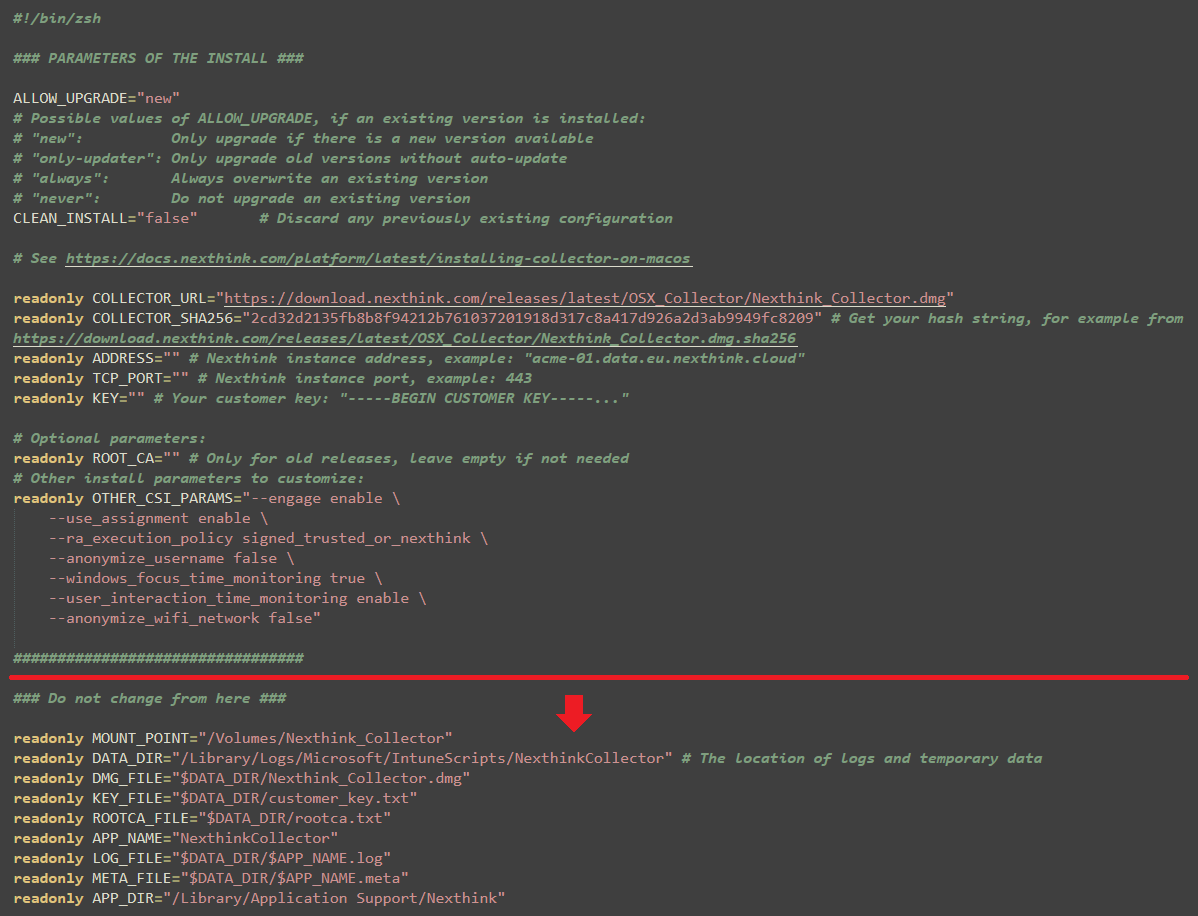
[Download the install script template](https://download.nexthink.com/doc/intune.sh.zip) and open it in a text editor to customize it. The script uses Z shell (zsh), the default interpreter since macOS 10.15 Catalina.
{% hint style="warning" %}
Do not modify the lines below the `### Do not change from here ###` comment in the script.
{% endhint %}
## Adjust the execution parameters
This section explains the parameters in the script.
### Collector version management parameters
The following parameters define how the script handles existing Collector installations. Nexthink does not recommend modifying these default values.
* `ALLOW_UPGRADE`: Defines how the script manages upgrades. The default value is `new`.
* `CLEAN_INSTALL`: Defines whether Collector preserves the configuration of previous installations or not. The default value is `false`.
### Installation parameters
The following parameters define the installation configuration. See all the possible values on the [Installing Collector on macOS](/configuring_nexthink/bringing-data-into-your-nexthink-instance/deploying-nexthink-in-non-vdi-environment/installing-collector/installing-collector-on-macos.md) page. Here is the list of mandatory parameters:
* `COLLECTOR_URL`: The URL of the Collector DMG package to be installed. Use [this link](https://download.nexthink.com/releases/latest/OSX_Collector/Nexthink_Collector.dmg) to always point to the latest version.
* `COLLECTOR_SHA256`: The SHA256 hash digest of the DMG file to verify the integrity and security of the download. Find it on the same download page as the DMG. The hash of the latest DMG is available using [this link](https://download.nexthink.com/releases/latest/OSX_Collector/Nexthink_Collector.dmg.sha256).
* `ADDRESS`: The address of the Nexthink instance.
* `TCP_PORT`: The port of the Nexthink instance.
* `KEY`: Your Customer Key, on a single line that begins with `-----BEGIN CUSTOMER KEY-----` and ends with `-----END CUSTOMER KEY-----`.
### Optional parameters
The parameters in the `OTHER_CSI_PARAMS` section override a possible previous configuration. The system passes these parameters to the CSI installer.
Review the default values to ensure they apply to your IT infrastructure, and check the list of supported parameters on the [Installing Collector manually](/configuring_nexthink/bringing-data-into-your-nexthink-instance/deploying-nexthink-in-non-vdi-environment/installing-collector/installing-collector-on-macos/manual-installation-on-macos-tp.md) page.
## Full disk access
Nexthink Collector relies on the Apple Endpoint Security framework and follows Apple privacy guidelines. Some Collector components need full disk access to collect complete data and run Remote actions on devices.
{% hint style="info" %}
When deploying Collector version 26.5 or later, you can postpone granting full disk access. The Collector installs successfully and runs in limited mode. It starts full data collection and can run Remote actions only after you grant full disk access.
Collector versions earlier than 26.5 require full disk access at deployment time and cannot postpone it.
{% endhint %}
The following components require full disk access:
* `nxtsvc`: Collects core device data and binary executions and connections events. Permission for this module is mandatory; required by Apple Endpoint Security and Apple privacy controls.
* `nxtcod`: Executes Remote actions on user devices and sends results back to Nexthink. Permission for this module is optional; grant it only if Remote actions need access to special folders or shared network resources.
Pre-authorize full disk access to these components before deploying Collector by creating a Privacy Preferences Policy Control (PPPC) configuration profile in Intune. Select the applicable method from the following tabs and perform the procedure described in it:
{% tabs %}
{% tab title="Use predefined profile components" %}
Nexthink provides a single configuration profile that grants full disk access to both `nxtsvc.app` and `nxtcod.app` by adding their binary paths to a passlist:
{% file src="/files/CD6eLPBCr3UY5lMOHGDw" %}
{% endtab %}
{% tab title="Create a profile manually" %}
Perform the following steps for both `nxtsvc` (mandatory) and `nxtcod` (optional):
1. In Intune, create a macOS configuration profile using **Settings catalog**, and search for **Privacy Preferences Policy Control**.
2. Add an entry for the app, and set **Identifier Type** to **Bundle ID**.
3. Fill in the **Identifier** and **Code Requirement** fields.
Getting the Identifier and Code Requirement values for nxtsvc
#### Identifier
To obtain the Identifier, run the following command on devices where Collector is installed:
```bash
sudo codesign -dv /Library/Application\ Support/Nexthink/nxtsvc.app
```
This displays a response with the value of the **Identifier**, such as `com.nexthink.nxtsvcapp`.
Insert that output to the **Identifier** field in Intune.
#### Code Requirement
To obtain the Code Requirement, run the following command on devices where Collector is installed:
```bash
sudo codesign -dr - /Library/Application\ Support/Nexthink/nxtsvc.app
```
Insert the output in the **Code Requirement** field in Intune, as a single line without breaks.
Getting the Identifier and Code Requirement values for nxtcod
#### Identifier
To obtain the Identifier, run the following command on devices where Collector is installed:
```bash
sudo codesign -dv /Library/Application\ Support/Nexthink/nxtcod.app
```
This displays a response with the value of the Identifier, such as `com.nexthink.nxtcod`.
Insert that output to the **Identifier** field in Intune.
#### Code Requirement
To obtain the Code Requirement, run the following command on devices where Collector is installed:
```bash
sudo codesign -dr - /Library/Application\ Support/Nexthink/nxtcod.app
```
Insert the output in the **Code Requirement** field in Intune, as a single line without breaks.
4. Set **Authorization** (or **Allowed**, depending on the fields shown) to **Allow**. Apple rejects a payload that sets both.
5. Assign the policy to the same macOS devices targeted by the Collector deployment.
{% endtab %}
{% endtabs %}
Deploy this profile to all macOS devices, and verify that it shows as applied before continuing to the next step.
### Deploy Nexthink Collector
After confirming the full disk access profile is applied, deploy Collector following the steps in **Installation script** and **Configure the deployment**.
Intune does not guarantee the order in which a configuration profile and a script deploy. To ensure full disk access is already granted when Collector installs:
* Add a delay of 10–15 minutes between deploying the profile and running the installation script, or
* Use dynamic group targeting based on the profile's installation status, and assign the script only to devices where the profile already shows as installed.
### Approve the Nexthink system extension
Nexthink Collector loads its Apple Endpoint Security component as a system extension. Without prior approval, macOS blocks the extension and prompts the user to approve it manually.
To avoid this prompt, create a Settings Catalog policy in Intune that allows system extensions from team identifier `PDEKAZ43QL`. Assign it to the same devices targeted by the full disk access profile.
{% hint style="warning" %}
Do not also list `PDEKAZ43QL` under explicit bundle identifiers in the same or another policy. Apple rejects configurations that specify the same team identifier in both the team-identifier and bundle-identifier allow lists.
{% endhint %}
## Configure the deployment
{% stepper %}
{% step %}
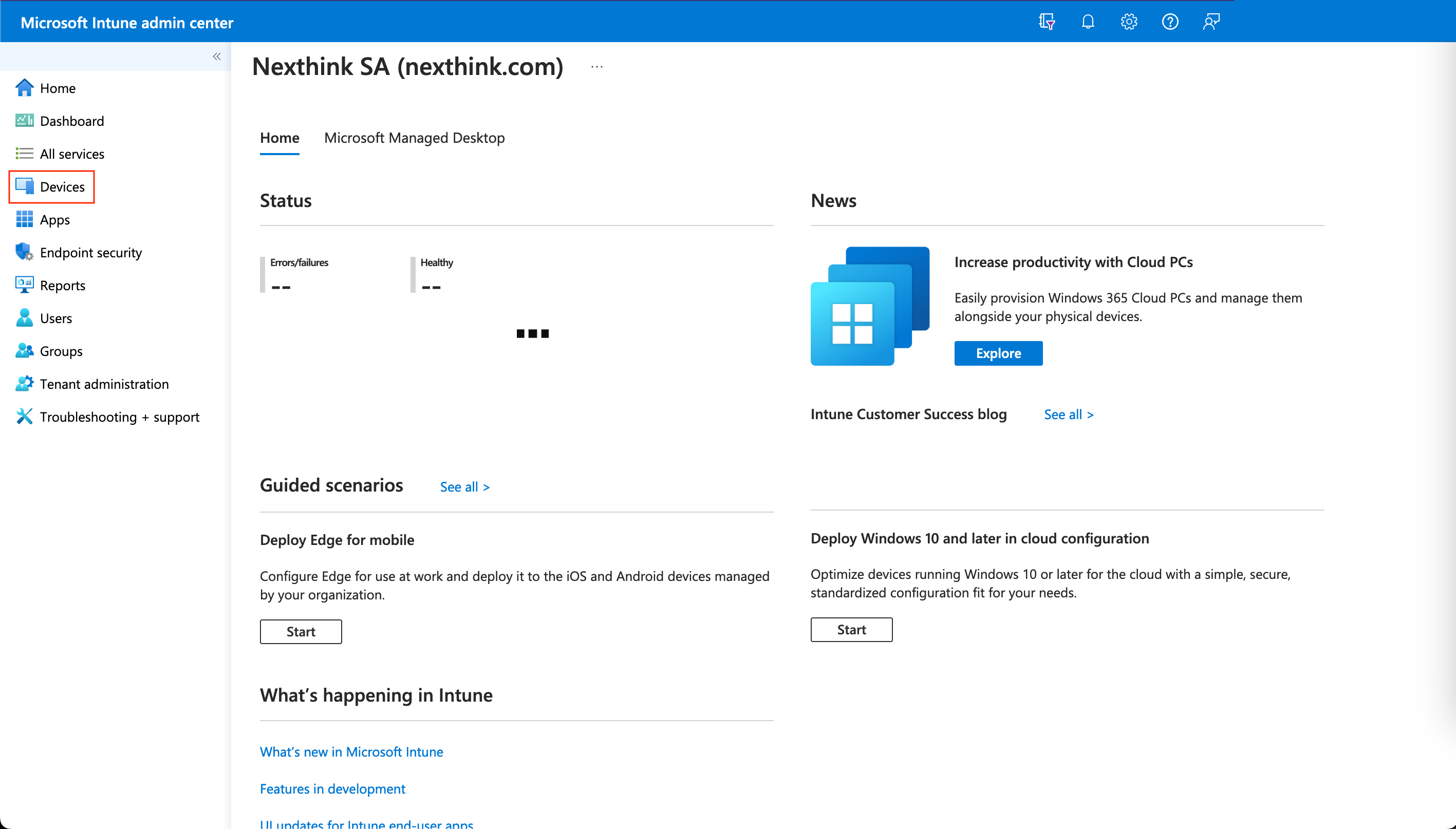
Log in to your Intune portal and select **Devices**.
{% endstep %}
{% step %}
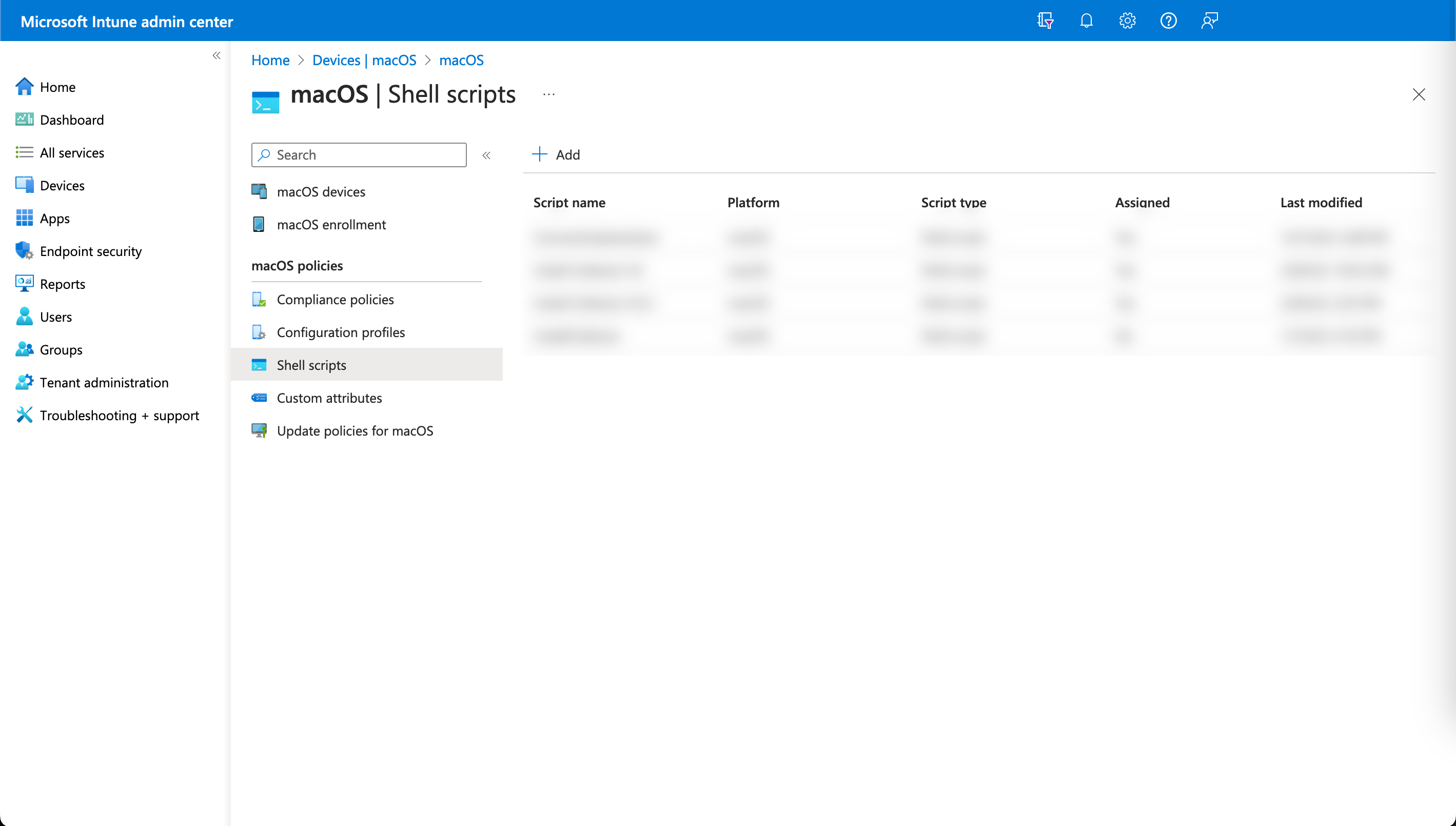
Navigate to **macOS**, then **Shell scripts**, and select **+ Add**.
{% endstep %}
{% step %}
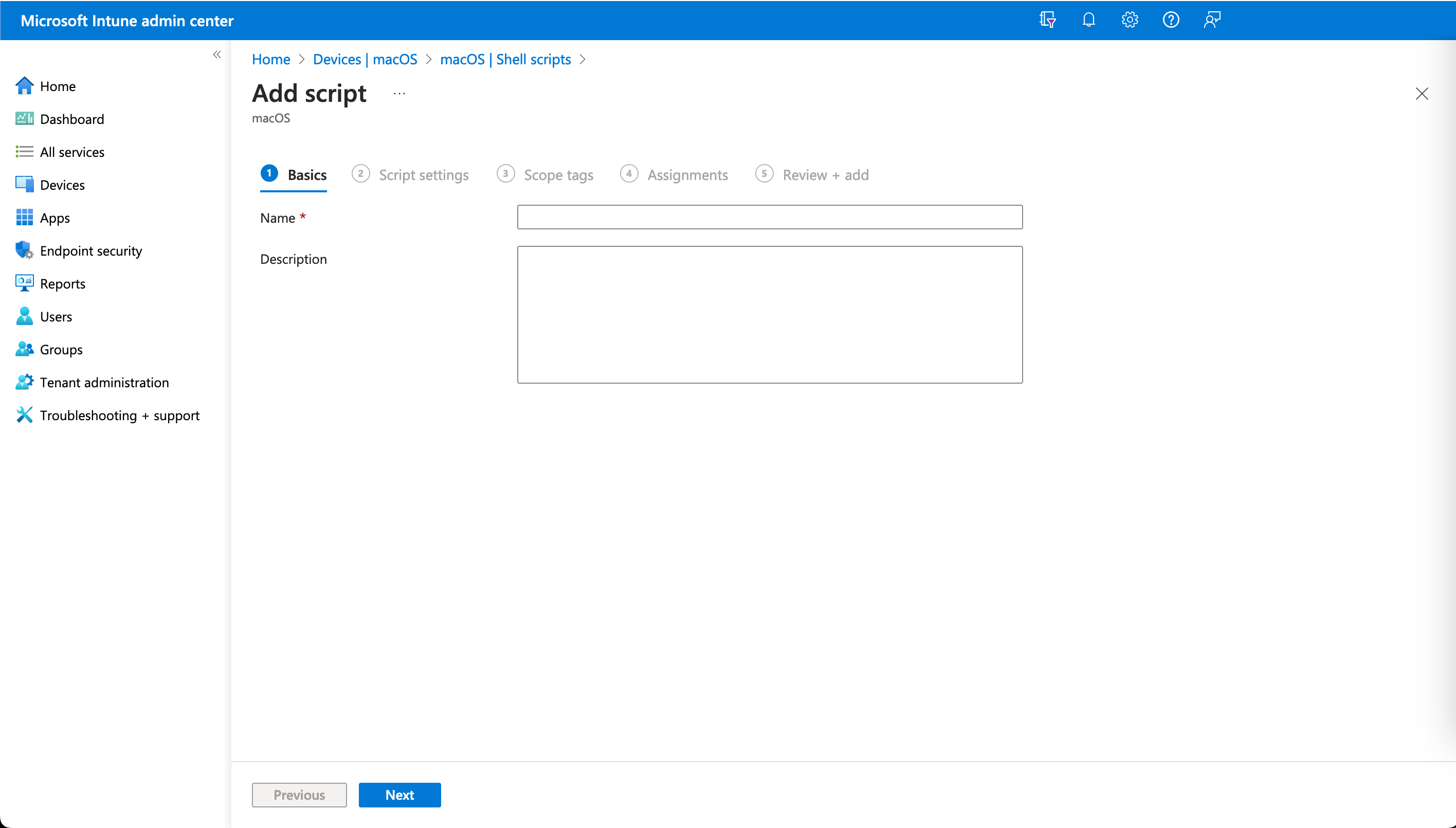
Under the **Basics** section, enter the name of the script, for example, `Install Collector`, and an optional description.
{% endstep %}
{% step %}
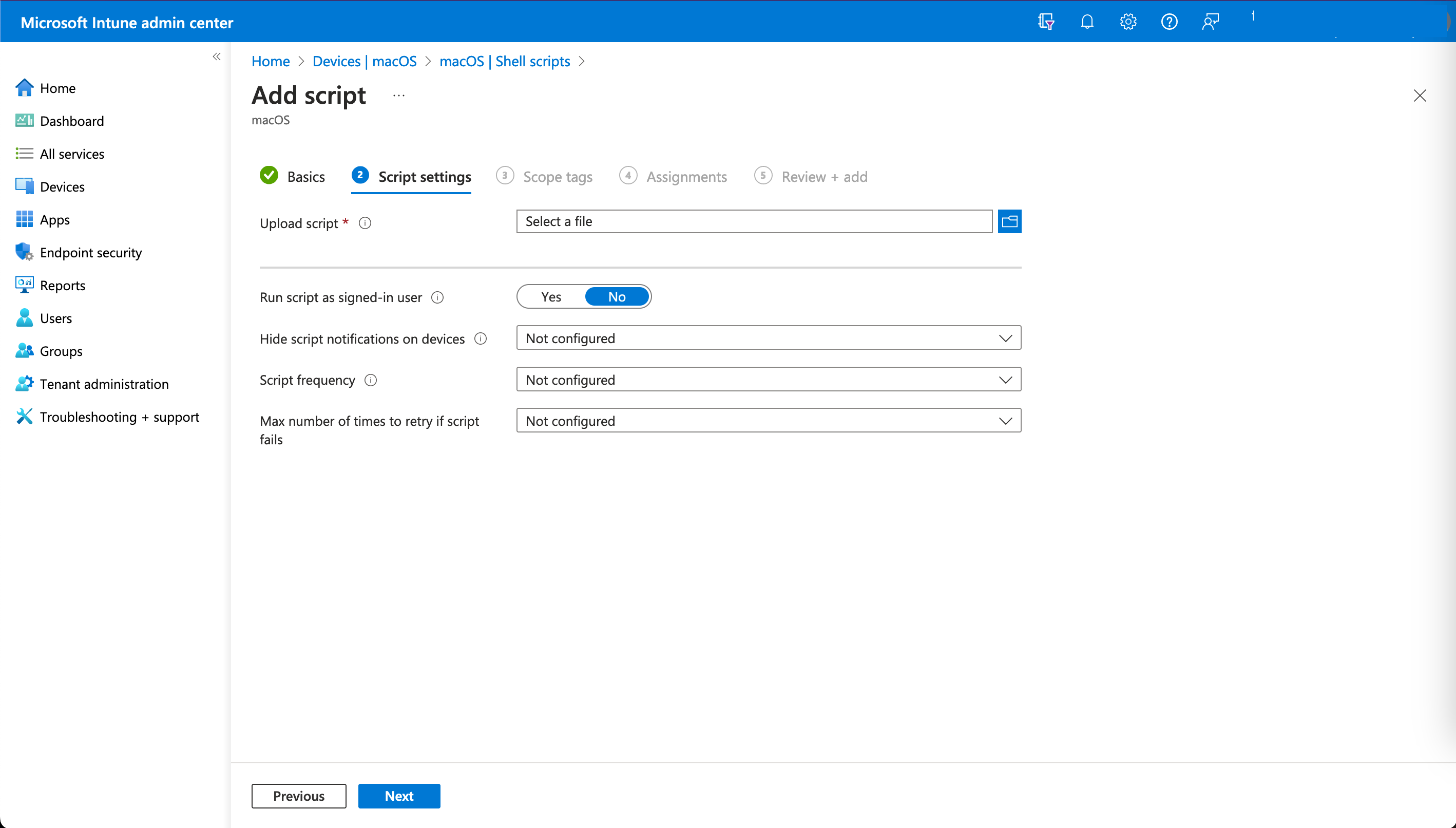
Under **Script settings**, upload the script file. Leave the default values for the other fields.
{% endstep %}
{% step %}
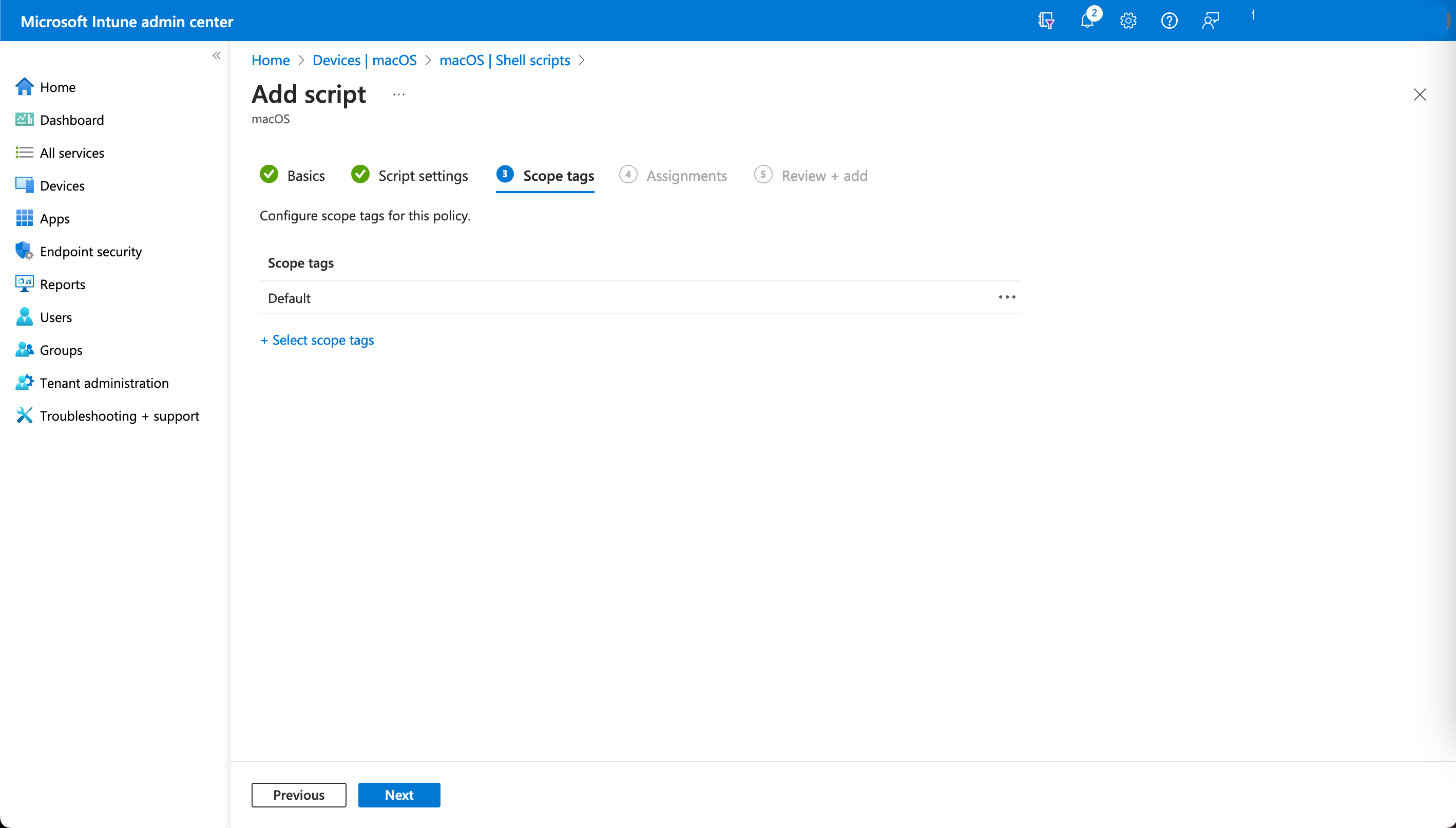
Under **Scope tags,** add optional tags if needed.
{% endstep %}
{% step %}
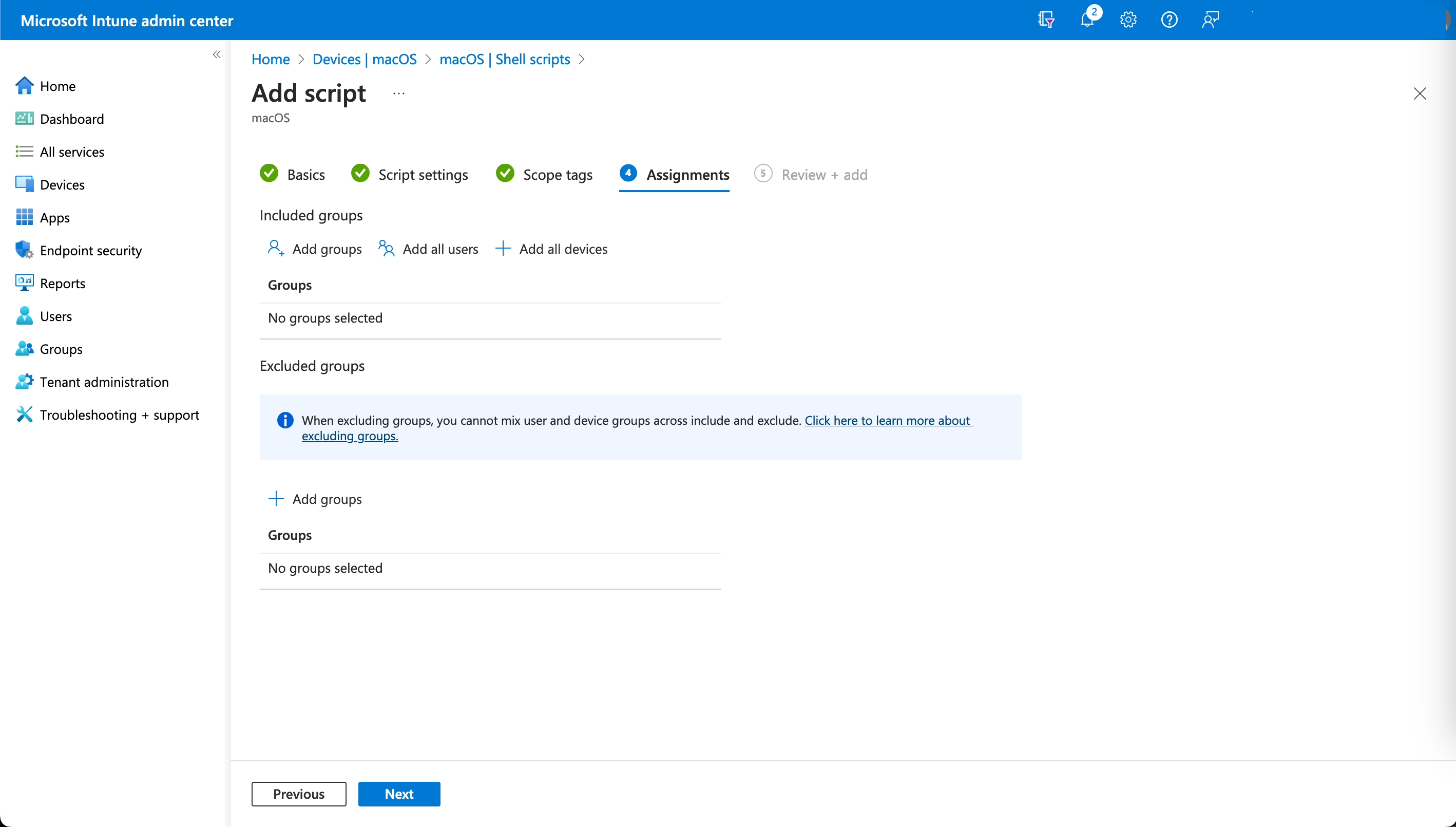
Under **Assignments**, select the groups to target.
{% endstep %}
{% step %}
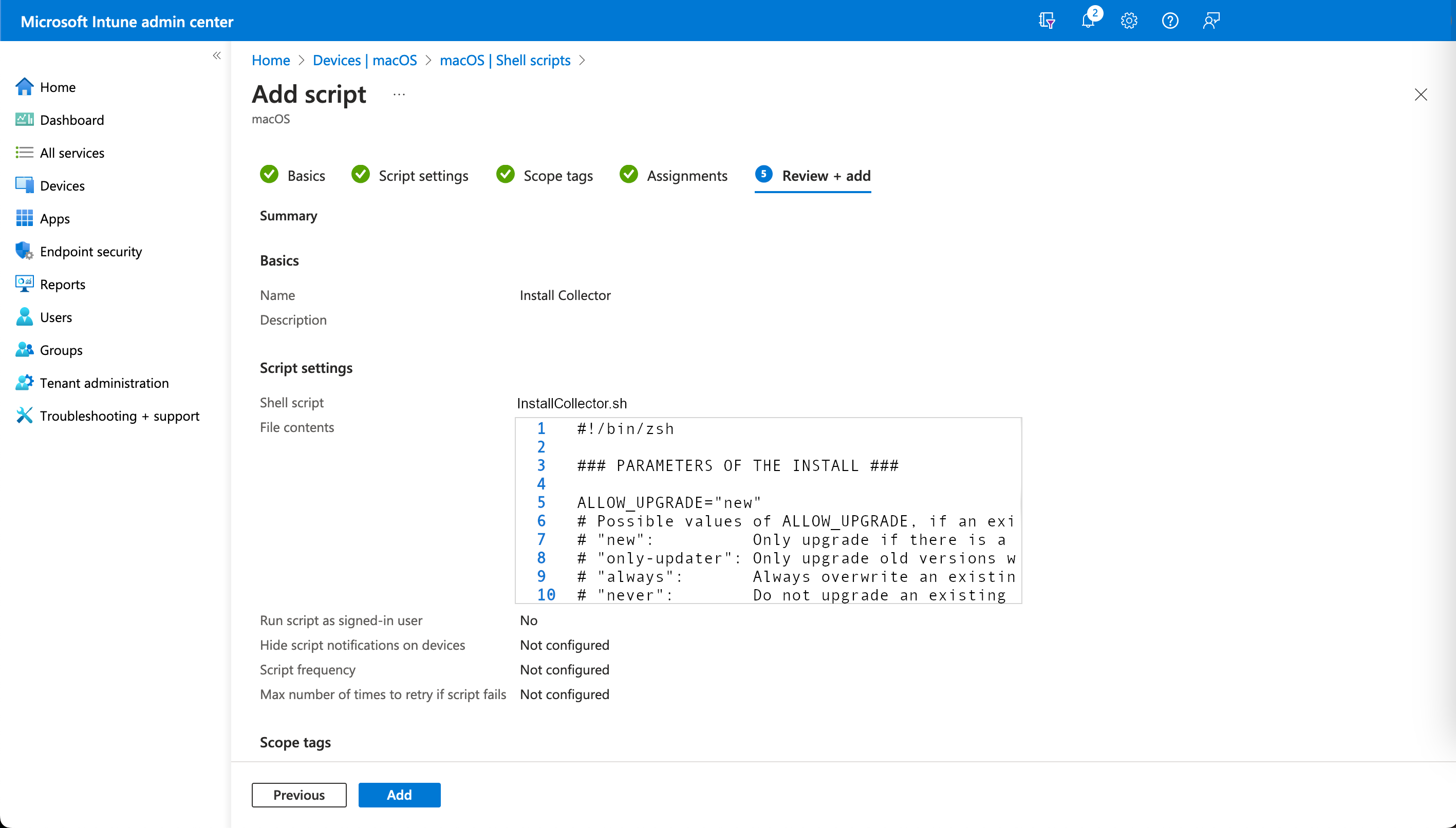
Review the settings and select **Add** to finalize.
{% endstep %}
{% endstepper %}
## Report the User Principal Name (UPN)
On macOS devices enrolled in Microsoft Intune, Collector reads the User Principal Name (UPN) from the local identity record that Platform SSO maintains on the device.
Refer to the [Reporting the UPN on macOS](/configuring_nexthink/bringing-data-into-your-nexthink-instance/deploying-nexthink-in-non-vdi-environment/installing-collector/macos-collector-references/reporting-the-upn-on-macos.md) page for the source priority, requirements, and how to enable UPN reporting.
## Prevent users from disabling Collector
By default, macOS allows users to disable background applications after installation. To prevent users from turning Collector off and ensure continuous data collection, configure Intune to treat Collector as a managed login and background item:
{% stepper %}
{% step %}
In the profile settings, add **Login > Service Management - Managed Login Items**.
{% endstep %}
{% step %}
Create a new rule that targets Collector.
{% hint style="info" %}
Use the Collector bundle identifier as the rule type, or the full executable path if required.
{% endhint %}
{% endstep %}
{% step %}
Configure the rule so that Collector is treated as a managed login item. This ensures macOS considers it enforced by device management.
{% endstep %}
{% step %}
Under the same configuration area, enable the setting that automatically launches Collector at login. This ensures Collector starts without user interaction.
{% endstep %}
{% step %}
Apply the setting that manages background execution so Collector is allowed to run in the background and cannot be disabled by the user from system settings.
{% endstep %}
{% step %}
Save the configuration and ensure the profile is assigned to supervised macOS devices. After the profile is applied, Collector appears as a managed item in macOS.
{% endstep %}
{% endstepper %}
---
# Agent Instructions
This documentation is published with GitBook. GitBook is the documentation platform designed so that both humans and AI agents can read, navigate, and reason over technical content effectively. Learn more at gitbook.com.
## Querying This Documentation
If you need additional information that is not directly available in this page, you can query the documentation by asking a question.
Perform an HTTP GET request on the following URL with the `ask` and `goal` query parameters:
```
GET https://docs.nexthink.com/configuring_nexthink/bringing-data-into-your-nexthink-instance/deploying-nexthink-in-non-vdi-environment/installing-collector/installing-collector-on-macos/intune-deployment-tp.md?ask=&goal=
```
`ask` is the immediate question: it should be specific, self-contained, and written in natural language.
`goal` is what the user is ultimately trying to achieve, the reason they need the answer. Sharing it helps GitBook give you a better, more relevant answer. A goal is most helpful when it describes the outcome the user wants rather than restating the question. For example, with `ask=how do I create an API token`, a goal like `automate deployments from our CI pipeline` lets GitBook tailor the answer to that use case.
The response will contain a direct answer to the question and relevant excerpts and sources from the documentation.
Use this mechanism when the answer is not explicitly present in the current page, you need clarification or additional context, or you want to retrieve related documentation sections.