> For the complete documentation index, see [llms.txt](https://docs.nexthink.com/llms.txt). Markdown versions of documentation pages are available by appending `.md` to page URLs; this page is available as [Markdown](https://docs.nexthink.com/configuring_nexthink/bringing-data-into-your-nexthink-instance/deploying-nexthink-in-non-vdi-environment/configure-amplify/installation-and-configuration/integrating-amplify-with-web-applications.md).
# Integrating Amplify with web applications
{% hint style="warning" %}
This documentation references external sources. Nexthink does not have control over the accuracy of third-party documentation, nor any external updates or changes that might create inconsistencies with the information presented on this page. Please report any errors or inconsistencies to [Nexthink Support](https://support.nexthink.com/).
{% endhint %}
This page describes the generic process of integrating Amplify with web applications.
{% hint style="info" %}
The example demonstrates the process in ServiceNow Helpdesk, which differs from that in other web applications. However, the process is similar and will work for most web applications.
{% endhint %}
## **Integrating the Amplify extension with web applications**
Integrate the Amplify extension with web-based applications for a specific device.
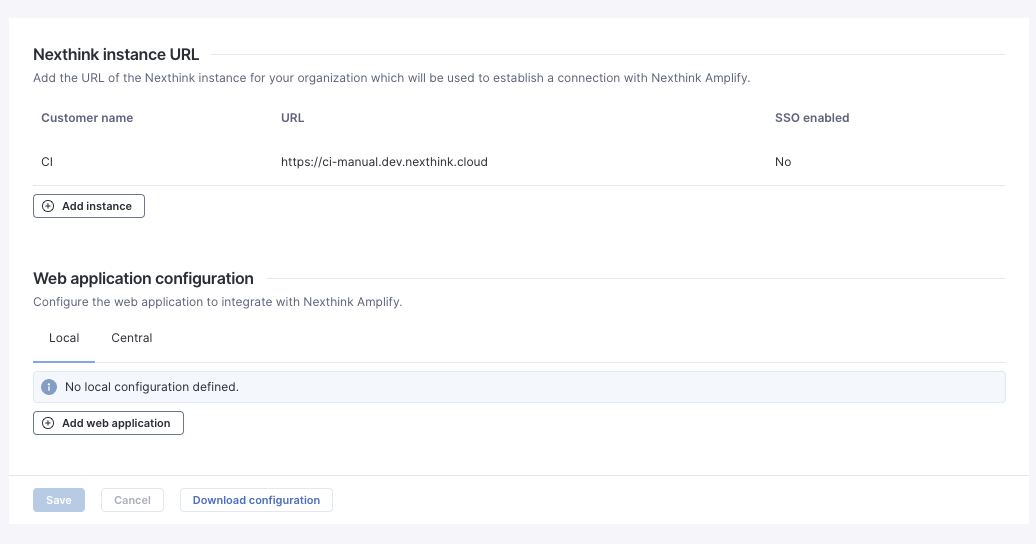
This local configuration does not apply to other Amplify user devices until you add the web application configurations to the [Nexthink platform](/configuring_nexthink/bringing-data-into-your-nexthink-instance/deploying-nexthink-in-non-vdi-environment/configure-amplify/configuring-amplify-in-the-nexthink-web-interface.md).
To integrate web application configuration locally:
1. Open the browser where you installed the Amplify extension (Google Chrome or Microsoft Edge).
2. Right-click on the Amplify extension in the browser extension bar.
3. From the drop-down, click **Options** to open the **Nexthink Amplify configuration** page.
4. Select the **Local** tab under **Web application configuration**.
5. Click **Add web application**.
{% hint style="info" %}
The Amplify extension only displays the **Local** and **Central** tabs in case of a single instance configuration.
{% endhint %}
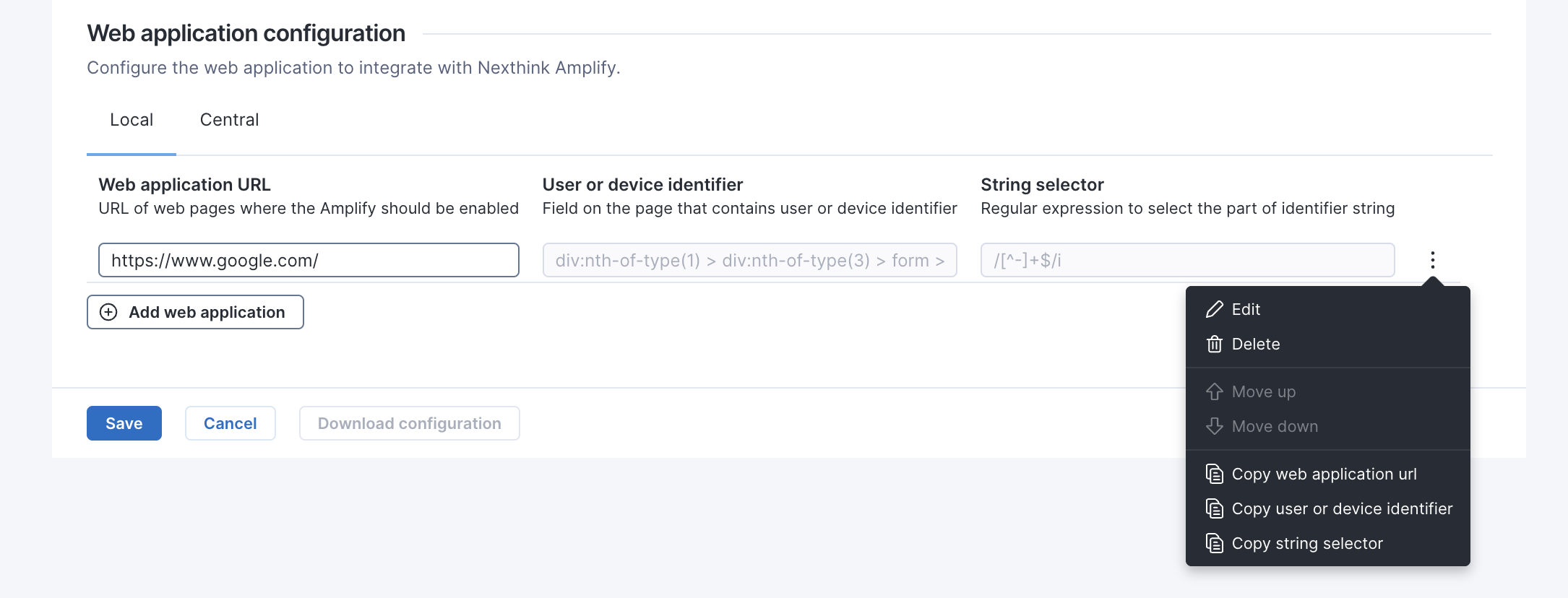
6. Fill in the **Web application URL** field, and use the **User or device identifier** and **String selector** according to the desired behavior for Amplify:
| Enable the Amplify button on all pages of the web application |
| ------------------------------------------------------------------------------------------------------------------------------------------------------------------------------------------------------------------------------------------------------------------------------------------------------------------------------------------------ |
|
To enable the Amplify button on all pages of the web application, without reading the webpage for device or user identification fields:
Add the base URL of the application in the Web application URL field.
Leave the User or device identifier value field blank.
|
| Enable the Amplify button on pages specific to a module of the web application |
| -------------------------------------------------------------------------------------------------------------------------------------------------------------------------------------------------------------------------------------------------------------------------------------------------------------------------------------------------------------------------------------------------------------------------------------------------------------------------------------------------------------------------------------------------------------------------------------------------------- |
|
To enable the Amplify button on pages specific to a module of the web application, without reading the webpage for device or user identification fields:
Add the URL specific to the application module in the Web application URL field.
For example, place the Amplify button on all pages of the ServiceNow incidents module by entering the web application URL:
Leave the User or device identifier value field blank.
|
| Enable Amplify to read identifiers from specific fields of the web application |
| ------------------------------------------------------------------------------------------------------------------------------------------------------------------------------------------------------------------------------------------------------------------------------------------------------------------------------------------------------------------------------------------------------------------------------------------------------------------------------------------------------------------------------------------------------------------------------------------------------------------------------------------------------------------------------------------------------------------------------------------------------------------------------------------------------------------------------------------------------------------------------------------- |
|
Some web applications may no support the Amplify web application configuration using specific field identifiers due to differences in UI designs/fields.
To enable Amplify to read identifiers from specific fields of the web application:
Open a new tab on your browser with the web application page URL with the populated device/user field. Copy the entire page URL.
Add web application in Amplify and paste the copied URL in the Web application URL field.
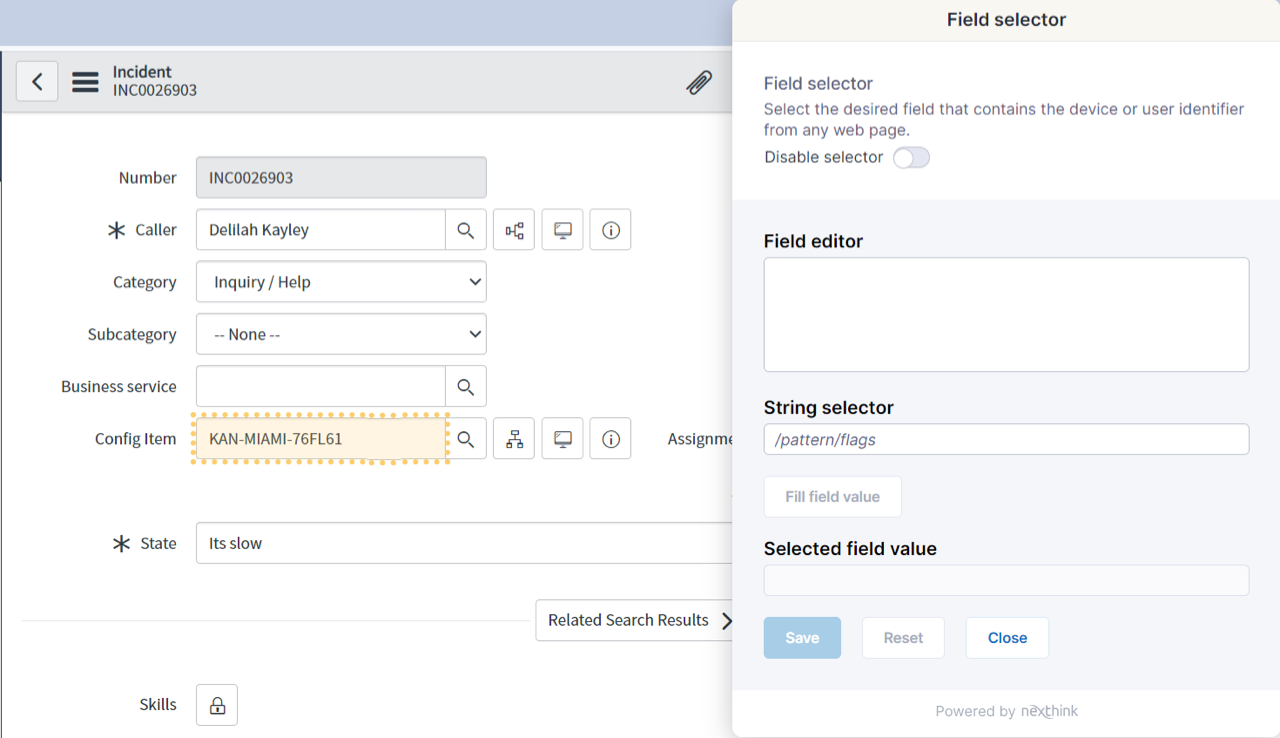
Select identifier in Amplify to open the web application URL using the Field selector pop-up.
Use the highlighter to choose the field of interest on the page. Once selected, the system loads the element into the Field selector pop-up. See the image below.
|
{% hint style="info" %}
When configuring a **String selector** using a regular expression, you can optionally define a [substitution pattern](#transforming-matched-values-using-substitution) to reformat the matched text. This is useful when a field contains values that need to be reordered or cleaned before matching with Nexthink records.
{% endhint %}
|
If pop-ups from the web application prevent you from selecting the correct fields:
Switch on the Disable selector toggle in the Field selector pop-up and navigate to the webpage of interest.
Once on the correct page, switch off the Disable selector toggle and pick the correct field.
If needed, select a specific part of the string from the device or user identifier field using the String selector\* on the Field selector pop-up:
Enter the relevant regular expression in the String selector field.
Click the Fill field value button to verify the selected field value.
Click Save to modify the relevant device or user identifier.
\*Amplify Field selector supports the use of regular expressions for partial text matching. This enables the selection of specific parts of the string from the Selected field value. See the image below.
Refer to the Regular expression documentation from Wikipedia for more information.
|
| -------------------------------------------------------------------------------------------------------------------------------------------------------------------------------------------------------------------------------------------------------------------------------------------------------------------------------------------------------------------------------------------------------------------------------------------------------------------------------------------------------------------------------------------------------------------------------------------------------------------------------------------------------------------------------------------------------------------------------------------------------------------------------------------------------------------------------------------------------------------------------------------------------------------------------------------------------------------------------------------------------------------------------------------------------------------------------------------------------------------------------------------------------------------------------------------------------------------------------------------------------------------------------------------------------------------- |
7. **Save** the web application configuration.
{% hint style="info" %}
Nexthink recommends pushing the single Nexthink instance configuration on all target devices using group policy, configuration management solution or remote actions.
{% endhint %}
### Transforming matched values using substitution
With this feature, you can match users or devices even when values appear in a different order. For example, if a name is shown as `Smith John` in a third-party system but appears as `John, Smith` in Nexthink, **substitution** allows you to realign the values for a successful match.
Substitution is an option you can use when matching text with a **String selector**. It lets you change the matched value before Amplify uses it. For example, reordering names or removing extraneous text.
You can use substitution when:
* The selected field contains extra text you want to remove
* You want to reorder parts of the matched value
* You only want to keep specific captured segments of the match
#### **How it works**
To do this, use capturing groups in your regex pattern. Then, in the **Substitution** field, refer to those groups using:
* `$1` for the first group
* `$2` for the second group
* `$3`, and so on
Amplify will apply the substitution before trying to match the value against Nexthink records.
Click **Fill field value** to preview how the transformation will look before saving.
#### **Example**
Suppose the field value is:
```
Smith John
```
But Nexthink expects:
```
John, Smith
```
You can transform the format by doing the following:
1. Enter the following regex pattern, which captures two word segments separated by whitespace:
/^(\S+)\s+(\S+)$/
This pattern captures:
* `$1` → Smith
* `$2` → John
2. In the **Substitution** field, enter:
```
$2, $1
```
3. Click **Fill field value** to verify that the result matches the expected format.
Once confirmed, click **Save** to apply the configuration.
#### Other examples
The following table provides examples of regular expressions used to normalize user data formats between third-party platforms and Nexthink, enabling Amplify to identify relevant users regardless of format.
| Original value | Nexthink value | Regex pattern | Substitution |
| -------------------- | ------------------- | ------------------- | ------------ |
| Firstname Lastname | Lastname Firstname | `/^(\S+)\s+(\S+)$/` | $2 $1 |
| Lastname Firstname | Firstname, Lastname | `/^(\S+)\s+(\S+)$/` | $2, $1 |
| Firstname.Lastname | Lastname Firstname | `/^(\S+).(\S+)$/` | $2 $1 |
| username\@deviceName | deviceName | `/^(\S+)@(\S+)$/` | $2 |
| username\@deviceName | username | `/^(\S+)@(\S+)$/` | $1 |
## Managing web application configurations
Amplify reads the values of the fields in a sequence of configurations.
To change the selection sequence of the configured web applications, hover over the relevant row and open the action menu to switch the order: **Move up** or **Move down**.
You can also **Edit** or **Delete** the web application configuration from the action menu.
Once done, **Save** your configurations.
Optionally, **Download configuration** to [export the web application configuration](/configuring_nexthink/bringing-data-into-your-nexthink-instance/deploying-nexthink-in-non-vdi-environment/configure-amplify/extension-deployment.md#installationandconfiguration-exportingtheconfigurationdetailsfromtheamplifyextensionexportingconfigu) as a `.reg` registry file.
## Integrating Amplify with specific web applications
For ITSM solutions that do not support the out-of-the-box selector configuration due to version incompatibility or user interface design, refer to the following pages:
* [Integrating Amplify with the ServiceNow Agent Workspace](/configuring_nexthink/bringing-data-into-your-nexthink-instance/deploying-nexthink-in-non-vdi-environment/configure-amplify/installation-and-configuration/integrating-amplify-with-web-applications/configuring-amplify-for-servicenow-agent-workspace.md)
* [Integrating Amplify with the ServiceNow Operations Workspace](/configuring_nexthink/bringing-data-into-your-nexthink-instance/deploying-nexthink-in-non-vdi-environment/configure-amplify/installation-and-configuration/integrating-amplify-with-web-applications/configuring-amplify-for-servicenow-operations-workspace.md)
---
# Agent Instructions
This documentation is published with GitBook. GitBook is the documentation platform designed so that both humans and AI agents can read, navigate, and reason over technical content effectively. Learn more at gitbook.com.
## Querying This Documentation
If you need additional information that is not directly available in this page, you can query the documentation by asking a question.
Perform an HTTP GET request on the following URL with the `ask` and `goal` query parameters:
```
GET https://docs.nexthink.com/configuring_nexthink/bringing-data-into-your-nexthink-instance/deploying-nexthink-in-non-vdi-environment/configure-amplify/installation-and-configuration/integrating-amplify-with-web-applications.md?ask=&goal=
```
`ask` is the immediate question: it should be specific, self-contained, and written in natural language.
`goal` is what the user is ultimately trying to achieve, the reason they need the answer. Sharing it helps GitBook give you a better, more relevant answer. A goal is most helpful when it describes the outcome the user wants rather than restating the question. For example, with `ask=how do I create an API token`, a goal like `automate deployments from our CI pipeline` lets GitBook tailor the answer to that use case.
The response will contain a direct answer to the question and relevant excerpts and sources from the documentation.
Use this mechanism when the answer is not explicitly present in the current page, you need clarification or additional context, or you want to retrieve related documentation sections.