> For the complete documentation index, see [llms.txt](https://docs.nexthink.com/llms.txt). Markdown versions of documentation pages are available by appending `.md` to page URLs; this page is available as [Markdown](https://docs.nexthink.com/configuring_nexthink/bringing-data-into-your-nexthink-instance/integrating-nexthink-with-third-party-tools/inbound-connectors/connector-for-vmware-vsphere-hypervisor.md).
# VMware vSphere Hypervisor connector
{% hint style="warning" %}
This documentation references external sources. Nexthink does not have control over the accuracy of third-party documentation, nor any external updates or changes that might create inconsistencies with the information presented on this page. Please report any errors or inconsistencies to [Nexthink Support](https://support.nexthink.com/).
{% endhint %}
The Nexthink Connector for VMware vSphere retrieves performance data from the ESXi hosts that your vCenter Server manages: CPU, memory and disk metrics, with the cluster, power policy and hyper-threading state of each host. It also retrieves the settings of each powered-on virtual machine (VM): its resource pool, CPU limit, CPU shares, input/output operations per second (IOPS) limit and VMware Tools version.
This installation guide helps you install the connector securely. Your security team should review the installation steps described in this document and adjust them to meet your organization’s security policy.
## Data imported into Nexthink
### Hypervisor host events
The connector populates the following fields of the `device_performance.hypervisor_host_events` table.
| Nexthink field | Type | Description |
| ---------------------------------- | --------------- | --------------------------------------------------------------------------------------------------------------------------------------------------------------------------------------------------------------------------------------------------------------------------------------------------------------------------------------------------------------------------------------------------------------------------------------------------------------------------------------------------------------------------------------- |
| `cluster` | string | The logical grouping of hypervisor hosts managed as a single unit to provide shared resources, policy enforcement and other features. |
| `cpu.normalized_usage` | percentage | Average physical CPU utilization over the selected time period, expressed on a 0–100% scale. Indicates the proportion of time the CPU was busy. |
| `cpu.number_of_logical_processors` | integer | The number of CPU cores multiplied by the number of threads that can run on each core of the hypervisor host. |
| `cpu.number_of_vcpus` | integer | The number of virtual processors provisioned on the host during the observed period of time. |
| `cpu.ready` | percentage | Ratio of time when virtual machines were ready, but could not get scheduled to run on the physical CPU during the observed period of time. |
| `cpu.time` | duration | Total time the physical CPUs were actively used during the observed period. |
| `disk.latency` | duration | Average disk latency during the collection interval, representing the time taken to process SCSI commands issued by the guest OS. |
| `disk.read_throughput` | throughput\_Bps | Average disk read throughput during the observed period, measured in bytes per second. |
| `disk.write_throughput` | throughput\_Bps | Average disk write throughput during the observed period, measured in bytes per second. |
| `hostname` | string | The name of the virtualization host running the virtual machines. |
| `hyperthreading` | enumeration |
Indicates whether CPU simultaneous multithreading is enabled on the host. Possible values:
enabled
disabled
|
| `memory.ballooning` | bytes | Total amount of memory reclaimed from guest virtual machines by the balloon driver. |
| `memory.committed` | bytes | The total amount of memory configured for all powered-on virtual machines running on the hypervisor. A sustained committed-to-installed memory ratio greater than 1.0 may indicate memory overcommitment and can lead to increased memory contention under load. |
| `memory.installed` | bytes | The total amount of physical memory installed on the hypervisor host. It is used as a capacity baseline to evaluate memory utilization and overcommitment on the hypervisor. |
| `memory.state` | enumeration |
Indicates the current host memory pressure state and the level of memory reclamation applied by the hypervisor. Higher levels reflect increasing contention and a growing risk of performance impact. Possible values:
low: no reclamation
soft: ballooning and light compression, minimal impact expected
hard: compression active, swapping may begin, performance impact likely
high: active swapping, strong performance impact
|
| `memory.swap_in_throughput` | throughput\_Bps | Average rate at which guest physical memory is swapped in from disk during the observed period. |
| `memory.swap_out_throughput` | throughput\_Bps | Average rate at which guest physical memory is swapped out to disk during the observed period. |
| `memory.swap_size` | bytes | Amount of swap storage actively used by the virtual machine, representing memory pages stored on disk instead of physical memory. |
| `memory.usage` | percentage | Percentage of host physical memory consumed during the observed period. |
| `number_of_vms` | integer | Number of active virtual machines running on the hypervisor, including VMs without active user sessions. |
| `power_policy` | enumeration |
Power management mode configured on the host, defining the balance between performance and energy efficiency. Possible values:
high\_performance
balanced
low\_power
custom
|
### Devices
The connector populates the following fields of the `virtualization` grouping in the `devices` table, for each powered-on virtual machine whose name matches a device in Nexthink.
| Nexthink field | Type | Description |
| ---------------------------------- | ----------- | ----------------------------------------------------------------------------------------------------------------------------------------------------------------------------------------------------------------------------------------------------------------------------------------------------------------------------------------------------- |
| `virtualization.cpu_limit` | enumeration |
Indicates whether CPU consumption of the virtual machine is capped at a configured limit or allowed to use available host CPU resources without restriction. Possible values:
limited
unlimited
unknown: no compatible Hypervisor Connector is configured or available
|
| `virtualization.cpu_shares` | enumeration |
Relative priority assigned to a virtual machine for CPU scheduling when host CPU resources are contended. Possible values:
low
normal
high
custom
unknown: no compatible Hypervisor Connector is configured or available
Indicates whether an IOPS constraint is applied to the virtual machine. Possible values:
limited
unlimited
unknown: no compatible Hypervisor Connector is configured or available
|
| `virtualization.resource_pool` | string | Logical grouping of compute resources within the hypervisor used to allocate and prioritize CPU and memory for virtual machines. |
## Nexthink connector server
Install the connector on a separate Windows server, not on the vCenter Server or an ESXi host, so that it never disrupts the vSphere infrastructure it reads from.
### Prerequisites
* Nexthink Collector installed on the virtual machines of every VMware vSphere environment, as described in [Configuring and deploying Collector for VMs](https://docs.nexthink.com/configuring_nexthink/bringing-data-into-your-nexthink-instance/deploying-nexthink-in-non-vdi-environment/installing-collector/installing-collector-on-windows/configuring-and-deploying-collector-for-vms.md).
* Installed Windows PowerShell 5.1.
* Execution policy set to **Bypass**.
* The following PowerShell modules, installed for the local user account that runs the connector:
* [Logging 4.8.5](https://www.powershellgallery.com/packages/Logging/4.8.5)
* [CredentialManager 2.0](https://www.powershellgallery.com/packages/CredentialManager/2.0)
* [VCF.PowerCLI 9.1.1.25718932](https://www.powershellgallery.com/packages/VCF.PowerCLI/9.1.1.25718932)
* A vCenter Server that manages the ESXi hosts of each environment, reachable from the server where you install the connector.
* [Downloaded the Nexthink Connector for VMware vSphere](https://download.nexthink.com/integrations/vSphere+onPrem+Connector/0.0.21/vSphereConnector-0.0.21.zip).
### Hardware requirements
| Component | Minimum | Recommended |
| ---------------- | ------------------------ | ------------------------ |
| CPU | 2-core x64 | 4-core x64 |
| RAM | 2 GB | 4—8 GB |
| Free disk space | 2 GB | 5 GB |
| Operating system | Windows 10 / Server 2016 | Windows 11 / Server 2022 |
### Networking
The Nexthink Connector for VMware vSphere connects to the vCenter Server of each vSphere environment and to your Nexthink instance.
* The connector communicates with your Nexthink instance over TCP port 443.
* The connector connects to the vCenter Server through VMware PowerCLI, at the address you set for the environment in the configuration file.
#### URLs to allow through the firewall or proxy for PowerShell `Install-Module`
Purpose
URL
PowerShell Gallery
https://www.powershellgallery.com
NuGet provider
https://www.nuget.org
NuGet API
https://api.nuget.org
CDN for packages
https://www.powershellgallery.com/api/v2/
Alternate NuGet V2 API
https://www.nuget.org/api/v2/
Certificate revocation
http://crl.microsoft.com (normally optional; sometimes necessary)
#### Additional considerations
* Only one vSphere connector is supported. Do not set up the connector on multiple servers because it can lead to duplicated events.
* If you use other Nexthink connectors, such as the Omnissa Horizon on-prem connector, you can run them on the same VM if the required APIs are accessible.
* If SSL inspection is enabled on your proxy, ensure it does not break the TLS handshake.
* If you're behind a proxy, ensure `PowerShell` is configured to use it by running the following command:
{% code overflow="wrap" %}
```powershell
[System.Net.WebRequest]::DefaultWebProxy.Credentials = [System.Net.CredentialCache]::DefaultNetworkCredentials
```
{% endcode %}
#### Test connectivity
Test access using a PowerShell terminal by running the following command:
```powershell
Invoke-WebRequest https://www.powershellgallery.com
```
### Local user account for scheduled tasks
The Nexthink Connector for VMware vSphere runs as scheduled tasks, one per vSphere environment, and needs to access the vSphere APIs. To limit security concerns, Nexthink recommends using a local user account on the server where you install the connector or a regular domain user account without any special privileges at the domain level.
The following guide uses a local account on the Nexthink connector server.
{% stepper %}
{% step %}
Log on as an administrator to the server that will run the vSphere connector.
{% endstep %}
{% step %}
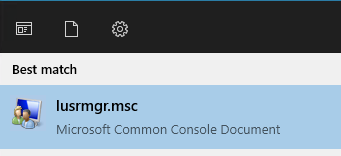
Launch the local users and groups console by running the following command from the Start Menu:
```powershell
lusrmgr.msc
```
{% endstep %}
{% step %}
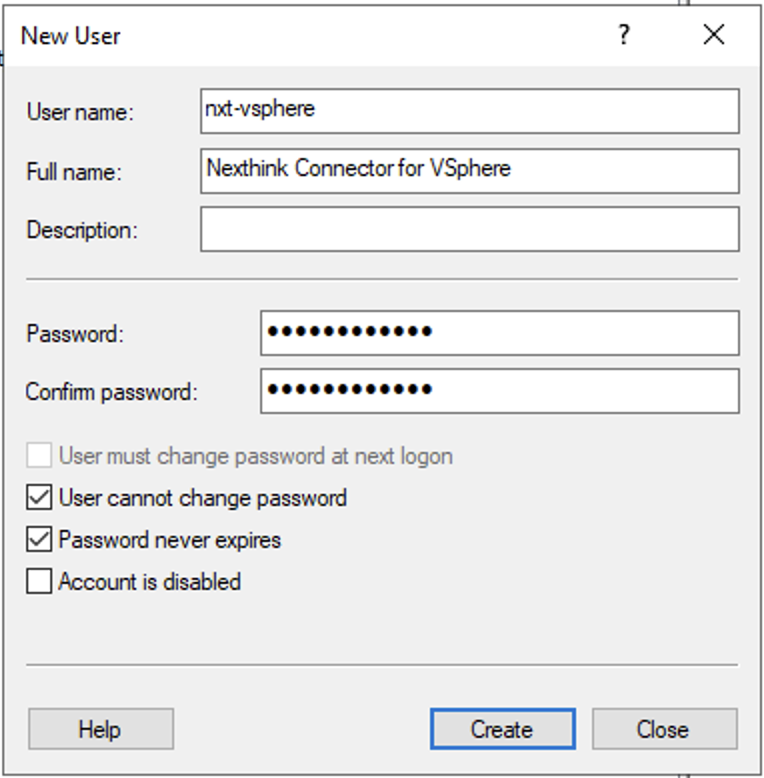
Right-click on the **Users** folder in the **Local Users and Groups (Local)** directory and select **New user…**
{% endstep %}
{% step %}
Create a user account according to your organization's naming conventions, for example `nxt-vsphere`. This guide uses `nxt-vsphere` in later commands. Replace it with your account name. Make a note of the **User name** and **Password**: you need them to store credentials, to test the connector and to create the scheduled tasks. To keep the connector running, select the following options:
* **User cannot change password**
* **Password never expires**
{% endstep %}
{% step %}
Select **Create**.
{% endstep %}
{% step %}
Open the local group policy editor by running the following command from the Start Menu:
```powershell
gpedit.msc
```
{% endstep %}
{% step %}
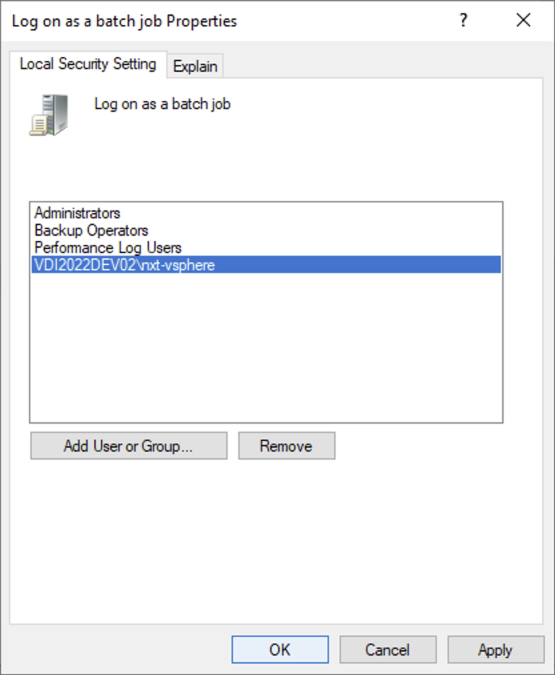
Navigate to *Computer Configuration > Windows Settings > Security Settings > Local Policies > User Rights Assignment* and open the **Log on as a batch job** policy.
{% endstep %}
{% step %}
Open the policy and select **Add User or Group** to add the previously created user to the list.
{% endstep %}
{% endstepper %}
### Installing the connector
{% stepper %}
{% step %}
Download the [Nexthink Connector for VMware vSphere](https://download.nexthink.com/integrations/vSphere+onPrem+Connector/0.0.21/vSphereConnector-0.0.21.zip).
{% endstep %}
{% step %}
Extract the zip file and copy the contents of its `vSphereConnector-` folder to a folder on your system. Nexthink recommends the following folder:
`C:\Program Files\Nexthink\Connectors\VSphere`
{% endstep %}
{% step %}
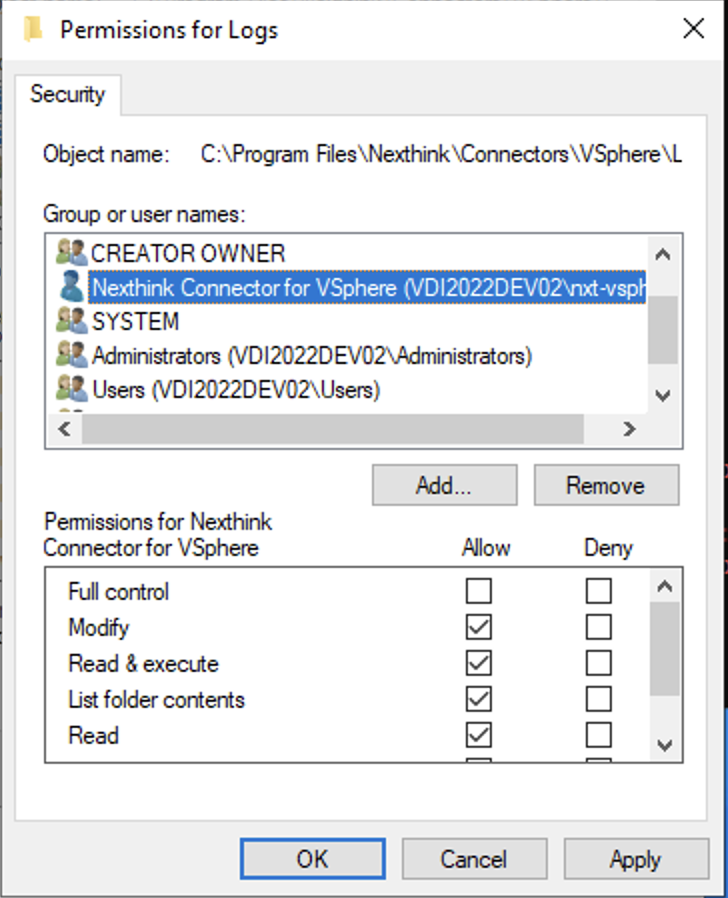
Apply **Modify** permissions on the connector folder, for example `C:\Program Files\Nexthink\Connectors\VSphere`, for the local user account you created earlier, applied to **This folder, subfolders and files**. The connector can then create and write its **Logs**, **Spool**, **State** and **Storage** folders inside it.
{% hint style="info" %}
The connector also uses **Spool**, **State** and **Storage** folders inside the connector folder, each with a subfolder per environment. It creates them on its first run.
{% endhint %}
{% endstep %}
{% endstepper %}
### Nexthink API credentials
The vSphere connector needs appropriate credentials to connect to the Nexthink Hypervisor API. Nexthink stores the credentials safely in the credential store of the local user account you created earlier. Refer to the [API credentials](https://docs.nexthink.com/user-guide/administration/account-management/api-credentials.md) documentation.
To configure the credentials:
{% stepper %}
{% step %}
Navigate to the **API credentials** page, and create a new OAuth client credential or edit an existing one.
{% endstep %}
{% step %}
Enable the **Hypervisor API** permission.
{% hint style="warning" %}
If you are creating a new credential and select **Save and generate credentials**, a new window containing the **Client ID** and the **Secret key** appears. Make a note of both: they are not shown again once you close the window.
{% endhint %}
{% endstep %}
{% step %}
On the server that will run the vSphere connector, open PowerShell with the earlier created local user credentials using the following command in the CLI:
{% code overflow="wrap" %}
```powershell
runas /user:nxt-vsphere powershell.exe
```
{% endcode %}
{% endstep %}
{% step %}
In the newly opened PowerShell window, run the following command to add the recently created API credential:
{% code overflow="wrap" %}
```powershell
New-StoredCredential -Target "nxt-vsphere-credentials" -UserName "" -Password "" -Persist LocalMachine
```
{% endcode %}
Replace the `` and `` with the values you noted down when creating the API credentials.
Make a note of the `TargetName` you used: you need it for the configuration file.
{% endstep %}
{% endstepper %}
### Updating the configuration file
For the configuration file update, you need the URL of your Nexthink Cloud API instance. The URL pattern is as follows:
`.api..nexthink.cloud`
{% hint style="warning" %}
Do not include the leading `https://` in the URL.
{% endhint %}
See the following steps for more details.
{% hint style="info" %}
If you do not know your region, reach out to your Nexthink representative to obtain this information.
{% endhint %}
{% stepper %}
{% step %}
Locate the folder where you unzipped the vSphere connector.
{% endstep %}
{% step %}
Navigate to the `Config` folder and open the `config.json` file using a text editor.
{% endstep %}
{% step %}
The file has the following structure. In this procedure, you edit the `"NexthinkAPI"` section. You edit the `"vSphereEnvironments"` section later, in [Setting up a connection to a VMware vSphere environment](#setting-up-a-connection-to-a-vmware-vsphere-environment), after you store the vSphere credentials.
```json
{
"_Info": "This is the JSON based configuration for vSphere Hypervisor connector",
"Info": {
"Project": "vsphere-hypervisor-on-prem-connector",
"ConfigVersion": "1.0.0"
},
"Logging": {
"LogRetentionDays": 7,
"LogLevel": "INFO"
},
"vSphereEnvironments": [
{
"Name": "",
"vCenterFQDN": "",
"WindowsCredentialEntry": ""
},
{
"Name": "",
"vCenterFQDN": "",
"WindowsCredentialEntry": ""
}
],
"NexthinkAPI": {
"HostFQDN": "",
"LoginFQDN": "",
"WindowsCredentialEntry": "",
"RequestBatchSize": "1000"
}
}
```
{% endstep %}
{% step %}
Change the following values under the `"NexthinkAPI"` section:
* Replace the `"HostFQDN"` value with the URL of your Nexthink cloud API instance using the format `.api..nexthink.cloud` where `` and `` are placeholders.
* Replace `` with the name of the instance
* Replace `` with the name of one of the following regions:
* `us` for the United States
* `eu` for the European Union
* `pac` for Asia-Pacific
* `meta` for the Middle East, Turkey, and Africa
* If needed, refer to the following URL example:\
`gwy-eu-west-3-fuji-rest.api.eu.nexthink.cloud`
{% hint style="warning" %}
Do not include the leading `https://` in the URL.
{% endhint %}
* Replace the `"LoginFQDN"` value with the URL of your Nexthink cloud API instance using the format `-login..nexthink.cloud` where `` and `` are placeholders.
* Replace `` with the name of the instance
* Replace `` with the name of one of the following regions:
* `us` for the United States
* `eu` for the European Union
* `pac` for Asia-Pacific
* `meta` for the Middle East, Turkey, and Africa
* Replace the `"WindowsCredentialEntry"` with the `TargetName` of the credentials you noted down from the PowerShell window earlier, for example:\
`"WindowsCredentialEntry": "nxt-vsphere-credentials",`
{% hint style="warning" %}
To set up the vSphere environments in the configuration file, see [Setting up a connection to a VMware vSphere environment](#setting-up-a-connection-to-a-vmware-vsphere-environment).
{% endhint %}
{% endstep %}
{% endstepper %}
## Setting up a connection to a VMware vSphere environment
The previous section described the basic configuration of the Nexthink Connector for VMware vSphere. This section helps you set up a connection to a VMware vSphere environment. Repeat the procedures in this section for every vSphere environment you connect to.
### Preparing the vCenter Server
The connector reads each vSphere environment from its vCenter Server: the ESXi hosts, clusters, resource pools and powered-on virtual machines, and the performance counters of the hosts. It only reads data, so it needs a vCenter user account with the **Read-only** role and nothing more.
{% stepper %}
{% step %}
Note the fully qualified domain name (FQDN) of the vCenter Server that manages the environment, for example `vcenter.example.local`. You need it for the configuration file.
{% endstep %}
{% step %}
In the vSphere Client, assign the **Read-only** role to the vCenter user account on the vCenter Server object. Select **Propagate to children** so the account can read every host and virtual machine.
{% endstep %}
{% endstepper %}
### Setting up stored credentials
{% stepper %}
{% step %}
On the server that will be running the vSphere connector, open PowerShell under the credentials of the local user you created earlier by running `runas` in the command line:
```powershell
runas /user:nxt-vsphere powershell.exe
```
{% endstep %}
{% step %}
In the new PowerShell window, store the credentials of the vCenter user account with the **Read-only** role by running the following command:
{% code overflow="wrap" %}
```powershell
New-StoredCredential -Target "vsphere-user-credentials" -UserName "" -Password "" -Persist LocalMachine
```
{% endcode %}
Replace `` with the vCenter user account, in the `DOMAIN\username` form, and `` with its password.
Make a note of the `TargetName` you used: you need it for the configuration file.
{% endstep %}
{% endstepper %}
### Updating the configuration file
Each vSphere environment has its own entry in the `"vSphereEnvironments"` section of the configuration file. The configuration file that comes with the connector contains an example of how to configure multiple environments. If needed, create a copy of the original `config.json` file for future reference.
{% stepper %}
{% step %}
Locate the folder where you unzipped the vSphere connector.
{% endstep %}
{% step %}
Navigate to the **`Config`** folder and open the `config.json` file using a text editor.
{% endstep %}
{% step %}
Scroll to the `"vSphereEnvironments"` section. Keep one entry for each vSphere environment you connect to. If you connect to a single environment, remove the second entry. Each entry looks similar to the following:
```json
{
"Name": "",
"vCenterFQDN": "",
"WindowsCredentialEntry": ""
}
```
Change the following values in the `"vSphereEnvironments"` section:
* Replace the placeholder in `"Name"` with a name for this vSphere environment, for example `vSphere Prod`. You pass this name, in quotes, to the connector with `-vSphereEnvironment`.
* Replace the placeholder in `"vCenterFQDN"` with the FQDN of the vCenter Server that manages this environment, without `https://`, for example `vcenter.example.local`.
* Replace the placeholder in `"WindowsCredentialEntry"` with the target name of the stored credentials you created earlier, for example `vsphere-user-credentials`.
{% endstep %}
{% endstepper %}
### Testing the connector
The test is a real run: it reads the vSphere environment and sends its data to Nexthink.
{% stepper %}
{% step %}
On the server that will be running the vSphere connector, open PowerShell under the credentials of the local user you created earlier using the `runas` command:
```powershell
runas /user:nxt-vsphere powershell.exe
```
{% endstep %}
{% step %}
Change to the directory where you installed the connector, for example:
```powershell
cd 'C:\Program Files\Nexthink\Connectors\VSphere\'
```
{% endstep %}
{% step %}
Run the Auto-Updater, which installs the connector module for the local user account:
```powershell
.\vSphere-Connector-Auto-Updater.ps1
```
{% endstep %}
{% step %}
Run the Runner for the environment:
```powershell
.\vSphere-Connector-Runner.ps1 -vSphereEnvironment ""
```
Replace `` with the `Name` of the environment in `config.json`.
Open the log file of the run, `Logs\\vSphereConnector-.log` in the connector folder, and review it for errors.
{% endstep %}
{% endstepper %}
### Setting up the scheduled tasks
Create one scheduled task for the Runner of each vSphere environment, and one for the Auto-Updater.
{% stepper %}
{% step %}
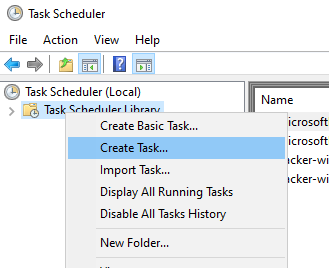
Open the task scheduler and select **Create task…**
{% endstep %}
{% step %}
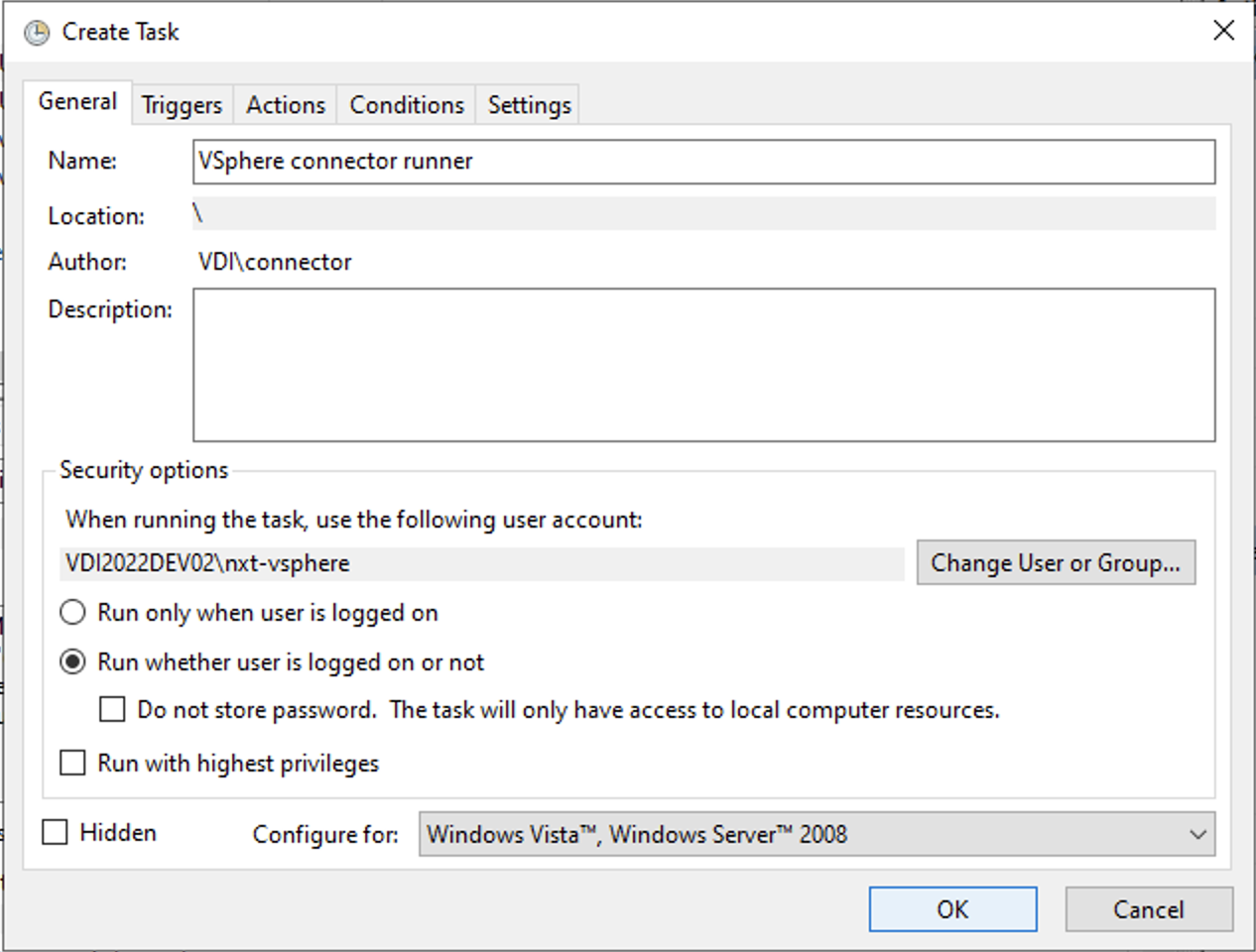
In the **General** tab, name the task, for example `Nexthink vSphere connector - vSphere Prod`, and change the user to the local user account you created earlier, for example `nxt-vsphere`. Select **Run whether user is logged on or not**.
{% endstep %}
{% step %}
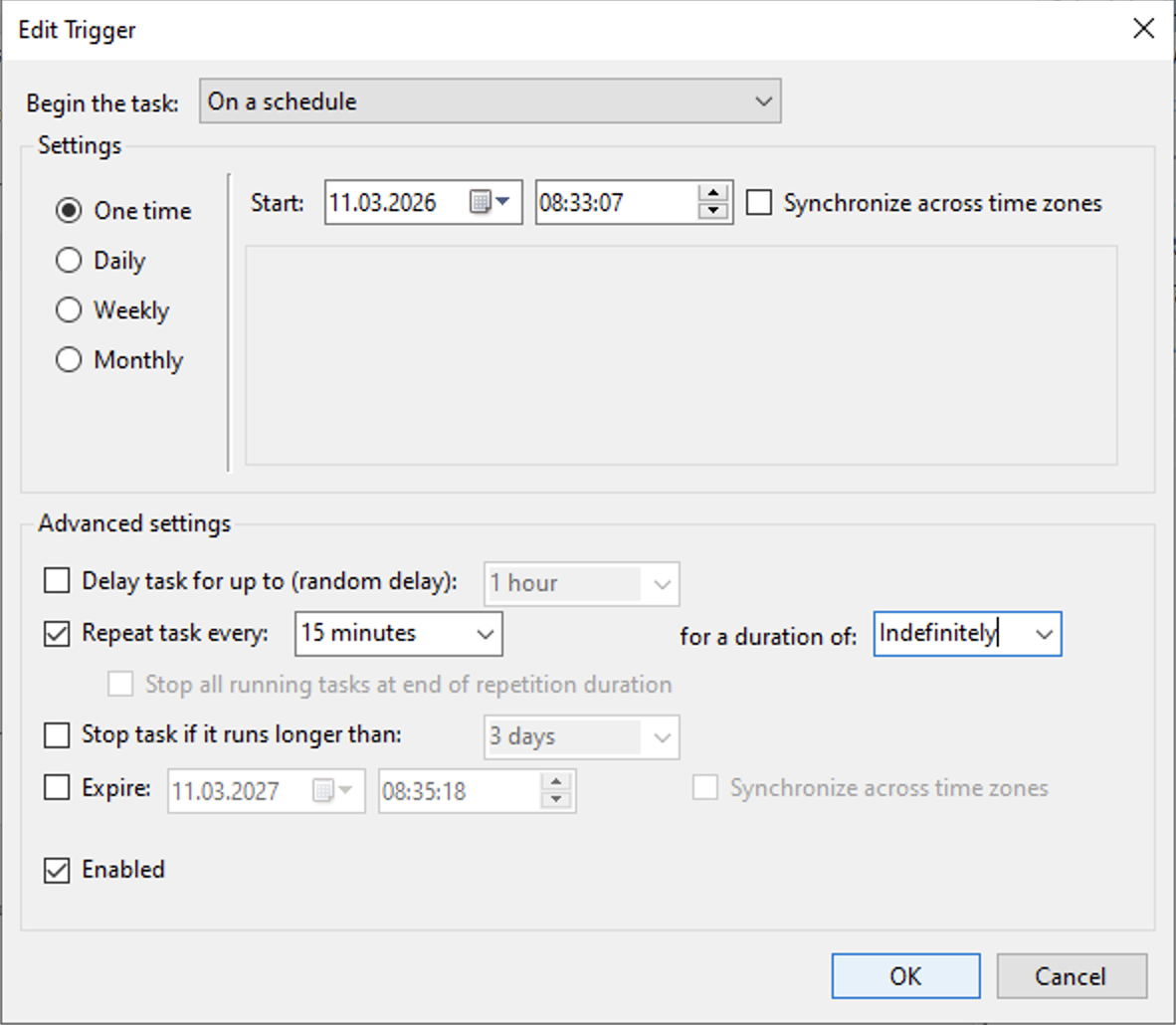
In the **Triggers** tab, click **New…**. Under *Advanced settings > Repeat task every*, select **5 minutes** and set **for a duration of** to **Indefinitely**. Click **OK**. Each run reads the host metrics since the previous run. After a gap of more than an hour, it reads only the last 55 minutes, so never leave the task stopped for longer.
{% endstep %}
{% step %}
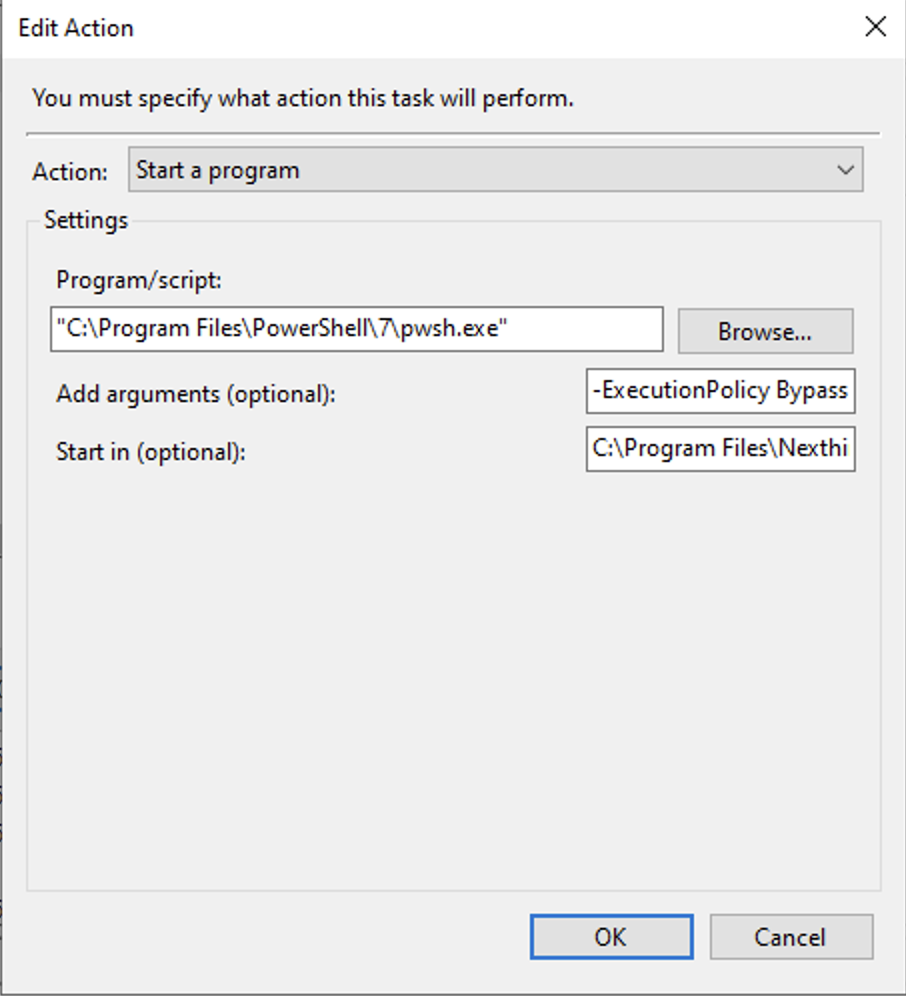
In the **Actions** tab, click **New…** and enter the following values. Click **OK**.
* **Program/script**: `powershell.exe`
* **Add arguments (optional)**: `-ExecutionPolicy Bypass -File "C:\Program Files\Nexthink\Connectors\VSphere\vSphere-Connector-Runner.ps1" -vSphereEnvironment "vSphere Prod"`, with the environment name from `config.json`
* **Start in (optional)**: the connector folder, for example `C:\Program Files\Nexthink\Connectors\VSphere`
{% endstep %}
{% step %}
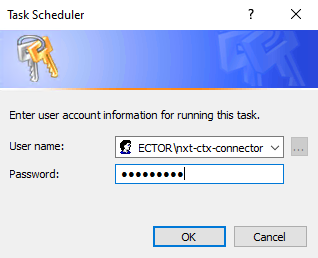
Click **OK** to save the task. When prompted, enter the password of the local user account and click **OK**.
{% endstep %}
{% step %}
Repeat these steps for each other vSphere environment, changing only the task name and the `-vSphereEnvironment` value.
{% endstep %}
{% step %}
Repeat these steps once for the Auto-Updater, which installs the connector module for the local user account, with these differences:
* Task name: for example `Nexthink vSphere connector - Auto-Updater`
* Trigger: the same as the Runner, repeated every 15 minutes, so a new connector version is in use within 15 minutes.
* **Add arguments (optional)**: `-ExecutionPolicy Bypass -File "C:\Program Files\Nexthink\Connectors\VSphere\vSphere-Connector-Auto-Updater.ps1"`
{% endstep %}
{% endstepper %}
***
## Verifying the data in Nexthink
After the first run of the Runner scheduled task, open **Investigations** in Nexthink and run the following queries.
The first query lists the fields of the `device_performance.hypervisor_host_events` table:
```
device_performance.hypervisor_host_events during past 1h
| list hostname, cluster, number_of_vms, hyperthreading, power_policy, cpu.normalized_usage, cpu.ready, cpu.time, cpu.number_of_logical_processors, cpu.number_of_vcpus, disk.latency, disk.read_throughput, disk.write_throughput, memory.ballooning, memory.committed, memory.installed, memory.state, memory.swap_in_throughput, memory.swap_out_throughput, memory.swap_size, memory.usage
```
Each row is one ESXi host.
The second query lists the fields of the `devices` table. Filter on the devices you are interested in, for example by name:
```
devices
| where device.name == ""
| list device.name, device.virtualization.resource_pool, device.virtualization.cpu_limit, device.virtualization.cpu_shares, device.virtualization.iops_limit_source, device.virtualization.guest_driver
```
Each row is a virtual machine the connector enriched.
***
RELATED TOPIC
* [API Credentials](https://developer.nexthink.com/docs/api/api-credentials)
* [Configuring and deploying Collector for VMs](https://docs.nexthink.com/configuring_nexthink/bringing-data-into-your-nexthink-instance/deploying-nexthink-in-non-vdi-environment/installing-collector/installing-collector-on-windows/configuring-and-deploying-collector-for-vms.md)
---
# Agent Instructions
This documentation is published with GitBook. GitBook is the documentation platform designed so that both humans and AI agents can read, navigate, and reason over technical content effectively. Learn more at gitbook.com.
## Querying This Documentation
If you need additional information that is not directly available in this page, you can query the documentation by asking a question.
Perform an HTTP GET request on the following URL with the `ask` and `goal` query parameters:
```
GET https://docs.nexthink.com/configuring_nexthink/bringing-data-into-your-nexthink-instance/integrating-nexthink-with-third-party-tools/inbound-connectors/connector-for-vmware-vsphere-hypervisor.md?ask=&goal=
```
`ask` is the immediate question: it should be specific, self-contained, and written in natural language.
`goal` is what the user is ultimately trying to achieve, the reason they need the answer. Sharing it helps GitBook give you a better, more relevant answer. A goal is most helpful when it describes the outcome the user wants rather than restating the question. For example, with `ask=how do I create an API token`, a goal like `automate deployments from our CI pipeline` lets GitBook tailor the answer to that use case.
The response will contain a direct answer to the question and relevant excerpts and sources from the documentation.
Use this mechanism when the answer is not explicitly present in the current page, you need clarification or additional context, or you want to retrieve related documentation sections.